

Key benefits
- Precise behavior insights: The integration captures specific events for visitors targeted by experiments or personalizations. This detailed tracking provides a clearer understanding of how different variations influence user actions. For instance, you can see which variation leads to more clicks, conversions, or other desired outcomes, helping you identify what works best.
- Effortless audience creation: With automatic audience creation, the integration takes the hassle out of audience segmentation. When an experiment launches, Kameleoon generates relevant audiences instantly, so you can focus on analyzing and acting on data instead of manually setting up audiences.
- Segmented variation analysis: Creating an audience per variation is incredibly useful, allowing you to dissect each experiment’s impact on distinct audience segments. This level of granularity helps you understand which campaign performs better and which specific elements resonate with certain segments.
- Real-time decision-making: The integration provides data in real time. With these up-to-date insights, you can swiftly adjust strategies if a variation isn’t performing as expected or allocate resources to capitalize on successful variations.
Use cases
Personalized product recommendations for e-commerce
Use case: Suppose an e-commerce website wants to enhance its product recommendation strategy. By integrating GA4 with Kameleoon, they can create an experiment with a variation for each product category and target visitors based on their browsing history. When a visitor interacts with the experiment, Kameleoon sends an event to GA4. The integration then automatically creates an audience for that specific product category. This audience data provides insights into which product categories resonate most with their audience and helps tailor future campaigns. Benefit: The e-commerce website gains a comprehensive view of visitor preferences and can make real-time adjustments to recommendations. This data-driven approach can lead to higher conversion rates and increased customer satisfaction.Optimizing content engagement for publishers
Use case: A content-focused website aims to improve reader engagement. With the integration, they create a Kameleoon experiment for different content types (articles, videos, infographics) and variations (layout A, layout B). Visitor interactions with specific content trigger events. The automatic audience creation feature generates audiences for each content type and variation. By analyzing engagement metrics across these audiences, the website can discern the most effective content format and layouts. Benefit: The website can optimize its content strategy, creating more of what resonates with their audience, which can lead to longer on-site durations, increased page views, and increased reader satisfaction.Form conversion enhancement for SaaS companies
Use case: A SaaS company wants to improve its lead generation form conversions. By integrating GA4, they set up experiments for different stages of the form process (started, completed) and form variations (short form, long form). User interactions with form elements trigger events. The integration’s automated audience creation establishes audiences for each stage and form version. Analyzing these audiences provides insights into where users drop off and which form layout is most effective. Benefit: The SaaS company can refine its forms based on real-time data, reducing friction and improving conversion rates, which can result in more qualified leads and increased revenue.Considerations
Keep these things in mind when using this integration:- Integration selection: On the Integrations page, you’ll find two GA4 integrations listed: Google Analytics 4 and Google Analytics 4 (recommended by Google). Ensure you choose Google Analytics 4 (recommended by Google) for the desired features.
- Audience management: Keep track of the number of audiences you’re creating to avoid hitting the audience limit for your GA4 plan. Archive audiences that are no longer relevant to make space for new ones. Note that there is a 48-hour waiting period before you can reuse an audience name.
- Experiment launch method: When planning experiments, be aware that Kameleoon automatically creates audiences for each variation, regardless of whether you launch the experiment from the Code editor, the Graphic editor, or as a Personalization.
- Google Account permissions: Ensure that the Google Account granting permissions to Kameleoon has sufficient rights to create and archive audiences in your GA4 properties. This step is crucial for the integration’s proper functioning.
- Account updates: If you must modify the rights granted to Kameleoon, keep in mind that updating permissions might require restarting the OAuth process. Plan for any potential disruptions during this process.
Limitations
Relevant limits for this integration are the following:- Archived audiences: Once you archive an audience, you can’t access or restore it. This limitation means you should carefully decide which audiences to archive, as you can’t retrieve or work with them later.
- Automatic audience creation: Automated audience creation is available for web experience and personalization.
- Audience number limit: The number of audiences you can create depends on your GA4 plan. If you’ve reached your plan’s limit, you may not be able to create new audiences, requiring management and potential archiving of older audiences.
- Google Account rights: The integration relies on Google OAuth, so ensure that the Google Account granting permissions to Kameleoon has the required rights. If you must update these rights, you might need to restart the OAuth process.
Prerequisites
To configure this integration, you must create a Google Analytics 4 account and property.Activate the integration on your projects
- Log in to your Kameleoon account.
- Click Admin > Integrations > Google Analytics 4 (recommended by Google) > Install the tool.
- Select the projects on which you want to use the integration.
- Click Tool settings.
- Under Method, select Google tag (gtag.js) (Kameleoon selects this by default).
- Click Send events through Measurement ID.
- Enter the Measurement ID.
- Click Continue with Google.
- Log in to your Google Account if prompted.
- Provide your project’s Property ID.
If you need to change the behavior of Kameleoon’s native bridge, you can create a custom analytics bridge and use the GA4 sample code in Kameleoon’s Github repository.
Associate the GA4 integration with a Kameleoon campaign
After you activate the integration, you can use it within all campaigns associated with projects where you’ve enabled the integration.From the Code editor
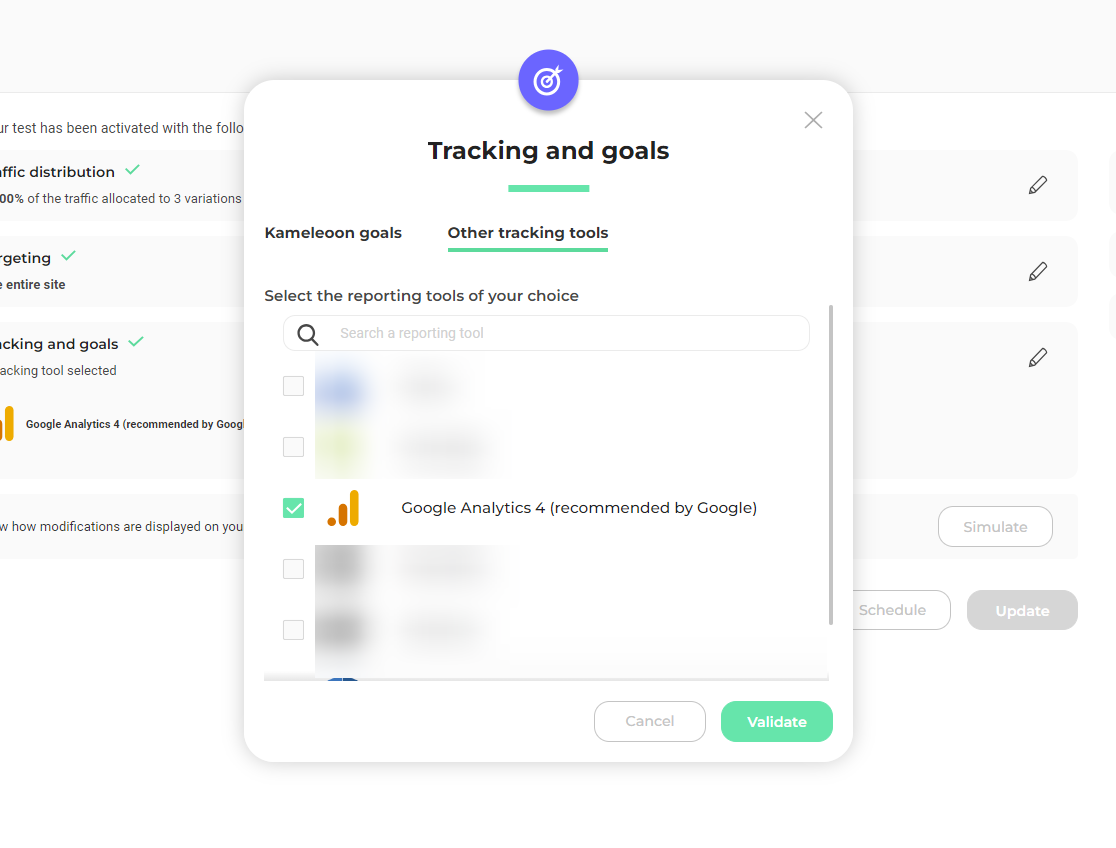
- Click Finalize > Tracking and goals > Other tracking tools.
- Select Google Analytics 4 (recommended by Google).
- Click Validate.
From the Graphic editor
- Click Finalize > Integrations.
- Select Google Analytics 4 (recommended by Google) as your tracking tool

From the Personalization Builder
You can select GA4 as a reporting tool for a personalization the same way you would in an A/B test.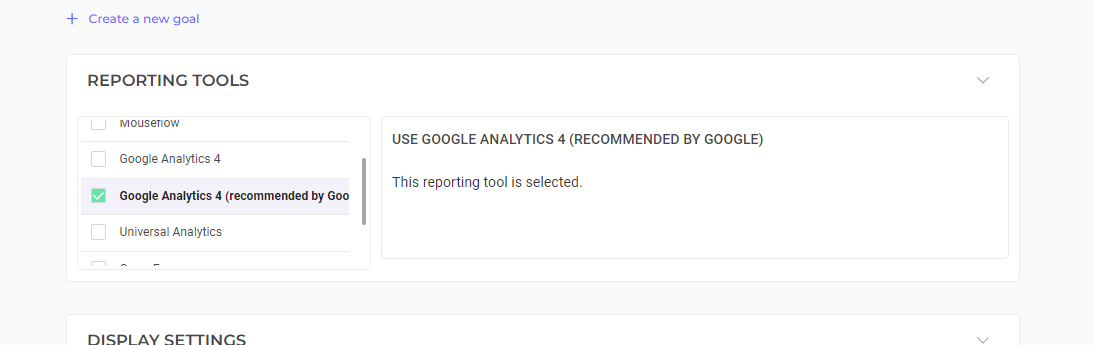
From the Results page
Once you set Google Analytics 4 as a reporting tool for an experiment, you can select (or deselect) it via the Kameleoon Results page. To do this:- Click Reporting Tools > Edit.
- Select or clear Google Analytics 4 (recommended by Google).
- Click Validate.
On a feature flag
Learn how to manage third-party analytics integrationsStopping the experiment and archiving audiences
When it comes to concluding an experiment in your Kameleoon account, it’s essential to be aware of how the GA4 integration manages audiences. When you stop an experiment, the integration archives audiences created during the experiment’s lifecycle. Under specific conditions, Kameleoon archives the audiences that the GA4 integration automatically generated. This automatic archival process happens when you stop an experiment, regardless of whether you use the Code editor or the Graphic editor, which preserves and catalogs audiences associated with variations within the experiment for reference. However, it’s important to note that this automated archival doesn’t apply to campaigns involving Personalizations. In these cases, Kameleoon won’t archive audiences automatically upon experiment termination.Server-side tagging for GA4
If you’re utilizing GA4 with server-side tagging, it’s essential to ensure seamless integration and accurate data tracking. Kameleoon recommends following the instructions on this page. These guidelines offer comprehensive insights and best practices endorsed by Google for integrating Kameleoon with GA4 through Google Tag Manager (GTM).How it works
When you configure the integration in Kameleoon, you choose the Google Analytics 4 property you want to associate with the project’s experiment and consent to the integration. When the experiment begins, Kameleoon creates an audience for each experiment variant. Then, the Experience-variant ID dimension surfaces the data associated with each user in an experience variant. Before an experiment ends, you can analyze the results of the experiment using the Experience-variant ID dimension. When the experiment ends, Kameleoon archives each audience so you don’t exceed the audience limit. However, you can still access the experiment variant data in Explore and BigQuery.Sending events
This integration will send events to Google Analytics 4 using the Google tag (gtag.js) installed on your website.
As recommended by Google, Kameleoon calls the event experience_impression and includes a parameter called exp_variant_string.
KAM-YYYYYYYYY-ZZZZZZZZ for the exp_variant_string parameter value, where:
KAMis the ID for KameleoonYYYYYYYYYis the experiment’s IDZZZZZZZZis the variation’s ID
Creating audiences
Audiences let you group users that Kameleoon added to a variant based on theexp_variant_string parameter. By using this parameter as the membership condition for an audience, Kameleoon adds users to the appropriate audience based on the variant they belong to.
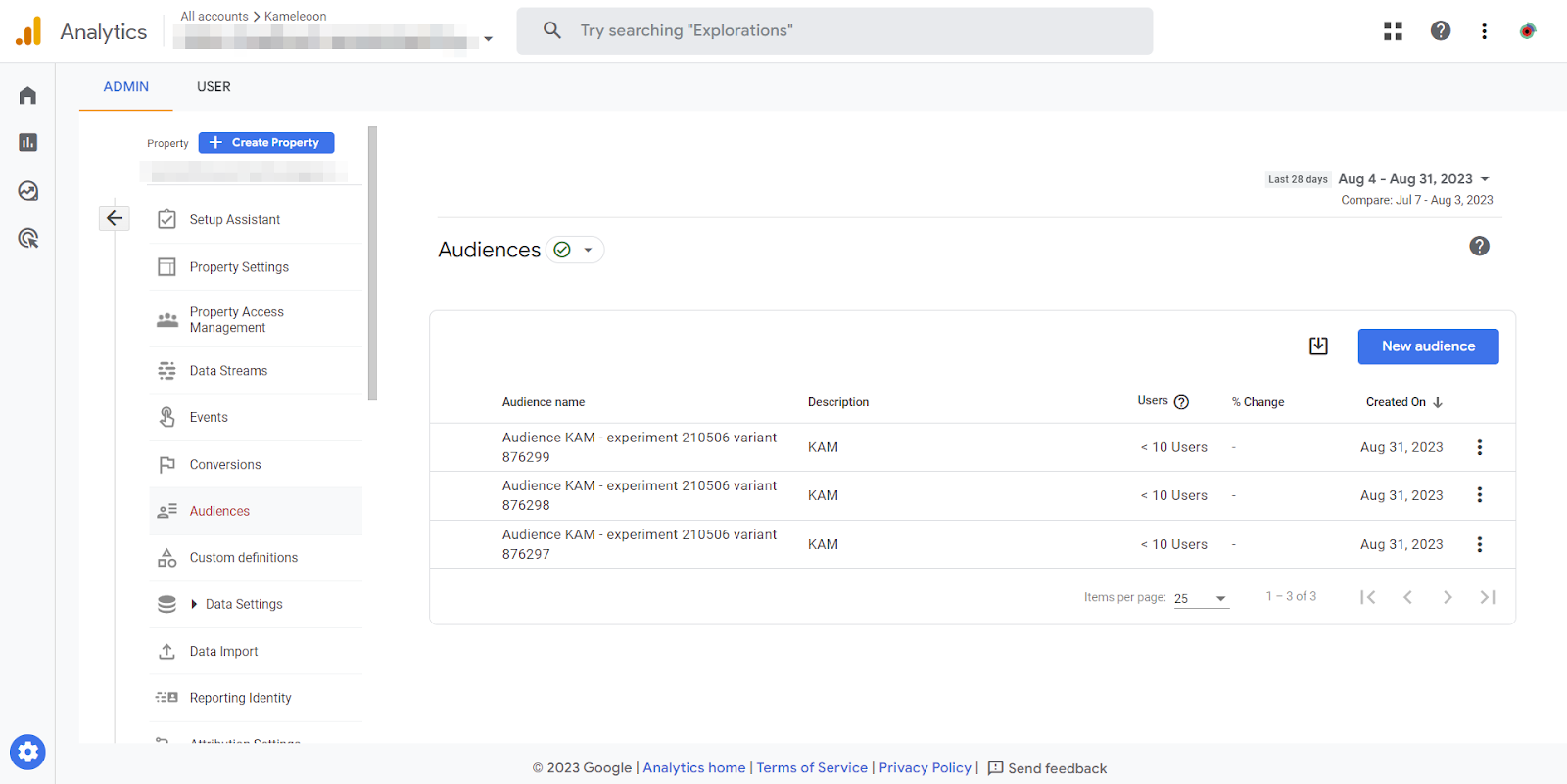
KAM—experiment YYYYYYYYY—variant ZZZZZZZZ”
where:
KAMis the ID for KameleoonYYYYYYYYYis the experiment’s IDZZZZZZZZis the variation’s ID
Archiving audiences
When managing your experiments and leveraging the GA4 integration in Kameleoon, it’s important to note a key feature related to audience management: when you stop an experiment, Kameleoon automatically archives GA4 audiences that the integration automatically generated. This archiving process occurs when you stop an experiment, regardless of whether you use the Code editor or the Graphic editor. Kameleoon seamlessly archives audiences created for variations within the experiment, retaining historical data for analysis and comparison. It’s essential to understand that this automatic archival process doesn’t apply to Personalization campaigns. When you stop an experiment from either the Code editor or the Graphic editor, Kameleoon archives the associated audiences, giving you a clear record of the audience’s engagement during the experiment’s active phase.Beginner’s guide to Google Analytics 4
If you’re new to Google Analytics 4 and looking for a comprehensive guide to get started, refer to the following resource: Ultimate Beginner’s Guide to Google Analytics 4 This guide provides step-by-step instructions and valuable insights for beginners who want to use Google Analytics 4.Frequently asked questions
How do you make sure events are correctly sent to GA4?
When a visitor performs the action that triggers the custom event, the event will appear in the Realtime report and DebugView. You can also click the name of an event in the Realtime report and DebugView to see its event parameters.What’s the GA4 Integration by Kameleoon?
The GA4 Integration by Kameleoon lets you connect your Kameleoon experiments and personalizations with Google Analytics 4 (GA4). It enables the tracking of targeted visitor events, automatic audience creation, and deeper insights into experiment performance.What’s the significance of automatic audience creation?
Automatic audience creation generates GA4 audiences for each variation in your experiments, which helps you understand how different variations impact visitor behavior.Can you use the integration’s automatic audience creation feature with Personalization campaigns?
Yes, the integration’s automatic audience creation feature is also available for Personalization campaigns.What’s the difference between “Google Analytics 4” and “Google Analytics 4 (recommended by Google)” on the Integrations page?
Google Analytics 4 (recommended by Google) is the integration you should select for enhanced capabilities. Choose this option to ensure proper event tracking, audience creation, and integration features. Kameleoon has deprecated Google Analytics 4.Can you manage your audiences after Kameleoon archives them?
Once you archive an audience, you can’t restore or access it. Carefully manage your audiences and archive those that are no longer relevant to free up space for new ones.What happens if you reach the audience limit?
GA4 Properties have different audience limits based on the plan: standard or Analytics 360. If you reach your plan’s limit, consider archiving older audiences to create new ones. Note that it may take up to 48 hours before you can reuse an archived audience name.What rights does your Google Account need for the integration?
Your Google Account needs sufficient rights to create and archive audiences on your GA4 properties. Ensure the account you grant access to meets these requirements.Can you update the rights for your Google Account after integration setup?
Yes, you can update rights, but you might need to start the OAuth process again. Plan for potential disruptions when making these updates.Where can you get support or assistance for the integration?
If you need help or have further questions, you can reach out to Kameleoon’s support team or consult Kameleoon’s documentation for guidance on using and troubleshooting the GA4 integration.What’s a Measurement ID?
A Measurement ID is an identifier (for example, G-12345) for a web data stream. You can use the Measurement ID to send data to a specific web data stream.Where can you find your Measurement ID?
To find your Measurement ID, follow the instructions described in Google’s documentation.What’s a Property ID?
A Property ID is a unique identifier assigned to each property in your Google Analytics 4 account. It helps distinguish and organize data collected from different sources, such as websites or apps. Each Property ID corresponds to a specific digital asset you’re tracking, enabling GA4 to accurately aggregate and analyze data for that asset.Where can you find your Property ID?
To find your Property ID, follow the instructions described in Google’s documentation.How many audiences does Kameleoon create per experiment?
Kameleoon automatically creates audiences per variation for experiments, regardless of whether you launch them from the Code editor or the Graphic editor, and the same automatic creation applies to Personalization campaigns. Each variation in an experiment will have a corresponding audience. This setup provides granular insights into the performance of each variation by segmenting your audience based on their interaction with the experiment.What happens if multiple Measurement IDs are present on the page and you leave the Measurement ID field unspecified?
When sending an event, Google tag will always use the current local target (identified by the Measurement ID), configured using the config command, set using the set command, or passed using the event command. To ensure accurate and reliable tracking, it’s crucial to specify the correct Measurement ID in the designated field. This step eliminates uncertainty and helps ensure that Kameleoon sends events accurately to the intended web data stream for precise analysis and insights.References
Setup using the Google tag (gtag.js):
Measurement ID:
See your events in Analytics:
- https://support.google.com/analytics/answer/12229021?hl=en
- https://developers.google.com/analytics/devguides/collection/ga4/events