Activate Eulerian on Kameleoon
To enable Eulerian on Kameleoon:- Open the Kameleoon app.
- Click Admin > Integrations.
- Search for the Eulerian integration and click it.
- Click Install.
- Select the project on which you want to activate Eulerian.
- Click Install.

If you need to change the behavior of the native bridge, you can create a custom analytics bridge and use the Eulerian sample code from the Github repository.
Retrieve and use Kameleoon personalization data in Eulerian
In Eulerian
- Open your Eulerian account.
- Click List of personalization parameters > Add a personalization parameter.
- Name the personalization parameter and select the user-centric type.
- Click Validate.
In Kameleoon
Once you create your custom setting in Eulerian, you can associate it with a Kameleoon personalization. The personalization’s data will then be automatically sent to Eulerian. To associate a Eulerian custom setting with a Kameleoon personalization:- Navigate to the personalizations page.
- Click New personalization.
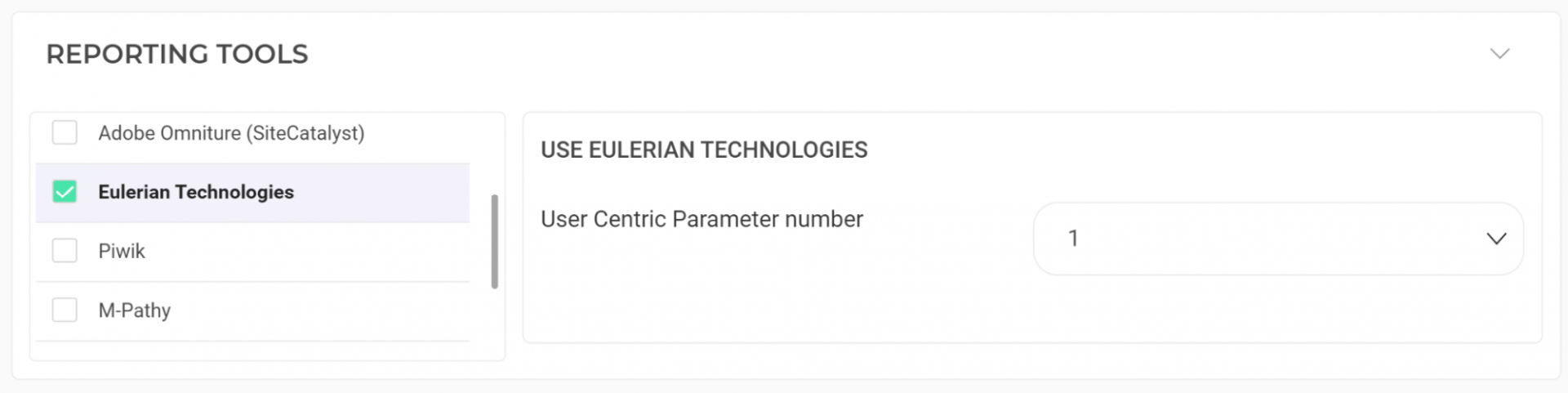
- Select Eulerian Technologies in the Reporting tools section.
- Choose the personalization you’d like to associate the tool with.