

New custom analytics integration
To create a new custom analytics integration:- Open the Kameleoon App.
- Click Admin > Integrations > New custom analytics.
- Name your custom analytics tool and select the projects on which it will be available.
- Click Next.
- From the Script library dropdown, select your desired third-party integration.
- Click Add new script. The corresponding script will automatically populate the JavaScript code insert. Any code in this insert will be executed every time the page is loaded.
You can still manually customize the scripts as needed in the JavaScript code insert.We also provide code samples for 20+ analytics platforms such as Hotjar, Amplitude, Adobe Analytics, and GA4. If you want to use Fullstory to analyze the results of your Kameleoon experiments, you can use Kameleoon’s Fullstory sample code.
experimentIDexperimentNamevariationIDvariationNamepersonalizationIDpersonalizationName
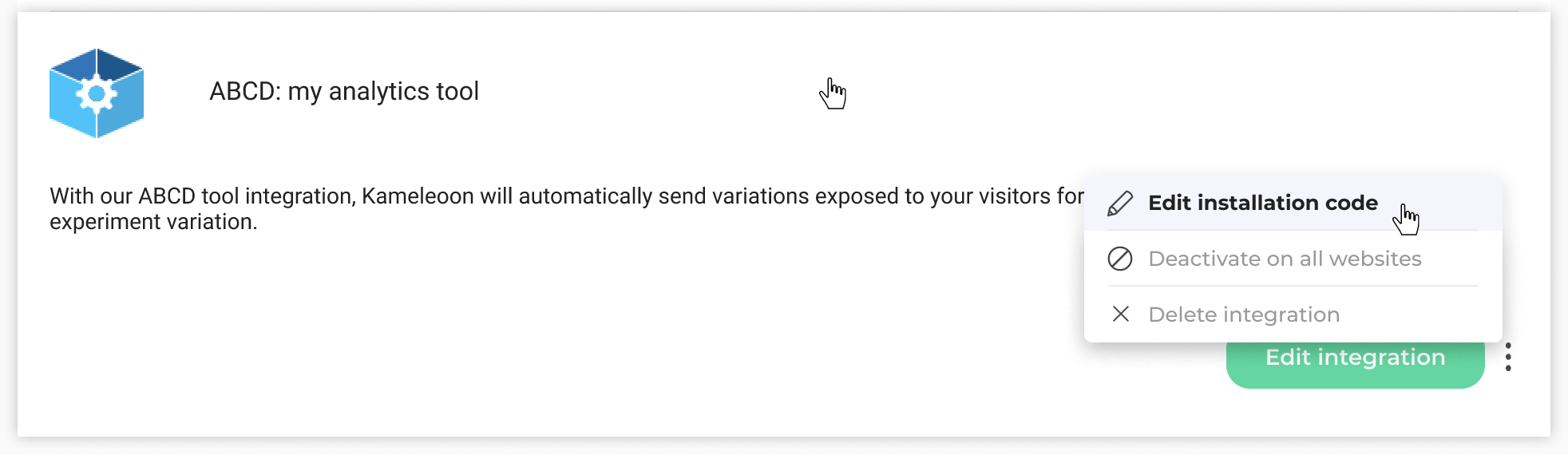
Associate your custom analytics integration with a campaign
In the Graphic/Code editor
When finalizing your experiment, click Tracking and Goals to configure your custom analytics as a tracking tool. Your analytics tool will be mentioned in the summary pop-in before going live. Kameleoon will automatically transmit the data, and you can view your results in the analytics tool.On the personalization creation page
You can select your custom analytics among the reporting tools for a personalization.On the Results page
Once your custom analytics integration is defined as a reporting tool for a campaign, you can select (or unselect) it via the Results page. To do this:- Click Reporting tools in the right panel.
- Click Edit.
- Select or unselect the tool.
- Click Validate.