- Automatically capture additional campaigns’ metrics to build new segments in Heap without relying on development teams.
Activate Heap
To use Heap, the first step is to activate it on the Kameleoon Integrations page:- Open the Kameleoon app.
- Click Admin > Integrations.
- Search for the Heap integration and click it.
- Click Install.
- Select the project on which you want to activate Heap.
- Click Install.

If you need to change the behavior of the native bridge, you can create a custom analytics bridge and use the Heap sample code on the Github repository.
Associate Heap with an A/B experiment
Kameleoon automatically sends variation data to Heap via two Heap method APIs:- an event (this is usually necessary for downstream analysis in a data warehouse, as all experiment data will group into one table);
- a user property (this simplifies building experiments and personalization segments for analysis in Heap UI).
In the Graphic editor
Once you activate Heap on the Integrations page, you can select it as a reporting tool at the Integrations step of the finalization panel.
On the A/B experiment Results page
It’s also possible to select Heap among the reporting tools on the Results page of an A/B experiment.
On a feature flag
Learn how to manage third-party analytics integrationsCreate a Heap segment using a Kameleoon variation
Note that the following steps only apply if you want to use Events to analyze your experiment results. Otherwise, refer to this article. To take advantage of the tools offered by Heap, you can create a Heap segment using a Kameleoon variation. To do this:- Log in to Heap.
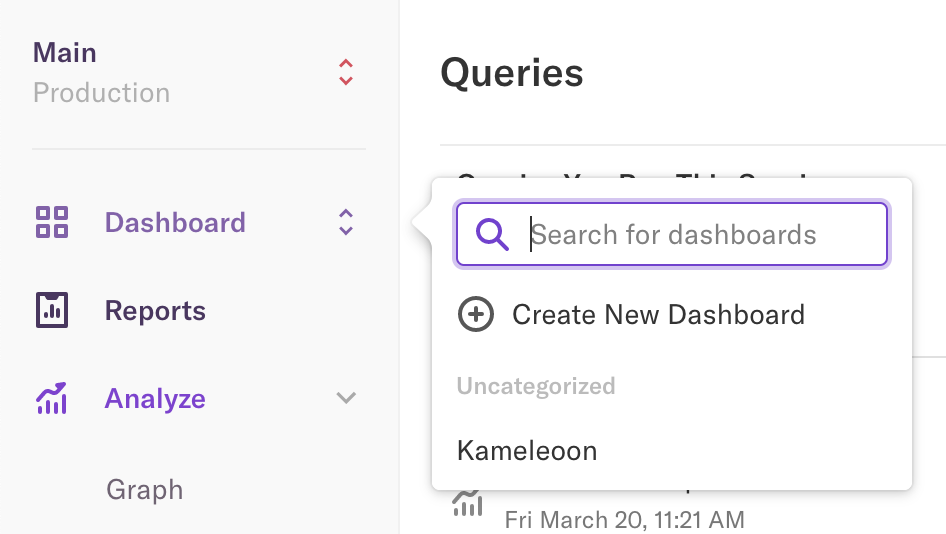
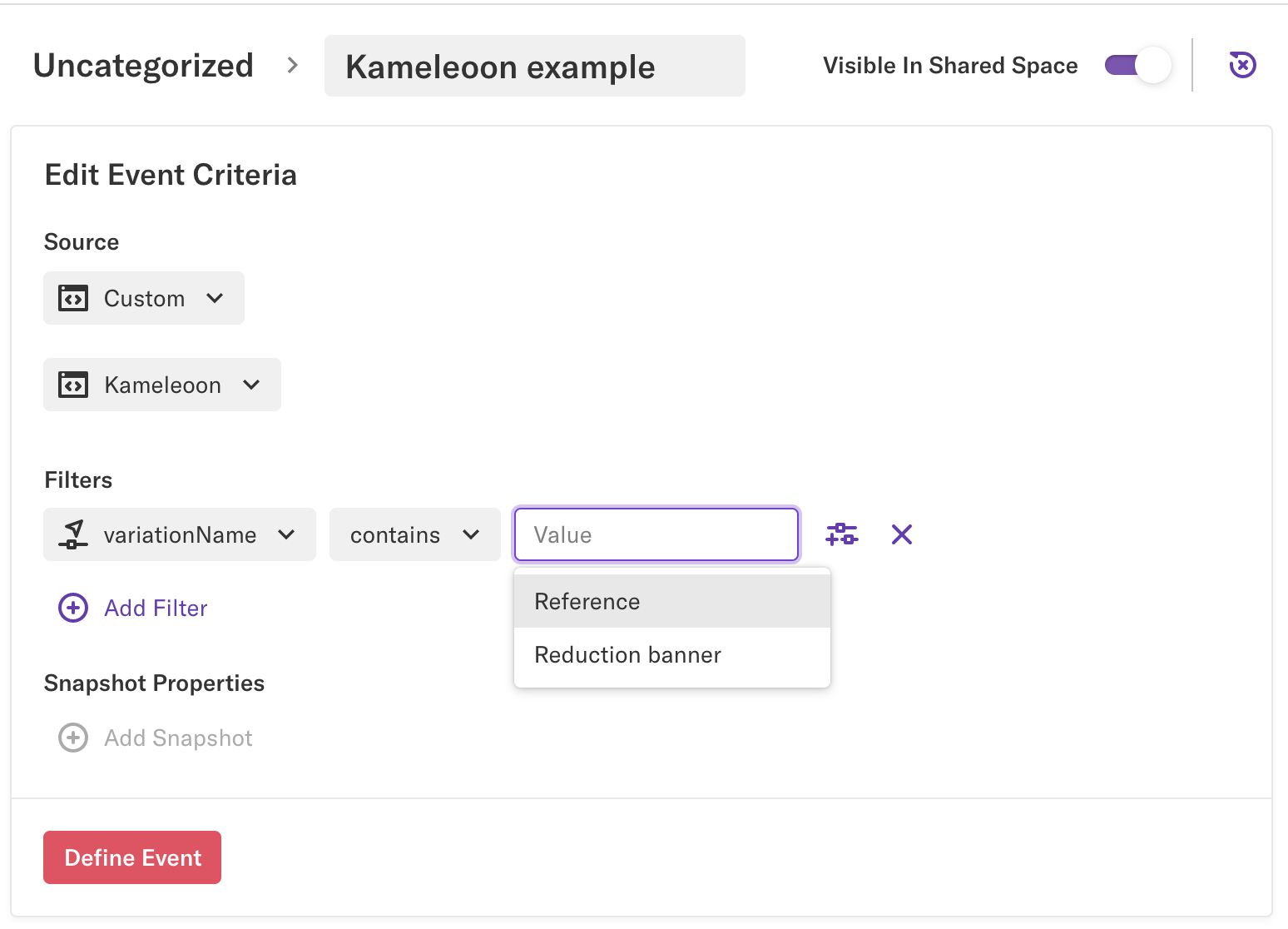
- Click Define > Events > New Event.
- Fill in the event information as follows:
- Name your event.
- Source:
- Custom
- Kameleoon
- Filters:
variationName- contains
- (select the variation)
- Click Define Event.
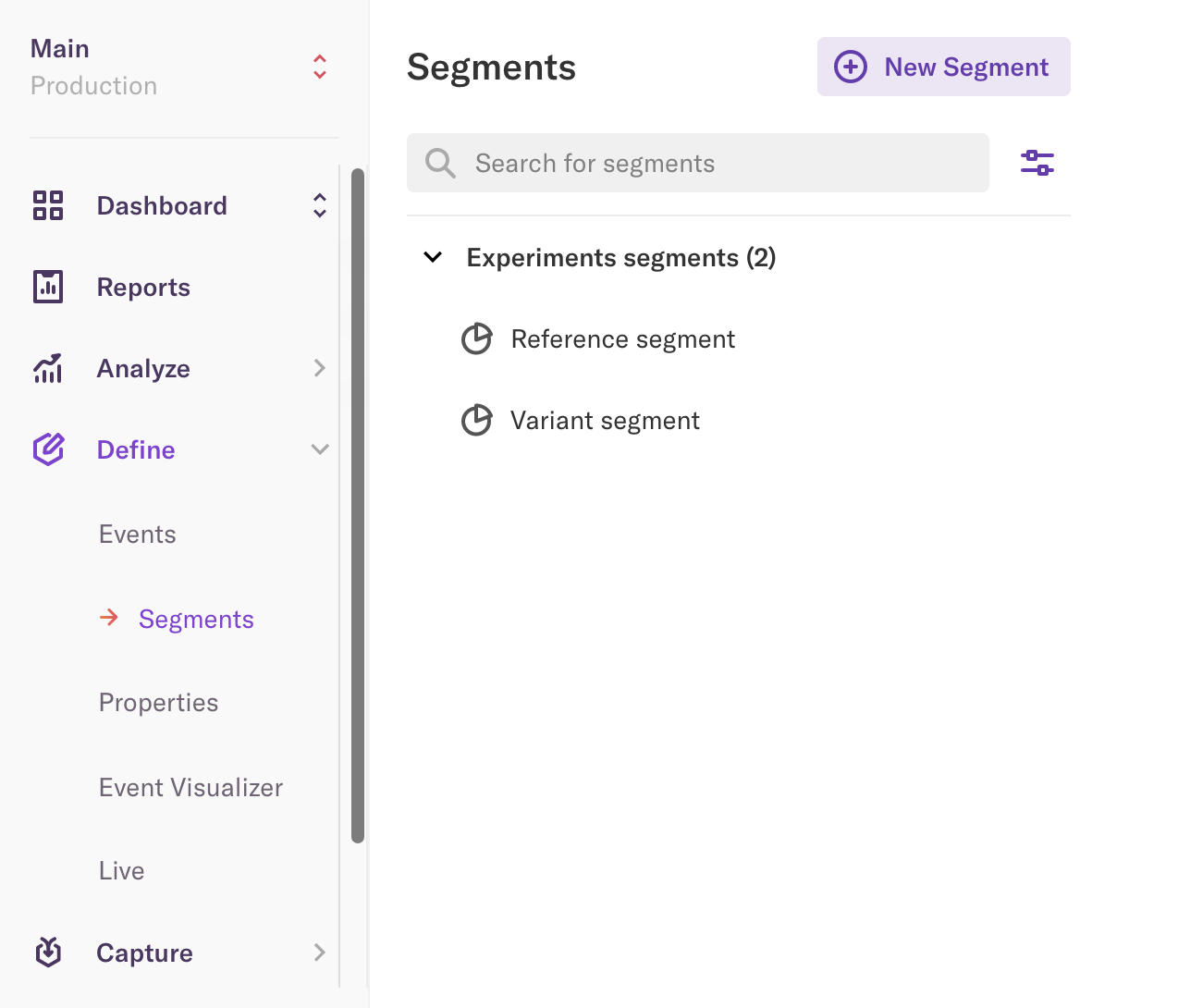
Analyze a segment in Heap
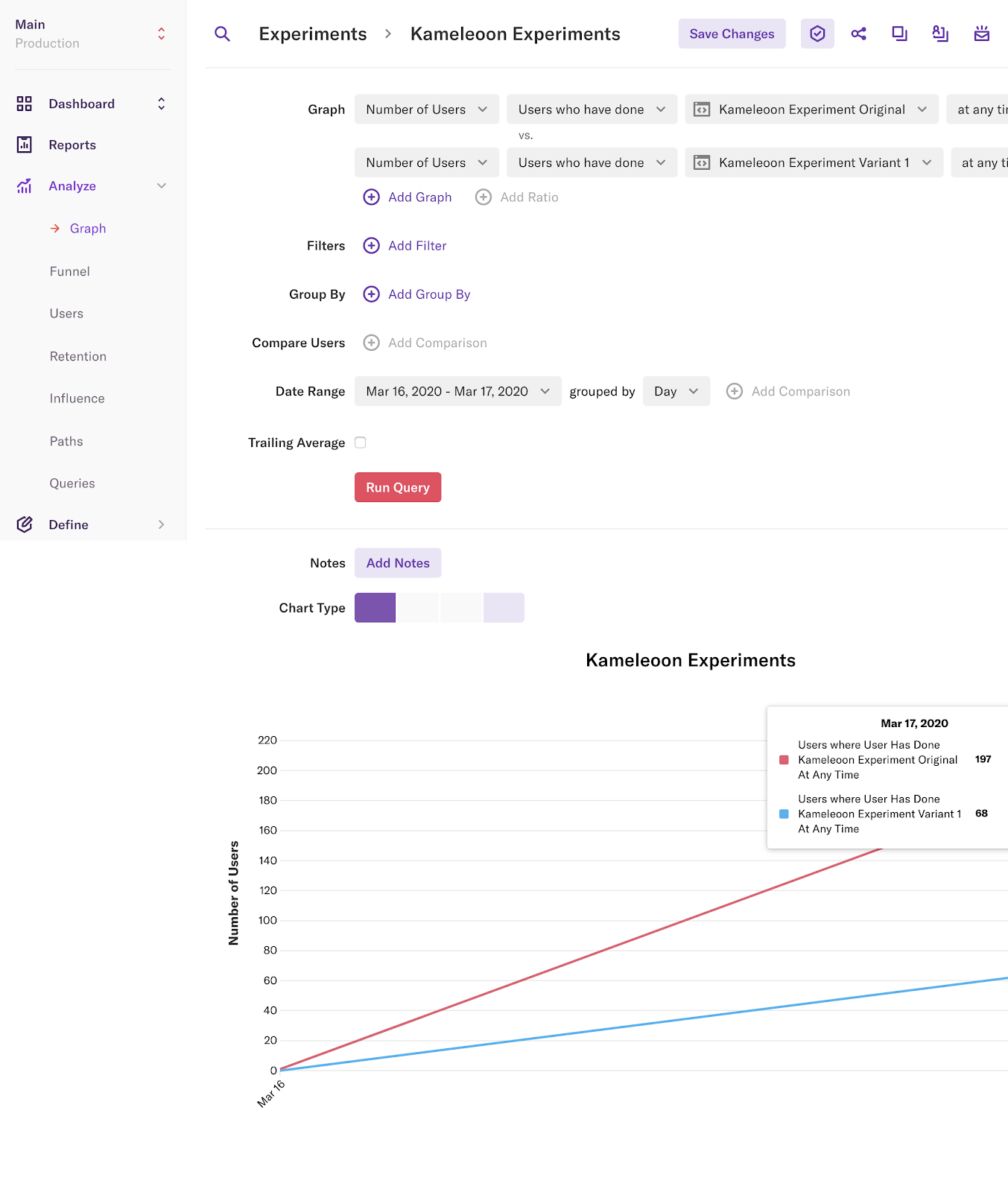
You can analyze these Kameleoon segments in all Heap tools:- Graph
- Funnel
- Users
- Retention
- Influence
- Paths
- Navigate to Analyze.
- Select one of the tools.
- Fill in the required information.
- Click Run Query.