Activate Braze in Kameleoon
First, you must enable Braze.- Open the Kameleoon app.
- Click Admin > Integrations.
- Search for the Braze integration and click it.
- Click Install.
- Select the project on which you want to activate Braze.
- Click Install.
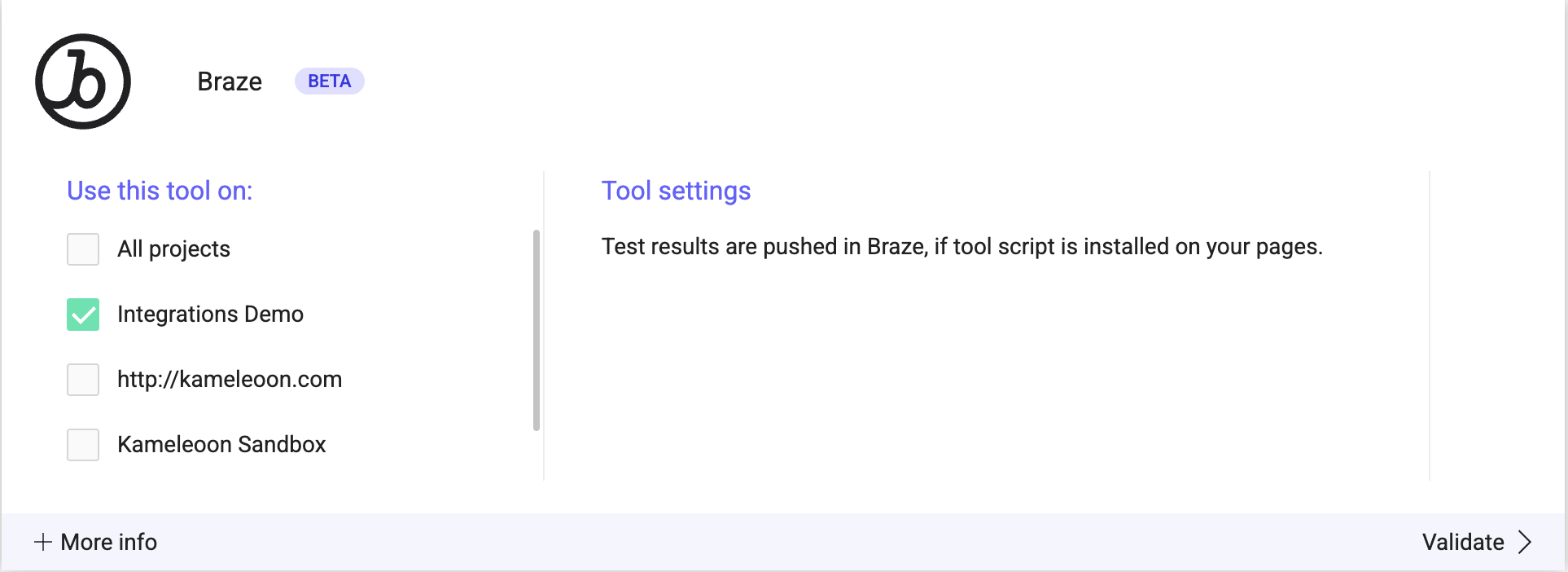

Associate Braze with a Kameleoon campaign
In the Graphic/Code editor
When finalizing your experiment, click Integrations to configure Braze as a tracking tool. Select Braze.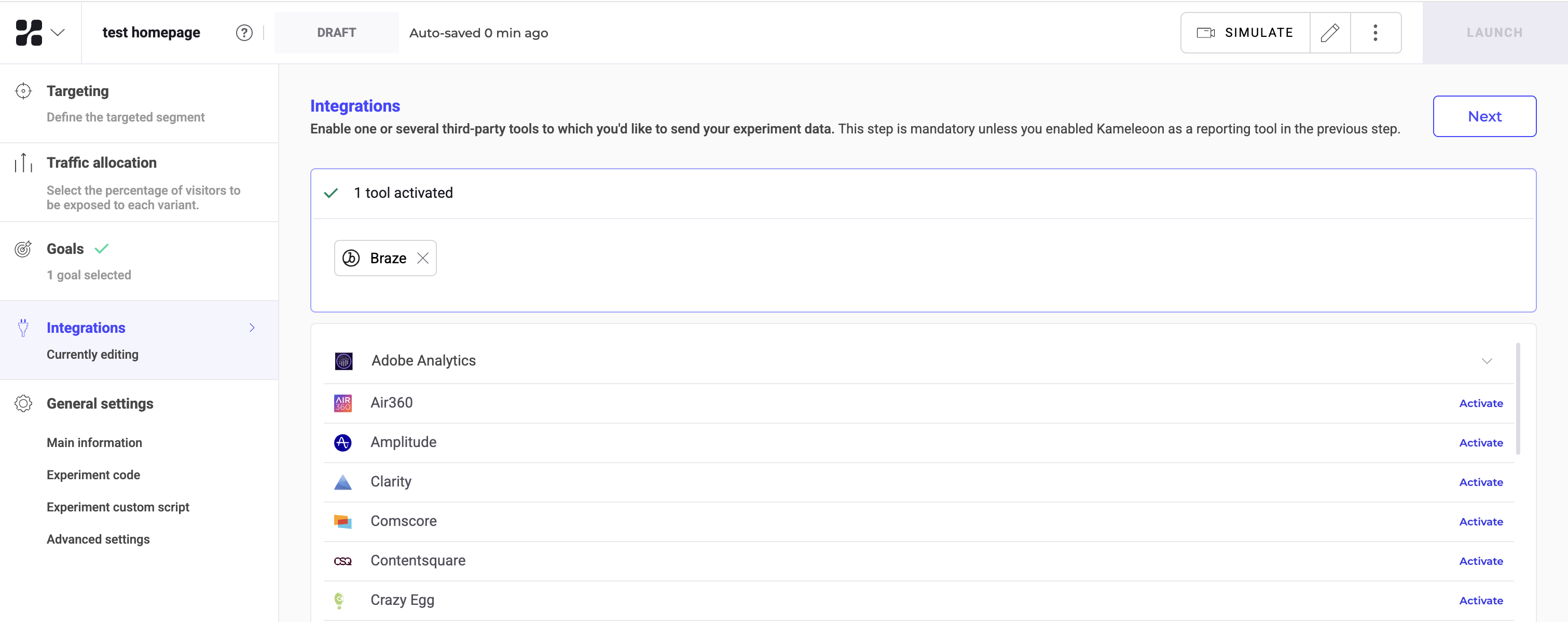
On the personalization creation page
You can select Braze among the reporting tools for a personalization.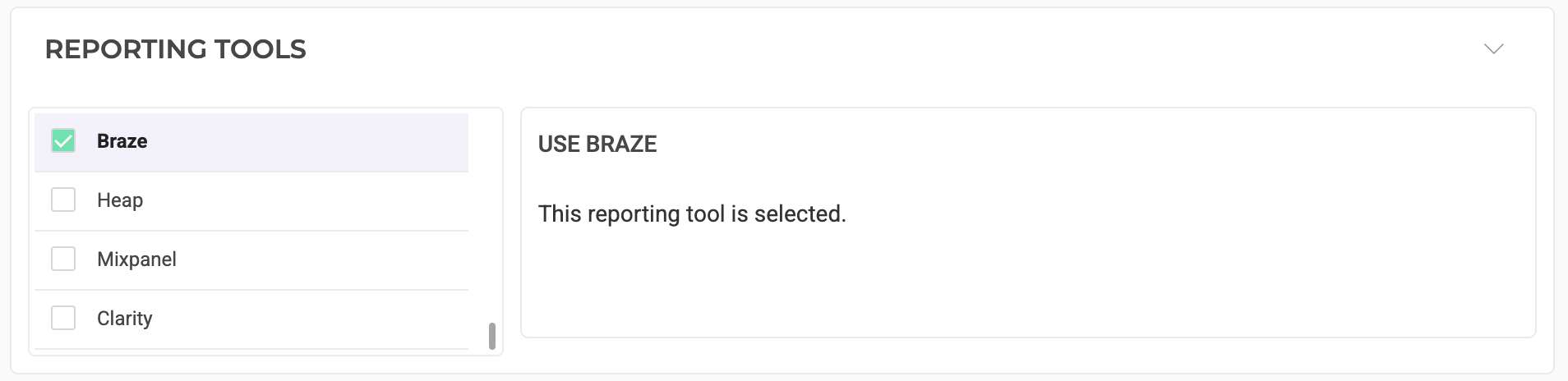
On the feature flag creation page
Set up Braze in a feature flag environment in the Integrations section. Enable it for the environments where you want it active. Braze requires a hybrid implementation and is only compatible with web SDKs.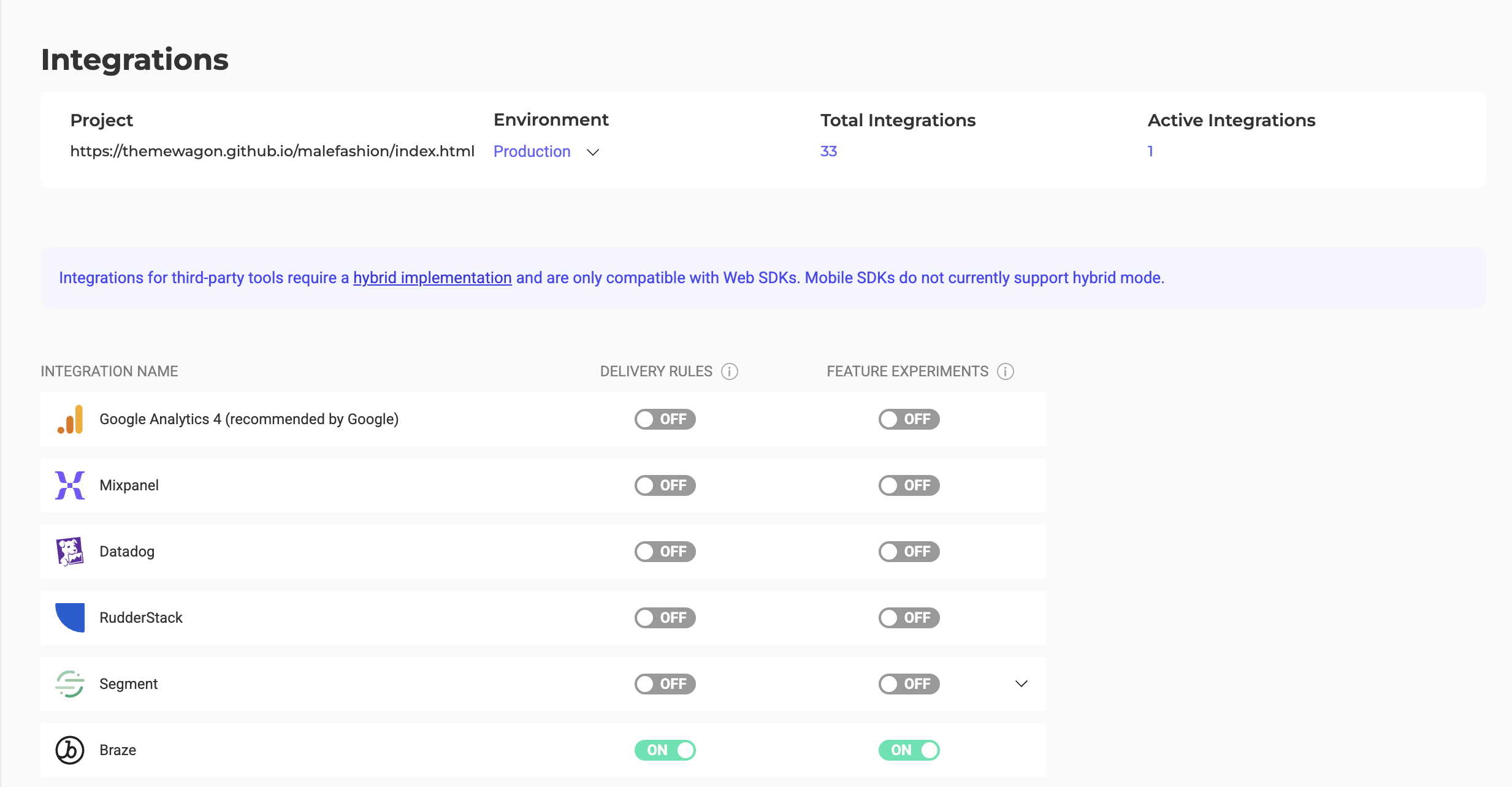
On the Results page
Once you set Braze as a reporting tool for an experiment, you can select (or deselect) it via the Kameleoon Results page. To do so, click the three-dots menu in the top right > Experiment configuration.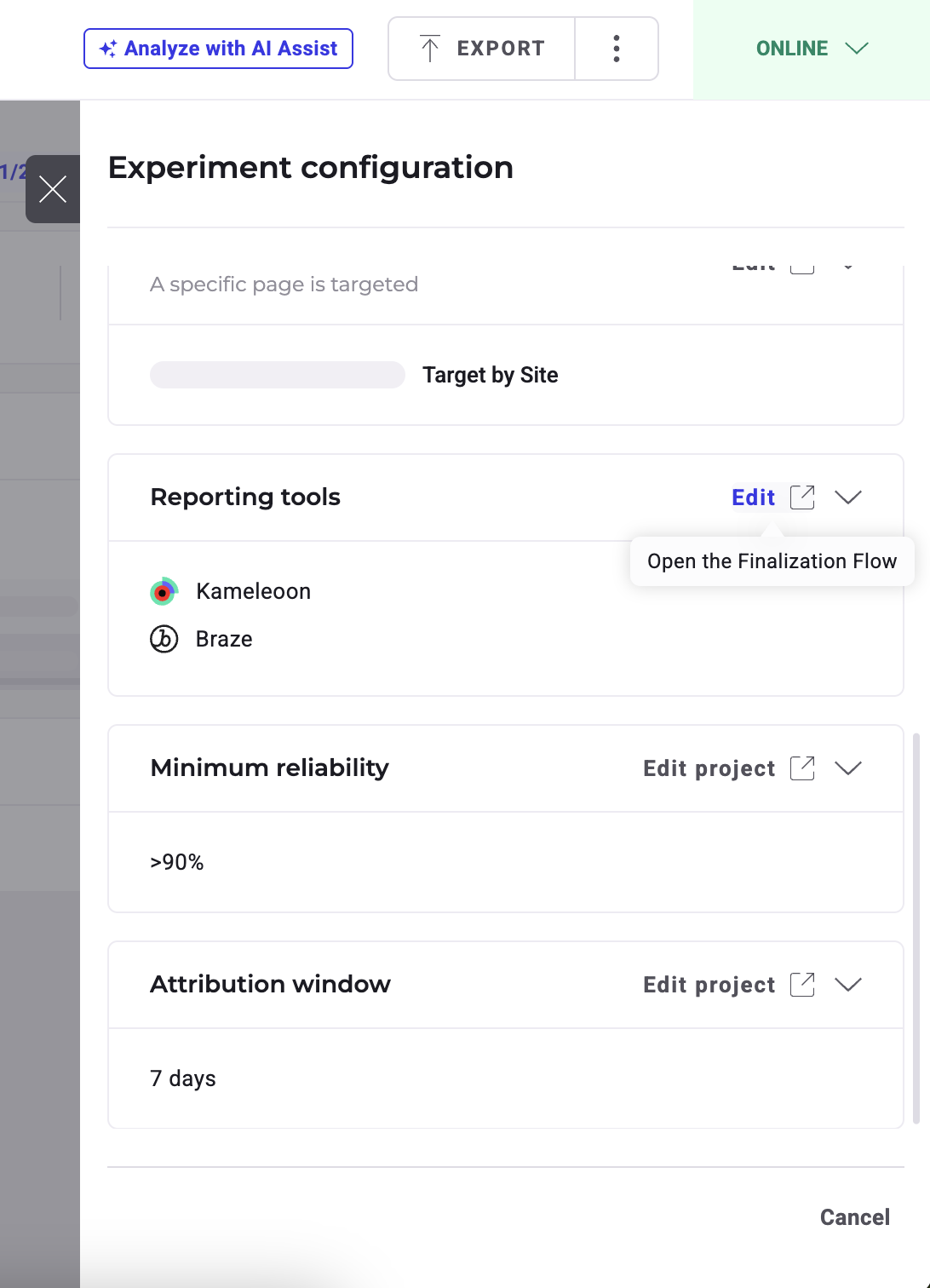
Boost user engagement based on Kameleoon data
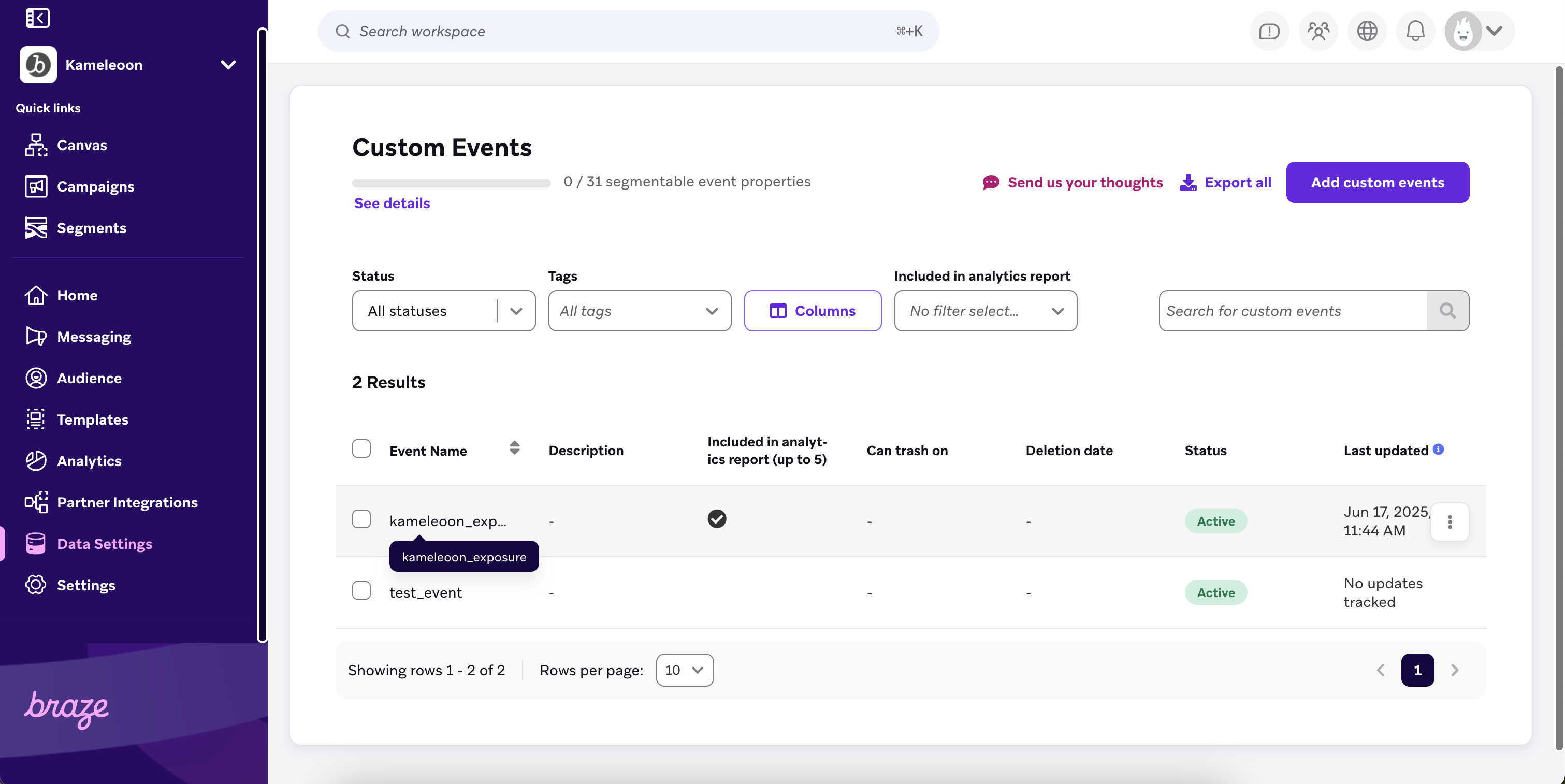
Kameleoon will send custom events with properties, such as experiment name, experiment ID, variation name, and variation ID to Braze. You can then view this data in the Custom Events page. You can also create custom event reports to identify Kameleoon campaign exposure and enable segmentation based on event properties.