

- Filter each Matomo analytics tool (for example, heatmap, session recording) by campaign and variation names.
- Analyze visitor behavior when exposed to a campaign variant and identify new experiment or personalization opportunities.
Activate Matomo
To use Matomo (formerly Piwik), you must activate it in the Kameleoon Integrations page. To do this:- Open the Kameleoon app.
- Click Admin > Integrations.
- Search for the Matomo integration and click it.
- Click Install.
- Select the project on which you want to activate Matomo.
- Click Install.

If you need to change the behavior of Kameleoon’s native bridge, you can create a custom analytics bridge and use the Matomo sample code on Kameleoon’s Github repository.
Associate Matomo with an experiment
In the Graphic/Code editor
Once you activate Matomo in the Integrations page, you can select it as a reporting tool in the Integrations step of the finalization panel.
customVar) you wish to associate.
Kameleoon will automatically send the data to Matomo via this custom variable.
On the Experiments Results page
You can select Matomo among the reporting tools on an experiment’s Results page. From the dropdown list, select the custom variable’s ID (customVar) you wish to associate.
Kameleoon will automatically send the data to Matomo using this custom variable. Kameleoon takes into account only the data retrieved after the tool’s activation.
Associate Matomo with a personalization
On the personalization creation page
Once you activate Matomo in the Integrations page, you can select it as a reporting tool for your personalization.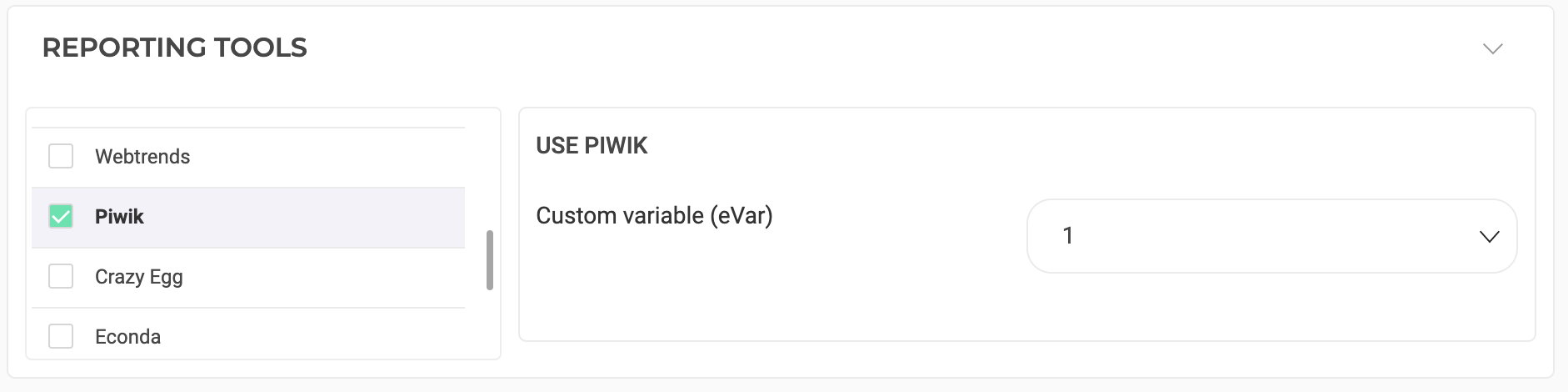
customVar) you wish to associate.
Kameleoon will automatically send the data to Matomo through this custom variable.