

Overview
Before launching experiments on your website or mobile app, you must install the Kameleoon script. You must add this script, which contains your unique project code, to the<head> tag of your source code.
If your package allows, you can manage multiple sites or apps from your Kameleoon account, which is useful for testing in staging or pre-production environments.
When you create a project, the setup form guides you through four steps. Your installation method decides which options you see:
If you turn on cross-domain tracking, the checklist also includes a task to host the Kameleoon static HTML file on your main domain.
Project configuration
In the Kameleoon app, click Admin > Projects to see a list of your projects. By default, your account has a project for the website or mobile app you entered when you signed up.Configuring an existing project
To modify a project’s installation settings:- Click Admin > Projects.
- Click Edit on the project’s row, then click the Setup tab.
- In the Installation method or Technical configuration section, click Edit. The three-step setup form opens.
Creating a new project
To create a new project:- Click Admin > Projects, then click New project.
- Select Web Experimentation, or All campaign types if you also run feature flags and SDK experiments from the same project. After you create the project, you can’t change its type. Click Next.
- Enter the main project domain, choose a color, and optionally add a name, description, and tags, then click Next.
- Select the installation method and, for the code snippet, the loading mode, then click Next.
- Configure dynamic website support (code snippet only), resource hosting, and domains, then click Next. If you selected Shopify as the installation method, Kameleoon skips this step.
- Complete the tasks in the checklist, then click Complete setup.
Your ability to create additional projects depends on your Kameleoon package.
Choose your implementation settings
In the Installation method step of the setup form, you choose how to install Kameleoon and how Kameleoon loads on your website. For technical details, including how to install Kameleoon using a tag manager or implement custom script types, see the Standard implementation article.Consent
Before installing the Kameleoon script on your website, ensure your setup complies with your organization’s consent management policy. If you use a Consent Management Platform (CMP), you can integrate it with Kameleoon to control when Kameleoon activates experiments and data collection. For details, refer to Kameleoon’s consent management article.Domains and subdomains
You can define which domains and subdomains can load the Kameleoon script and access its features.- In the Technical configuration step, under Domains and subdomains, enter a domain and click Add domain to whitelist domains for cross-domain tracking.
- This lets you use Kameleoon’s Graphic editor and store/retrieve visitor data across domains.
- If you try to use Kameleoon on a domain not listed, loading will fail due to browser security policies (CORS).
Cross-domain tracking
Cross-domain tracking lets you:- Track the same visitor across different domains and subdomains (for example,
example.comandexample.org). - Avoid reclassifying users as “new visitors” when they move between domains.
- Offer consistent personalization and experiment experiences across properties.
You should enable cross-domain tracking if you plan to unify session data across multiple domains. To enable it, turn on Track visitors across listed subdomains under Domains and subdomains.
Authorizations
If you’re targeting subdomains, check these two HTTP header settings:- Don’t set an X-Frame-Options response header on the page that hosts the Kameleoon iframe.
- Allow Kameleoon resources in your Content Security Policy.
Learn more about Apple’s Intelligent Tracking Prevention (ITP), which restricts cross-site tracking in Safari, in this ITP documentation.
Resource hosting
You can choose whether Kameleoon hosts its public resources or if you prefer to self-host them.- In the Technical configuration step, under Resource hosting, turn on Self-host the script file, Self-host images, or both.
- Enter the URL of your Content Delivery Network (CDN) or server in Script file URL, Image base URL, or both.
Install the Kameleoon script
After you define your project’s main domain, Kameleoon generates a script for installation. You find it on the Setup tab and in the Add JavaScript snippet to your website task of the Checklist step.- Click Copy to copy the code snippet.
- Paste it immediately after the
<head>tag in your site’s source code. - Save and upload your updated pages to your server.
- In Kameleoon, click Mark as completed.
Install the script as early as possible in the page’s loading process.
Preventing flickering
When a webpage loads, users may briefly see the original version before Kameleoon applies the variation. This momentary flash is the flicker effect, or flickering. Flickering occurs when the variation’s changes load late, creating a visible switch between the original and modified content. Flickering can affect user experience and experiment reliability, especially in A/B testing.Guidelines to avoid flickering
Implementation
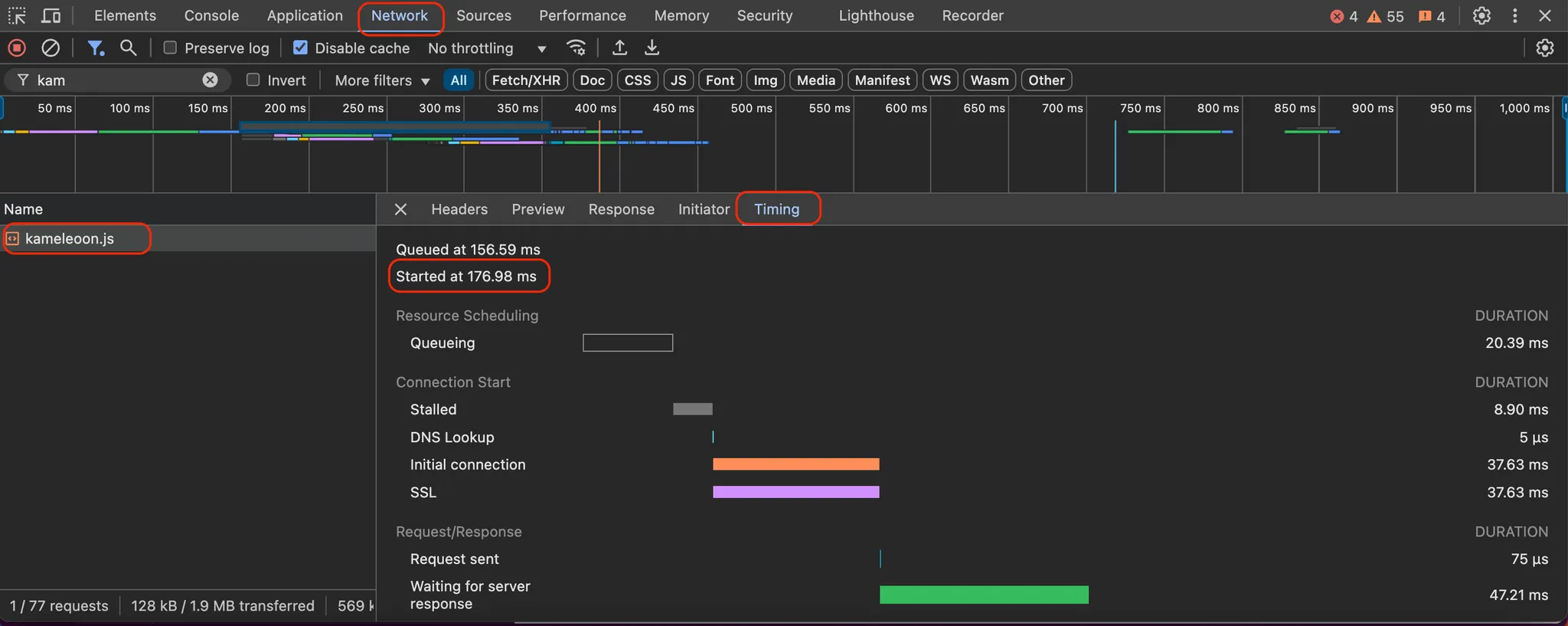
Place the Kameleoon script as high as possible in the<head> tag. Ensure the script loads in under 1 second, ideally below 500 ms. To check Kameleoon’s loading time, use the Network tab in your browser’s developer tools.
Consent
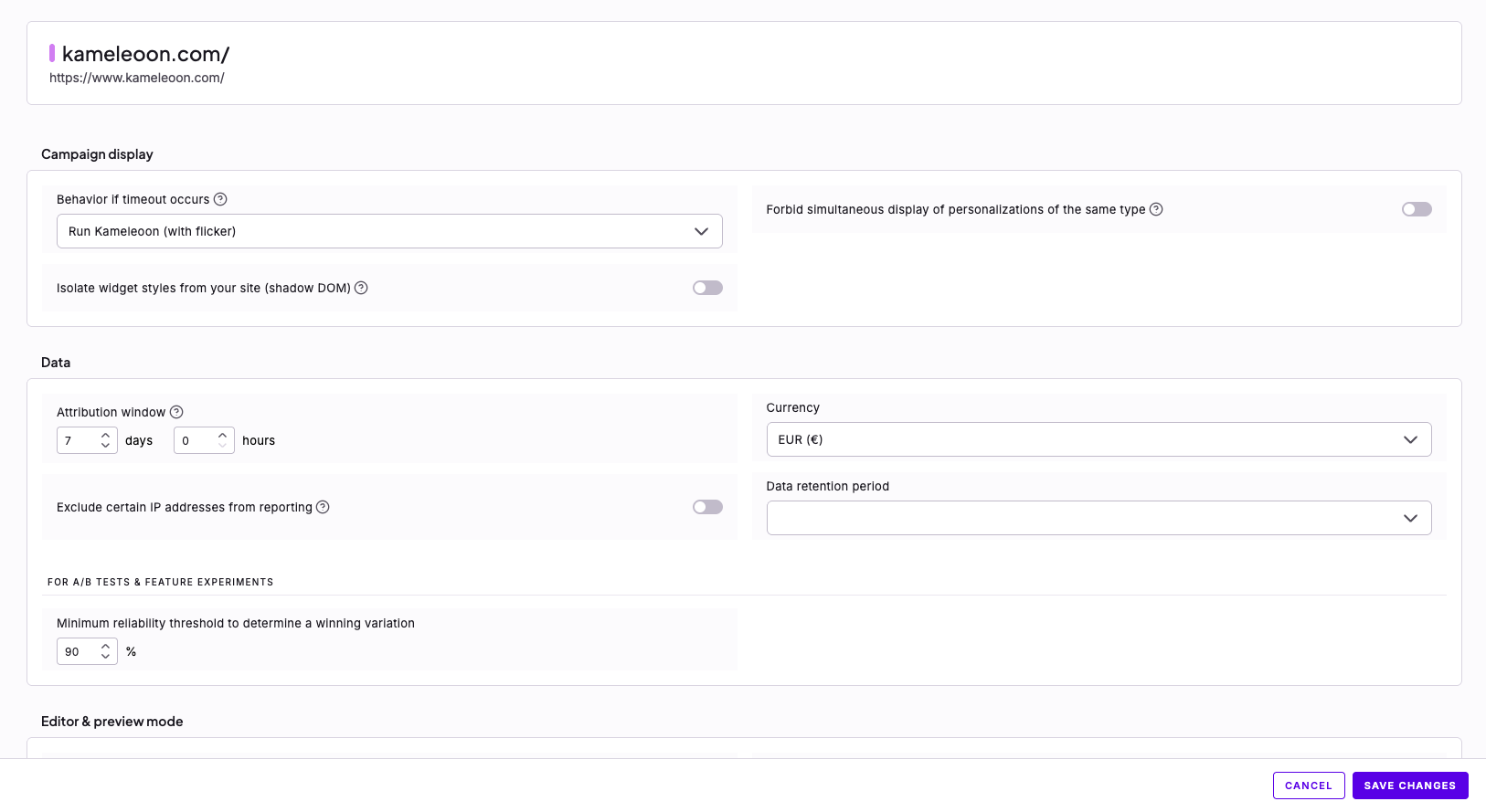
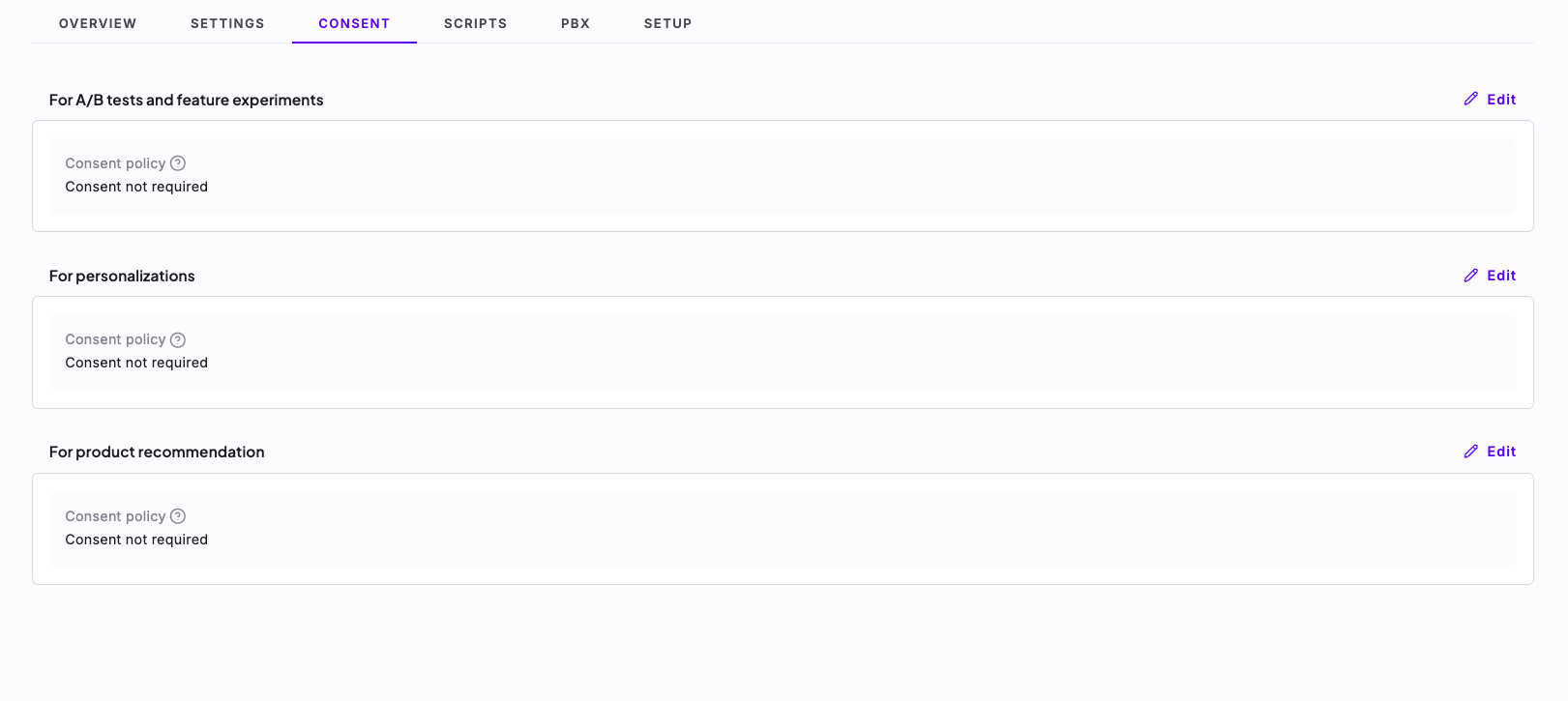
If you set your consent policy to consent required, flickering may occur on the first page view when the visitor hasn’t yet given consent. This flickering happens if you choose to partially or completely block Kameleoon when consent is unknown. To prevent flickering, don’t block Kameleoon, so experiments can display on the visitor’s landing page before the visitor gives consent. This approach is fully compliant with privacy regulations such as GDPR, CCPA, and other major frameworks in the UK, Canada, and the US, as no tracking or data storage (cookies/localStorage) occurs before the visitor grants consent.
To explore available options, refer to the screenshot below.
Targeting
Use information available at page load
To improve performance, base targeting on data that’s available immediately on page load, such as:- Page URL
- Browser type
- Device type
cookies/localStorage
dataLayer variables. Since these may load asynchronously, using them for targeting can delay variation execution. If a segment relies on a custom JS condition or custom data that itself depends on the dataLayer, flickering may occur as well.
To minimize flickering, use targeting conditions that resolve as early as possible in the page lifecycle.
To learn more about all targeting conditions in the Segment Builder, refer to this article.
Variation code
Use CSS instead of JavaScript for visual changes
Using CSS instead of JavaScript ensures faster and smoother rendering. Use CSS for:- Hiding or modifying elements
- Swapping blocks
- Changing styles or text
Optimize JavaScript execution with the Activation API
If JavaScript is necessary, use Kameleoon’s Activation API to apply variations at the right moment:runWhenConditionTrue: Executes the code when a specific condition becomes true.runWhenElementPresent: Ensures that the variation displays when the targeted element loads on the page. Using these methods avoids delays caused by elements that load asynchronously.
Handling single-page applications
If your experiment runs on a single-page app (SPA) or a dynamically updating page, you need special implementation steps. For recommendations, follow the guide to setting up an experiment on an SPA.FAQ
Issue: Refused to display in a frame (X-Frame-Options)
Issue: Refused to display in a frame (X-Frame-Options)
The Refused to display in a frame error occurs when you enable cross-domain tracking, which requires your main domain to host a static iframe.How the Kameleoon iframe worksThe iframe keeps data consistent across subdomains by reading from and writing to
localStorage on the host domain. Kameleoon can then track the same visitor without additional server calls. For more details, see Unifying session data across subdomains.Kameleoon secures the iframe with three measures:- Restricted access: Only domains in the
allowedDomainsvariable can request the iframe. - Sitecode verification: Only the specified sitecode can request the iframe.
- Prefixed storage: Kameleoon only accesses entries prefixed with
kameleoon.
X-Frame-Options header prevents browsers from rendering pages in frames to avoid clickjacking. For more information, see the Mozilla documentation.To enable cross-domain tracking, you must not set the X-Frame-Options header. You can secure the iframe by providing a restricted list of domains in the hosted iframe file.Issue: Refused to load the script
Issue: Refused to load the script
You might see an error stating that the script
https://xxxxxx.kameleoon.eu/kameleoon.js violates your Content Security Policy (CSP).If your site restricts resources through CSP headers, update your policy to allow Kameleoon resources. See the full list of Kameleoon domains to allow.Does Kameleoon work with all web browsers?
Does Kameleoon work with all web browsers?
Supported web browsersKameleoon doesn’t support some older browsers. If a visitor uses an unsupported browser, they see the original page instead of the experiment. Falling back to the original page doesn’t negatively affect experiment results.The Kameleoon script supports:
- Chrome
- Firefox
- Microsoft Edge
- Opera
- Safari
What is the cache expiration time (TTL) for the Kameleoon script?
What is the cache expiration time (TTL) for the Kameleoon script?
When a visitor lands on your website, their browser downloads the site code and the Kameleoon script. Page load time depends on the code length and external resources. Caching improves performance on subsequent visits by storing static resources in the browser cache.While caching improves user experience, it can delay new experiments for returning visitors who have an older version of the script in their cache.To make returning visitors download the current script, the Kameleoon script includes a Cache Expiration (TTL: Time-to-live) flag. The flag instructs the browser to download a new version of the script every 1.5 hours.
Some mobile browsers might ignore the TTL settings to optimize performance, depending on the browser policy.
What is the flicker effect?
What is the flicker effect?
The flicker effect, also called flickering, occurs when a visitor briefly views the original page before the variation loads. Flickering can happen when the Kameleoon script loads after the page content, so the browser applies the variation’s changes last. To reduce flickering, place the Kameleoon script as high as possible in the HTML
<head>. For the full guidelines, see Preventing flickering.Can Kameleoon conflict with other scripts on my site?
Can Kameleoon conflict with other scripts on my site?
Kameleoon rarely conflicts with other scripts.Kameleoon uses pure JavaScript and doesn’t require jQuery, avoiding conflicts with sites using jQuery. It operates independently of server-side languages and avoids global JavaScript variables to minimize incompatibility risks.jQueryKameleoon doesn’t conflict with jQuery if you use it on your website. However, Kameleoon uses the Sizzle library, which is the CSS selector engine used by jQuery. You can use Sizzle when creating your experiments.