

Projects page
To access the Projects page:- Log in to your Kameleoon account.
- Click Admin > Projects.
Name your sites
You can assign a name to your site. To name a site:- Click the three-dots menu in the top right of the page.
- Click Name your sites. A sidebar opens.
- Enter a name for the site and save.

Search, filter, sort
A search bar, filtering, and sorting tools are available. You can filter projects by status (Kameleoon enabled/disabled) or by script (script installed/not installed).

Information and actions on a project
Information
Your project’s identification card gives access to three sections of information.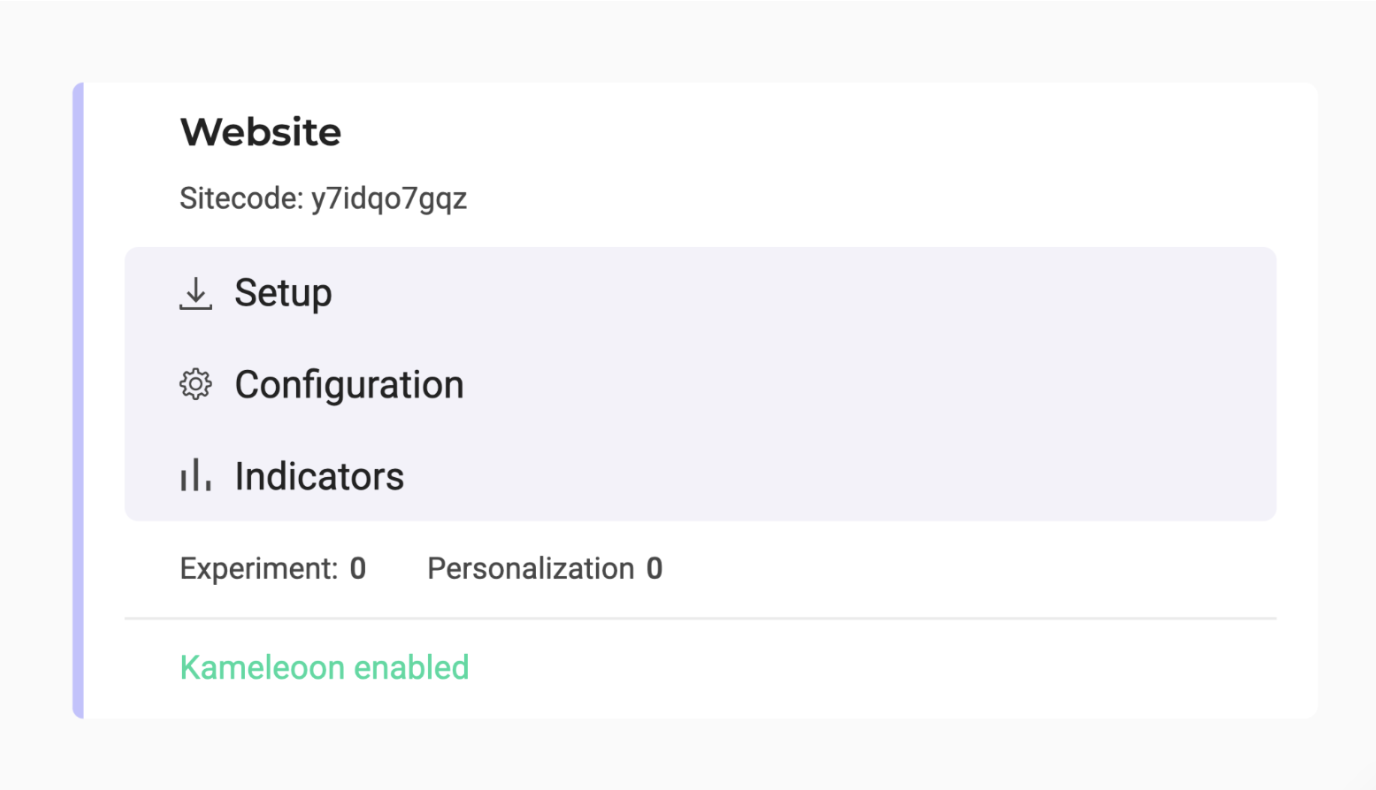
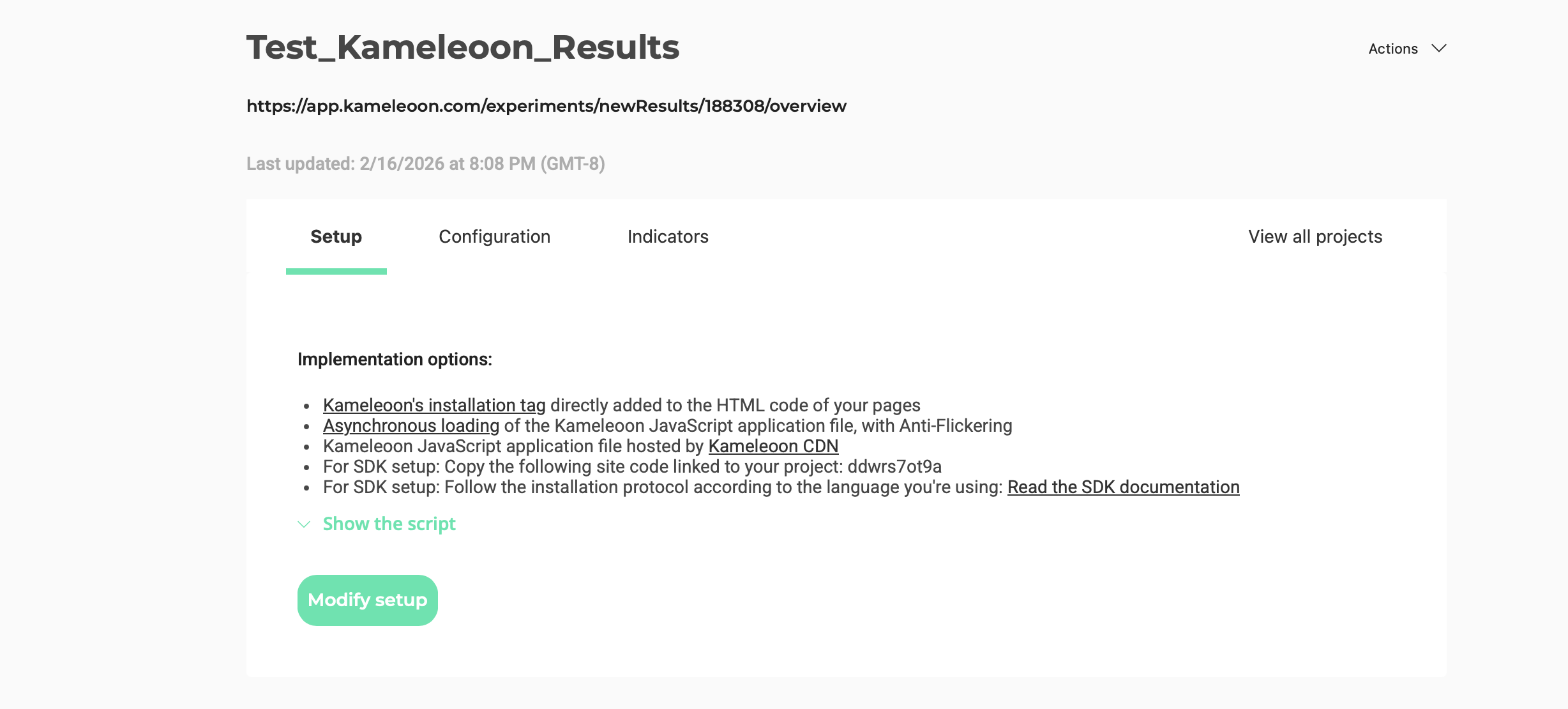
- Setup: This page lets you install the Kameleoon script in your project.
- Configuration: This page gives access to advanced configuration options.
- Indicators: This page displays the indicators measured in your project.
Actions
Disable
You can disable a project.
Remove
You can remove a project from your Kameleoon account.This action is not available if you only have one project.

Edit

Disable/enable
In the top right of the Configuration page, you find an Actions menu. Click to access the available actions.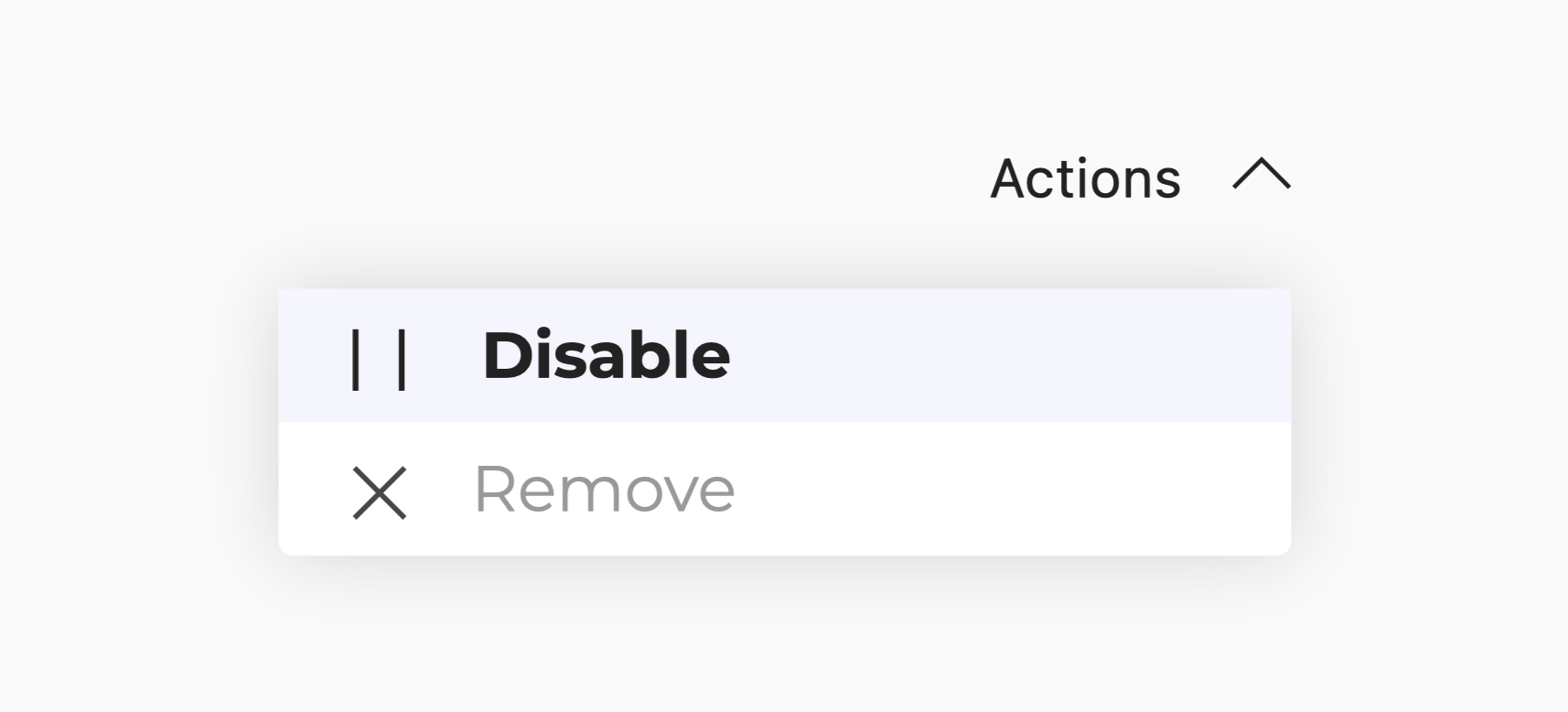
Upon disabling, the Kameleoon Application File (kameleoon.js) is almost entirely stripped of its content, although the Kameleoon object remains defined. Some methods within the Activation API may not function correctly in this state, particularly those in the Experiments, Feature Flags, and Personalizations objects. If you call Activation API methods outside Kameleoon, Kameleoon strongly recommends using the Kameleoon CommandQueue to prevent errors on your website. Additionally, disabling Kameleoon does not instantly stop your web campaigns. Because the script may be cached by the browser, returning visitors who have already downloaded a previous version continue to use it until their browser cache expires.
Add a new project
You can set up as many projects in your account as you wish. A project can be a website, a mobile app, or any environment (for example, staging, production) you use internally. To add a new project:- Log in to your Kameleoon account.
- Click Admin > Projects.
- Click New project. A pop-in opens.
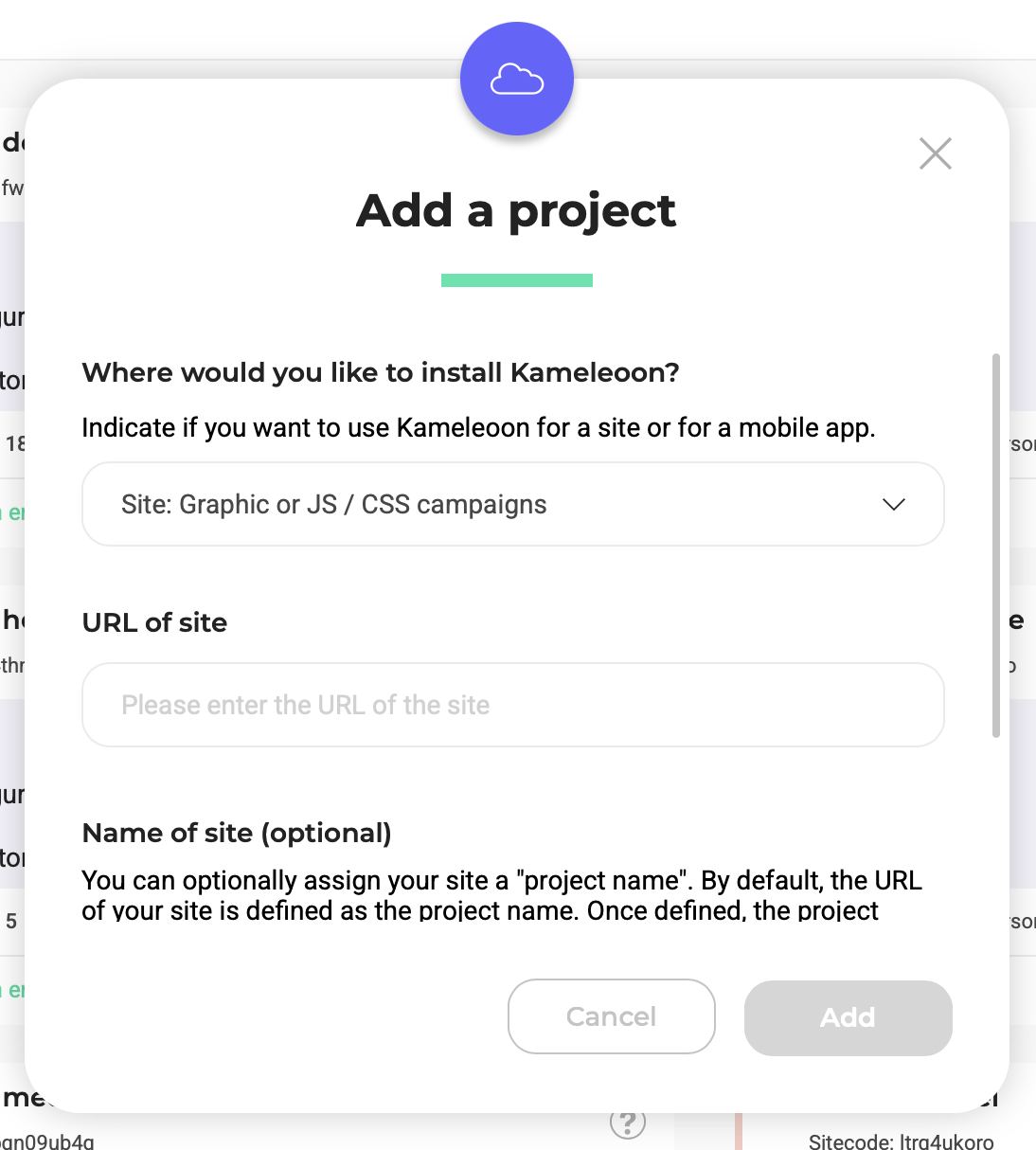
- Indicate if you want to use Kameleoon for a site (JavaScript snippet or SDK) or for a mobile app (SDK).
- Enter your project URL and, optionally, a name and description for your new project in the pop-in that appears.
- Click Add.
If you associate a name with your project, Kameleoon uses it across the platform instead of its URL.
Implement Kameleoon on a site using a JavaScript snippet
Choose this method if you want to create:- personalizations
- graphic experiments
- MVTs
- CSS/JS experiments
Script type
Kameleoon is compatible with all major tag management systems. However, Kameleoon strongly recommends that you don’t install Kameleoon using a tag manager, because doing so increases the likelihood of flickering in your campaigns. For more information, see flicker management and performance. When you configure your script type, choose No from the drop-down. If you choose No, you must select your installation tag next. Kameleoon recommends selecting the Asynchronous loading with anti-flickering option.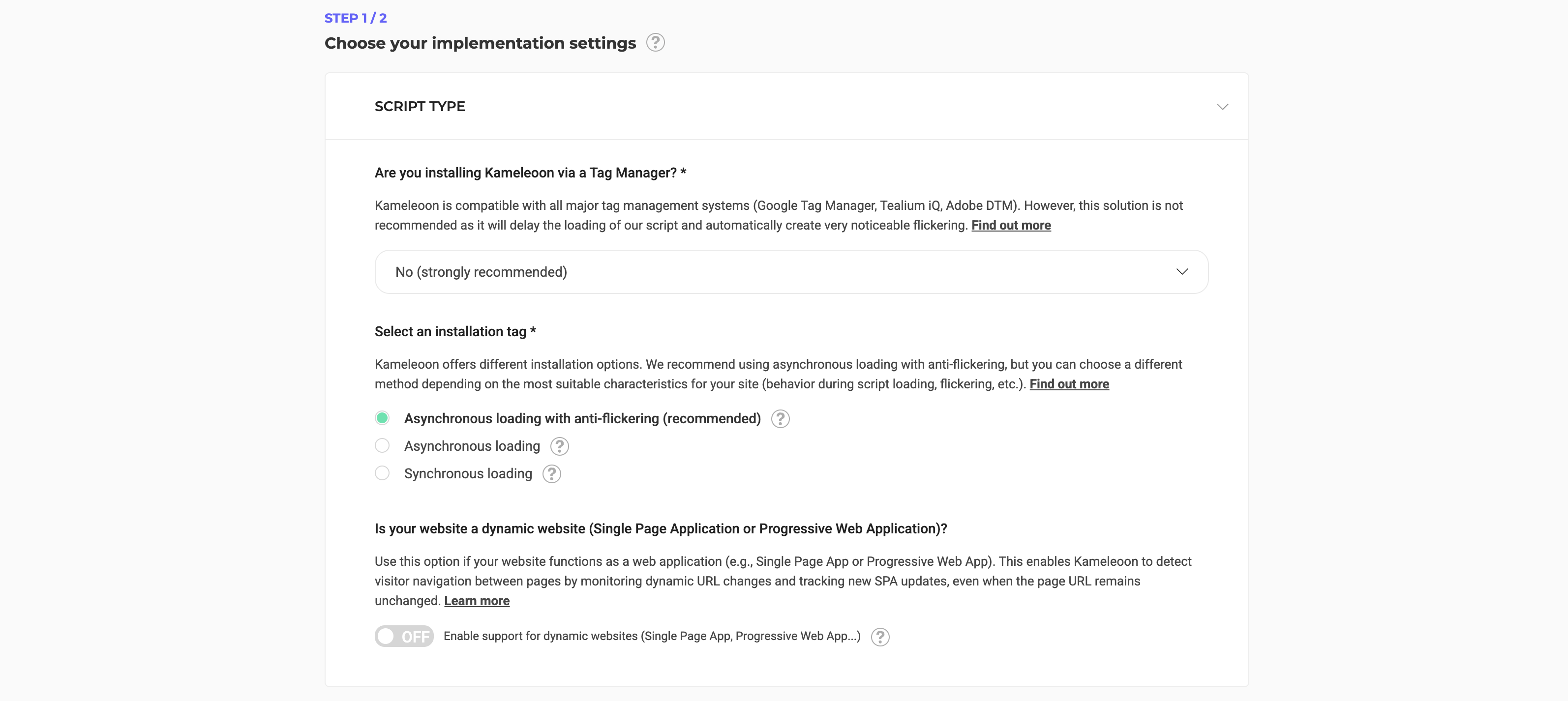
Domain configuration
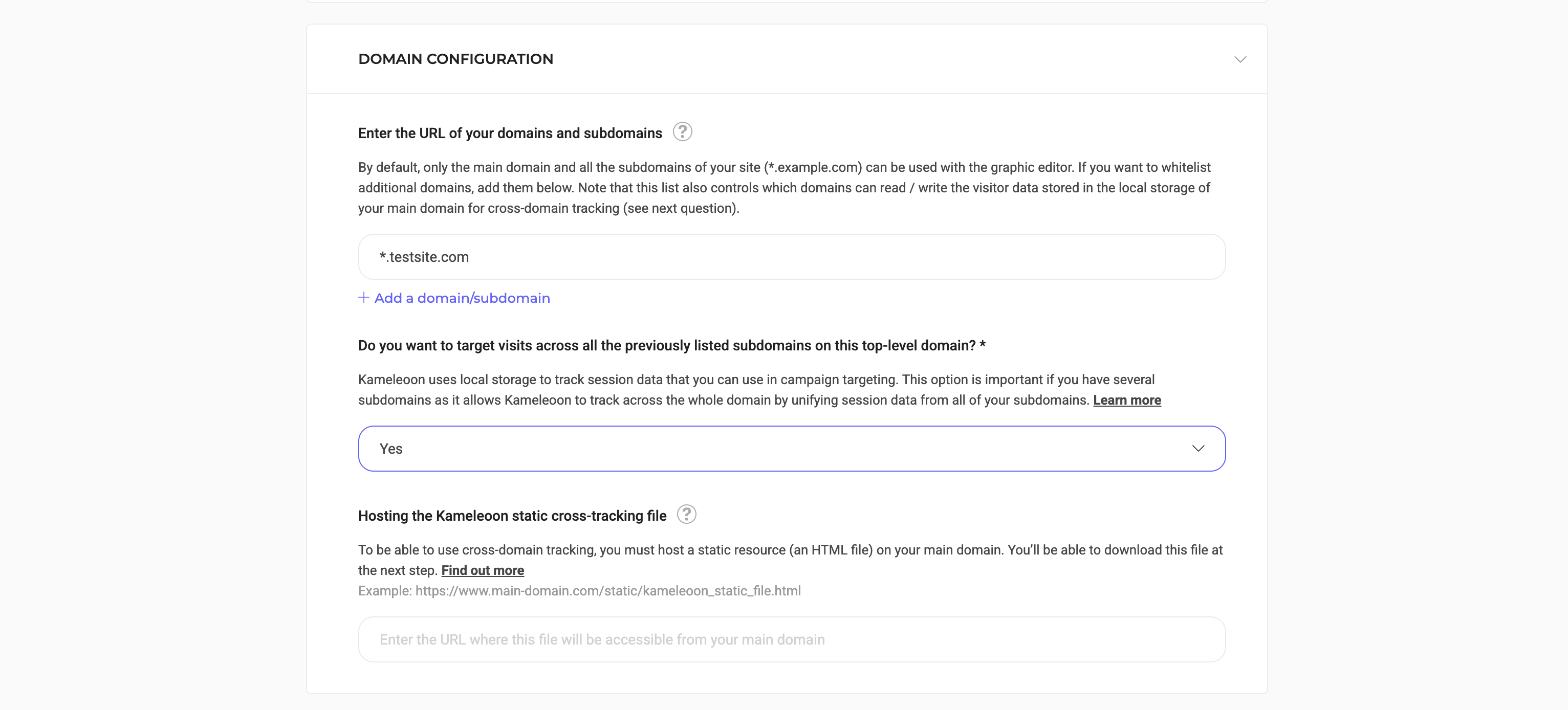
Under Domain configuration, you can add domains and subdomains for cross-domain tracking. Kameleoon uses local storage to track session data you can use in campaign targeting. This option is important if you have several domains, as it allows native cross-domain tracking by unifying session data on all of your domains. This list also controls which domains can read and write visitor data stored in the local storage of your main domain for cross-domain tracking. In simple terms, cross-domain tracking makes it possible to track visitors on different subdomains (for example,example.com and payment.example.com). Kameleoon recommends enabling cross-domain tracking because it lets you track visitors for all of your domains. With cross-domain tracking, Kameleoon does not treat your visitors as new visitors when they navigate across your domains and subdomains, and their experiences stay consistent across your digital properties. However, cross-domain tracking is only required if you intend to use session data across all your domains for advanced behavioral targeting purposes, as it lets Kameleoon read data stored in the local storage.
Note that, by default, you can only use your main domain and its subdomains (*.example.com) in the graphic editor. To allow additional domains, add them by clicking Add a domain/subdomain.
Resource hosting
You can host the application file yourself, or Kameleoon can host it. If you choose to self-host Kameleoon public resources (Yes in the drop-down), you must enter your Content Delivery Network’s (CDN) URL.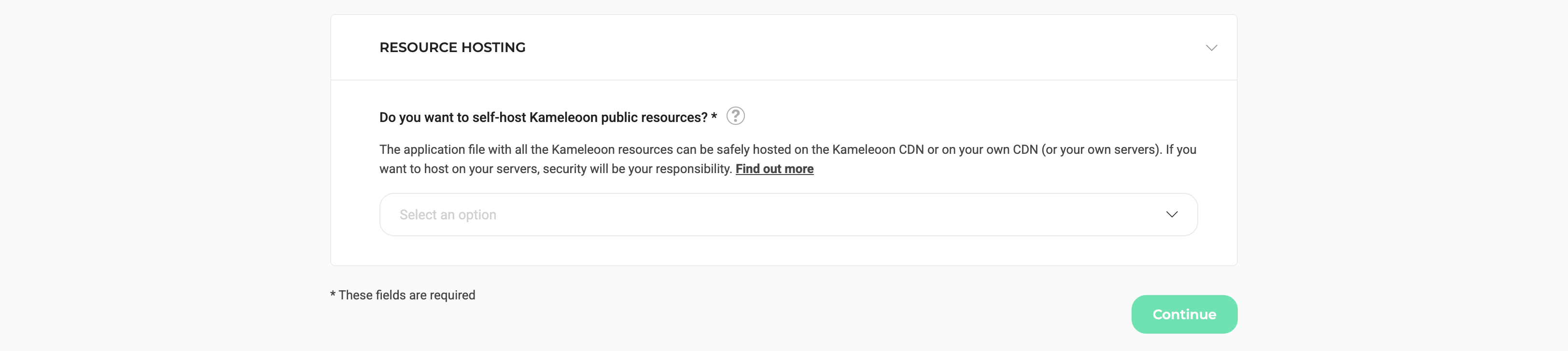

Install Kameleoon
When you defined your project’s URL in the configuration process, Kameleoon created a script to install on your project, which you can access on this page. Copy this code snippet and paste it immediately after the<head> tag in your web page’s source code.
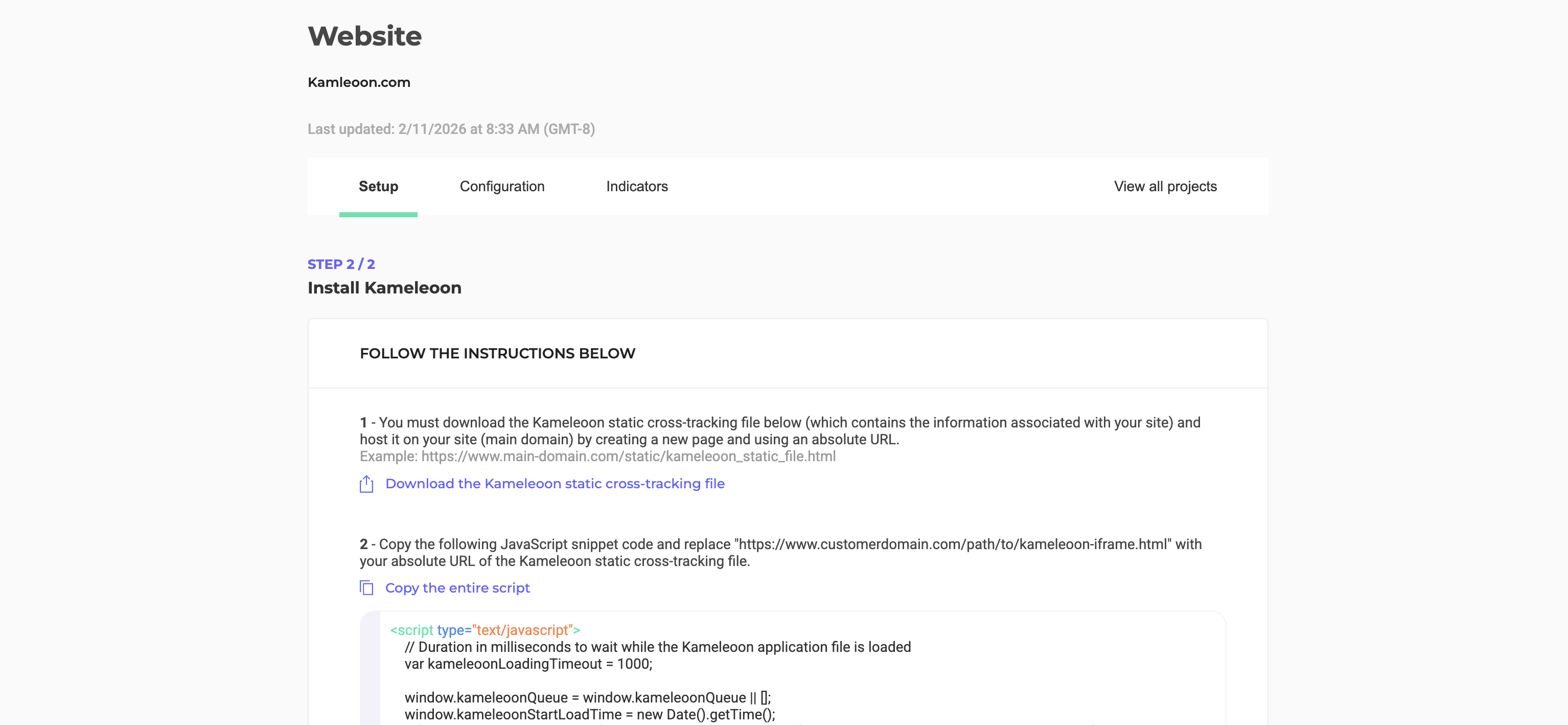
<head> tag, click Validate.
You must repeat these steps for each project you set up. It’s important that you don’t reuse the same code snippet, because Kameleoon’s reporting tools and goals are specific to a single project, and you must track your projects’ performances separately. For more information about reporting tools and goals, read the article Reporting tools and goals.
Implement Kameleoon on a site or a web app using a web SDK
You can create all campaign types with this method.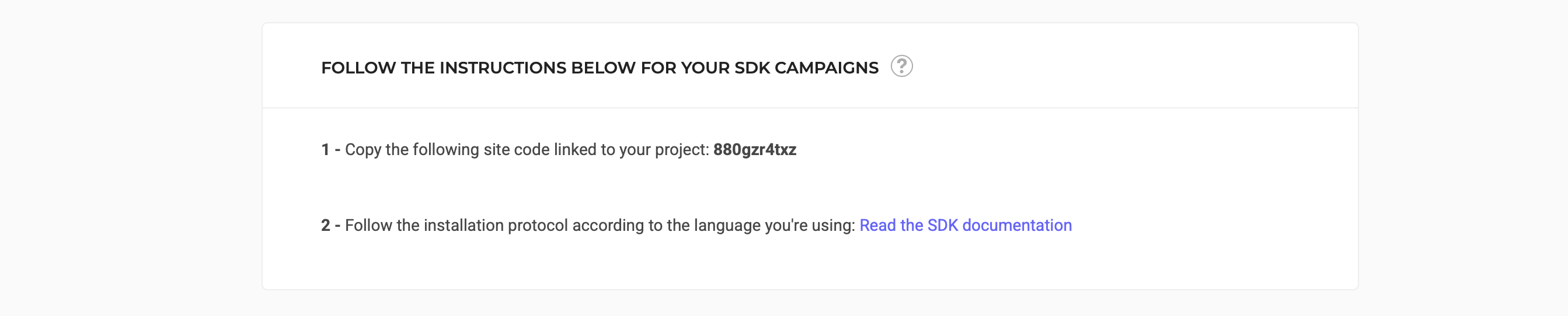
Implement Kameleoon on a mobile app using a mobile SDK
Choose this method if you want to create:- feature flags
- SDK experiments
Advanced configuration options
The following page appears: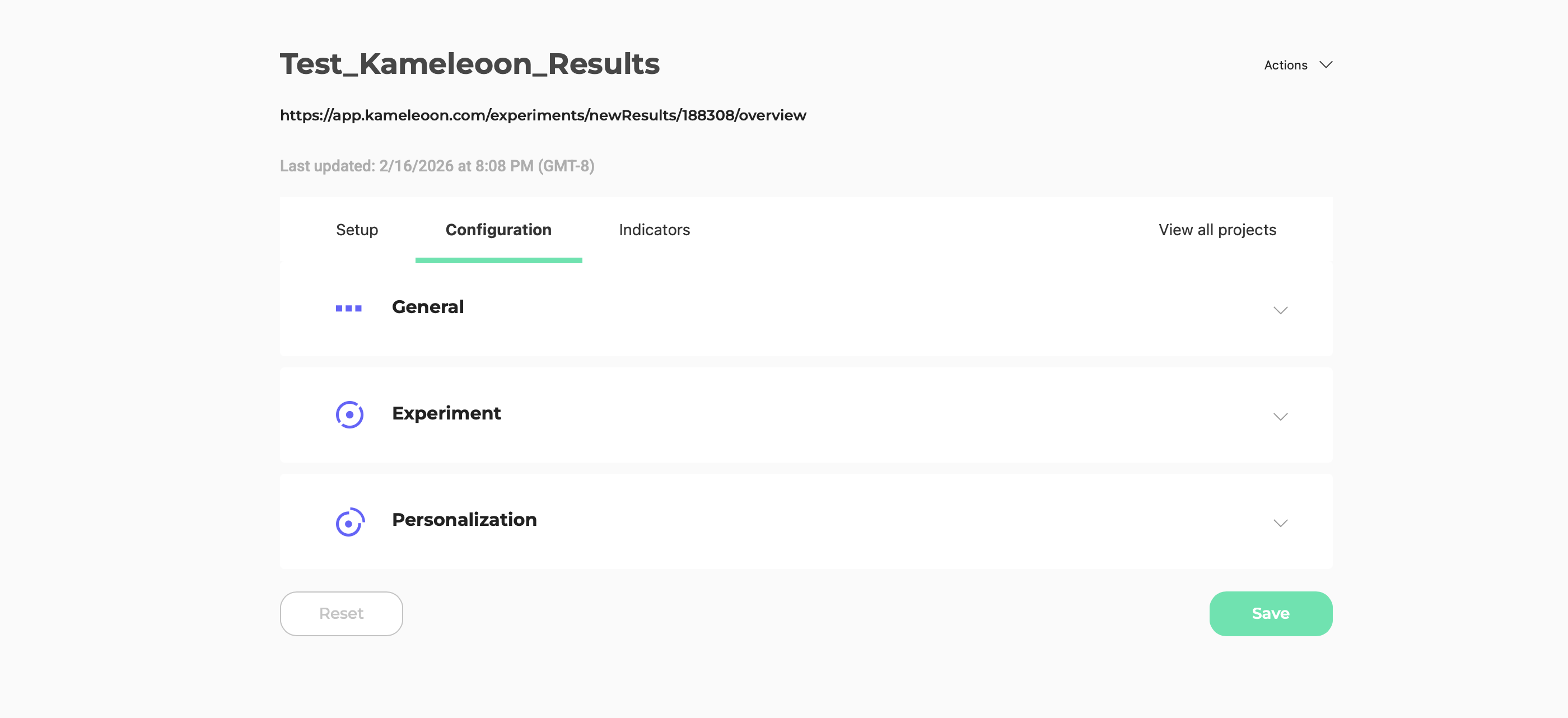
- General
- Experiment
- Personalization
- Audience
Header
The header indicates the project’s name. The Actions menu in the top right gives you access to two different actions. Click to scroll down.Enable/disable Kameleoon
If Kameleoon is enabled on your project, the option is Disable Kameleoon. If it’s off, the option is Enable Kameleoon. If you choose to disable Kameleoon, a confirmation pop-in opens and asks you to confirm your choice. Your experiments and personalizations are no longer visible in your project. Your campaigns resume if you reactivate Kameleoon.Remove project
When you click this option, a confirmation pop-in appears. You must reinstall the project if you change your mind.Menu bar

- Installation
- Configuration
- Indicators
- View all projects
Setup
Configuration
General
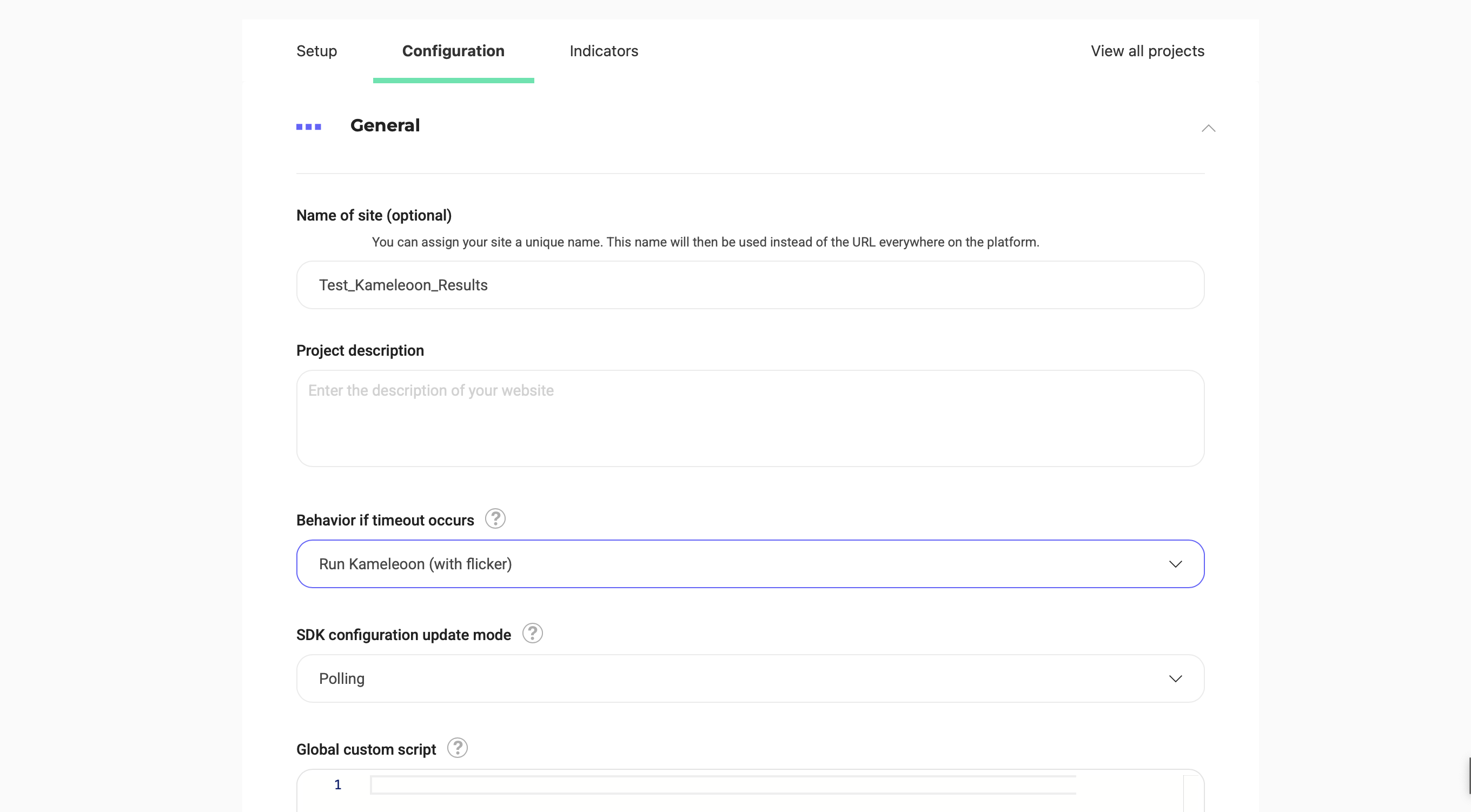
Site’s name (optional)
You can assign your site a unique name. This name replaces the URL everywhere on the platform.Project description
You can add a description of your project here.Behavior if timeout occurs
You can redefine Kameleoon’s behavior when the script exceeds its usual loading time. By default, Kameleoon eventually launches with a flicker effect. The available options are:- Start Kameleoon (with flicker effect).
- Disable Kameleoon for this page.
- Disable Kameleoon for the whole visit.
Cross-domain support
You can add authorized domain URLs. By default, any domain is authorized to load your Kameleoon script and access the Kameleoon data associated with a user on your website or mobile app (such as defined custom data), which can be a security risk. For each added domain, all its subdomains are automatically included.Global script
Global script is a JavaScript snippet that Kameleoon injects at the global level of a site or project. To access a project’s global script, click Admin > Settings > Configuration > General. Scroll down to find the global script. In simple terms, the global script:- Runs on every page where the Kameleoon tag loads, before all experiments, personalizations, segments, and triggers.
- Defines variables, helper functions, or tracking code that should be available across all experiments in the project.
- Acts as a central location to manage shared code and avoid duplication.
- Defining global variables (for example, values from the
dataLayer, device type). - Creating reusable utility functions (for example, date formatting, logging).
- Converting custom goals (for example, revenue, add to cart) and setting custom data.
- Triggering events for targeting.
- Handling consent logic.
- Keep the script lightweight and optimized to avoid performance issues.
- Document the contents of your global script—it affects the entire project.
Attribution window
Here, you can set your attribution window’s duration. The attribution window defines the period of time during which Kameleoon attributes a visitor’s conversions and revenue to a given variation. By default, the window is set to 7 days. Learn more about attribution windowsCurrency
By default, the country associated with your account determines currency settings. However, you can manually manage currency on a project-by-project basis. To change your project’s currency, select your currency from the dropdown menu.Advanced settings
- Enable support for dynamic websites: Kameleoon recommends this option if your website is a web application (a Single Page App or Progressive Web App, for example) with virtual URLs. This option lets Kameleoon see every virtual URL change and allows URL targeting to work as usual. Learn more about setting up experiments on a single-page application and the enableSinglePageSupport reference.
- Use the # symbol in all Kameleoon URL parameters (instead of ”?”): Some Kameleoon features (simulation links, graphic editor) require you to add additional parameters to your website URLs. By default, those parameters are appended at the end of the URL after a
?symbol. Some websites are incompatible with this syntax, while others are incompatible with the#symbol. Check this option to switch to a#symbol if you notice issues with the default behavior. This setting only concerns URLs changed while you or another authorized user operates Kameleoon. Kameleoon never changes URLs for your visitors. - Generate the code of all graphic widgets using JS with shadow DOM: Using JS with shadow DOM isolates the widgets’ CSS from the CSS used on your website, to avoid incompatibility. If you activate this option, widgets already used in a campaign automatically update when the campaign status changes. If you use CSS class names from your website in your widgets, styles may not apply correctly.
- Exclude IP addresses from the results of your tests: If you activate this option, visitors associated with the entered IP addresses are no longer counted in the Results pages of the tests you run on this website.
- Use this option primarily to exclude your office IP address or other internal IPs that might interfere with accurate test results. Because Kameleoon performs the exclusion client-side, don’t include personal IP addresses in the exclusion list.
- This exclusion only applies to Kameleoon events and the Results pages in the Kameleoon platform. Excluded visitors’ events can still reach Google Analytics 4 and other integrations, since Kameleoon doesn’t apply the same filtering to integration tracking.
- Responsive website: Indicates whether your website automatically adapts to different screen sizes. Disable this option if your site uses a separate mobile version that does not appear when resizing the browser window. When disabled, Prompt-Based Experimentation (PBX) refreshes the preview when you switch device sizes to ensure the correct version displays. This setting applies to all projects but only affects PBX.
Experiment
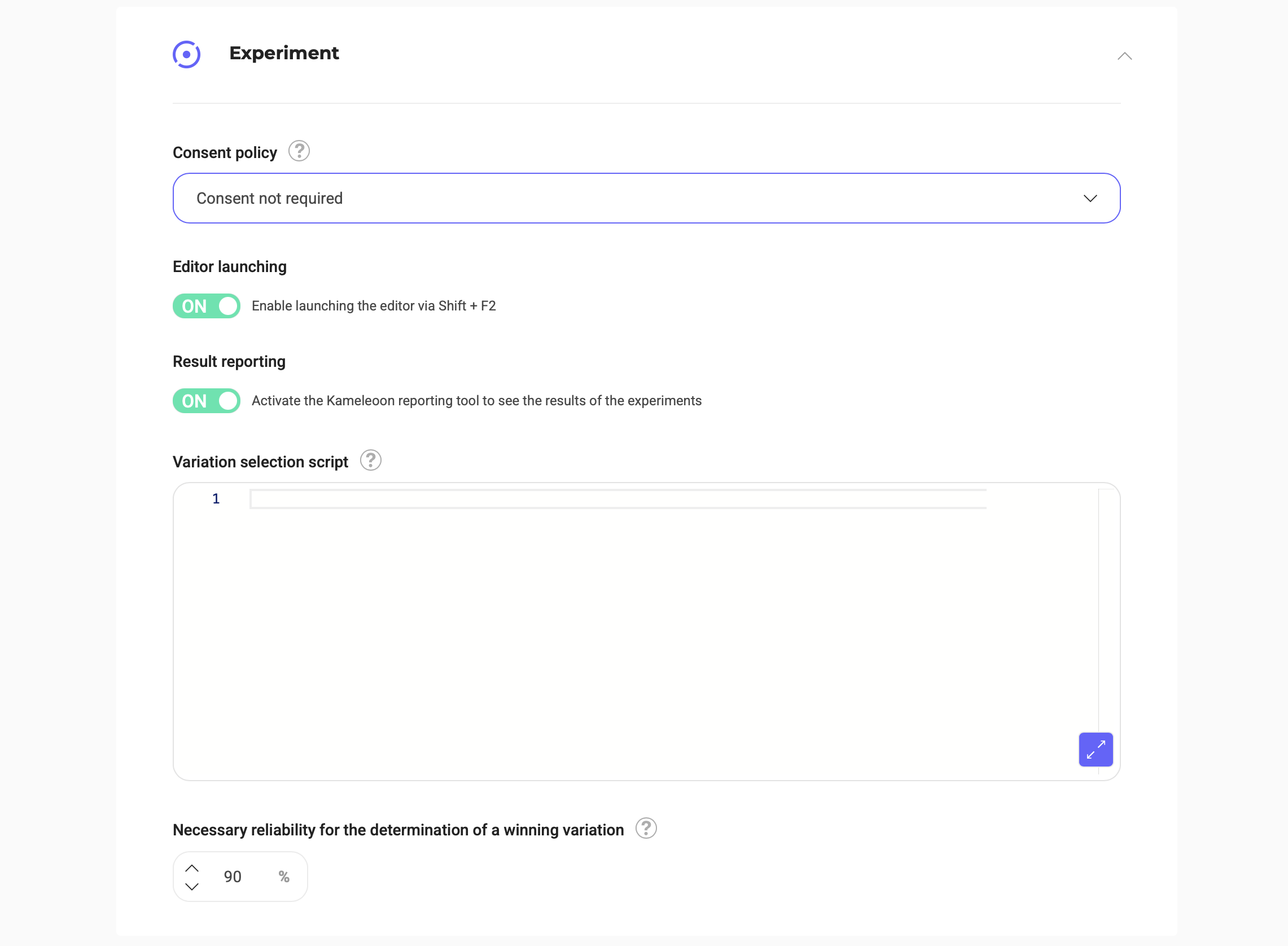
Consent policy
To learn more about setting up legal consent, read the article on consent management policy.Behavior when consent is unknown
To learn more about setting up legal consent, read the article on consent management policy.Behavior on opt-out
To learn more about setting up legal consent, read the article on consent management policy.Editor launching
This option lets you access the Kameleoon editor using the keyboard shortcut Shift + F2. By default, the option is ON. To disable it, click the button to switch it to OFF.Result reporting
Enable (ON) or disable (OFF) results reporting with this option.Variation selection script
A variation selection script is a script that forces a variation’s display based on specific rules. Enter the complete script code here to use it with Kameleoon.Necessary reliability for the determination of a winning variation
By changing this percentage, you can set the threshold above which a variation is winning (for example, a 95% necessary reliability means that you are comfortable with a maximum of 5% false-positive results). Kameleoon cannot present variations with lower reliability than the set rate as winning variations in your results, regardless of their conversions. Reliability score impacts the results Kameleoon presents, so change this setting sparingly.Personalization
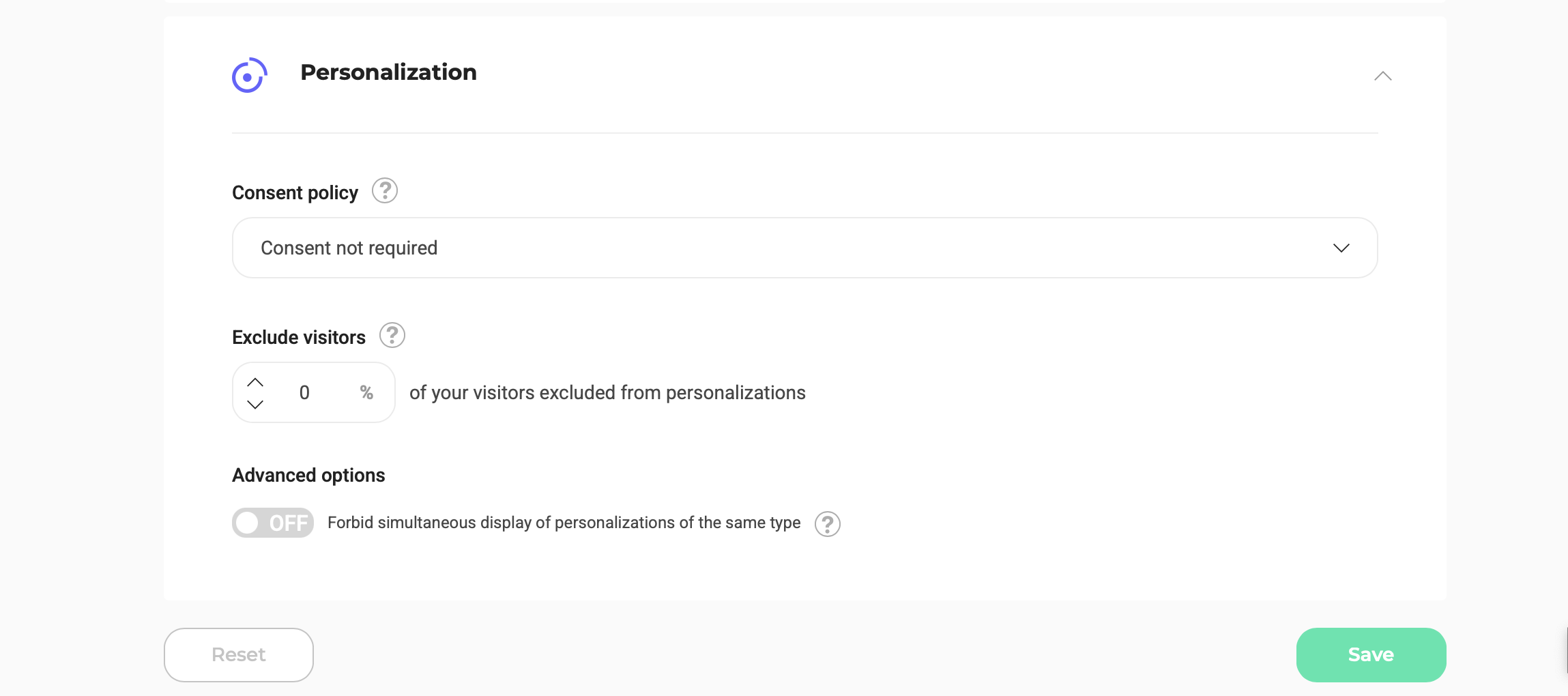
Consent policy
To learn more about setting up legal consent, read the article on consent management policy.Behavior when consent is unknown
To learn more about setting up legal consent, read the article on consent management policy.Behavior on opt-out
To learn more about setting up legal consent, read the article on consent management policy.Exclude visitors
You can define a visitor rate to exclude from your personalizations. To measure your personalizations’ efficiency, keep a sample population unexposed. To learn more about control groupsAdvanced options
By default, Kameleoon allows the display of more than one similar personalization on a page (for example, two pop-ins or two images inserted in the same place). You can, however, prevent simultaneous display by switching the OFF button to ON. Once your changes are complete, click Save to save your settings. If you want to reset the project’s default options, click Reset.
Indicators
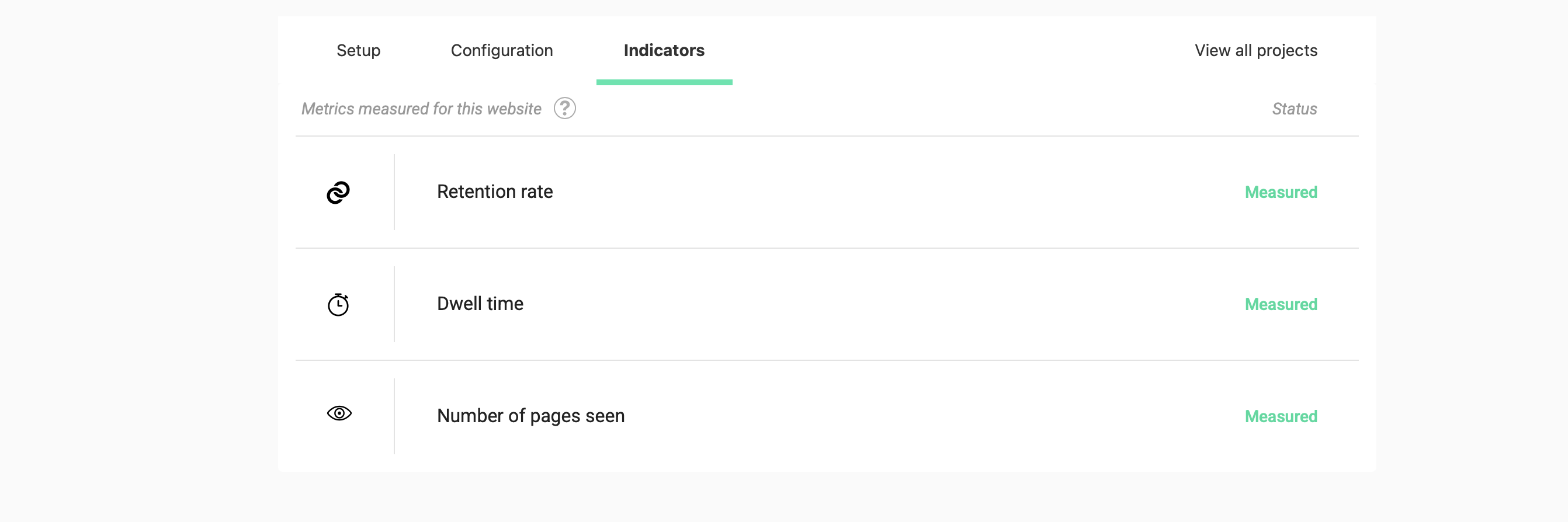
You can build your goals according to the metrics you measure for this project. Kameleoon recommends configuring many metrics, so you can target your visitors more accurately. For example, if you measure the Dwell time metric, you can set the goal The visitor spent more than 5 minutes on the page.