

Getting started and general
Does Kameleoon work with all web browsers?
Does Kameleoon work with all web browsers?
Supported web browsers
Kameleoon does not support some older browsers. If a visitor uses an unsupported browser, they see the original page instead of the experiment. This does not negatively affect experiment results.The Kameleoon script supports:- Chrome
- Firefox
- Microsoft Edge
- Opera
- Safari
Browsers supported by the Graphic editor
The Graphic editor supports:- Chrome
- Firefox
- Microsoft Edge
- Opera
- Safari
Compatibility with responsive design websites
You can create experiments for responsive websites using advanced editing features. The main challenges typically involve resizing and repositioning content blocks.Since pages display based on resolution or device, exercise caution when moving elements. Heat maps are unavailable for these pages because they lack a fixed frame.Kameleoon provides advanced tools to help you move elements and avoid layout issues.Does Kameleoon affect SEO?
Does Kameleoon affect SEO?
Identify and address SEO impact
- Ensure correct installation to avoid performance issues.
- Assign equal traffic percentages to variations.
- Avoid running experiments for more than two months. Prolonged experiments might be interpreted by bots as inconsistent content.
- Monitor performance using the Kameleoon Chrome extension and Lighthouse.
- Avoid significant alterations to page elements that affect SEO.
Redirection guidelines
- Do not redirect 100% of traffic to a new URL.
- Define a canonical URL in the HTML for both pages, pointing to the version you want search engines to index.
- Ensure your HTML does not use a
noindextag. - Use the native variation redirection or
Kameleoon.API.Core.processRedirect("newURL"). Do not usedocument.location.href.
Avoid Black Hat SEO practices
- Cloaking: Do not show different content to bots and visitors.
- Duplicate content: Ensure redirect pages are not identical to the original without canonical tags.
- Sneaky redirects: Do not redirect visitors to unexpected URLs.
- Hidden text: Do not use text visible only to search engines.
How do I change the app's language?
How do I change the app's language?
In the Kameleoon app
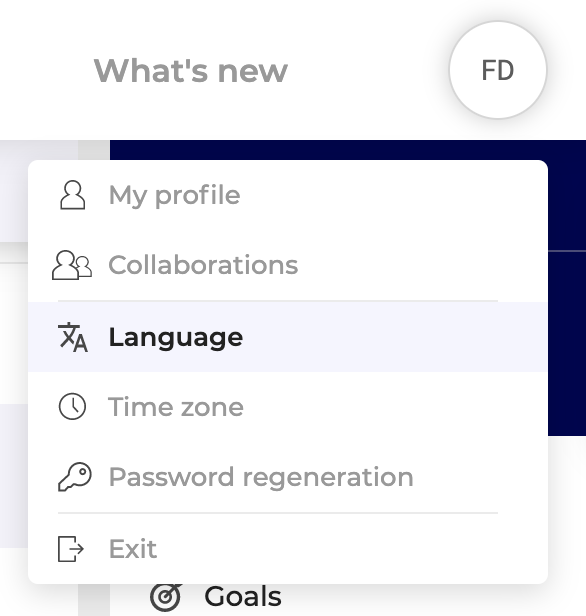
To change the language in the Kameleoon app:- Click your profile icon in the top-right corner > Language.
- Choose your language and click Confirm.
How do I disable the Kameleoon script?
How do I disable the Kameleoon script?
Why disable the script?
- You want to minimize page load times when not using Kameleoon.
- You do not use Kameleoon continuously.
Disable the script
- Go to your project Configuration page (Admin > Projects > Configuration).
- Click Actions > Disable in the top-right corner.
- Click Confirm.
Disable the script on a specific URL
To prevent Kameleoon from loading on a specific page, add?kameleoonDisabled=true to the end of the URL.How do I find my sitecode?
How do I find my sitecode?
In the Kameleoon app
In the left sidebar of the Kameleoon app, click Admin > Project. Your sitecode appears on your project card.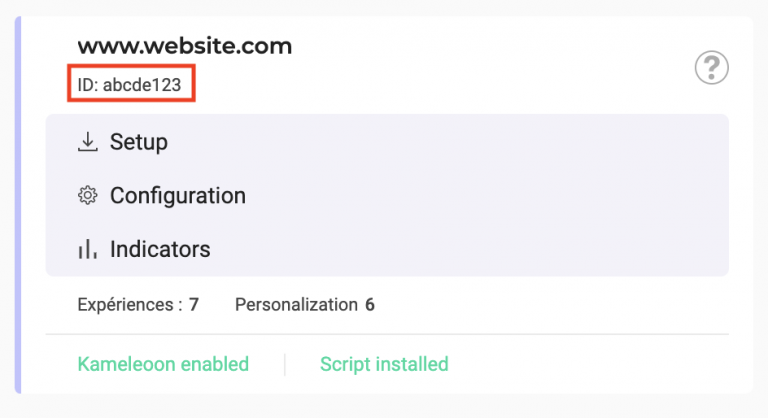
In the Chrome extension
You can also find your sitecode on the dashboard of the Kameleoon Debug Assistant Chrome extension.Click the + icon to add inserts to customize your dashboard. Add the Site Code insert.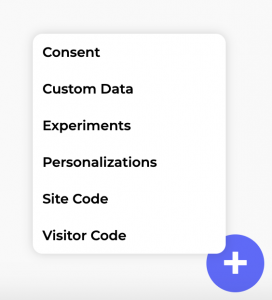
Which languages is Kameleoon available in?
Which languages is Kameleoon available in?
Experiment setup and methodology
Can I edit an online experiment?
Can I edit an online experiment?
- Stop the experiment (optional).
- Duplicate the experiment.
- Edit the duplicate.
- Launch the new experiment.
How long should an A/B experiment last?
How long should an A/B experiment last?
How much traffic do I need for an A/B experiment?
How much traffic do I need for an A/B experiment?
- Below 10,000 monthly visitors: Effective A/B tests are difficult to perform, except for specific use cases like landing pages.
- From 10,000 to 200,000 monthly visitors: A/B testing is possible, but experiments often take more time to yield results.
- From 200,000 to 1 million monthly visitors: Your traffic is sufficient for A/B testing. You might still encounter difficulties with less-visited pages, such as those at the end of a conversion funnel.
- Above 1 million monthly visitors: Traffic is rarely an issue.
What is the difference between an A/B experiment and a multivariate test (MVT)?
What is the difference between an A/B experiment and a multivariate test (MVT)?
A/B experiment
An A/B experiment allows you to create variations of one or several pages. For example, an A/N experiment can measure the performance of product page A versus product page B.In an A/B experiment, you should only change one element per page (such as the text on an “Add to cart” button) to determine its impact on the conversion rate. If you change multiple elements, you cannot isolate the impact of individual modifications.Multivariate test (MVT)
A multivariate test (MVT) lets you change several elements on a page and analyze which combination leads to the most conversions. For example, you can test multiple versions of an “Add to cart” button with different colors and text to find the most effective combination.To create an MVT, see Setting up multivariate tests.Editor and tools
Can I edit PBX widgets or AI-generated widgets in the Widget Studio?
Can I edit PBX widgets or AI-generated widgets in the Widget Studio?
- PBX widgets: Use natural language to create these widgets. You can only edit them within the PBX interface. You cannot open or edit PBX widgets in the Widget Studio.
- AI-generated widgets (Widget Studio): When you use the “Create with AI” feature in the Widget Studio, Kameleoon uses standard Widget Studio elements. You can edit these widgets manually in the Widget Studio. You cannot open or edit these widgets in PBX.
How do I disable the Shift + F2 shortcut?
How do I disable the Shift + F2 shortcut?
Disable the shortcut
- Click Admin > Projects.
- Click Configuration on your project card.
- Click Experiment.
- Toggle the Editor launching switch to OFF.
- Click Save.
Launch Kameleoon without the shortcut
After you disable the shortcut, add?kameleoon=true to your URL. For example: https://www.website.com/?kameleoon=true.How do I install and use the Kameleoon Chrome extension?
How do I install and use the Kameleoon Chrome extension?
How do I select a parent element?
How do I select a parent element?
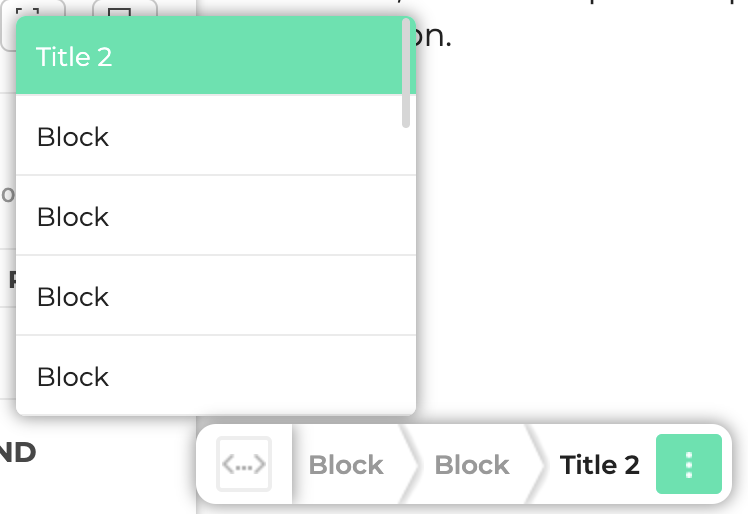
- The selected element, highlighted in green.
- The child elements, located above the selected element in the list.
- The parent elements, located below the selected element in the list.
Segmentation and targeting
How accurate is the “geolocation” targeting condition?
How accurate is the “geolocation” targeting condition?
- Country: 99.8% accurate
- Region: 80% accurate
- Town: 68% accurate within a 50-kilometer radius
- Accuracy varies by country and device type.
- IP geolocation is more accurate for broadband addresses than for cellular networks (mobile devices).
- Geolocation for IPv6 addresses might be less accurate as fewer countries support it.
How do I add or narrow a condition to a segment?
How do I add or narrow a condition to a segment?
How do I define a condition's weight?
How do I define a condition's weight?
What is the difference between “AND” and “OR” in segments?
What is the difference between “AND” and “OR” in segments?
Definitions
- AND: Condition A and condition B must both be met to activate the personalization.
- OR: Only one condition must be met (either A or B) to activate the personalization.
Examples
- Condition A and Condition B: Both conditions must be met.
- Condition A and Condition B and Condition C: All three conditions must be met.
- Condition A or Condition B: At least one condition must be met.
- Condition A or Condition B or Condition C: At least one condition must be met.
- Condition A and (Condition B or Condition C): Condition A and at least one of the other two conditions must be met.
- (Condition A and Condition B) or Condition C: Both A and B must be met, or only C must be met.
Technical and security
How do ad blockers affect Kameleoon?
How do ad blockers affect Kameleoon?
Impact on Kameleoon tools
Ad blockers can interfere with tools like the Kameleoon app, PBX, and editors. They may block assets such as CSS, images, or SDK scripts, which prevents the platform from functioning correctly.To avoid these issues:- Allow Kameleoon domains: Either disable your ad blocker or add
kameleoon.comandkameleoon.ioas authorized domains. This ensures you can access all features and provides a smooth experience for you and your visitors. - Check browser settings: Some browsers, such as Brave or Safari, include native blockers that can interfere with Kameleoon.
Impact on launched experiments
Ad blockers can affect the Kameleoon production environment, including the engine, client-side SDKs, and tracking requests. Visitors might not see experiments if the browser blocks requests to Kameleoon domains.To avoid these issues:- Use a custom domain: A custom domain helps bypass ad-blocker detection and ensures your experiments display correctly. Learn more about enabling a custom domain.
How do I activate cross-device history reconciliation?
How do I activate cross-device history reconciliation?
- Click Settings > Custom data > New custom data.
- Follow the setup steps and click Next.
- Toggle Use this custom data as a unique identifier for cross-device matching to ON.
- Click Create.
How do I disable ad blockers?
How do I disable ad blockers?
app.kameleoon.com) or tools like the PBX editor.Allow Kameleoon in your ad-blocker extension
Most ad-blocker extensions (such as AdBlock, AdBlock Plus, or uBlock Origin) follow a similar process:- Navigate to the Kameleoon platform or the site where you run your experiment.
- Click the ad-blocker icon in your browser toolbar.
- Select an option like Don’t run on this domain, Disable on this site, or Pause on this site.
- Confirm your selection.
kameleoon.com and kameleoon.io as authorized domains. This allows Kameleoon scripts and resources to load correctly.Check your browser’s built-in ad blocker
Some browsers include native ad-blocking features. Check your browser settings:- Chrome/Edge: Go to Settings > Privacy and security > Site settings and check content blocking options.
- Brave: Click the Brave Shields icon in the address bar and adjust blocking settings.
- Safari: Go to Settings > Websites > Content Blockers and manage blocking for specific sites.
- Opera: Check Settings > Privacy & Security for built-in ad-blocking options.
Is Kameleoon compatible with jQuery?
Is Kameleoon compatible with jQuery?
What is the cache expiration time (TTL) for the Kameleoon script?
What is the cache expiration time (TTL) for the Kameleoon script?
What is the flicker effect?
What is the flicker effect?
Why it happens
Flickering happens due to the time the JavaScript engine takes to process the page. Since the browser modifies elements based on the JavaScript code from the testing tool, the variation might load last if the Kameleoon script loads after the page content.How to avoid flickering
The Kameleoon engine minimizes flickering; however, we recommend integrating the Kameleoon JavaScript code as high as possible in the HTML<head>. This ensures Kameleoon loads first.For more information, see Preventing flickering.Analytics and results
How does Kameleoon filter bot traffic from results?
How does Kameleoon filter bot traffic from results?
- IAB/ABC International Spiders and Bots List: Kameleoon identifies and excludes known bots from analytics.
- Proprietary algorithms: Kameleoon automatically filters visits that it considers outliers (such as trolls or tracker bugs). A visit is marked as an outlier if it meets at least one of these conditions:
- More than 10,000 events.
- Lasts longer than two hours.
Activate bot filtering
- Click Admin > Projects.
- Go to the project Configuration page.
- In Advanced settings, toggle Enable bot filtering to ON.
Why do variations have fewer visits than the original when using capping?
Why do variations have fewer visits than the original when using capping?
Is this a Sample Ratio Mismatch (SRM)?
No. This discrepancy does not indicate a faulty split or an SRM. The distribution of unique visitors remains correct.For a detailed explanation, see Visit count mismatch.Troubleshooting
Can Kameleoon conflict with other scripts on my site?
Can Kameleoon conflict with other scripts on my site?
I launched an experiment but cannot see changes on my website
I launched an experiment but cannot see changes on my website
Check the script update
Kameleoon updates the script when you launch an experiment. If your browser cache holds an old version, you will not see changes. To verify the version, open the browser console and enterKameleoon.API.experiments.getAll(). This lists all running experiments.If your experiment is missing, clear your cache. See the Developer documentation.Check for the reference variation
You might be assigned to the reference variation. You can force a specific variation to display for testing.Check targeting criteria
You might not meet the experiment’s targeting criteria. UseKameleoon.API.experiments.getAll() in the console to check. If the experiment is missing, verify your targeting settings. See the Developer documentation.We recommend using the simulation panel to check your setup. See Simulating a campaign.Issue: Refused to display in a frame (X-Frame-Options)
Issue: Refused to display in a frame (X-Frame-Options)
How the Kameleoon iframe works
The iframe ensures data consistency across subdomains by reading and writing tolocalStorage on the host domain. This allows Kameleoon to track the same visitor without additional server calls.For more details, see Unifying session data across subdomains.We secure the iframe using three measures:- Restricted access: Only domains in the
allowedDomainsvariable can request the iframe. - Sitecode verification: Only the specified sitecode can request the iframe.
- Prefixed storage: Kameleoon only accesses entries prefixed with
kameleoon.
Resolve the display issue
TheX-Frame-Options header prevents browsers from rendering pages in frames to avoid click-jacking. For more information, see the Mozilla documentation.To enable cross-domain tracking, you must not set the X-Frame-Options header. You can secure the iframe by providing a restricted list of domains in the hosted iframe file.Issue: Refused to load the script
Issue: Refused to load the script
https://xxxxxx.kameleoon.eu/kameleoon.js violates your Content Security Policy (CSP).Fix the issue
If your site restricts resources via CSP headers, update your policy to allow Kameleoon resources. See the full list of Kameleoon domains to allow.Why can't I log in to Kameleoon tools?
Why can't I log in to Kameleoon tools?
- Open browser Settings.
- Go to Privacy & security > Third-party cookies.
- Select Allow third-party cookies.
refresh-tokenkameleoonSessionIdaccess-tokenexpiration-access
Why is there unequal traffic distribution in my split URL experiment?
Why is there unequal traffic distribution in my split URL experiment?
- Kameleoon script missing on variation B: You must install the Kameleoon snippet on the new page (URL B) to track visits and conversions correctly. If the script is missing, Kameleoon might still show some data from tracking calls sent just before redirection.
- Bounce rate metrics: Kameleoon sends tracking data either before or after redirection. High bounce rates can cause discrepancies between tools.
- Consent policy: If your policy is set to Required, follow the URL redirection and consent guidelines for accurate metrics.