

Switch between devices
At the top of the Widget Studio, you can preview your widget on different devices (mobile, tablet, desktop) to ensure it’s displaying correctly.
Edit the view on a device
You can customize your widget’s elements based on the device it is displayed on. Customize your widget by device to optimize visitors’ viewing experience.Desktop priority
Add all elements to the Desktop view, which is the default configuration.
Edit an element on a specific device
To edit an element on a specific device, click one of the device icons at the top of the page, then edit the element.
Hide an element on a specific device
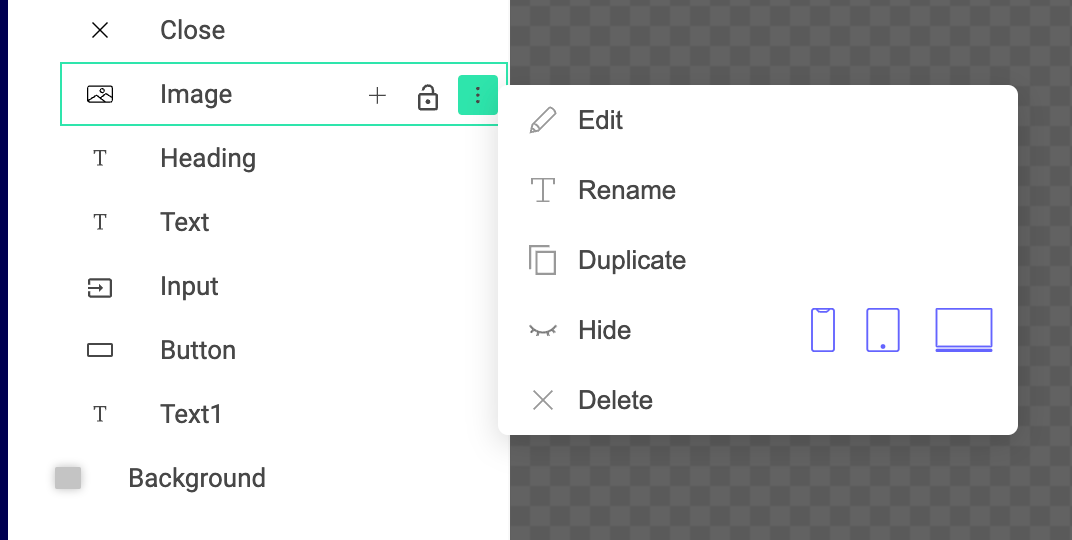
To hide an element on a specific device:- Select the element you’d like to hide.
- Click the three-dots menu.
- Click a device icon to hide the element.
Devices synchronization
With devices synchronization, you can designate a leader device for each element, and determine how the element’s settings should be synchronized between the leader device and the other devices. You must choose a synchronization rule for all follower devices. In each element’s General tab, you will find a section called Devices synchronization.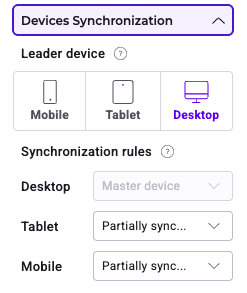
- Fully synchronized: properties, position, size & states of the element are synchronized with the leader device.
- Partially synchronized: all styles will be inherited from the leader device until one of the styles changes on a device.
- No synchronization: none of the element’s settings are synchronized with the leader device.
- Hide: the element is not visible on the device.
Set up a “Device” type event
You can also configure an event to customize the display of your widget’s elements depending on device. To add a Device type event:- Click + Add event > Device.
- Select your conditions.
- Click Add action > Elements.

