The accessibility checker is currently available to beta users only.
Visitors who rely on screen readers or keyboard navigation can run into real barriers in a widget: an element with no accessible name, text that fails contrast requirements, and a control with no visible boundary. The Widget Studio’s accessibility checker scans your widget for issues like these and evaluates them against the WCAG 2.1 AA standard, giving you a chance to resolve them before the widget goes live. Run the check at any point while you build the widget.

Check your widget’s accessibility

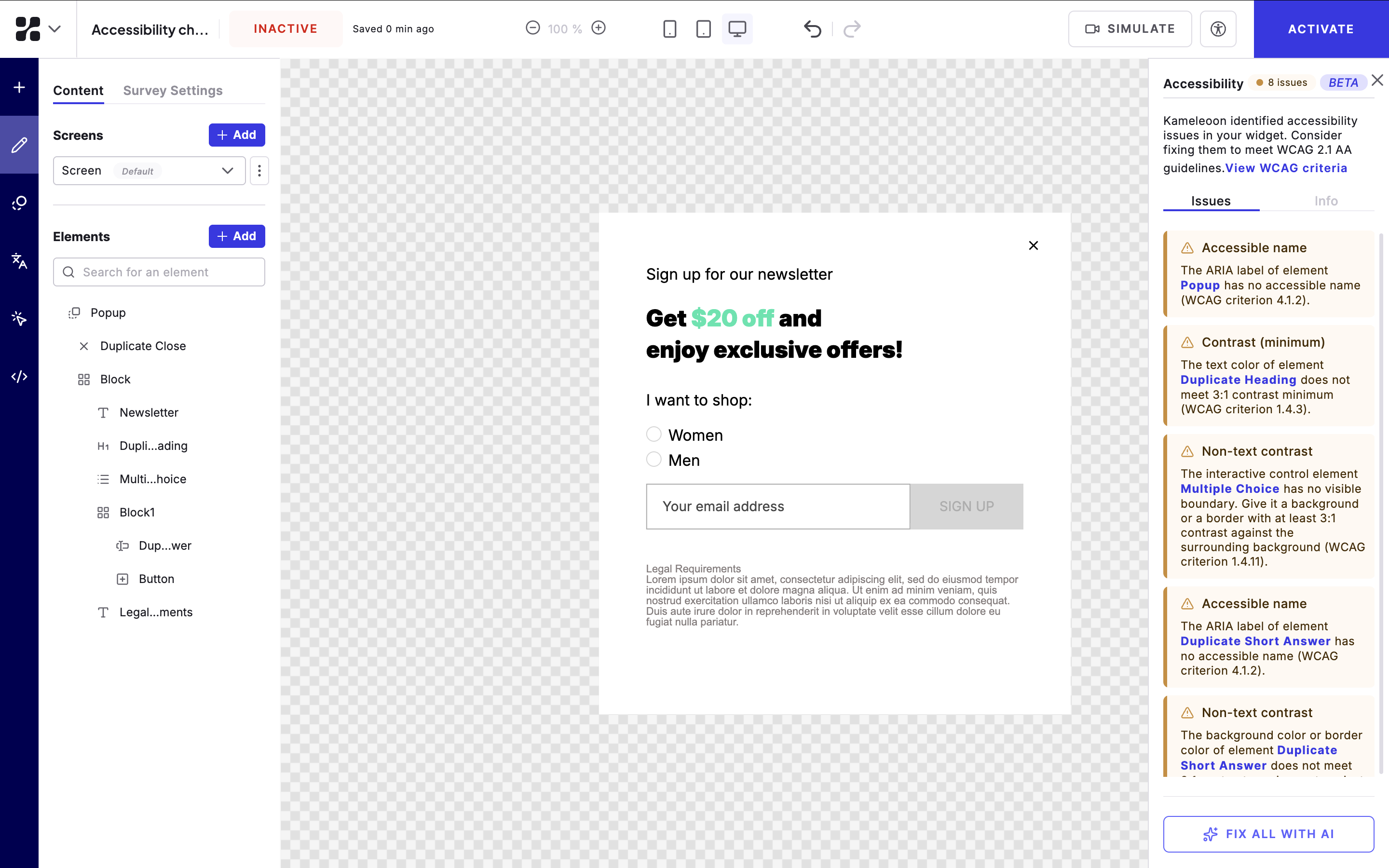
To check your widget’s accessibility, click the accessibility icon in the Widget Studio header. Kameleoon detects and lists the accessibility issues found in your widget. The accessibility panel in the Widget Studio listing the accessibility issues detected in a widget

Fix accessibility issues

You can fix the detected issues in two ways:
  • Fix all with AI: Kameleoon automatically resolves all listed issues.
  • Edit elements manually: Select an affected element in the list and edit it yourself.

Add ARIA labels

To help screen readers identify the purpose of each element, use the ARIA label property in the edit sidebar. Enter a short description of what the element does, such as “Close the pop-in” for a close button.

Check accessibility before activation

When you activate your widget, a pop-up reminds you to check its accessibility. Run the accessibility checker before activating your widget to confirm it meets the WCAG 2.1 AA standard.