

- AI-quality metrics, such as correctness, groundedness, relevance, context quality, safety, or compliance
- Agent-performance metrics, such as successful tool use or task completion
- Operational metrics, such as latency, token consumption, errors, and cost
- User and business metrics, such as satisfaction, escalation, conversion, retention, and revenue
Evaluation and experimentation solve different problems
Evaluation determines whether an individual model or agent output meets a defined quality standard. Observability tools let you inspect the prompts, responses, traces, retrieval steps, and tool calls behind that output. Experimentation determines whether a change to the underlying configuration causes a measurable improvement for users or the business: a question neither evaluation nor observability answers. For example, an LLM judge might score a customer-support agent’s rewritten system prompt as more grounded than its current one. A Kameleoon experiment answers the questions your team is accountable for: whether that same configuration resolves more tickets without escalating to a human, and what it costs in latency and token spend to get there. Kameleoon doesn’t replace your LLM observability or evaluation stack. Feed evaluator scores from RAGAS, an LLM judge, or a human review process into Kameleoon as a custom goal, and track those scores alongside the behavioral and business goals your experiment already measures. Your model-level quality signals then connect to a statistically reliable measurement of real user impact. For most AI experiments, combine several metric types rather than relying on one:- Set a user or business outcome as the primary goal.
- Track AI-quality metrics as secondary goals or guardrails.
- Monitor latency, cost, errors, and safety as operational guardrails.
- Validate automated judges against a sample of human-reviewed examples before you trust their scores at scale.
How it works
An experiment on an LLM application or AI agent moves through five stages in Kameleoon:- A feature flag holds the configuration. Each part of the configuration, such as a prompt or a model name, becomes a feature variable on the flag.
- Each variation sets its own values. A variation is one complete candidate configuration, with a value for every variable.
- The SDK assigns each visitor a variation. When a visitor reaches your application, your code requests the flag and receives the assigned variation’s values, then uses them to call the LLM or configure the agent.
- Goals record what happened. Your application tracks a conversion against each goal attached to the flag, including a guardrail conversion that fires only when a response breaches an acceptable quality or latency threshold.
- The results page compares the variations. After you collect enough traffic, compare the variations across every attached goal to decide which configuration to roll out.
Prerequisites
- A Kameleoon account with a project set up for Feature Experimentation.
- Your account’s client ID and client secret. To find these values, see API credentials.
- A server-side application where you can install a Kameleoon SDK, for example a Python application.
Set up your AI-agent experiment in Kameleoon
The following steps build one concrete experiment: does a rewritten system prompt, combined with a stronger model and a higher reasoning effort, help a customer-support AI agent resolve more tickets on its own, and does it keep latency within an acceptable range while doing so? Configure the feature flag, variations, and tracking goals in the Kameleoon platform before you touch your application code.Create the feature flag
Create a feature flag to hold your agent’s configuration and control the rollout of your experiment.- In the Kameleoon app, click Features > Flags & Experiments > New feature flag.
- Enter a name, for example
AI support agent config, and select the project for the flag. - In the Description field, note what the flag controls, for example “Controls the system prompt, model, reasoning effort, and retrieval settings for the support chatbot,” so other members of your team understand its purpose.
- Click Validate.
- Kameleoon generates a feature key from the flag’s name. Note the generated key, or edit it to
ai_support_agent. Your application code identifies the flag by this key, not by its name, so the two must match.
Store the agent configuration in feature variables
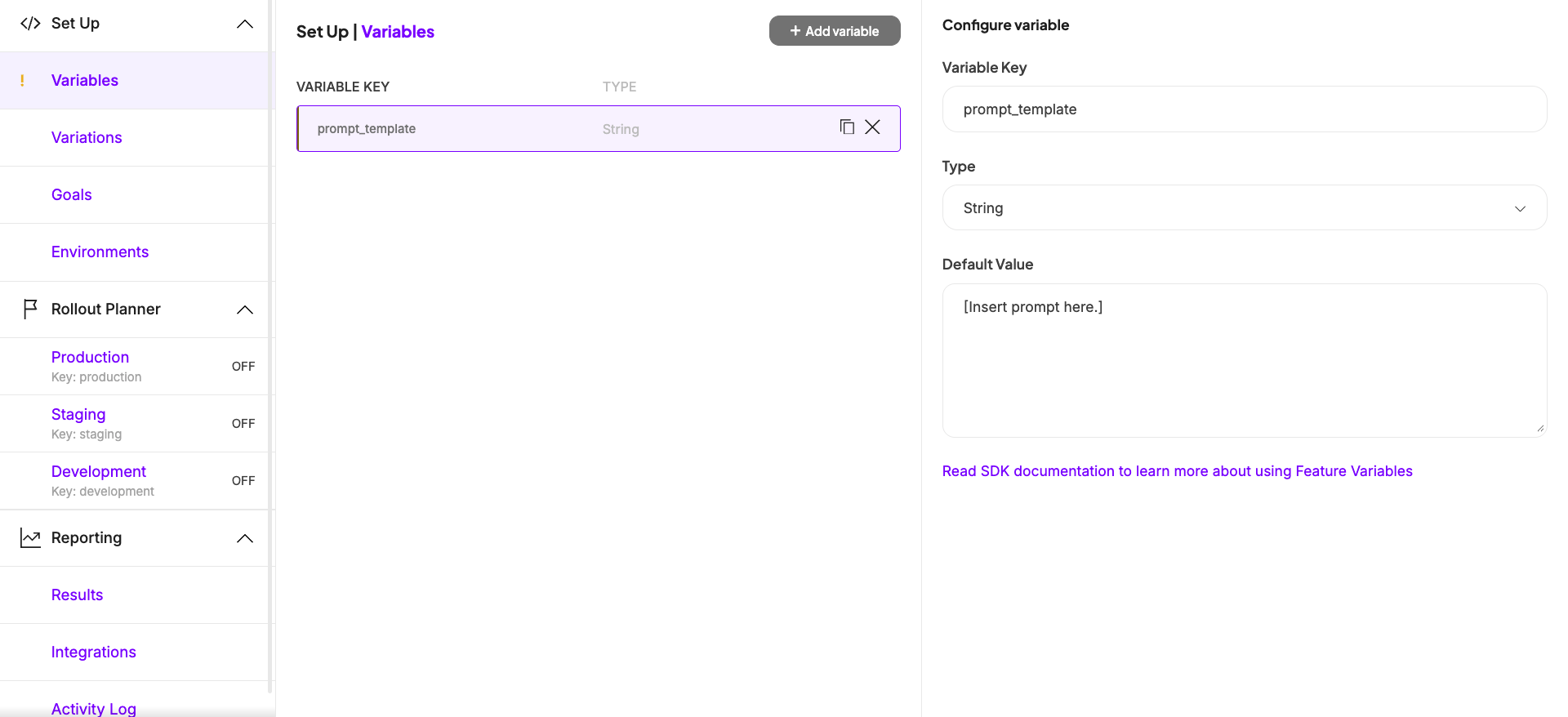
Add one feature variable for each part of the agent’s configuration you want to test, so you can change any of them from the Kameleoon platform without editing your application code. This example tests four variables:- On the flag’s page, in the left sidebar, click Set Up > Variables > Add Variable.
- Set the variable’s Type to match the table, either String or Number.
- Enter the Variable Key from the table, for example
system_prompt. - Set the Default Value to the value your application uses in production today. Every variation you create later starts pre-filled with these values, so accurate defaults save you work and give you a known-good configuration to fall back on.
- Click Save.
- Repeat these steps for each remaining variable in the table.
Create your variations
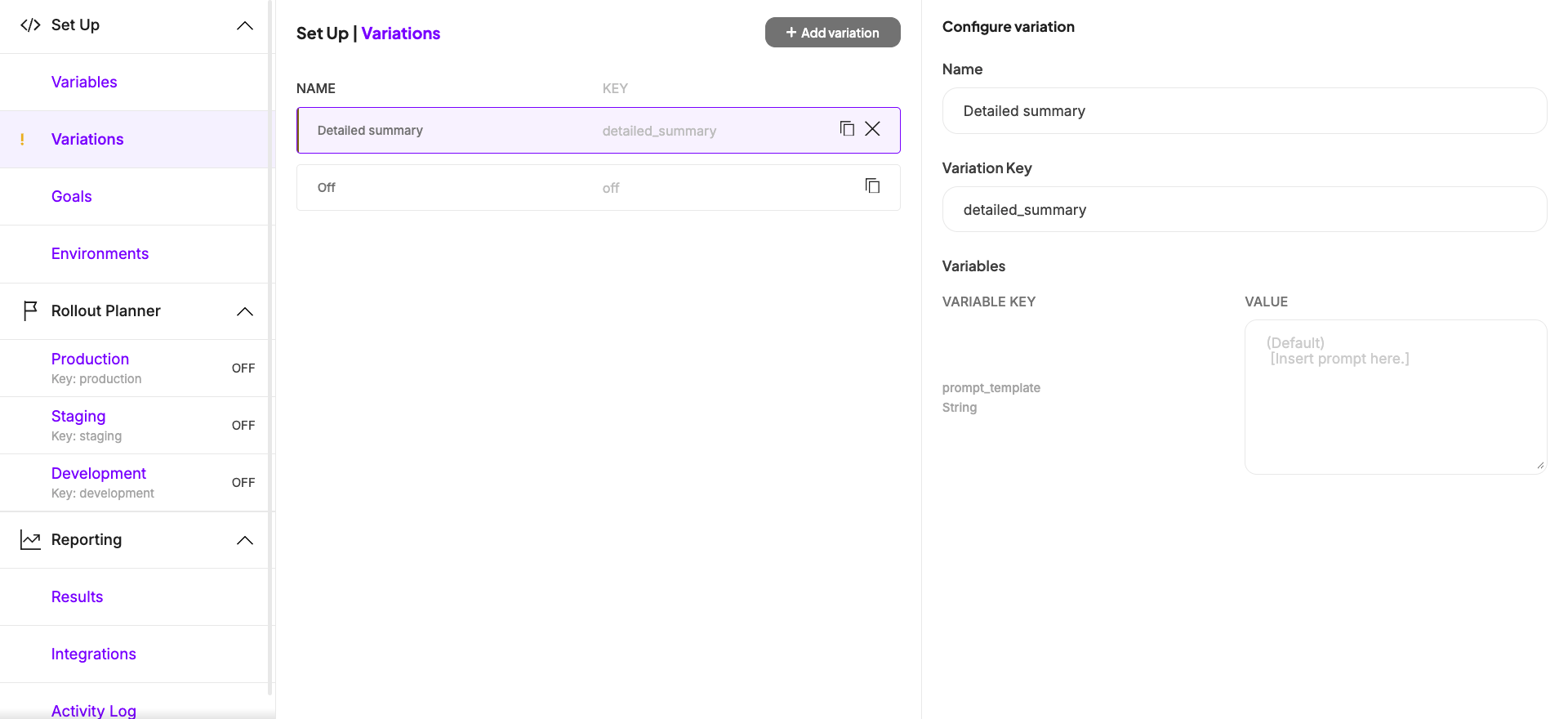
A delivery rule can only serve Off or a variation you created yourself, so an A/B comparison needs a variation for your current configuration as well as one for each new configuration you want to test. This example creates two variations:Baseline, which mirrors what your application already serves in production, and Grounded, high reasoning, a challenger that combines a rewritten, more explicit prompt with a stronger model and more reasoning effort.
- In the left sidebar, click Set Up > Variations > Add variation.
- Enter a Name, for example
Baseline, and a matching Variation Key, for examplebaseline. Each variable is pre-filled with its default value, so leave all four unchanged. - Click Save.
- Repeat these steps for a second variation named
Grounded, high reasoning(keygrounded_high_reasoning), editing each of the four variables to match the value in the table for this variation. - Click Save.
Attach goals for business impact, AI quality, and latency
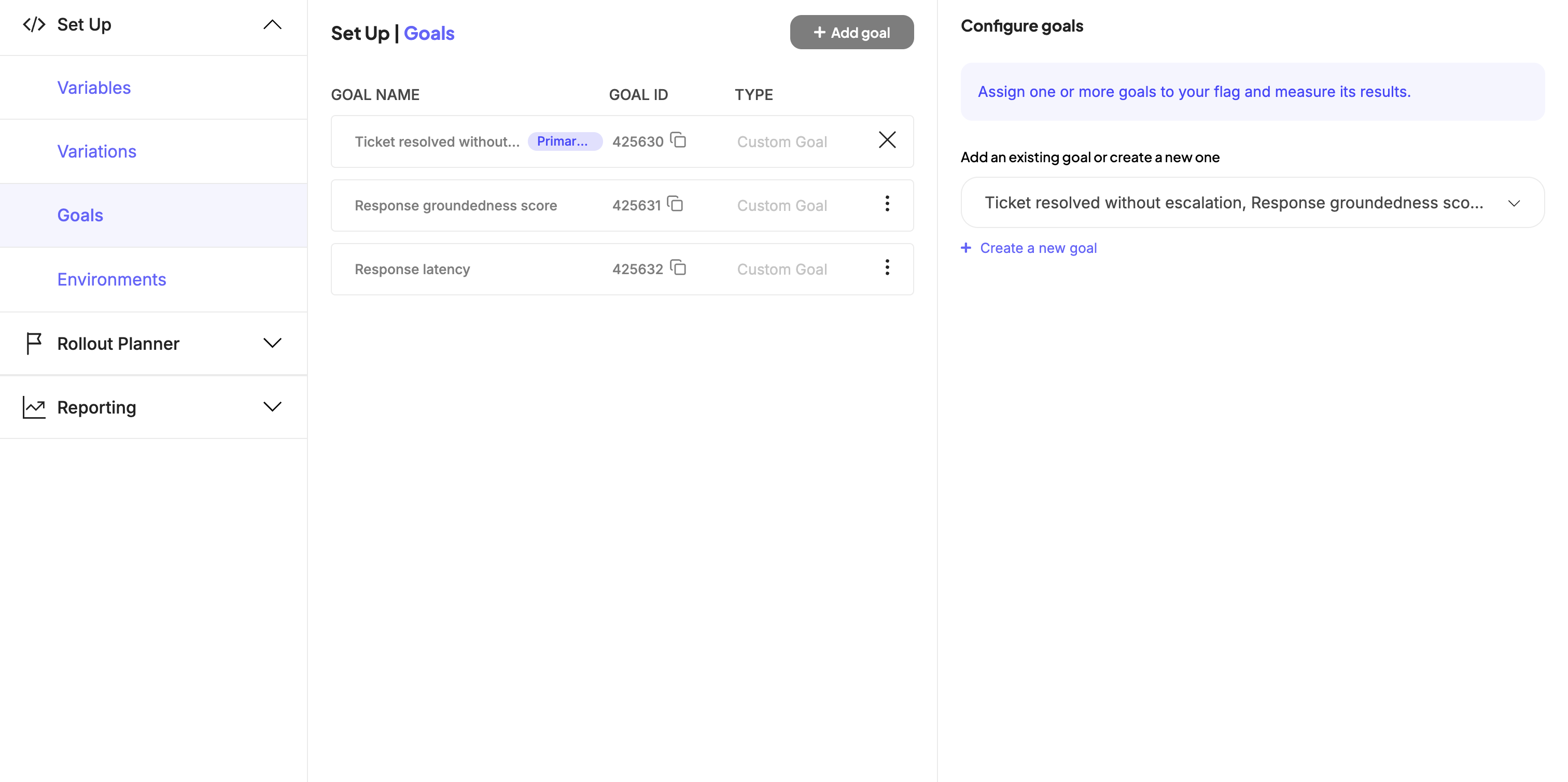
Attach several goals to the feature flag so you can compare variations across the outcomes your team is accountable for, not just response quality. Because Kameleoon is a unified platform, you can attach any goal that already exists in your organization, or create a goal specific to your LLM-powered feature. This example attaches three goals, one from each of the metric categories that matter for an AI agent:
Create all three as Custom goals that your backend triggers, since your application fires them rather than the visitor’s browser. When you create each goal, select Custom goal as the Type, then choose the option for a back-end event via SDK.
- On the flag’s page, in the Set Up menu, click Goals > Add goal.
- Select an existing goal, or click Create a new goal to define one. Add
Ticket resolved without escalationfirst, since Kameleoon automatically sets the first goal you attach as the Primary goal. - Click Save.
- Repeat these steps for
Response groundedness scoreandResponse latency, which Kameleoon attaches as Secondary goals.
Response groundedness score and Response latency don’t carry a numeric value. Your application decides whether a given response breached an acceptable threshold, either too slow or too ungrounded, and triggers the goal’s conversion only when it did. Kameleoon then reports each goal’s conversion rate per variation, telling you what fraction of responses breached that threshold.
Roll out the experiment
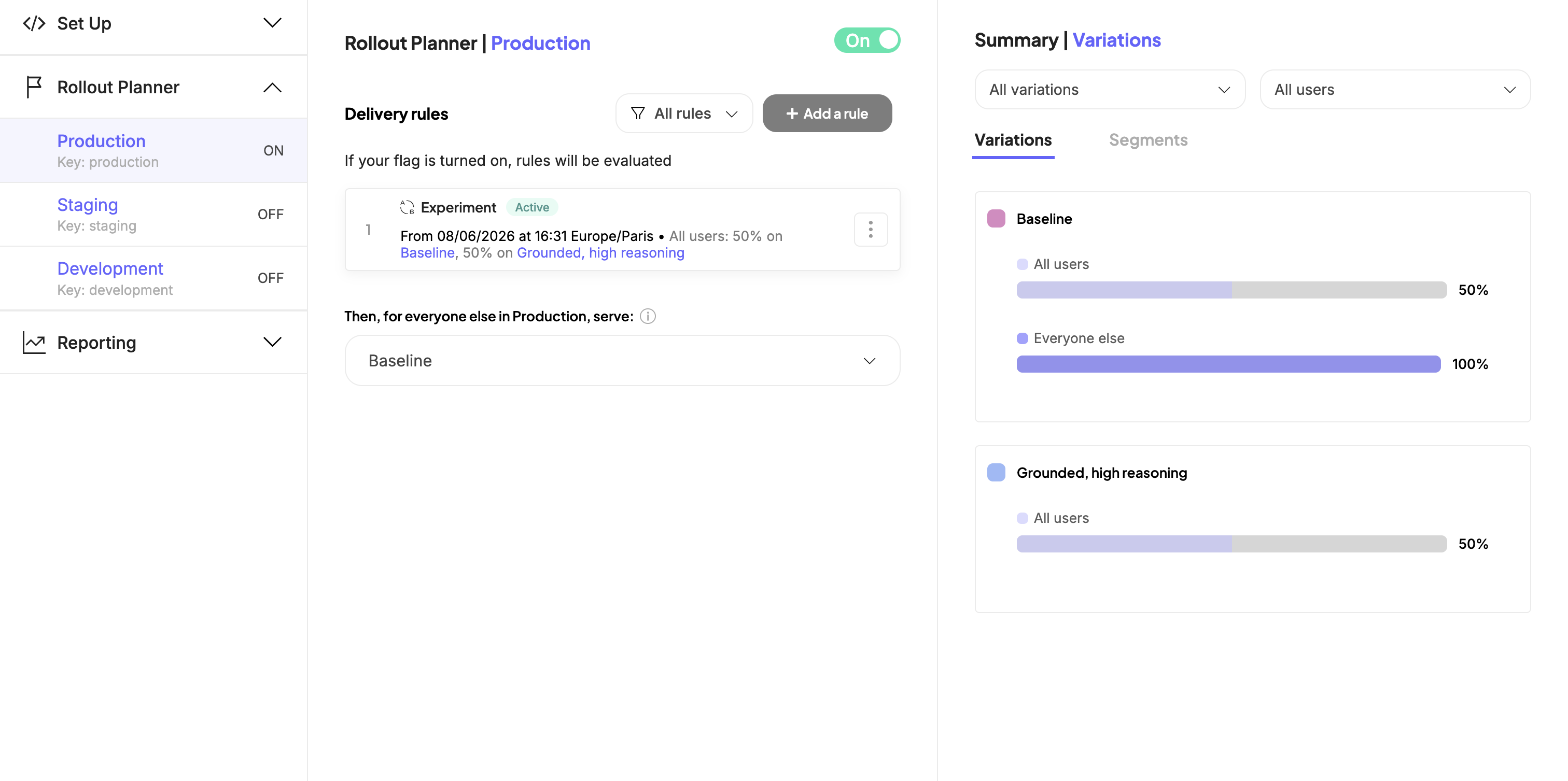
Add an Experiment rule that splits traffic between your two variations, then turn the flag on to start collecting data. The Add a rule menu groups rules by purpose. Feature testing contains the Experiment rule, which splits traffic and measures a statistically significant comparison between variations, while Feature delivery contains Progressive delivery and Targeted delivery, which release a single variation gradually or to a specific segment without comparing arms. An A/B test needs the Experiment rule.- In the Rollout Planner, select the environment you want to target, for example Production.
- Click Add a rule, then under Feature testing, select Experiment.
- Under Variations to serve, set
Baselineas the Control and addGrounded, high reasoningas a Treatment. Kameleoon measures every treatment’s results against the control, so the control must be the configuration you already run in production. - Set the traffic distribution across the two variations, for example 50% each.
- Set the rule’s targeting to include the visitors you want to test, for example all visitors who open a support conversation.
- In the Then, for everyone else in production, serve drop-down, select
Baseline. Visitors who fall outside the rule’s targeting then receive your current, validated configuration, and your application still gets a full set of variables for them. - Turn the flag’s ON/OFF toggle to ON.
- Click Save.
Retrieve the configuration in your application
Install the Kameleoon Python SDK, then retrieve the visitor’s assigned configuration and track a conversion for each goal as the visitor’s ticket progresses. The same pattern applies to any Kameleoon server-side SDK, including Node.js, Java, and Go. Because Kameleoon only supplies the configuration values, the same pattern also works with any agent framework, such as the OpenAI Agents SDK, the Claude Agent SDK, or LangChain. Most agent code runs on Python or TypeScript, so pick whichever matches your application.-
Install the SDK as a dependency:
-
Initialize the client with your site code and credentials. Set
environmentto the same Rollout Planner environment that holds your Experiment rule, otherwise the SDK evaluates a different environment’s rules: -
Retrieve the assigned configuration before you call your LLM, and track a conversion for each goal as the visitor’s ticket progresses:
Call
get_agent_config_for_visitor()with the visitor’svisitor_codebefore you send a request to your LLM, and use the returned values to build the request, the system prompt, model, reasoning effort, and number of retrieved documents. Calltrack_ticket_resolved()when the agent resolves the visitor’s issue without escalating to a human. After the agent responds, callscore_response_groundedness()with the documents it retrieved and the response it generated, then pass the returned score totrack_quality_score(). Calltrack_response_latency()with the response time in milliseconds after each LLM call. Bothtrack_quality_score()andtrack_response_latency()track a conversion only when the value breaches its threshold, so a response that stays within both guardrails triggers neither goal.score_response_groundedness()is a minimal LLM-as-a-judge example: it asks a model to compare the response’s claims against the retrieved context and return the fraction it supports. RAGAS’s Factual Correctness metric scores the same underlying idea, and you can substitute it, or another evaluation framework your team already uses, for a hand-rolled judge prompt. Kameleoon then reports each goal’s conversion rate per variation, telling you what fraction of responses breached the quality or latency guardrail, rather than tracking the raw score or millisecond value itself.
Use
get_visitor_code() to assign a unique ID to each visitor, and set_legal_consent() if your application requires visitor consent before tracking data. For the full client initialization and configuration reference, see the Python SDK developer guide.Monitor and iterate
Open the feature flag’s results page to compareBaseline and Grounded, high reasoning across all three attached goals. Kameleoon tracks exposures and conversions automatically whenever your application calls get_variation() and track_conversion(), so you don’t need any additional instrumentation.
Read the three goals together rather than in isolation. The challenger in this example runs a larger model at a higher reasoning effort and retrieves more documents, so it costs more per conversation and is more likely to breach the latency guardrail. A win on Ticket resolved without escalation justifies that trade only if Response latency and Response groundedness score don’t convert more often for the challenger than for Baseline. If the primary goal moves but a guardrail’s conversion rate rises past what you’re willing to accept, keep serving Baseline and refine the challenger.
When a challenger wins, promote it: update each variable’s Default Value to the winning configuration so it becomes the new known-good baseline, then retire the experiment rule or reuse the variation for your next hypothesis.
For more detail, see Analyze a feature flag’s overall results.
Next steps
- Read the Python SDK reference for advanced options such as custom data, cross-device experimentation, and targeting conditions.
- Attach precise segmentation criteria to target the experiment at a specific audience, for example only tickets tagged with a certain product area.
- Add a token-cost goal alongside latency, tracking tokens consumed per conversation as a numeric custom goal, so you can price the difference between a Sonnet and an Opus configuration directly. See Create a goal.
- Add a context-relevance goal to check whether raising
retrieval_top_kactually improves which documents the agent retrieves, since a grounded answer can still come from the wrong documents. See Create a goal. - Add a direct user-feedback goal, such as a thumbs-up or thumbs-down control after each response, to capture visitor satisfaction alongside the behavioral signals this example already tracks. See Create a goal.
- Add more variables to test other parts of the agent’s configuration, such as temperature, tool definitions, or a fallback model for retries. See Define feature variables.
- Validate your
Response groundedness scorethreshold by comparing a sample of automated scores against a human review before you trust it at scale. See Create goals for feature flags.