Setting up rollback conditions
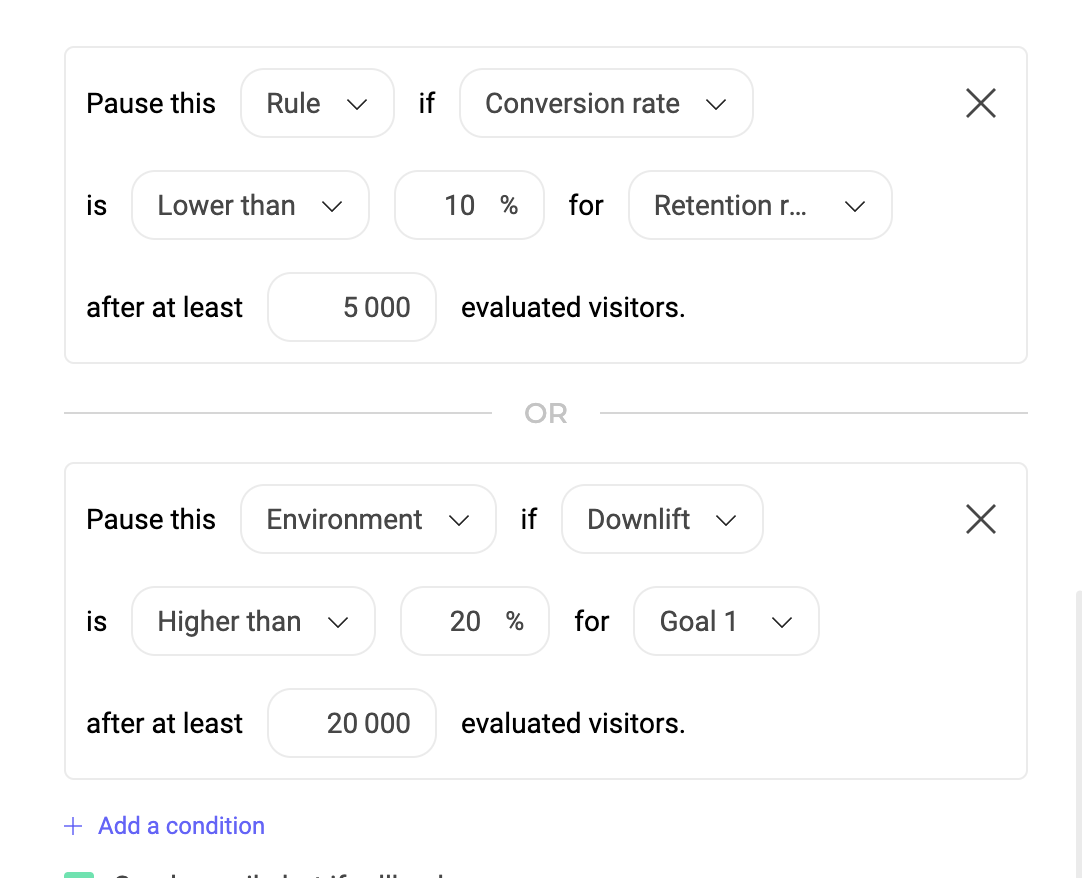
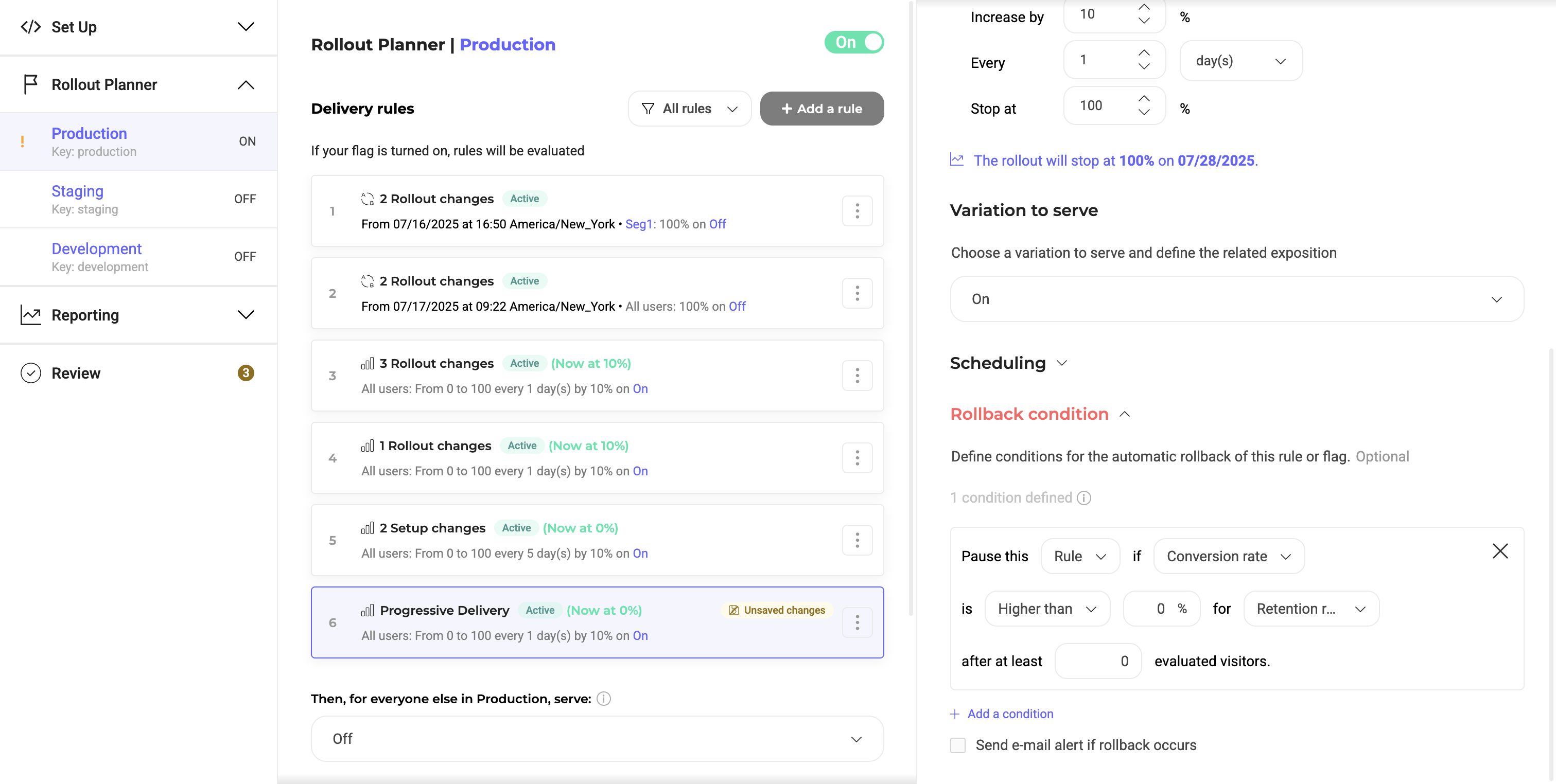
Create a new rule or click an existing one. Then, navigate to the Rollback Condition at the bottom of the edit pane for your desired rule. Here, add a new condition and fill in the fields:- Choose whether to turn off only the selected rule or turn off the toggle for the entire environment. Turning off the environment stops all active rules, including deliveries and experiments, in that environment.
- Choose the performance indicator to check against: Uplift, Downlift, or Conversion Rate.
- Define the condition (higher than or lower than) and enter the threshold percentage which triggers the automatic rollback.
- Select which goal to monitor and evaluate for performance. Here, you can pick from any Kameleoon goal that you’ve created for this project.
- Select the minimum visitors to evaluate before Kameleoon can execute the rollback.