

AI Targeting is an add-on available in both Web Experimentation and Feature Experimentation. Contact your Customer Success Manager for details.
Prerequisites
Before you can use the Likelihood to convert condition in a segment, you must:- Enable AI Targeting on at least one goal. See Enable AI Targeting on a goal.
- Have at least one trigger configured. For guidance on picking a meaningful trigger, see How to choose the right trigger.
- Wait for the AI model to complete its learning phase (7 days and 100,000 visits by default).
Create or edit a segment with Likelihood to convert
- Click Settings > Segments.
- Click New segment to create a segment, or click Edit on an existing segment.
- In the segment builder, expand the Conversions section.
- Click Likelihood to convert.
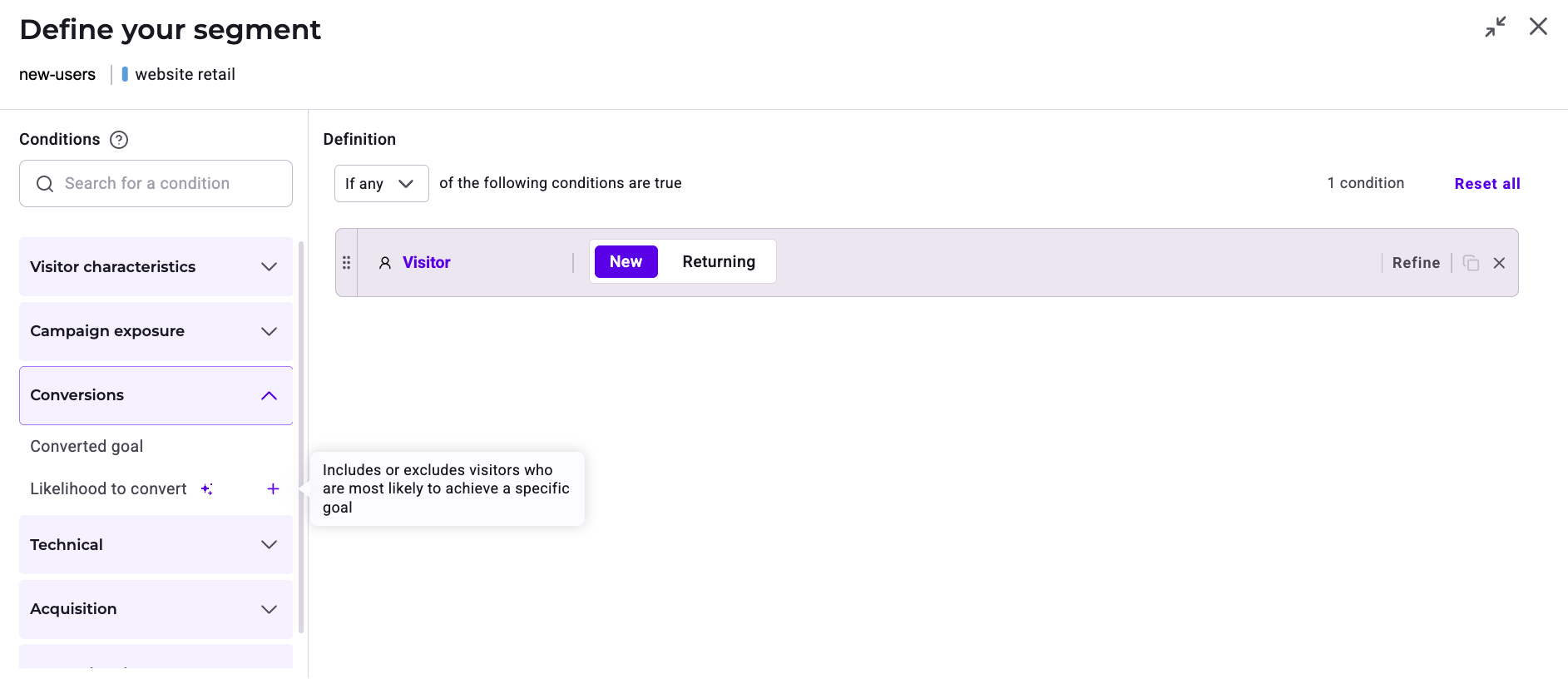
- Select a likelihood range. You can choose one of the predefined buckets — Very low, Low, Moderate, High, or Very high — each representing roughly 20% of the eligible audience. Alternatively, select Personalized to define a custom range between 0 and 100. A score of 0 indicates the lowest predicted conversion probability relative to other visitors, and a score of 100 indicates the highest.
- Choose the goal on which you enabled AI Targeting.
- Choose the trigger to associate with the prediction.
- Click Save to confirm.
AI model status badges
Every segment that uses the Likelihood to convert condition displays a status badge, so you can monitor the AI model’s progress at a glance.| Badge | Color | Meaning |
|---|---|---|
| AI Learning | Blue | The model is collecting data. By default, it requires 7 days and 100,000 visits to complete training. During this phase, the AI condition is inactive, and the segment falls back to its other active conditions. |
| AI Active | Green | The model is operational and evaluates visitors in real time. |
| AI Alert | Orange | The learning phase is taking longer than expected, usually due to low traffic. |
View learning progress
Hover over the AI Learning badge to see a tooltip with the exact training progress:- Time: X of 7 days elapsed
- Traffic: X of 100,000 visits collected
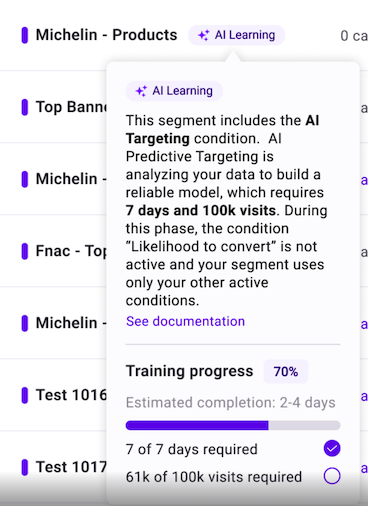
Monitor AI targeting status from the Experiments dashboard
You can check an AI model’s status without leaving the Experiments dashboard:- Hover over the information icon associated with an experiment.
- In the pane that opens, hover over the sparkles icon next to the segment.
- A tooltip displays the current AI status for that segment.
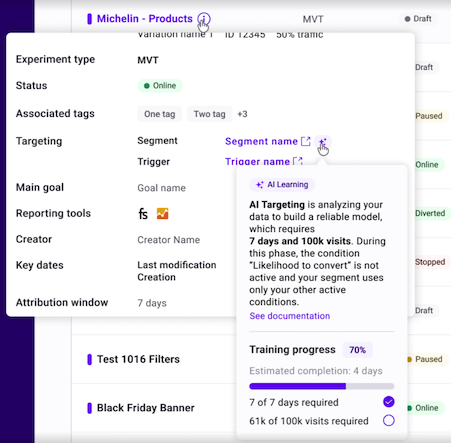
Use the segment in a campaign
After the AI model reaches AI Active status, add your segment to:- A web experiment
- A personalization campaign
- A feature experiment