

Access the Segments page
To access the Segments page in Kameleoon:- Click Configure > Segments in the left sidebar.
Manage your segments
Each segment is represented by a card that indicates its main information.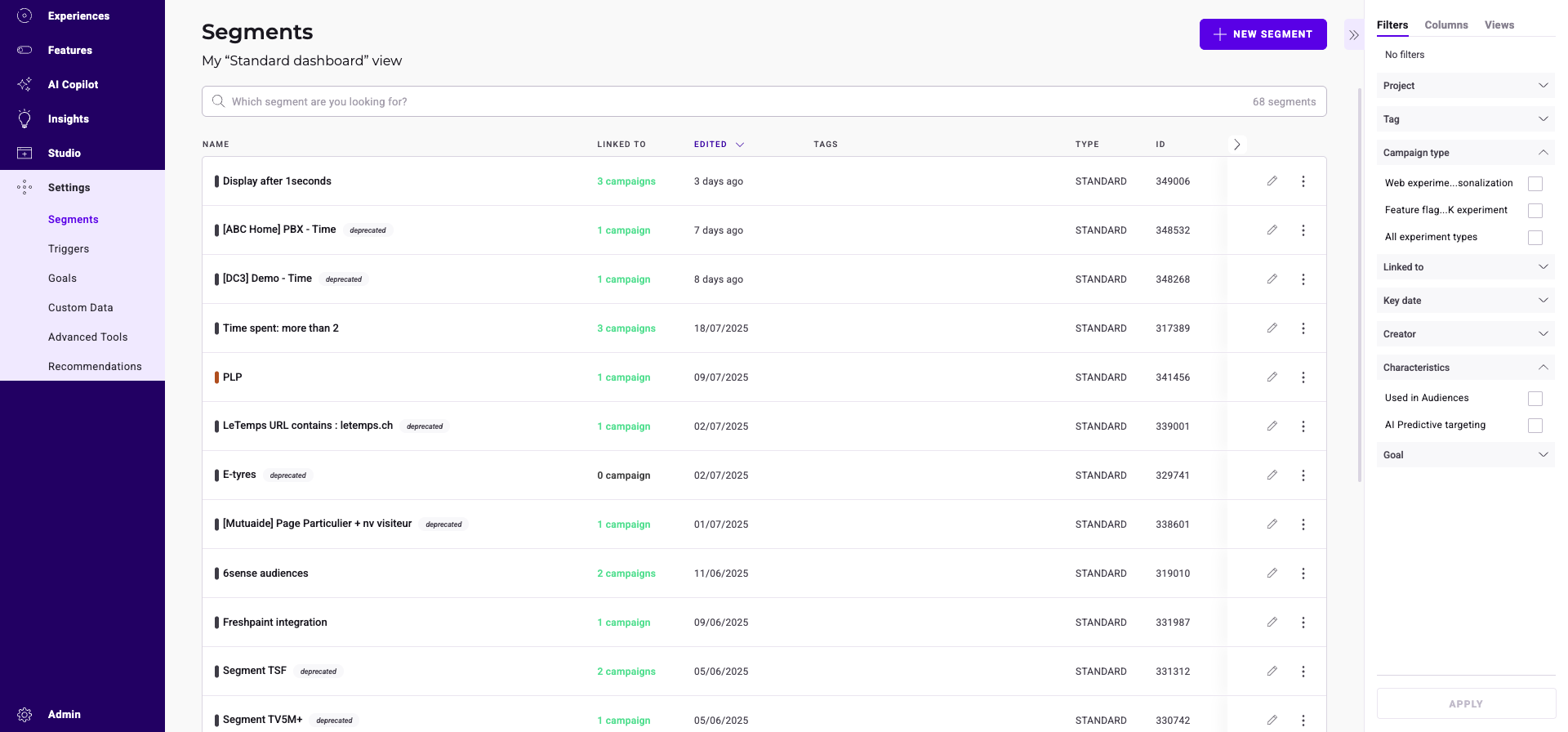
Find a segment
A search bar, a filter tool, and a sorting tool help you find a particular segment.Filter segments
You can filter the displayed segments based on several criteria:- Project
- Tag
- Campaign type
- Linked to
- Key date
- Creator
- Characteristics
- Goal
Website
Filter the displayed segments by their associated website. Check the websites and click Apply.Campaign type
This filter is only available for Web experimentation + Feature experimentation customers. Filter the displayed segments by their associated campaign type. Here are the conditions for these filter criteria:- Feature flag/SDK experiment: Segments containing the Visitor code condition or the Feature experimentation conditions, not used in any experiment or personalization.
- All experiment type: Segments used in a Feature experiment that also contain conditions common to both Feature and Web experimentation.
- Web experiment/Personalization: All other segments.
Linked to
Filter the displayed segments by whether they’re linked to a campaign.Tag
Filter the displayed segments by their associated tags. Select or search for a tag. Kameleoon displays the segments associated with those tags on the page. You can also check or uncheck all tags. Click Apply.Key date
Filter the displayed segments by their associated key date: last modification or creation date. Select a date then click Apply.Creator
Filter the displayed segments by their creator. Check a creator then click Apply.Characteristics
Filter the displayed segments by whether they’re used in Audiences. Check a filter then click Apply.Sort segments
The sorting option lets you sort your segments according to several criteria:- Name
- Linked to (Campaign)
- Edition date
- Segment ID
- Creation date
- Website
Name
Hover over Name and click the chevron to sort segments in alphabetical (or reverse alphabetical) order.Linked to
Hover over Linked to and click the chevron to rank segments based on campaign type.Edition date
Hover over Edited and click the chevron to sort segments from newest edition to oldest or vice versa.Segment ID
Hover over ID and click the chevron to sort segment IDs in ascending or descending order.Creation date
Hover over Created and click the chevron to sort segments from newest creation to oldest or vice versa.Website
Hover over Website and click the chevron to organize segments by website, in alphabetical or reverse alphabetical order.Columns
Click Columns to edit which columns appear in the Segments table. Uncheck a box to remove the associated column from the table. Select your sorting criteria under Sort by. Click Apply to apply your changes. Click Save as view to save your selection as a view. You can then select the view from the Views menu.Edit a segment
To edit an existing segment:- Navigate to a segment’s card.
- Click Edit. A pop-up opens.
- Make your changes in the Segment Builder.
- Click Edit to save your changes once they’re complete.
Duplicate a segment
To duplicate a segment:- Click the three-dots menu on the right side of a segment’s card.
- Click Duplicate. The Duplicate sidebar opens.
- Click Save to validate the segment’s duplication.
Delete a segment
To delete a segment:- Click the three-dots menu on the right side of a segment’s card.
- Click Delete.
Multiple selection
You can select multiple segments at the same time and apply a common action to them. For example, you can delete several segments simultaneously. To select multiple segments:- Click the three-dots menu on the right side of a segment’s card.
- Click Select. The segments become selectable and the Grouped actions sidebar opens.