

Access the creation flow
- In the Kameleoon app, go to Experiences > A/B Test > New experiment.
- If you use the Starter or Trial plan, the prompt-based interface opens automatically.
- If you use the Enterprise plan, a pop-up appears. Select By Prompt.
You can’t use the Graphic editor to edit a variant that PBX generates. For more information, see the FAQ.
- Enter the required information and click Create.
Configure your experiment
1. Define your prompt
In the prompt field, describe the modification you want to make using natural language. You can resize the prompt area by clicking and dragging the corner. Examples:- “Update the product listing grid to display 2 products per row instead of 4.”
- “Change the default sorting option to ‘Price, low to high’.”
Use images and designs
To provide visual context or add specific assets (like banners or pop-ups), click + > Add an image or paste an image from your clipboard. You can attach up to 10 images in a single prompt for complete visual context.
- Asset: PBX inserts the image file directly into the variation.
- Mockup: PBX uses the image as a reference to recreate the design with code.
Use speech-to-text
Dictate your prompt instead of typing it. Click the microphone icon in the prompt toolbar, say your prompt, then click the checkmark to transcribe it into the prompt field.
Select elements
Help the AI identify which elements to modify in the following ways:- Text description: Describe the element in your prompt (for example, “Move the product grid below the banner”).
- Selection box: Click + > Draw sketch and outline the target element on the page. Use the toolbox to draw, erase, or delete your selection.
You can’t scroll or draw outside your current view when using the drawing tool. Use text descriptions for elements located lower on the page.
Configure AI settings
Customize how the AI generates variants and interacts with your website. Click the + icon and select AI Settings. In the Projects sidebar, select the project you want to edit. The AI Settings menu includes two tabs:- Master Prompt: Define overarching instructions and context for the AI. For more information, refer to the Master Prompts article.
- Technical Settings: Configure technical preferences for your project. You can adjust the following options:
- Website adapts automatically to different screen sizes: Enable this option for responsive websites. Turn it off if your mobile version uses a separate URL or doesn’t update on resize.
- Enable support for dynamic websites (SPA, PWA…): Enable this option to detect virtual URL changes and ensure URL targeting and data collection work correctly.
- Custom attribute: Set a custom attribute to allow Kameleoon to track every virtual URL change, enable URL targeting, and gather data, such as the number of page views.
- Avoid dynamic IDs selectors: Specify selectors to avoid.
2. AI workflow
When you submit a prompt, PBX works through the change in real time. Each action the AI takes appears as it happens, along with its reasoning in plain language, so you can follow what PBX is doing at every step.Real-time tracking and reasoning
As PBX generates your variation, you can see each step it takes and the thinking behind it. PBX highlights elements on the page as it processes your prompt, showing you exactly what the AI is targeting.AI navigation
PBX can navigate to other pages on your site or to external sites when your prompt requires it. You can reference a feature or design element from a different page, or point the AI at another site to use as inspiration. You can request this directly in your prompt: “Replicate the search filter layout from this travel booking site:www.example.com/search.”
Interaction tools
At key points in the generation process, PBX pauses and presents one of the following interaction tools before continuing:- Highlight elements validation: PBX highlights the element it intends to modify. Confirm the selection or redirect PBX to a different element.
- Option picker: PBX presents two or more design options for you to choose from. Select the option that fits your intent.
- Confirmation: PBX summarizes the action it’s about to take and asks you to confirm before it commits.
Choose between variations
After generation, PBX presents several variation options for you to compare. Select the one that matches your intent and click Apply version. If none of the options are right, continue prompting to refine the result or provide additional details.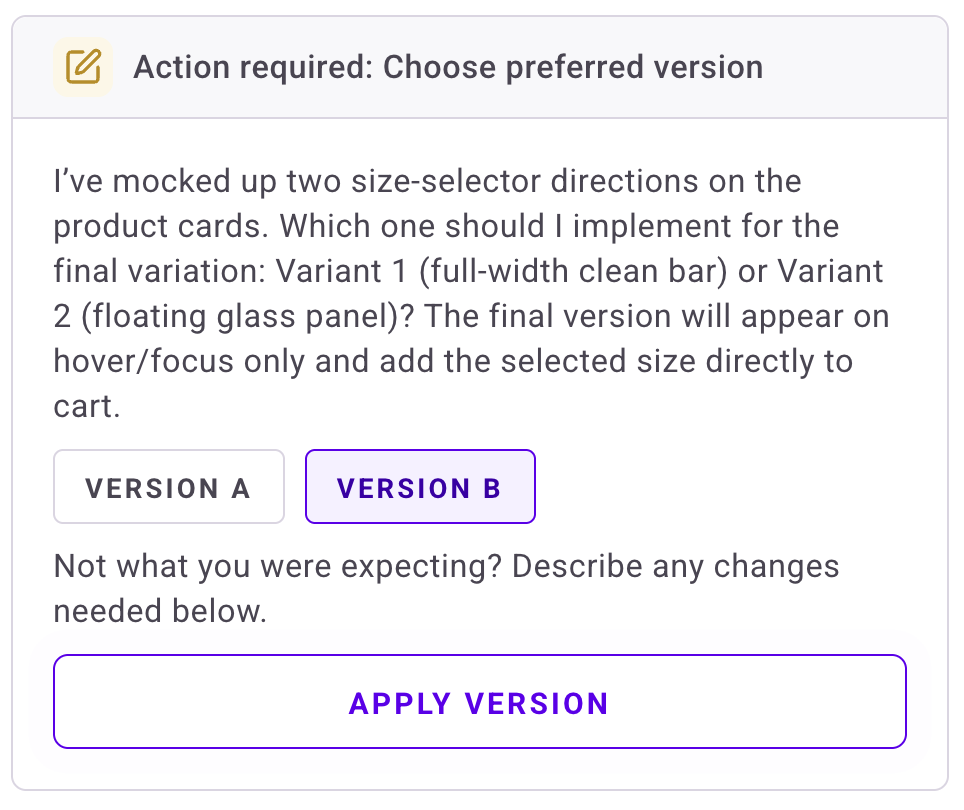
Copy a variation to Figma
Once a variation is ready, you can copy it to your clipboard as editable Figma layers and paste it directly into a Figma file, without rebuilding the design from scratch.- On the Your version is ready card, open the three-dot menu and click Copy to Figma.
- Wait while PBX packages the variation. Progress appears for each step.
- Click Copy to clipboard.
- Open Figma and paste with
⌘ + V(macOS) orCtrl + V(Windows).

The copied layers work well for simple, mostly static variations. Variations with heavy interactive elements may not transfer cleanly. PBX captures only the component you built, not the full surrounding page.
Undo a prompt
Each prompt’s output includes an Undo button. Click it to rewind your variation to the state it was in when that prompt completed, discarding all changes made by later prompts. Use this when a follow-up prompt moves the variation in the wrong direction. Rather than starting over, click Undo on the prompt you want to return to and try a different approach from that point.Create from sketches
Design components like pop-ups or overlays by drawing them directly on the page:- Click + > Draw sketch.
- Draw your design.
- Prompt the AI to build it (for example, “Build the popup based on your sketch”).
3. Review and adjust the generated code
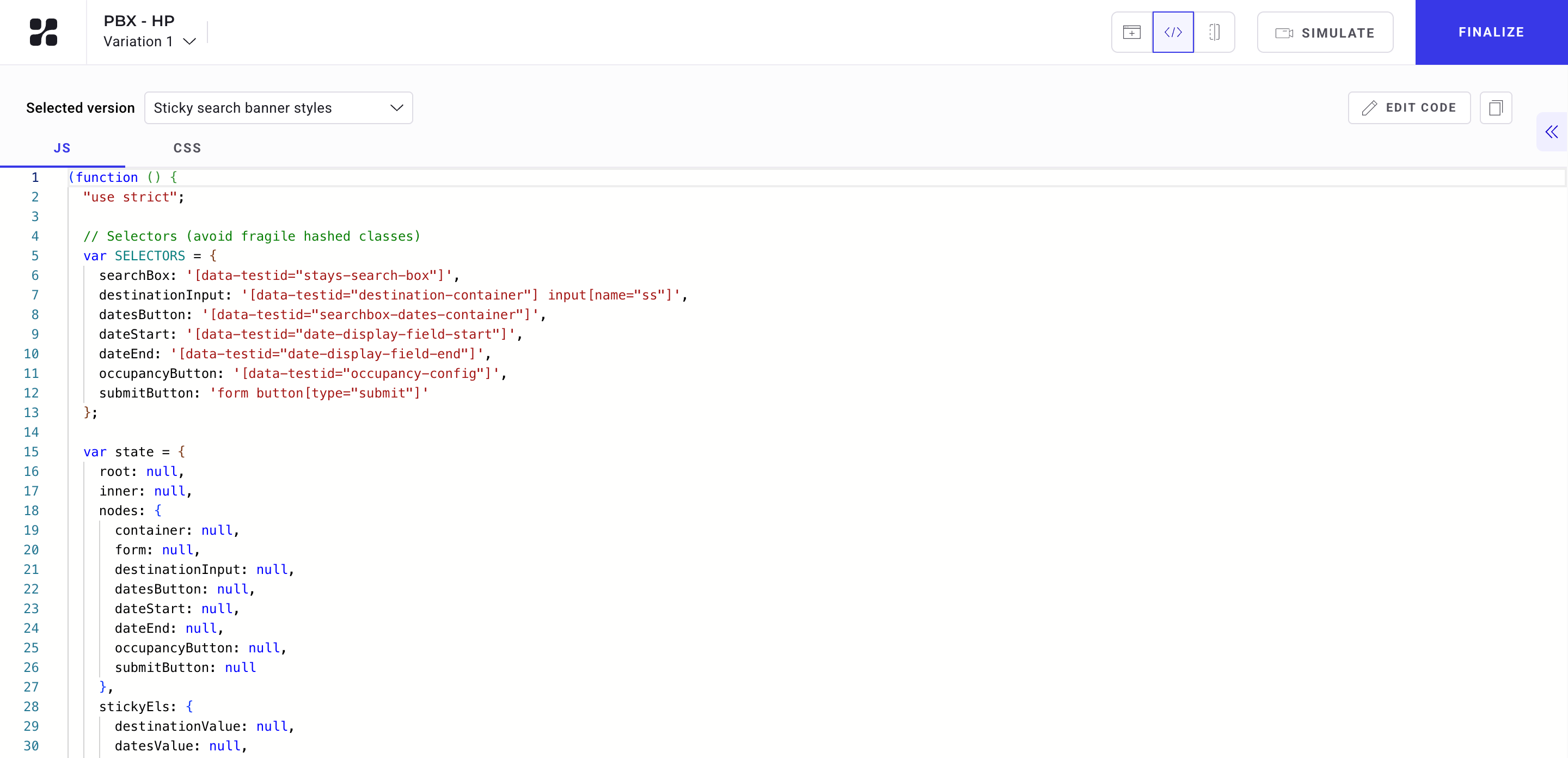
Click the Code switch in the header to open the code panel. ClickCSS or JS to view and edit the relevant code. Click Edit code to make changes.
4. Compare and simulate
Use the header buttons to switch between views:- Website display: Preview the variant appearance.
- Code: View the technical implementation.
- Compare: Compare different variations side-by-side.
Preview on different devices
To see how your variant looks on different screen sizes, click the mobile, tablet, or desktop icons at the top of the page. Switching the device preview doesn’t affect the generated code. Click Simulate to test the experiment live on your website before launching.Share your experiment
- Copy link: Share a direct link to the experiment.
- Share on LinkedIn: Post your experiment directly to your feed.
Finalize the experiment
Once your variation is complete:- Click Finalize.
- Set your goals, audience targeting, and traffic allocation.
- Launch your experiment.