

Configure targeting
In the targeting step, select who to expose to the experiment. Choose one of the following options:- All visitors: Exposes every visitor to the experiment.
- Specific segment: Lets you choose an existing segment from your project.
- Build your segment with AI: Lets you describe your audience in natural language so PBX generates the targeting conditions.

- Mobile users
- Returning visitors
- Users from the United States
- Visitors who viewed a product page
Reference existing assets with @ mentions
To reuse an existing asset in your prompt, type@ followed by the asset name. PBX inserts the asset as an @Asset_Name mention and applies its configuration directly to the segment.
You can mention any of the following asset types:
- Experiments
- Personalizations
- Segments
- Triggers

Target visitors matching @Returning_Customers who viewed a product page to reuse the Returning_Customers segment as part of the new segment.
PBX checks for duplicates against existing assets in the project scope and reuses a matching asset by name rather than creating a new one.
A checkbox lets you save the created segment for future reuse across the project. Without saving, the segment is scoped to this experiment only.
If PBX cannot confidently interpret part of your prompt, it will ask for clarification before generating the segment.
Configure triggers
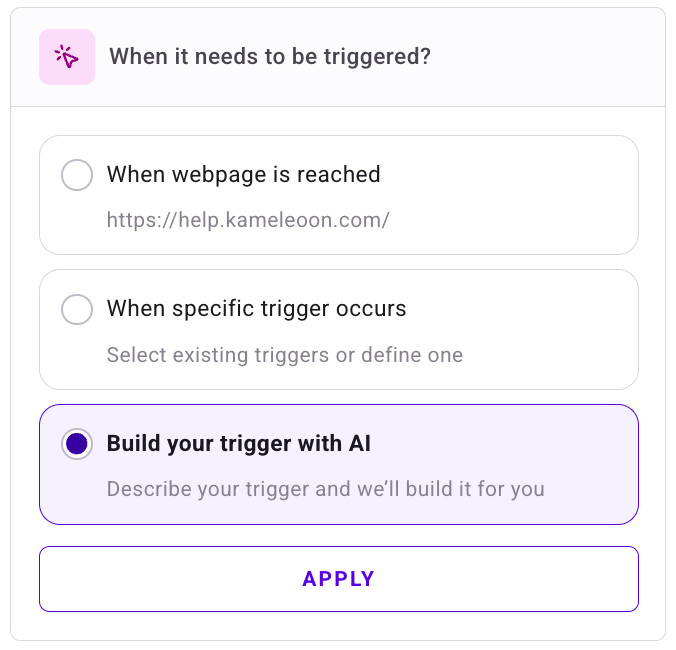
In the trigger step, choose when to activate the experiment. Choose one of the following options:- When webpage is reached: Activates the experiment when a visitor lands on the URL you specified during experiment creation. PBX pre-populates this URL.
- When specific trigger occurs: Lets you choose from existing triggers in your project.
- Build your trigger with AI: Lets you describe the activation condition in natural language.
- Visitors who spend more than 30 seconds on a product page
- Users who return to the website
- Visitors who scroll past the pricing section
@ followed by the asset name and select it from the list. PBX inserts the asset as an @Asset_Name mention and applies its configuration to the trigger. For details on supported asset types, see Reference existing assets with @ mentions.
A checkbox lets you save the created trigger for future reuse across the project. Without saving, the trigger is scoped to this experiment only.
If PBX cannot confidently interpret part of your prompt, it will ask for clarification before generating the trigger.
Combine segment and trigger instructions in one prompt
When you provide a prompt that contains both audience and activation instructions, PBX identifies what belongs to the segment and what belongs to the trigger, then splits the prompt across both configurations. PBX handles this bifurcation regardless of which step (segment or trigger) you are currently in. The following scenarios describe how PBX responds to different prompt inputs:- Your prompt contains a mix of segment and trigger conditions: PBX walks you through the segment step first, then moves to the trigger step with each pre-filled based on your initial prompt. You do not need to re-enter your instructions.
- Your prompt contains only conditions that belong to the other category: For example, if you enter trigger conditions while in the segment step, PBX skips ahead directly to the correct step rather than requiring you to navigate there yourself.
- Your segment is already defined, but a subsequent prompt in the trigger step affects the segment: After you finalize the trigger, PBX returns you to the segment step so you can review and confirm the additional conditions it identified.
Target USA visitors who are browsing a page /shop on desktop, and who have not converted the Add to Cart goal.
PBX assigns each condition to the correct configuration step:
- Segment: USA-based visitors on desktop devices.
- Trigger: Page URL contains
/shop, and the visitor has not converted the Add to Cart goal.
Configure traffic allocation
In the traffic allocation step, choose how PBX distributes visitors between the control and the variation. Choose one of the following allocation methods:- Manual: Assigns a fixed percentage of traffic to each variation.
- Multi-armed Bandit: Allocates more traffic to better-performing variations automatically over time.
- Contextual Bandit: Allocates variations based on visitor attributes and real-time performance data, serving the most relevant variation to each visitor.

Configure goals
Goals determine how Kameleoon measures experiment performance. In the goals step, you can:- Search for and select one or more existing goals from your project.
- Create a new goal manually by clicking + Create a new goal. For detailed instructions, see Create a goal.
- Build a goal with AI by clicking Create a goal with AI and entering a description of the conversion event you want to track.

- Visitors who click the Add to Cart button
- Visitors who reach the order confirmation page
- Visitors who submit the newsletter signup form
- Rectangle select: Click and drag to draw a box around page elements.
- Element selector: Click any element in the DOM to select it.
- Undo: Deselects the most recently selected or boxed element.

Configure integrations
In the integrations step, select the integrations that receive experiment data. The available integrations depend on your project configuration. Toggle on each integration you want to receive experiment data, then continue to the review step.Review the experiment configuration
PBX displays a full summary of your experiment configuration before launch. Review each configured item. To make changes, click the relevant section to return to it. When the configuration is correct, choose one of the following options:- Simulate: Preview how the experiment behaves before you expose it to real visitors.
- Schedule: Set a future start date and time for the experiment.
- Launch: Start the experiment immediately.