

Who it’s for
Anyone who uses the Kameleoon homepage. The block is most useful if you regularly check a specific dashboard view, for example an “At risk experiments” A/B test view or a “Revenue drivers” personalization view, and want it surfaced on your landing page.What you can embed
You can embed a saved view from any of these source types:
Save a view on its dashboard before you can embed it. If a source type has no saved views, its card shows
0 views and there is nothing to select in step 2.
Add an Embedded View block
Add the block from your homepage’s block library, then choose what it displays.1
Open the block library
Click Edit dashboard, then Add block. Select Embedded View and click Configure and add. See Edit your dashboard layout for the general steps to open the block library.
2
Choose a source type
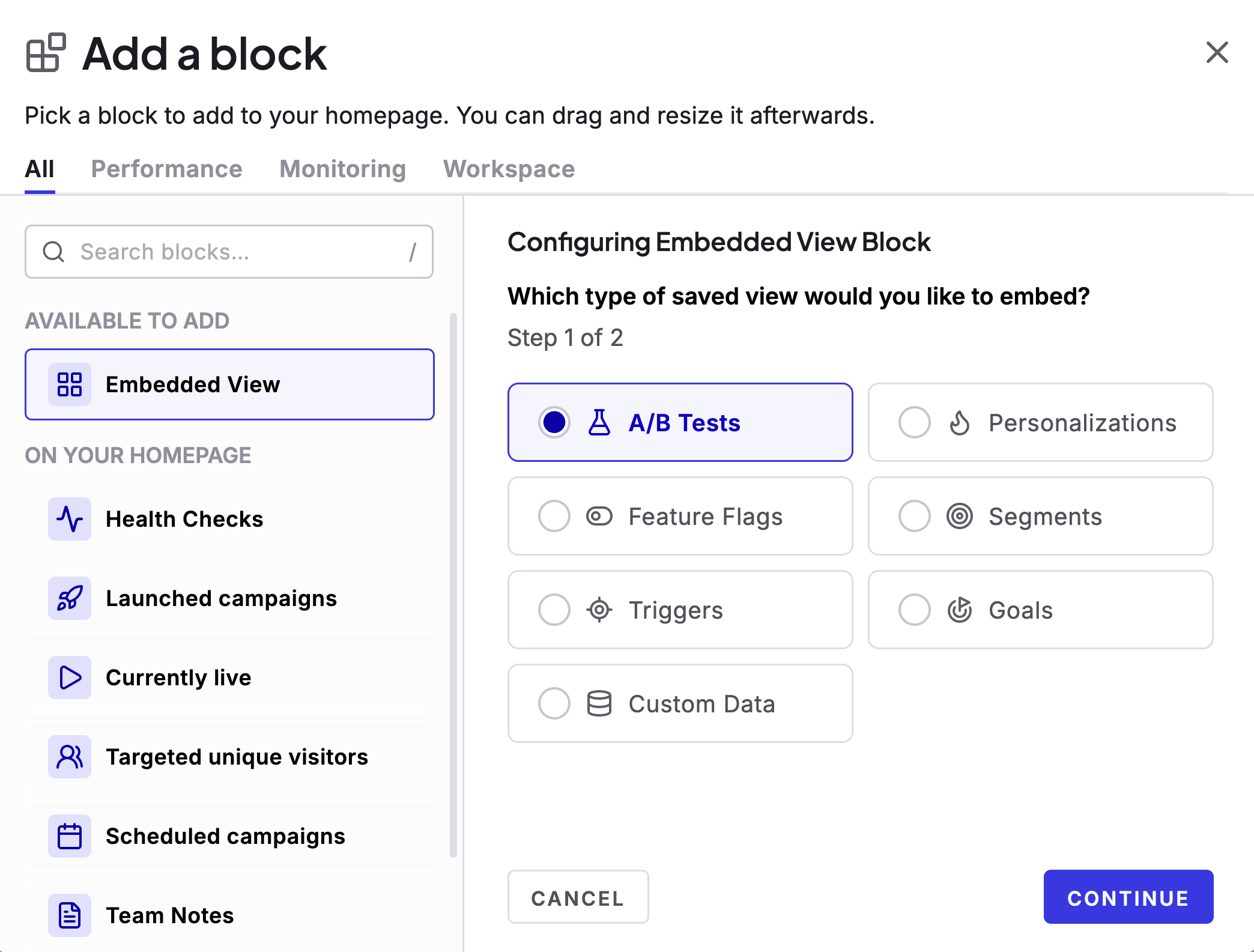
In step 1 of 2, pick the type of saved view you want to embed: A/B Tests, Personalizations, Feature Flags, Segments, Triggers, Goals, or Custom Data. Click Continue.
3
Choose a view
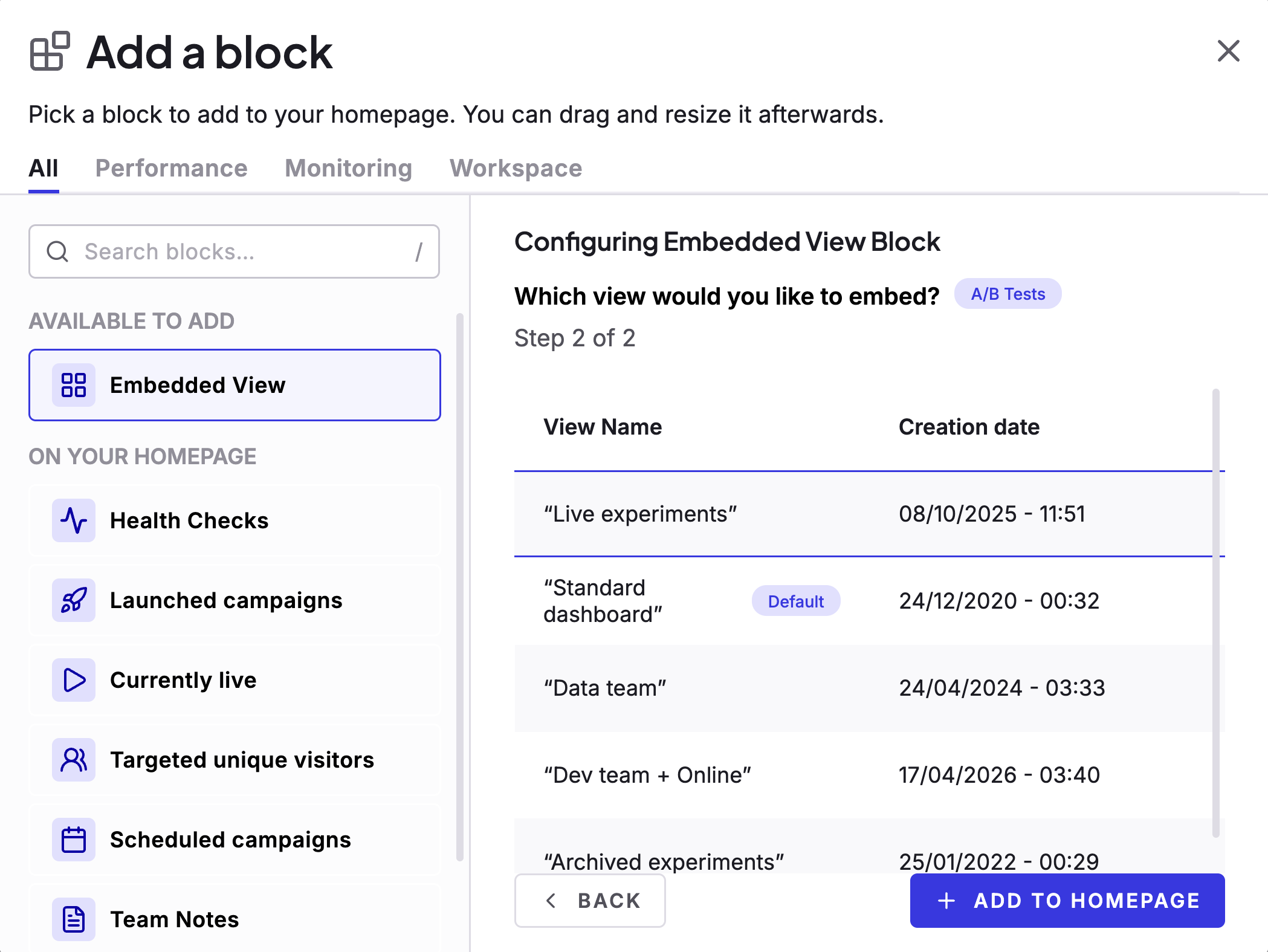
In step 2 of 2, select the saved view you want from the list. The view marked Default is the standard dashboard view. Use Back if you need to change the source type. When you have made your selection, click Add to homepage.
4
Done
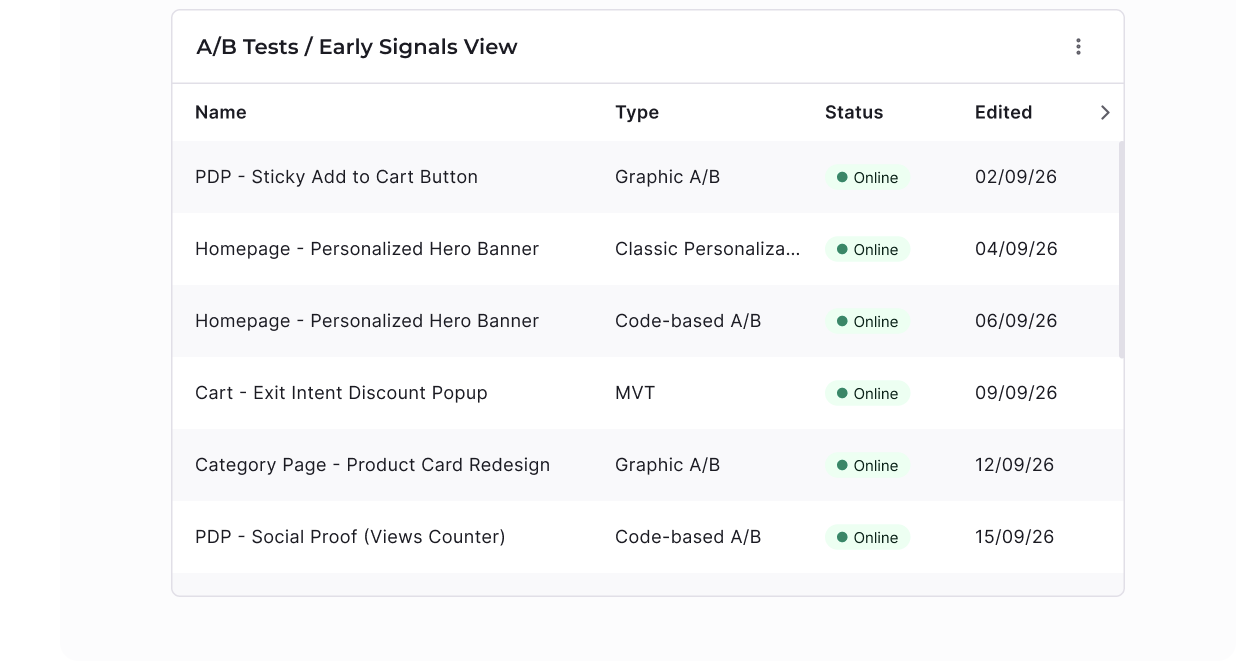
The block appears on your homepage, showing a preview of your chosen view: its name in the header and a table preview of the matching campaigns.
You can add up to 10 Embedded View blocks to your homepage, each pointing at a different saved view or the same source type twice. Unlike most other blocks, Embedded View isn’t limited to a single instance on your homepage. See Edit your dashboard layout.
What the block shows
Once configured, the block displays:- Header with the source type and view name.
- Table preview of the campaigns in that view (a limited number of rows, scrollable if there are more).
- View all in the footer, which opens the full dashboard filtered to the same view.
- Configure block—reopen the two-step wizard to pick a new source type and view, then click Apply to confirm.
- Delete block—remove the block from your homepage.