- Add an HTML element
- Edit HTML code
- Position your HTML element
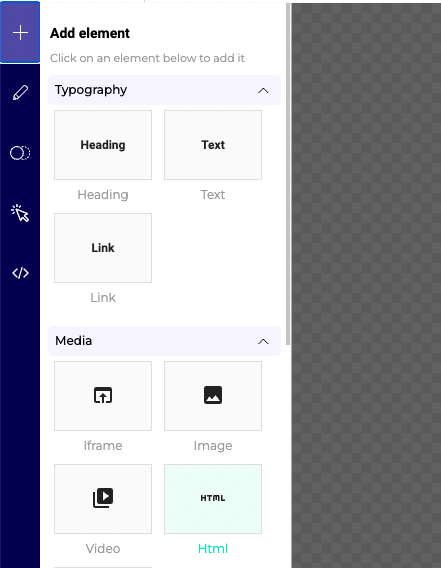
Add an HTML element
- Click Add element in the left sidebar.
- Click the + icon if you’ve selected the Design menu.
- Click Media > HTML.
Edit HTML code
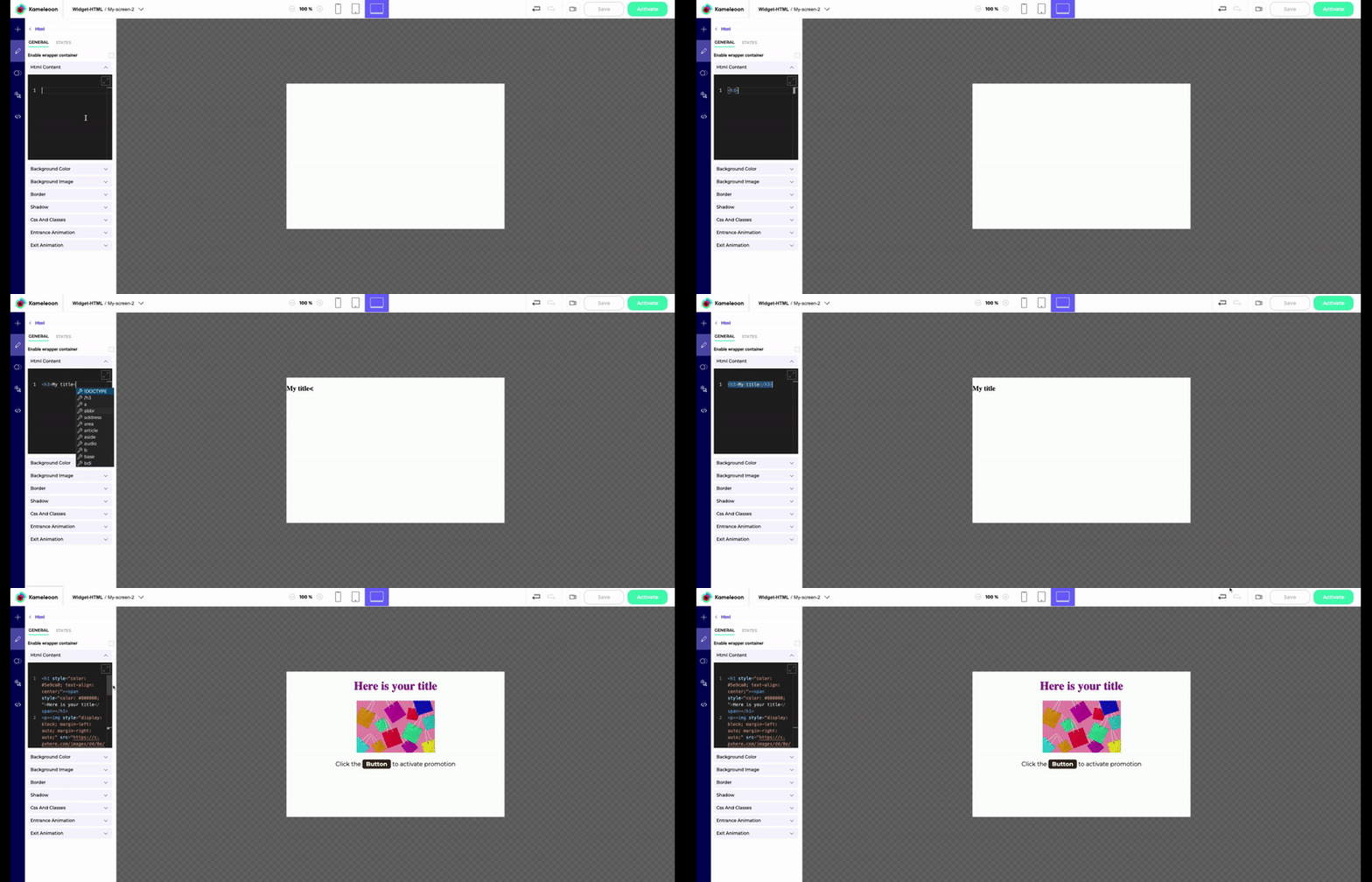
- Add your HTML code in the HTML Content section.
- Click the enlarge icon in the upper right corner of the code editor to open the editor in full-screen.
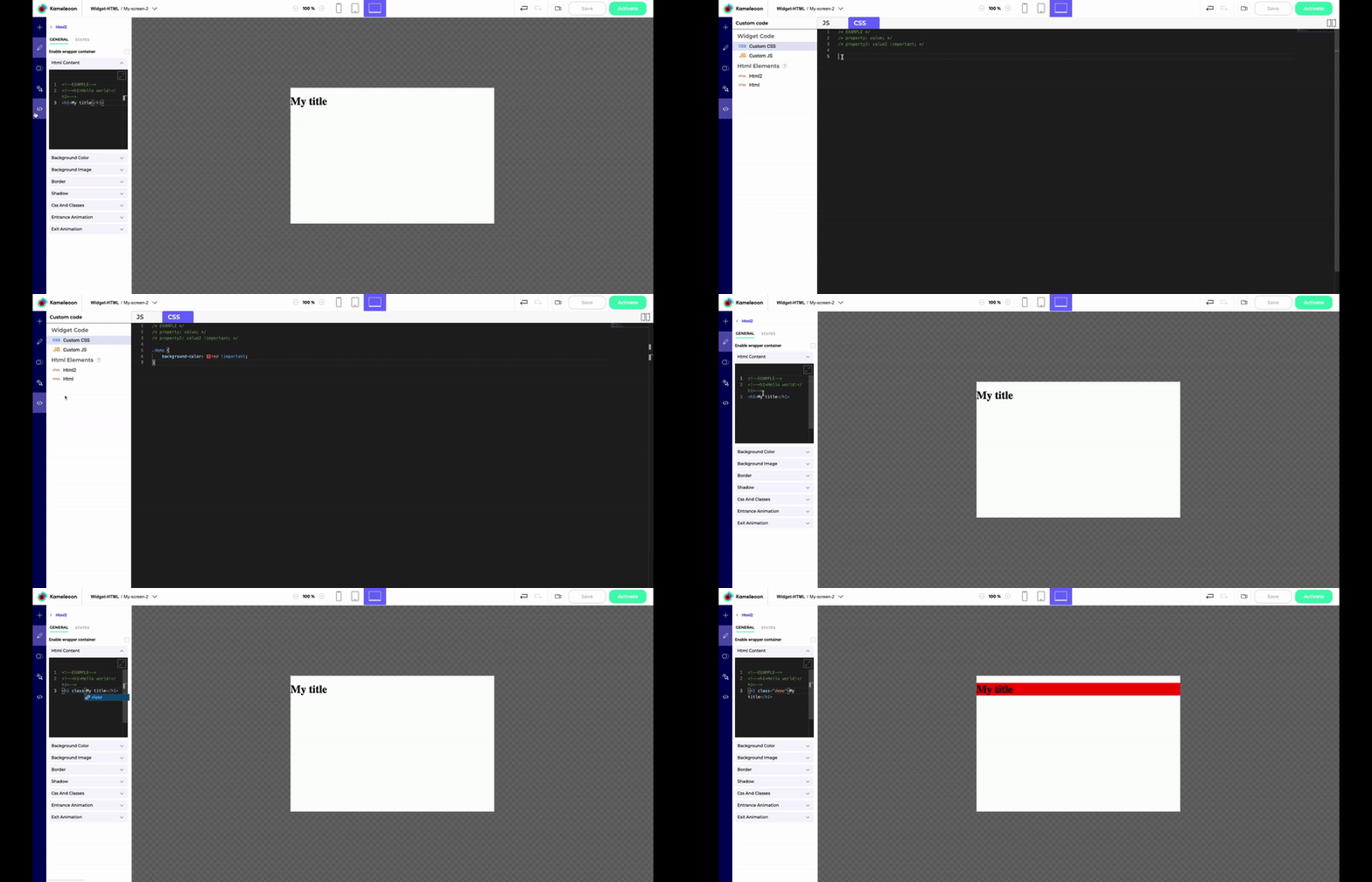
<h1> tag):
<h1 class="demo">My title</h1>
The right preview zone will be updated.
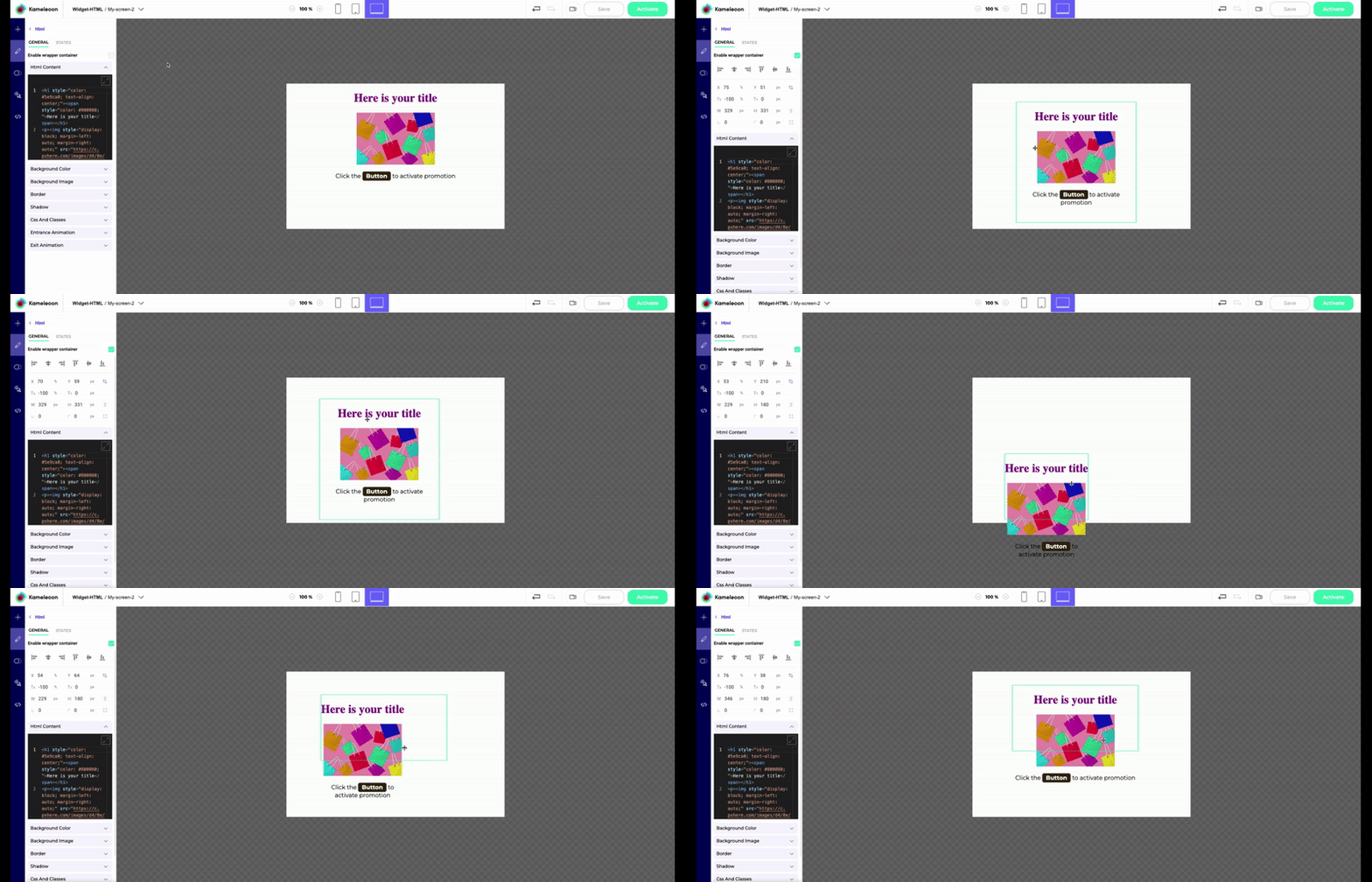
Position your HTML element
Your HTML code is not positioned in your widget by default. However, you can position it wherever you want, using CSS positioning properties, like margin and padding. Check Enable wrapper container to position your HTML block in the right preview area like any other element.