

name@ or a phone number with letters reaches you unchanged. A rule lets you catch those entries and ask the visitor to correct them.
Two settings control a field’s input. Make required forces the visitor to answer, and Validation rule checks the format of that answer. The Validation rule setting appears only after you set Make required to Yes.
Validation rule options
The Validation rule dropdown offers the options below. Choose one option for each field.Set a validation rule
To require an answer and check its format, follow these steps.- Select a Short answer field, and open Advanced Settings.
-
Set Make required to Yes. Kameleoon adds an asterisk (
*) to the label and shows the Validation rule and Error message settings.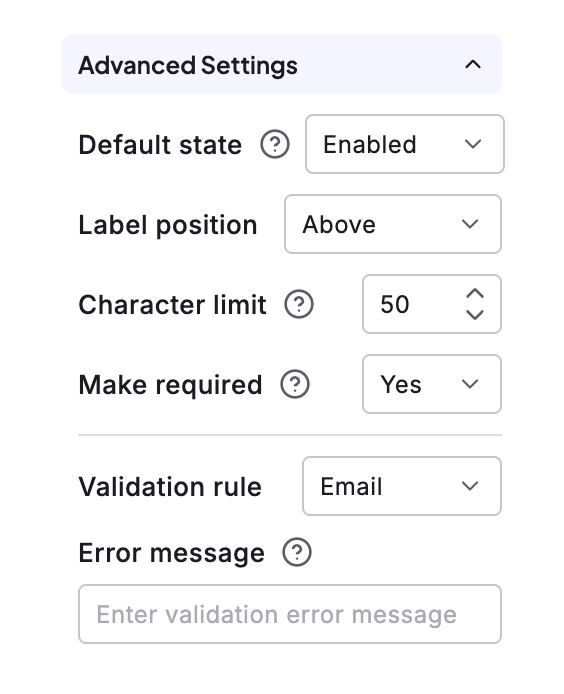
- Select the option in Validation rule that matches the format you expect.
- Enter the text for the message that the visitor sees when the value fails the rule in Error message.
Show a message for an invalid value
To place a message beside a field and reveal it only when a value breaks its rule, add a Text element and create a Survey event that shows it.- Add a Text element that contains the message, and place it next to the field.
- In the left sidebar, hide the Text element so that it appears only when the event runs.
-
Click Events in the left sidebar, then click Add event. The Create new event panel lists the event types.

- Select Survey, and click Next.
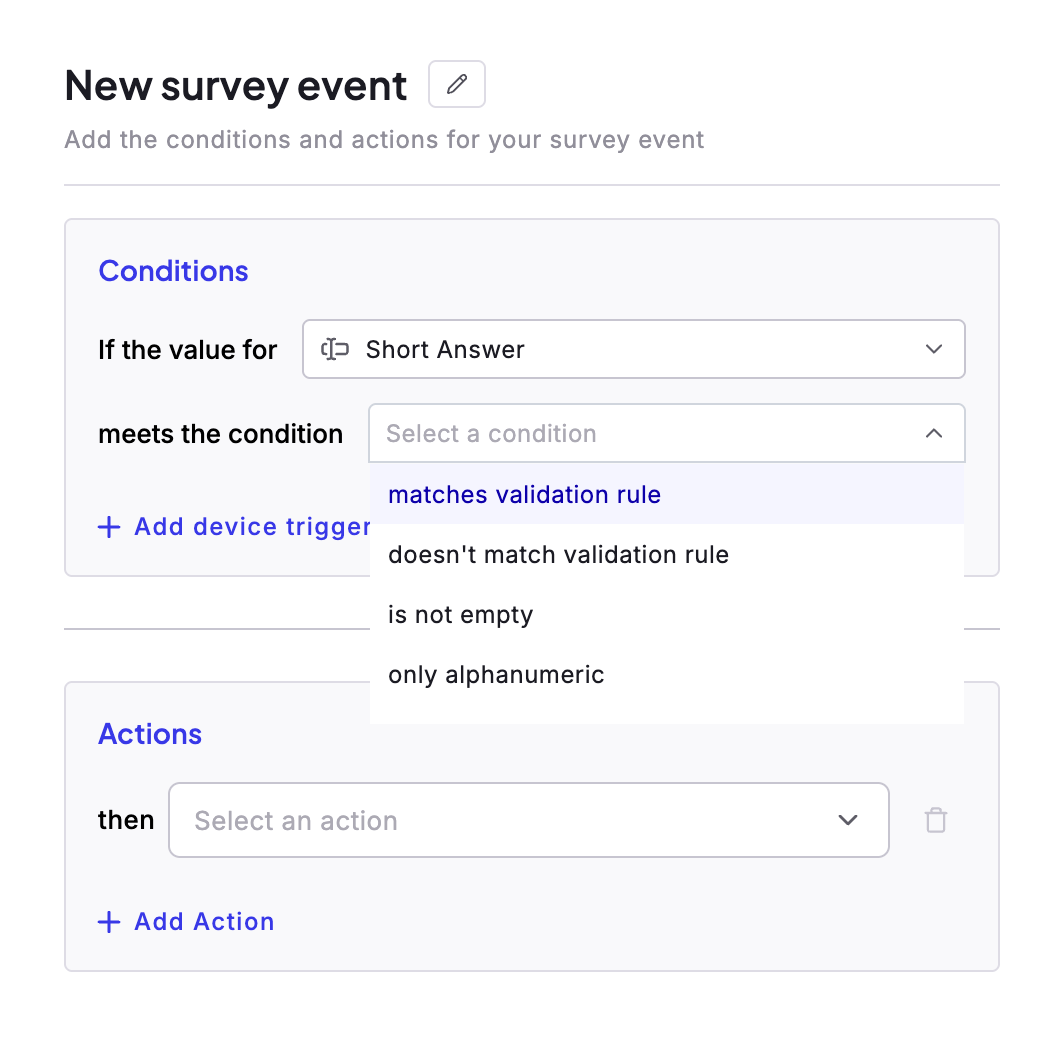
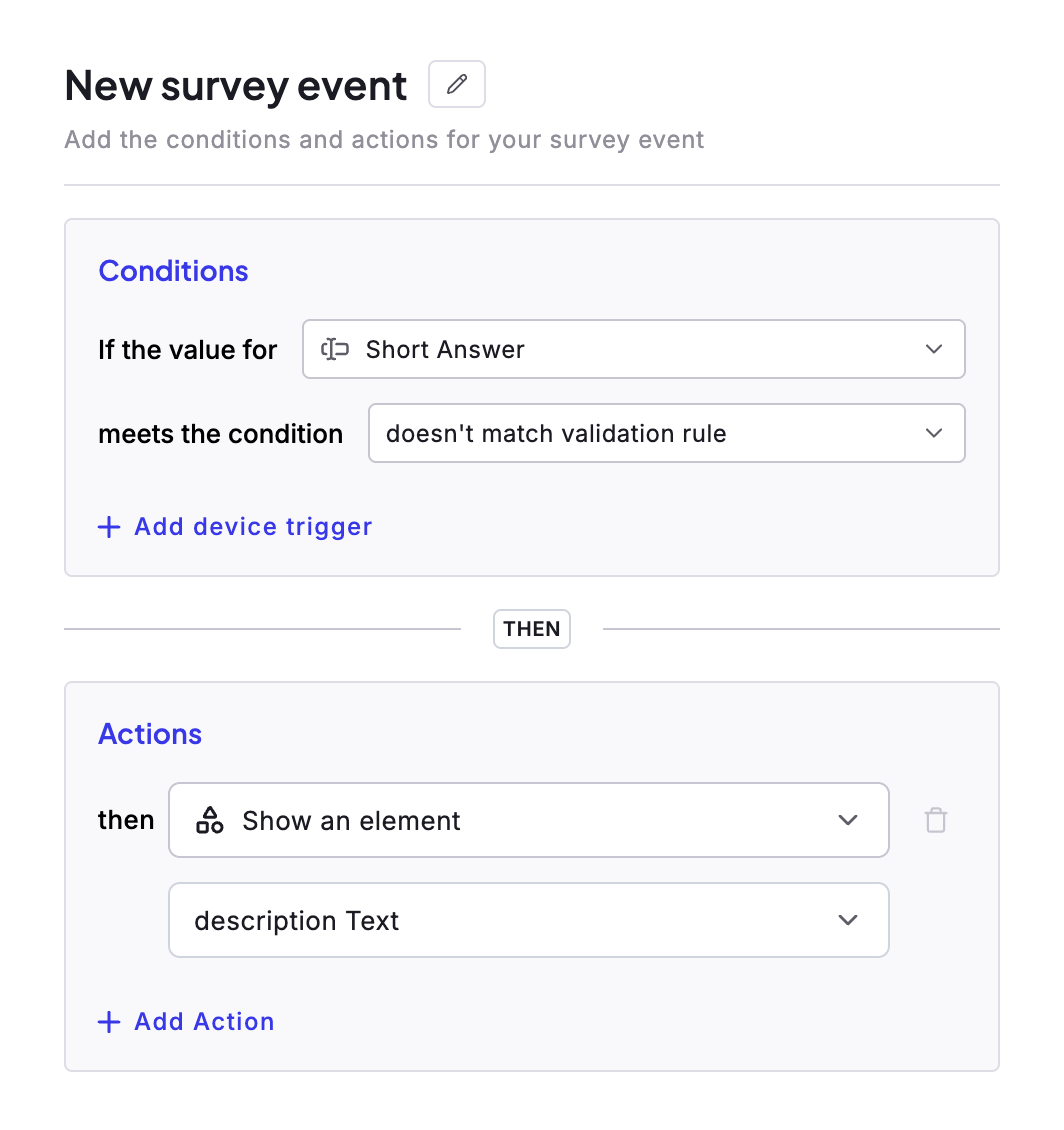
- Under If the value for, select the Short answer field.
-
Under meets the condition, select doesn’t match validation rule.
-
Under Actions, select Show an element, and choose the Text element.
- Click Save event.