

How it works
A feature flag stores each prompt as the value of a feature variable, with one variation per prompt you want to test. When a visitor reaches your application, the Kameleoon SDK assigns the visitor to a variation and returns the corresponding prompt, which your application code sends to the LLM. A goal attached to the feature flag records a conversion when the visitor interacts with your LLM-powered feature, such as asking a follow-up question or completing a task with the assistant’s help. After you collect enough traffic, compare the conversion rate of each variation to decide which prompt performs best.Prerequisites
- A Kameleoon account with a project set up for feature experimentation.
- Your account’s client ID and client secret. To find these values, see API credentials.
- A Python application where you can install the Kameleoon SDK.
Set up your prompt experiment in Kameleoon
Configure the feature flag, prompt variations, and tracking goal in the Kameleoon platform before you touch your application code.Create the feature flag
Create a feature flag to hold your prompt variations and control the rollout of your experiment.- In the Kameleoon app, click Features > Flags & Experiments > New feature flag.
- Enter a name, for example
LLM prompt test, and select the project for the flag. - In the Description field, note what the flag controls, so other members of your team understand its purpose.
- Click Validate.
Store the prompt in a feature variable
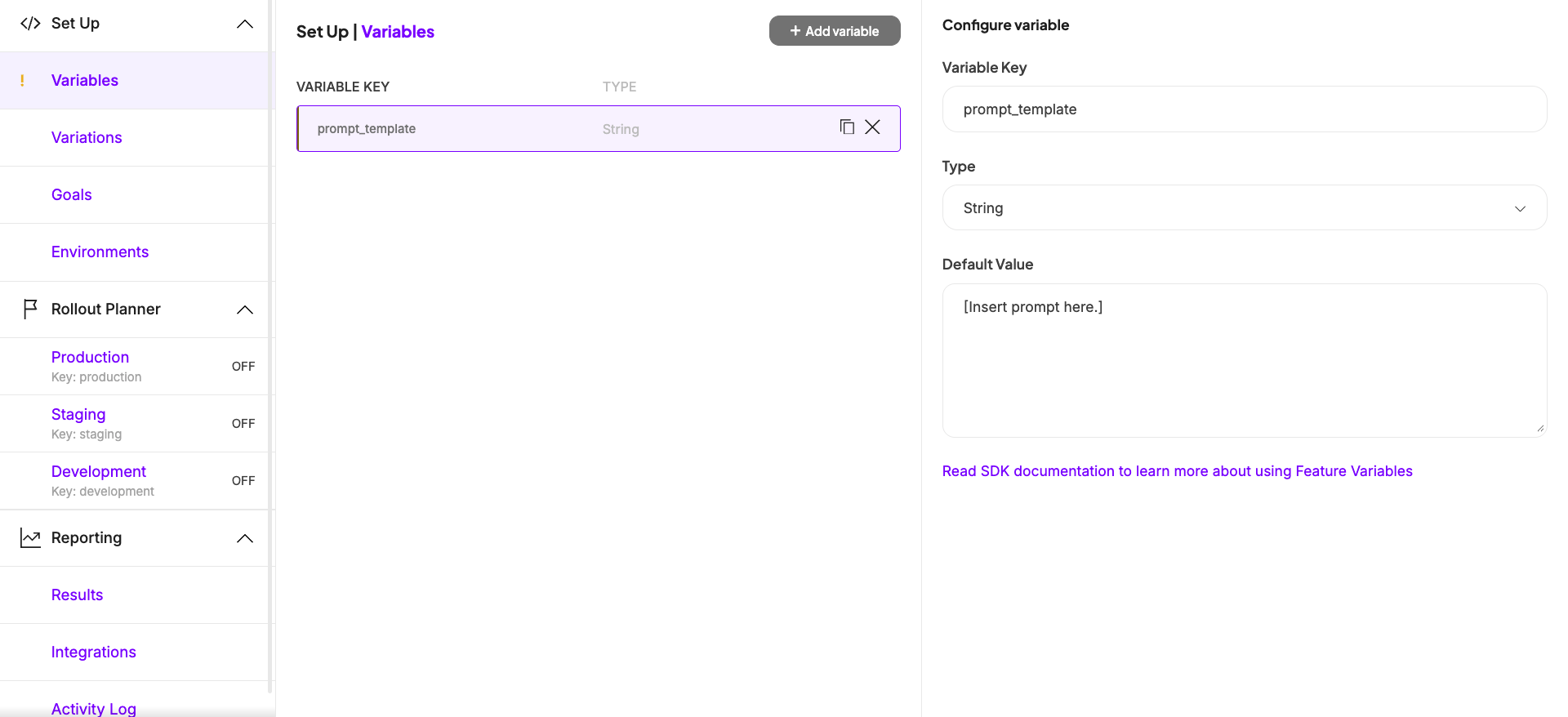
Add a feature variable to hold the prompt text, so you can change it from the Kameleoon platform without editing your application code.- On the flag’s page, in the left sidebar, click Set Up > Variables > Add Variable.
- Set the variable’s Type to String.
- Enter a Variable Key, for example
prompt_template. - Set the Default Value to the prompt your application currently uses. Kameleoon delivers this value to visitors who aren’t part of your experiment.
- Click Save.
Create a variation for each prompt
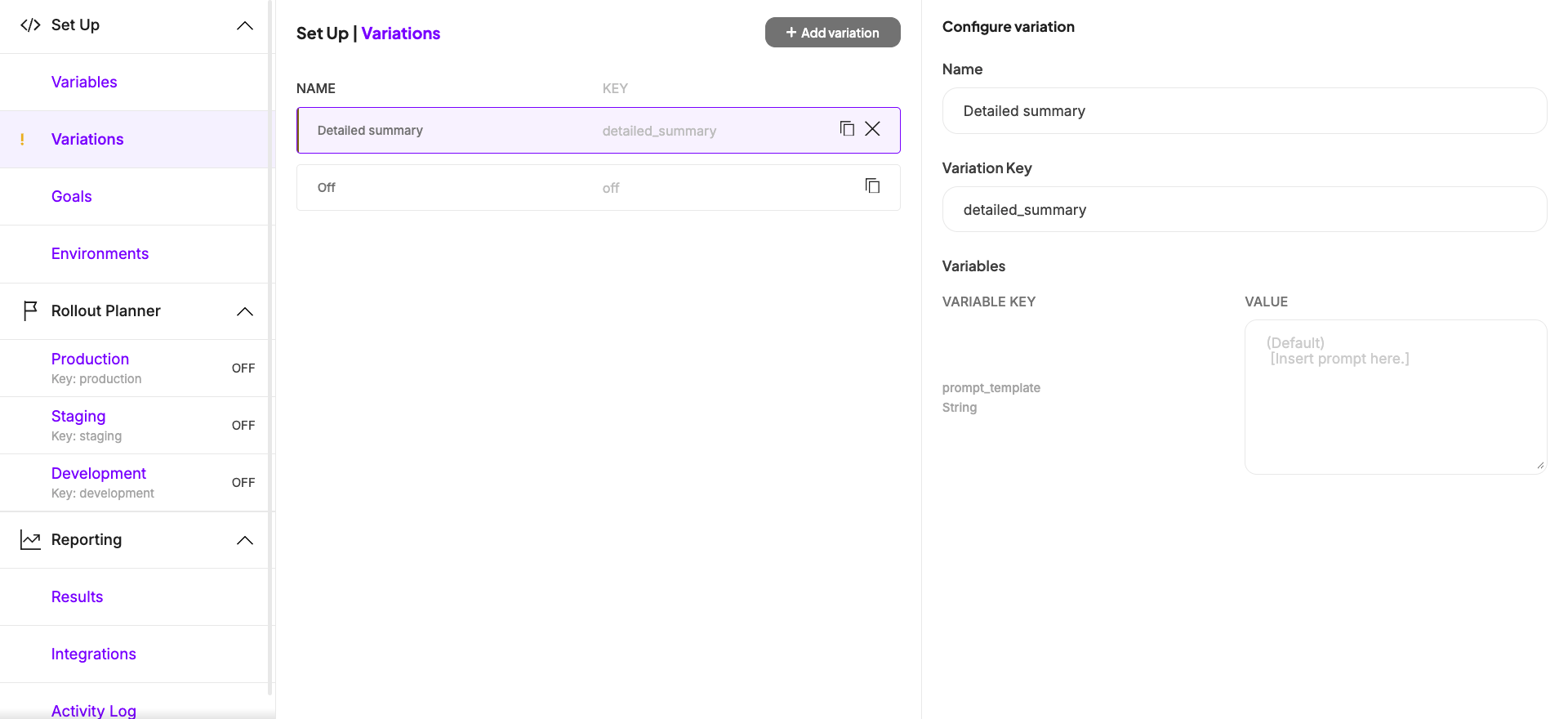
Create one variation per prompt you want to test, and set theprompt_template variable to the corresponding text in each.
- In the left sidebar, click Set Up > Variations > Add variation.
- Enter a Name for the variation, for example
Detailed summary. - Set the
prompt_templatevariable to the prompt text for this variation. - Click Save.
- Repeat these steps for each additional prompt you want to test.
Attach a goal to measure engagement
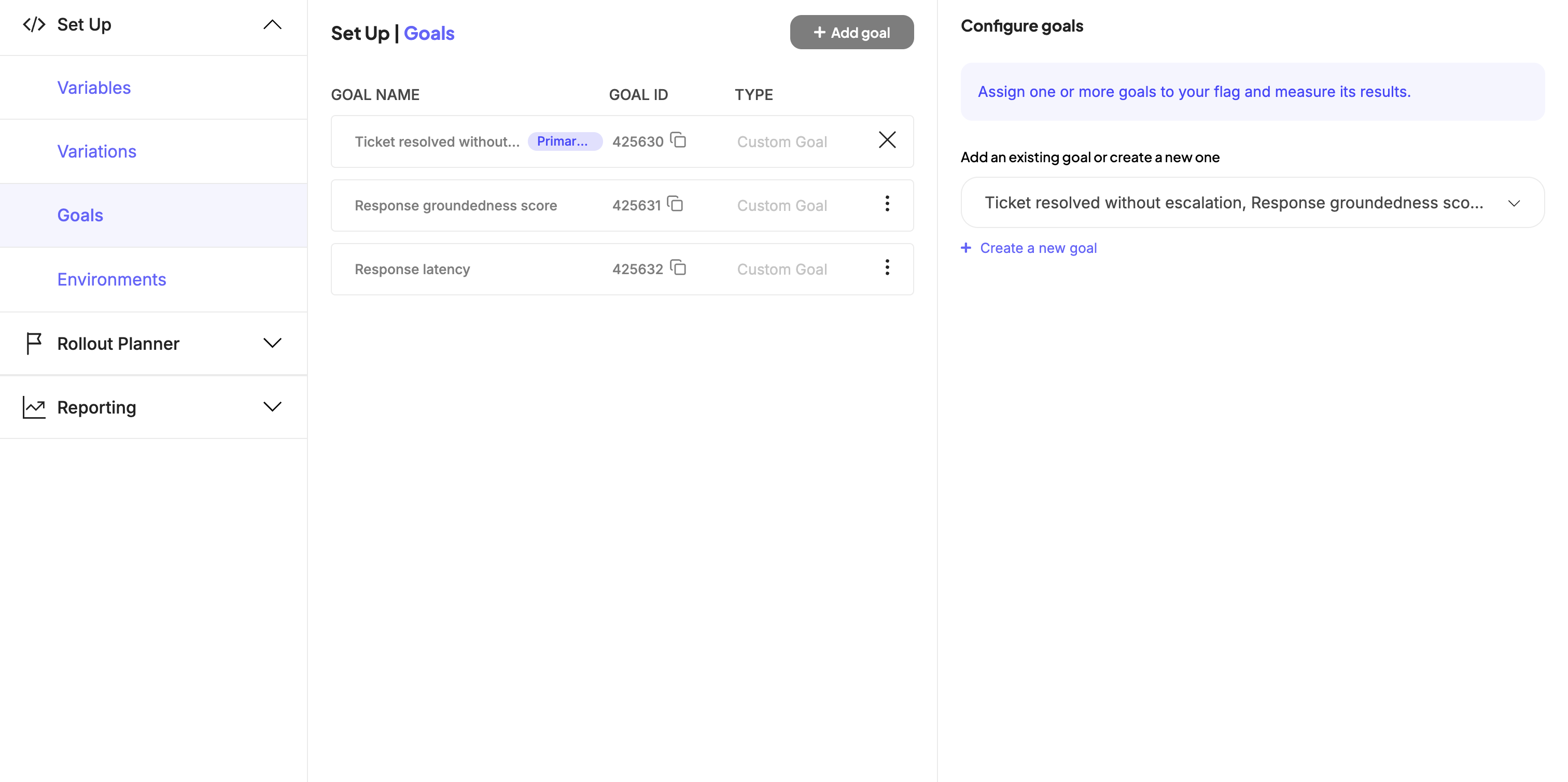
Attach a goal to the feature flag so Kameleoon can measure which prompt variation drives more engagement. Because Kameleoon is a unified platform, you can attach any goal that already exists in your organization, such as a transaction goal defined by another team, or create a goal specific to your LLM-powered feature.- On the flag’s page, in the Set Up menu, click Goals > Add goal.
- Select an existing goal, or click Create a new goal to define one, such as a custom goal that fires when a visitor interacts with your LLM-powered feature.
- Click Save.
Roll out the experiment
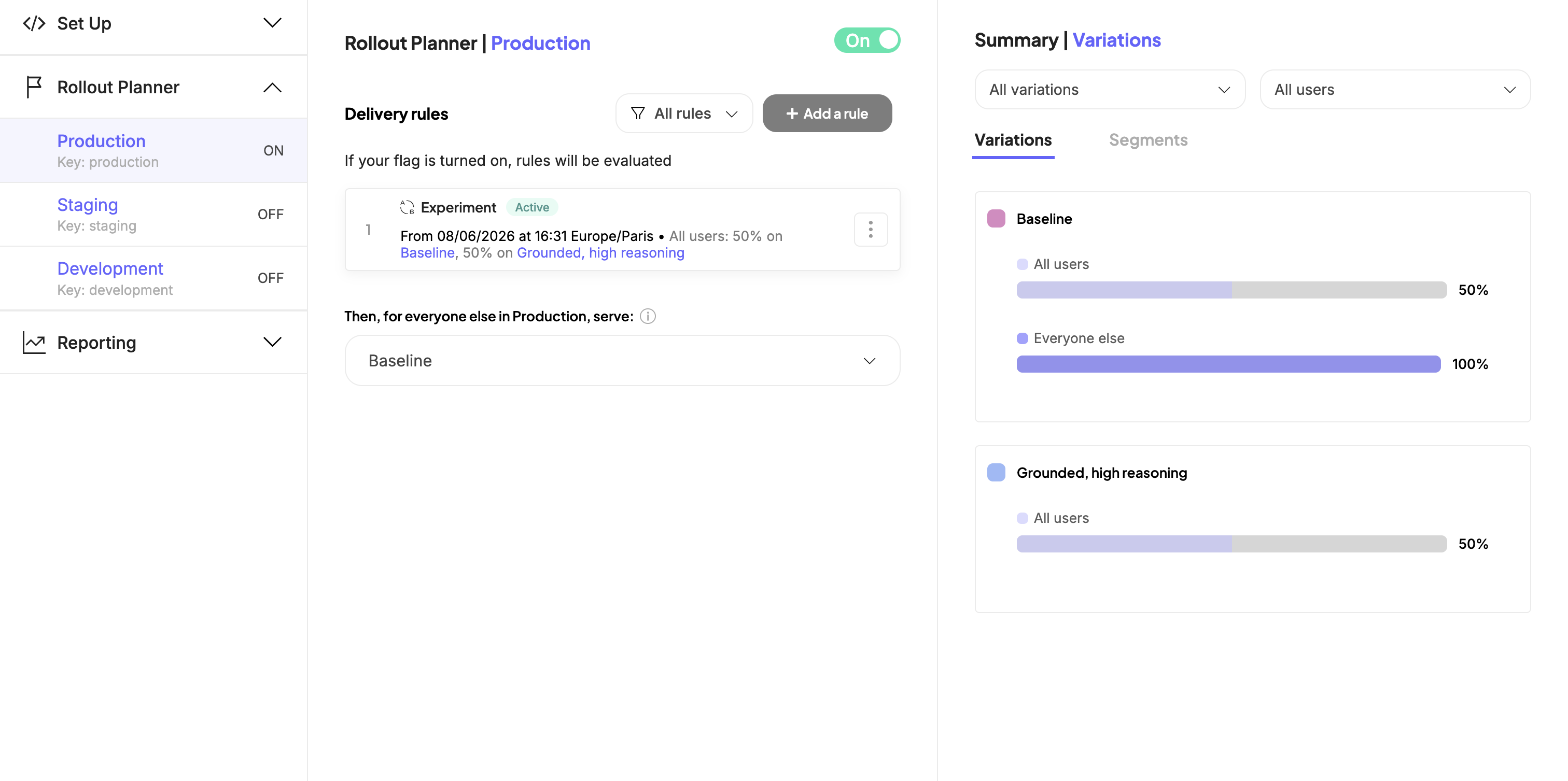
Create an experiment rule that splits traffic between your prompt variations, then turn on the environment to start collecting data.- In the Rollout Planner, select the environment you want to target, for example Production.
- Click Add a rule > Experiment.
- Under Variations to serve, add each prompt variation and set its exposition percentage. For example, split traffic evenly between two variations at 50% each.
- Set the rule’s targeting to include the visitors you want to test, for example all visitors reaching the application.
- Turn the environment’s ON/OFF toggle to ON.
- Click Save.
Retrieve the prompt in your application
Install the Kameleoon Python SDK, then retrieve the visitor’s assigned prompt and track a conversion when the visitor interacts with your LLM-powered feature. The same pattern applies to any Kameleoon server-side SDK, including Node.js, Java, and Go.-
Install the SDK as a dependency:
-
Initialize the client with your site code and credentials:
-
Retrieve the assigned prompt before you call your LLM, and track a conversion when the visitor interacts with the LLM-powered feature:
Call
get_prompt_for_visitor()with the visitor’svisitor_codebefore you send a request to your LLM, and use the returned value as the prompt. Calltrack_llm_interaction()when the visitor interacts with the LLM-powered feature, such as submitting a question or receiving a response.
Use
get_visitor_code() to assign a unique ID to each visitor, and set_legal_consent() if your application requires visitor consent before tracking data. For the full client initialization and configuration reference, see the Python SDK developer guide.Monitor and iterate
Open the feature flag’s results page to compare the conversion rate of each prompt variation against the goal you attached. Kameleoon tracks exposures and conversions automatically whenever your application callsget_variation() and track_conversion(), so you don’t need any additional instrumentation.
For more detail, see Analyze a feature flag’s overall results.
Next steps
- Read the Python SDK reference for advanced options such as custom data, cross-device experimentation, and targeting conditions.
- Attach precise segmentation criteria to target the experiment at a specific audience.
- Explore feature variables to variabilize other parts of your LLM-powered feature, such as model parameters or retrieval settings.