

Installation
Install the extension from the Visual Studio Marketplace.
Getting started
Initialize the VS Code project first. Open the Command Palette and run the Kameleoon - Initialize command.Press Ctrl+Shift+P to open the Command Palette, then start typing “Kameleoon - Initialize” to filter the list down to the Kameleoon - Initialize command.
Import from the Kameleoon account
Import all projects, experiments, personalizations, variations, segments, triggers, goals, and custom data using the Kameleoon - Import all projects command. If the Kameleoon account is too large to load everything at once, use the Kameleoon - Import project command to select a single project to import.Usage
Import entities
Run one of the following commands to import an entity:Create entities
Run one of the following commands to create an entity:Duplicate entities
Run one of the following commands to duplicate an entity:Fetch entities
Run one of the following commands to update the local copy of an entity to match the version stored in Kameleoon:Deploy entities
Run one of the following commands to deploy local changes to production:Synchronize
Run one of the following commands to synchronize local code to Chrome:Kameleoon Campaigns view
The extension adds a Kameleoon Campaigns view to the Explorer panel. Use this view to browse every project and campaign in your account, along with each one’s current state and variations.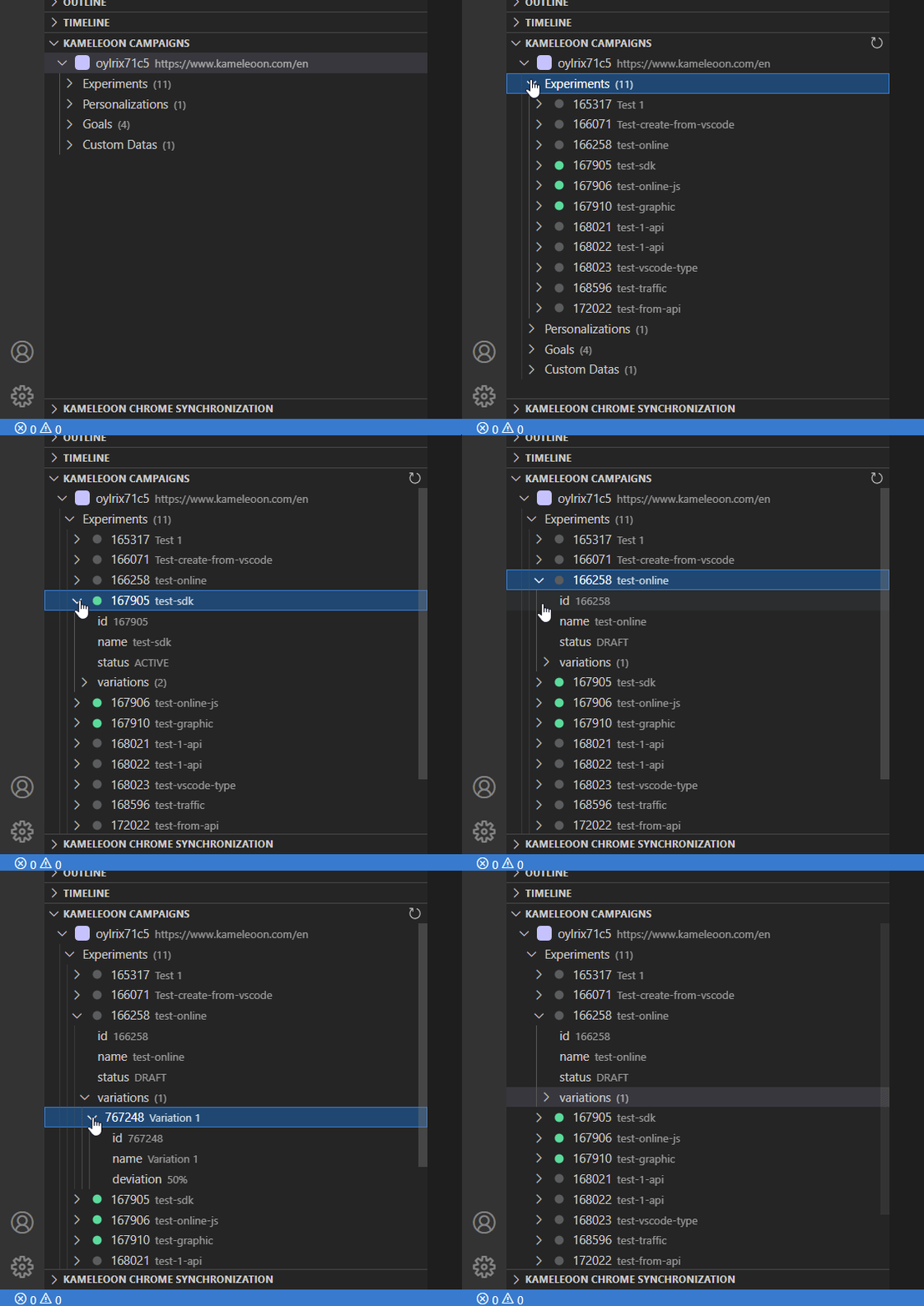
Technical reference
Entities
The following table summarizes which operations the extension supports for each entity type:Project
The extension stores projects in the /projects folder rather than at the repository root, so that they don’t collide with the /custom-data folder.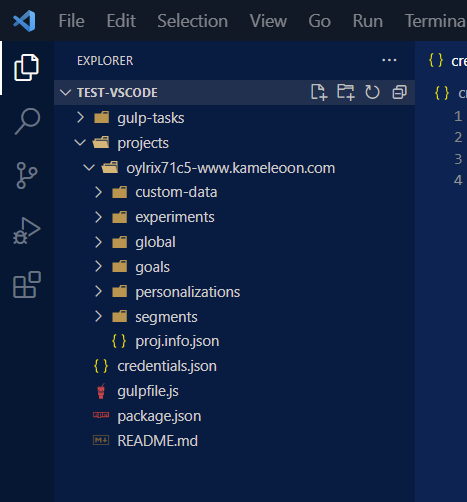
Global script
The global script lives in the /projects/*/global folder. Because each project has only one global script, the folder contains no info.json or config.json file. It holds the script itself.Experiment
Experiments live in the /projects/*/experiments folder.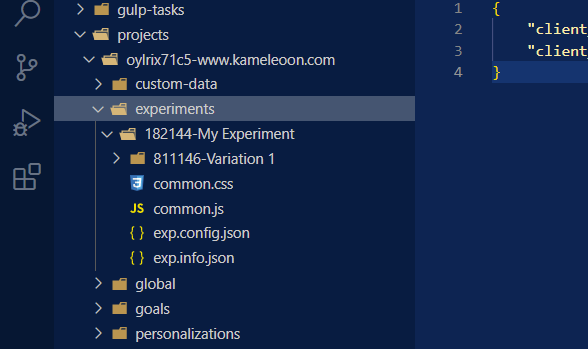
By default, the extension names the experiment folder using the same convention as previous versions, and also creates the exp.info.json and exp.config.json files. The folder name doesn’t matter, because the extension uses only the configuration files.
Personalization
Personalizations live in the /projects/*/personalizations folder.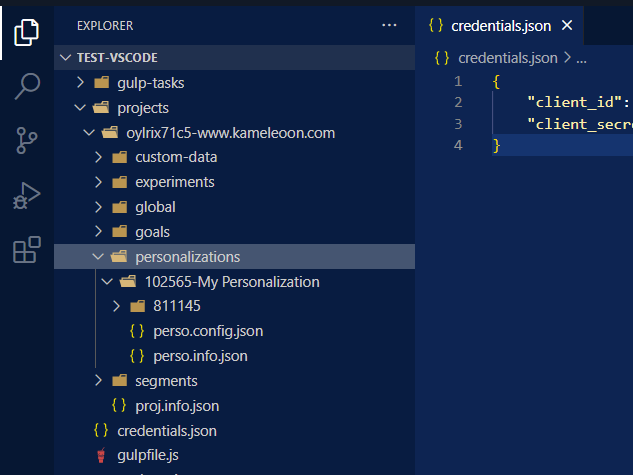
By default, the extension names the personalization folder using the same convention as previous versions, and also creates the perso.info.json and perso.config.json files. The folder name doesn’t matter, because the extension uses only the configuration files.
Variation
Variations live in the folder of the experiment or personalization they belong to.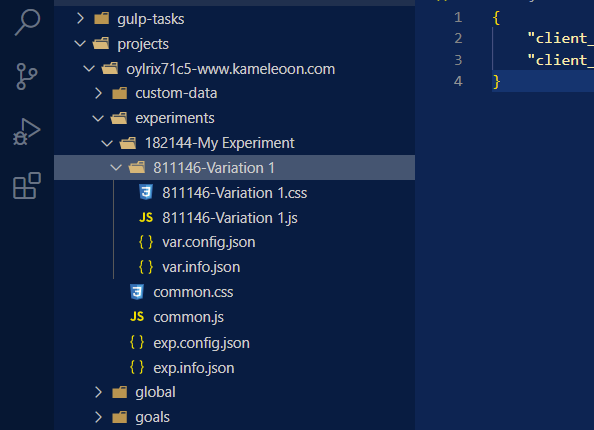
By default, the extension names the variation folder using the same convention as previous versions, and also creates the var.info.json and var.config.json files. The folder name doesn’t matter, because the extension uses only the configuration files.
Segment
Segments live in the /projects/*/segments folder.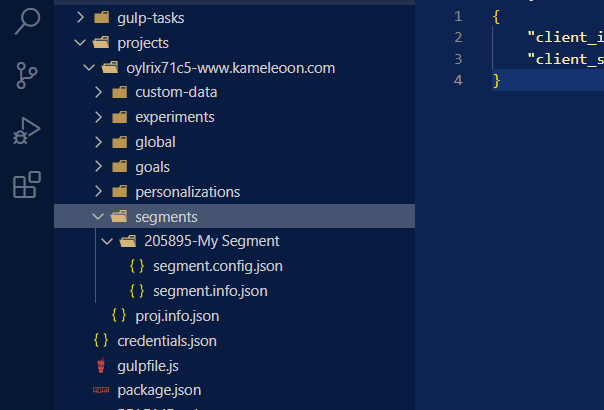
By default, the extension names the segment folder using the same convention as previous versions, and also creates the segment.info.json and segment.config.json files. The folder name doesn’t matter, because the extension uses only the configuration files.
Trigger
Triggers live in the /projects/*/triggers folder.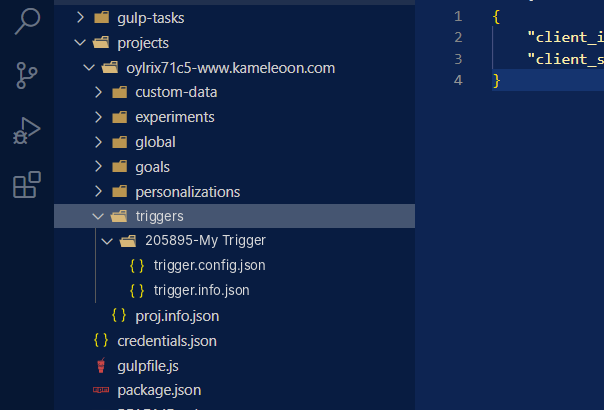
By default, the extension names the trigger folder using the same convention as previous versions, and also creates the trigger.info.json and trigger.config.json files. The folder name doesn’t matter, because the extension uses only the configuration files.
Goal
Goals live in the /projects/*/goals folder.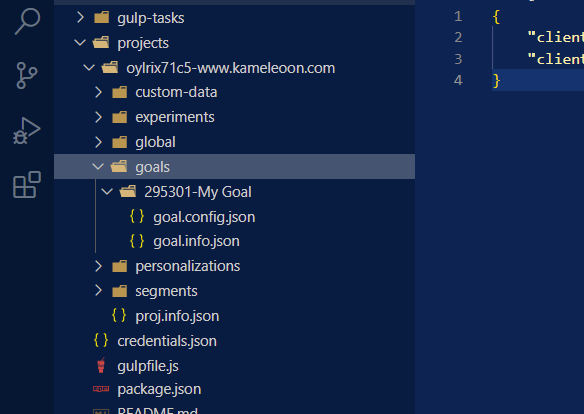
By default, the extension names the goal folder using the same convention as previous versions, and also creates the goal.info.json and goal.config.json files. The folder name doesn’t matter, because the extension uses only the configuration files.
Custom data
Custom data lives in the /projects/*/custom-data folder.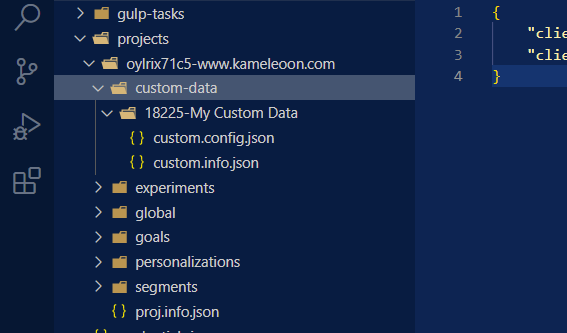
By default, the extension names the custom data folder using the same convention as previous versions, and also creates the custom.info.json and custom.config.json files. The folder name doesn’t matter, because the extension uses only the configuration files.
Commands
Initialization commands
Kameleoon - Initialize
Run Kameleoon - Initialize first when you start a new VS Code project. The command initializes the Visual Studio Code project and creates the following files:Accessibility
Import commands
Import commands add entities that don’t exist locally yet. If an entity folder already exists, the command skips it. To refresh an existing entity, use a fetch command instead.Kameleoon - Import all projects
This command creates the /projects folder and imports all projects, creating each project folder, subfolders, and files.Accessibility
Kameleoon - Import project
This command imports a specific project into the /projects folder, creating the folders and files for every entity the project contains.Accessibility
Kameleoon - Import experiment
This command imports a specific experiment into a project, creating the experiment folders and files (exp.info.json, exp.config.json, and the variations).Accessibility
Kameleoon - Import personalization
This command imports a specific personalization into a project, creating the personalization folders and files (perso.info.json, perso.config.json, and its single variation).Accessibility
Kameleoon - Import goal
This command imports a specific goal into a project, creating the goal folders and files (goal.config.json and goal.info.json).Accessibility
Kameleoon - Import segment
This command imports a specific segment into a project, creating the segment folders and files (segment.config.json and segment.info.json).Accessibility
Kameleoon - Import trigger
This command imports a specific trigger into a project, creating the trigger folders and files (trigger.config.json and trigger.info.json).Accessibility
Kameleoon - Import custom data
This command imports a specific custom data entity into a project, creating the custom data folders and files (custom.config.json and custom.info.json).Accessibility
Fetch commands
You can run fetch commands from the right-click menu of an entity folder that contains a valid[entity-prefix].info.json file with an ID and sits inside the matching common entity folder. Fetch commands overwrite entity files completely, using the API response.
Kameleoon - Fetch project
This command overwrites project files and folders, including experiments, personalizations, variations, segments, triggers, custom data, and the global script, with the versions stored in Kameleoon. It also creates files and folders for those entities if any are missing.Accessibility
Kameleoon - Fetch experiment
This command overwrites experiment files and folders, including the variations, with the versions stored in Kameleoon. It also creates variation folders and files if any are missing.Accessibility
Kameleoon - Fetch personalization
This command overwrites personalization files and folders, including the single variation, with the versions stored in Kameleoon. It also creates variation folders and files if they’re missing.Accessibility
Kameleoon - Fetch segment
This command overwrites your segment files and folders with the version stored in Kameleoon.Accessibility
Kameleoon - Fetch trigger
This command overwrites your trigger files and folders with the version stored in Kameleoon.Accessibility
Kameleoon - Fetch goal
This command overwrites your goal files and folders with the version stored in Kameleoon.Accessibility
Kameleoon - Fetch custom data
This command overwrites your custom data files and folders with the version stored in Kameleoon.Accessibility
Creation commands
Kameleoon - Create experiment
This command creates a new experiment in a project, along with the experiment folders and files (exp.info.json, exp.config.json, and the first variation).Accessibility
Kameleoon - Create variation
This command creates a new variation in an experiment, along with the variation folder and files (var.info.json and var.config.json).Accessibility
Kameleoon - Create personalization
This command creates a new personalization in a project, along with the personalization folders and files (perso.info.json, perso.config.json, and its single variation).Accessibility
Kameleoon - Create goal
This command creates a new goal in a project, along with the goal folder and files (goal.info.json and goal.config.json).Accessibility
Kameleoon - Create segment
This command creates a new segment in a project, along with the segment folder and files (segment.info.json and segment.config.json).Accessibility
Kameleoon - Create trigger
This command creates a new trigger in a project, along with the trigger folder and files (trigger.info.json and trigger.config.json).Accessibility
Kameleoon - Create custom data
This command creates a new custom data entity in the Kameleoon account and in the /custom-data folder, including the custom data folder and files (custom.info.json and custom.config.json).Accessibility
Duplication commands
Kameleoon - Duplicate experiment
This command duplicates an experiment within the same project, creating copies of the experiment folders and files with a new ID and name.Accessibility
Kameleoon - Duplicate variation
This command duplicates a variation within the same experiment, creating copies of the variation folders and files with a new ID and name.Accessibility
Kameleoon - Duplicate personalization
This command duplicates a personalization within the same project, creating copies of the personalization folders and files with a new ID and name.Accessibility
Kameleoon - Duplicate segment
This command duplicates a segment within the same project, creating copies of the segment folders and files with a new ID and name.Accessibility
Kameleoon - Duplicate trigger
This command duplicates a trigger within the same project, creating copies of the trigger folders and files with a new ID and name.Accessibility
Kameleoon - Duplicate goal
This command duplicates a goal within the same project, creating copies of the goal folders and files with a new ID and name.Accessibility
Kameleoon - Duplicate custom data
This command duplicates a custom data entity within the same project, creating copies of the custom data folders and files with a new ID and name.Accessibility
Deployment commands
Deployment commands push changes to production. Deploying or synchronizing any script file (JS, TS, CSS, SCSS) prompts the extension to build and save the compiled code in the _build folder.Kameleoon - Deploy global code
This command updates the global code in production, using the project’s proj.info.json file.Accessibility
Kameleoon - Deploy experiment
This command updates the experiment in production, using exp.config.json, exp.info.json, common.js, common.css, and every nested variation folder.Accessibility
Kameleoon - Deploy variation
This command updates the variation in production, using the variation’s files, including var.config.json and var.info.json.Accessibility
Kameleoon - Deploy personalization
This command updates the personalization in production, using perso.config.json, perso.info.json, and the nested folder containing the JS and CSS files.Accessibility
Kameleoon - Deploy goal
This command updates the goal in production, using the goal.config.json and goal.info.json files.Accessibility
Kameleoon - Deploy segment
This command updates the segment in production, using the segment.config.json and segment.info.json files.Accessibility
Kameleoon - Deploy trigger
This command updates the trigger in production, using the trigger.config.json and trigger.info.json files.Accessibility
Kameleoon - Deploy custom data
This command updates the custom data in production, using the custom.config.json and custom.info.json files.Accessibility
Synchronization commands
Saving a file you synchronized triggers synchronization. Only one entity can synchronize at a time.Kameleoon - Synchronize variation code to Chrome
This command synchronizes both JS and CSS files to the Chrome extension, injecting the code into the webpage. It also accepts TS and SCSS files.Accessibility
Kameleoon - Synchronize common code to Chrome
This command synchronizes both common.js and common.css files to the Chrome extension, injecting the code into the webpage. It also accepts TS and SCSS files.Accessibility
Kameleoon - Synchronize global code to Chrome
This command synchronizes the index.js file to the Chrome extension, injecting the code into the webpage.Accessibility
Kameleoon - Remove synchronization
This command removes synchronization.Accessibility
FAQ
What does “entity” mean?
What does “entity” mean?
The word “entity” refers to the different objects the extension manages, such as experiments, personalizations, projects, variations, segments, triggers, custom data, or goals.
How does the extension store entities?
How does the extension store entities?
The extension uses a convention based on configuration files called file-based architecture. This convention replaces the file and folder naming conventions used in previous versions, so you create entities (experiments, variations, and others) by writing JSON configuration files instead of relying on folder names.Two types of files make up each entity:
[entity].info.json: contains the ID and other account-related information.[entity].config.json: contains the entity configuration, which you can use to recreate the same entity in another account.
Do the import commands overwrite the files and folders?
Do the import commands overwrite the files and folders?
No. Import commands don’t overwrite existing files and folders, but they do create any that are missing.
Do the fetch commands overwrite the files and folders?
Do the fetch commands overwrite the files and folders?
Yes. Fetch commands overwrite your local files and folders with the versions stored in Kameleoon.
Do import commands generate a new engine.js script?
Do import commands generate a new engine.js script?
No. Import commands don’t generate a new
engine.js script (previously named kameleoon.js).Do creation commands generate a new engine.js script?
Do creation commands generate a new engine.js script?
Yes. Creation commands generate a new
engine.js script.Do deployment commands generate a new engine.js script?
Do deployment commands generate a new engine.js script?
Yes. Deployment commands generate a new
engine.js script.How do you roll back to a specific extension version?
How do you roll back to a specific extension version?
Uninstall any Kameleoon extension that’s already installed, then reload the Visual Studio Code window to apply the change.Open the Visual Studio Marketplace page for the Kameleoon extension and click Version history.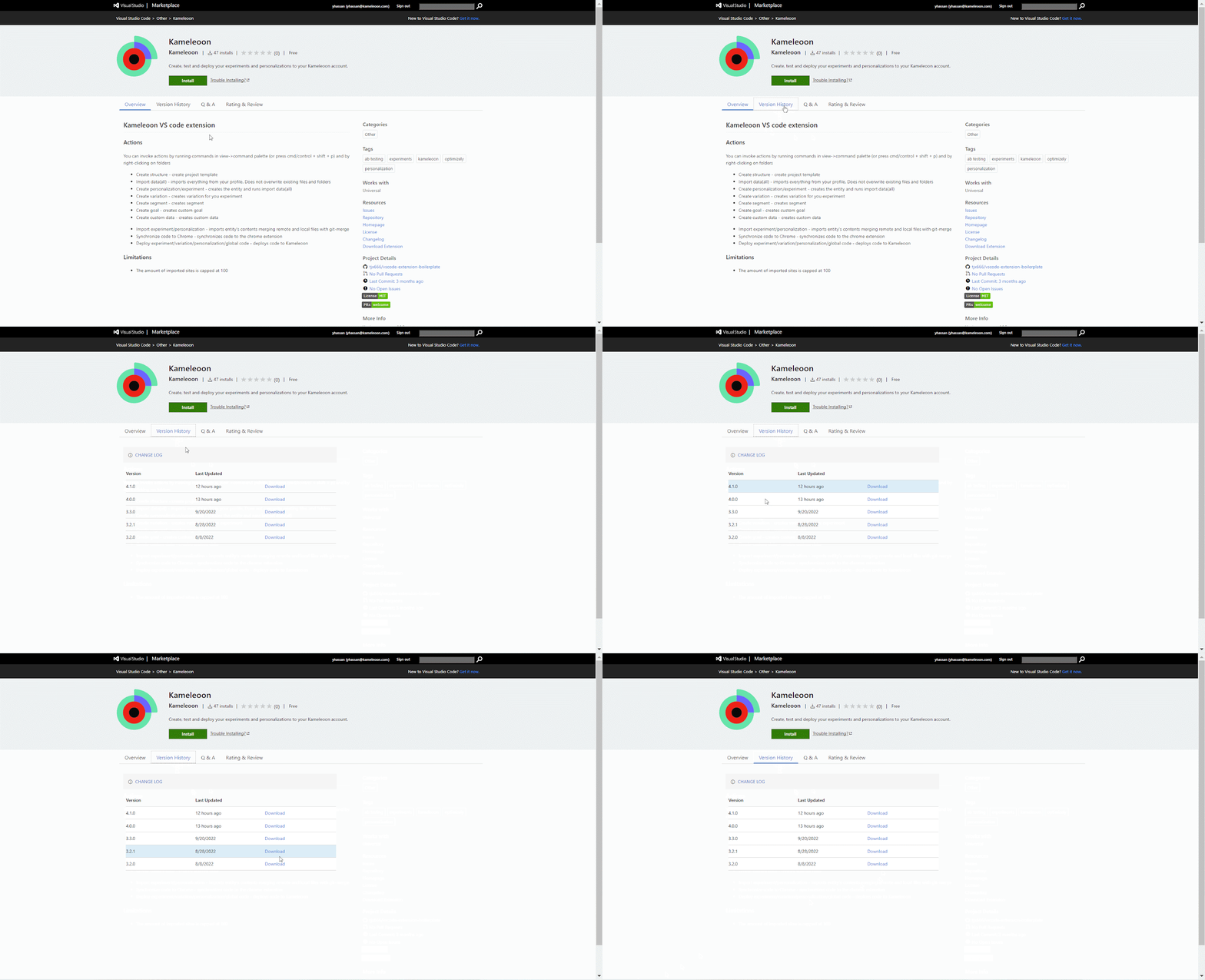 Download the version you want to install. The download is a VSIX file.Import the VSIX file into VS Code:
- Open the Extensions view.
- Click the three-dot menu at the top of the Extensions panel.
- Select Install from VSIX….
How do you migrate from V3 to V4?
How do you migrate from V3 to V4?
To migrate from V3 to V4, push your changes to production if you want to keep them, delete all files and folders, and start a new environment. The Getting started section explains how to set up a new environment.
How do you turn off JS minification?
How do you turn off JS minification?
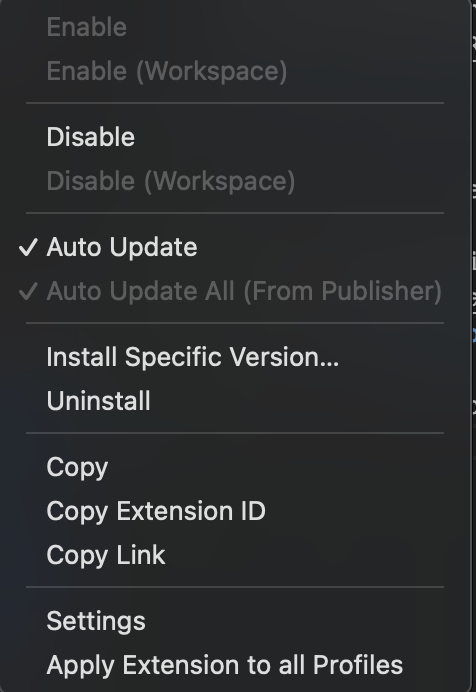
The extension minifies JavaScript when it deploys or synchronizes code. To turn that behavior off, follow these steps: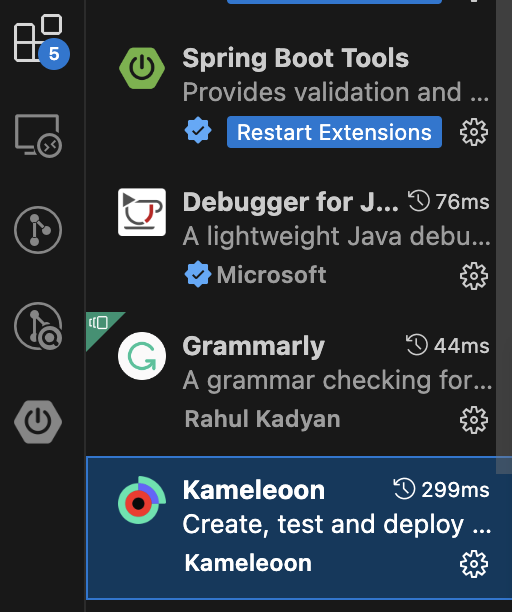

- Open the Extensions view in VS Code.
- In the list of installed extensions, find Kameleoon and click Settings.
- Turn off Enable JS minification for deploying and synchronization.