

This feature is in open beta and isn’t visible in the Segment Destination Catalog. Contact the Kameleoon support team to learn more about implementing Segment destination actions in your web or mobile app.
Segment.io — eventName.” Once Kameleoon creates the goal, you can use it in any of your experiments or personalizations.
Import Segment events, traits, groups, and personas into Kameleoon
With this Segment x Kameleoon integration:- Segment automatically sends every event it triggers to Kameleoon, saving developers time from re-implementing an existing Segment Tracking plan in Kameleoon. Page, Screen, and Track events are automatically collected as a Kameleoon custom goal. You can use any of them in your experiments/personalizations, or to target users performing a specific action on your website or mobile app.
- Track events of type Audience Entered or Audience exited become Kameleoon custom data that you can use in Kameleoon’s Segment builder to target user personas.
- Track events of type identify with traits become Kameleoon custom data that you can use in Kameleoon’s Segment builder to target users with specific traits.
- Track events of type group become Kameleoon custom data that you can use in Kameleoon’s Segment builder to target a group ID.
Considerations
Keep these things in mind when sending events to Kameleoon:- You must enable this integration in each Segment project you want to use it in.
- You need a paid Kameleoon plan to enable this integration.
- You need to match your Segment users with Kameleoon visitors using the same system of identifiers for both tools.
- This integration has technical limitations.
- Segment sends all user, event, and group properties along with the event.
Limitations
Relevant limits for Kameleoon events are:- 1 MB maximum size of event data
- Can’t create more than 50 Kameleoon goals over a 10 seconds period
- Can’t create more than 1000 Kameleoon goals over a 60 minutes period
Setup
Prerequisites
To configure an Event Streaming integration from Segment to Kameleoon, you need the following information from Kameleoon:- REST API Key: To start sending data to Kameleoon, you need your API Key. See the Generate your API Key section for more help.
- Sitecode: You must provide the Sitecode for the project you want to use with this integration. See the dedicated Kameleoon documentation to know where you can find your Sitecode.
Kameleoon setup
Ensure you have your API Key and your Sitecode, so you can set up your integration from Segment.Generate your API key
To generate your API Key:- Get your client ID and client secret. You can find them in your profile page.
- Use your client ID and secret with the following URL to generate your API Key:
https://integrations.kameleoon.com/segmentio/getapikey?id=**[CLIENT ID]**&secret=**[CLIENT SECRET]**
Get your sitecode
You can find your project’s Sitecode on the Projects page. See the dedicated Kameleoon documentation to know where you can find your Sitecode.Segment setup
Add the Kameleoon (Actions) destination in Segment by following the Segment documentation for the Kameleoon destination. When Segment asks for them, paste your Kameleoon API key and your Sitecode. See Find your sitecode for where to find it.Matching a Segment user with a Kameleoon visitor
The integration requires that you use the same system of identifiers for both tools. While Segment uses theuserId, Kameleoon uses the kameleoonVisitorCode. To identify which visitor triggered the forwarded Segment events, you must include the kameleoonVisitorCode in your Segment events.
If you use Kameleoon Web Experiments on your project, Kameleoon places a cookie that contains an anonymous unique identifier called the Kameleoon Visitor Code, which Kameleoon randomly assigns to a visitor. This ID uniquely identifies a visitor.
To retrieve the kameleoonVisitorCode from the browser cookies, use the following code:
kameleoonVisitorCode to all your Segment events, you can add the following middleware code to your website:
EventPlugin, which lets you redefine how event functions behave. Alternatively, you can opt for the DestinationPlugin, which operates similarly to the EventPlugin but applies to a specific destination.
Here’s an example of a C# Plugin:
Retrieving automatically created goals
As mentioned before, Kameleoon will create a custom goal using the Segment event name and associate the conversion to the visitor. The name of the created goals will start with “SegmentIO” followed by the event type and event name. Example: If the event name is “Clicked on Checkout,” Kameleoon names the generated goal “SegmentIO track - Clicked on Checkout.” The goal appears in Settings > Goals with the type Custom Goal. Additionally, automatically created goals will have the tag “segment.io” attached to them. To find these automatically created goals, go to Settings > Goals, open the Filters panel, expand Tag, and select segment.io.Renaming or deleting automatically created goals
When receiving an event from Segment, Kameleoon will search for the existing associated goal by looking for a matching goal name (considering the naming convention). If you change the goal name, Kameleoon won’t find it. Kameleoon will create a new goal with a name matching the Segment.io event name, and it still attaches the previous goal conversions to the previous goal. Therefore, if you want to change a goal name, Kameleoon recommends changing the Segment event name, too, to match the new goal name. Kameleoon also recommend changing the goal name if you decide to rename a Segment event to match the new event name. If you decide to delete a goal, Kameleoon won’t find it. Kameleoon will create a new goal with a name matching the Segment. event name. Because it’s a new goal, you lose all previous goal conversions.Automatic goal conversion
Now that Kameleoon has generated a goal, it will start associating the conversions with the goal. If the Segment event name matches the name of an existing goal in your Kameleoon account, Kameleoon associates a conversion for this goal with the visitor. To see how a Segment goal is triggered, open the goal and look at its Definition card. Since the events received by Kameleoon will automatically trigger a goal conversion, you don’t need to implement any frontend or backend code to trigger a Segment goal. The goal converts automatically when Segment triggers the associated event and forwards it to Kameleoon.Benefit from Segment Destination Actions features
For information about filters, mappings, the event tester, alerts, event delivery, and functions, see the Segment Destination Actions documentation.Migration from the classic Kameleoon destination
To migrate from the classic Kameleoon destination, you can follow these three steps:Visitor Identification
- Include the
kameleoonVisitorCodein your Segment events for accurate visitor tracking.
Mapping, filters, and testing
- Define the mapping and filters for the Kameleoon (Actions) destination in Segment, following the Segment documentation for the Kameleoon destination.
- Test events to ensure accurate goal creation and conversion tracking.
Activation
- Activate the Kameleoon (Actions) destination when you’ve tested everything and it’s ready.
- Deactivate the classic Kameleoon destination.
Personas, traits, and group
Kameleoon lets you target users based on their Segment persona: a group who have specific property traits. To use personas, traits, and group IDs in Kameleoon’s Segment builder, you must set up a custom data in your Kameleoon account for the project of your choice.Personas
You can choose the custom data’s name (for example, SegmentIO personas). The custom data must be of type List of string.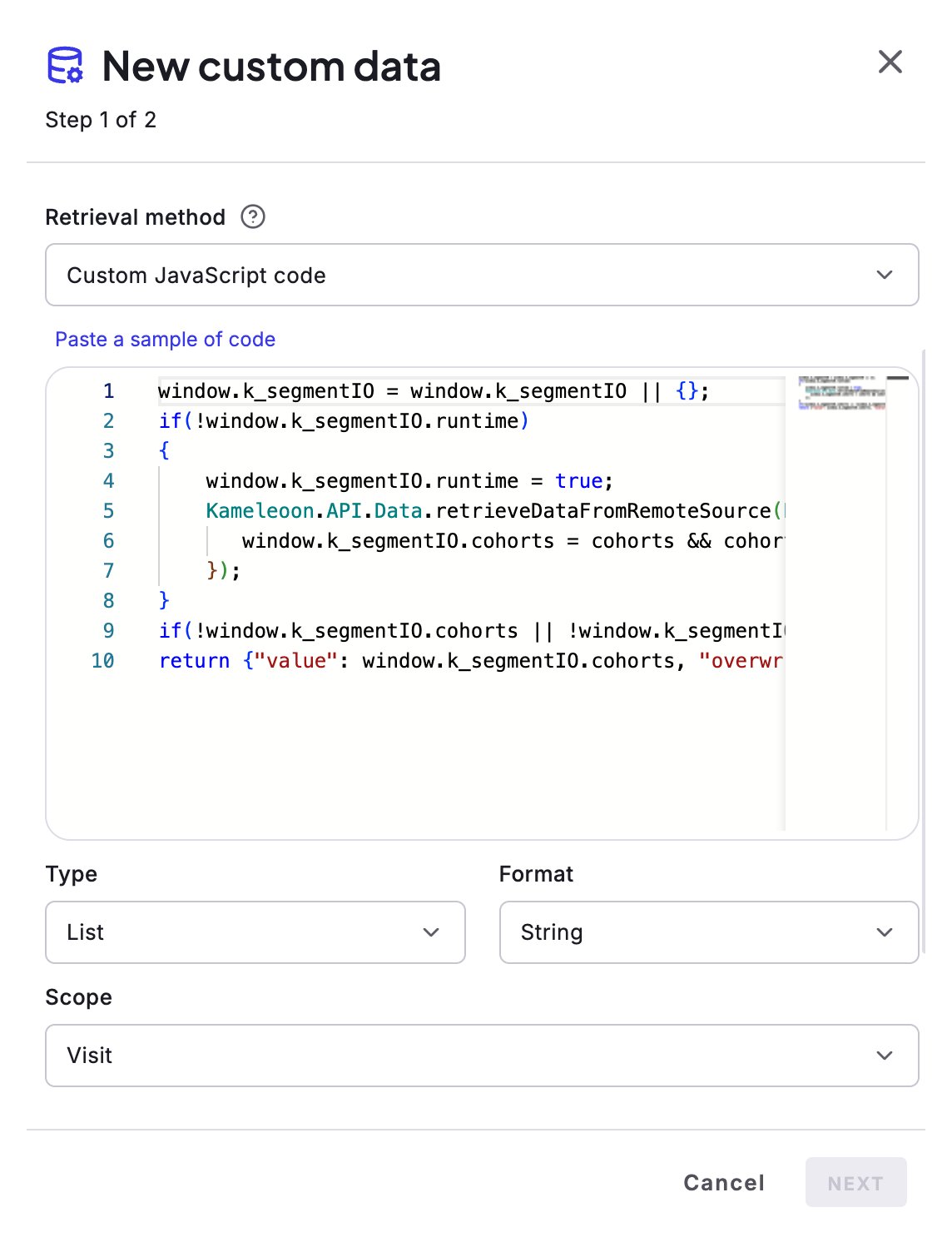
Follow the guidelines below for Web Experimentation only.
const user_id = Kameleoon.API.Visitor.code;
Alternatively, if you use Kameleoon’s Visitor Code as the Segment user ID or need to retrieve the user ID from Segment’s analytics object, use the following line:
To use Segment personas in server-side experiments or feature flags, you can consult the guidelines outlined in each SDK’s documentation.Kameleoon’s SDKs employ the
getRemoteData() method. This method fetches data stored by Segment in Kameleoon’s servers and make it accessible in your backend code.The “key” value to use as the first parameter should follow this format: IDENTIFY{user_id}.Fetch Segment Persona names in Kameleoon
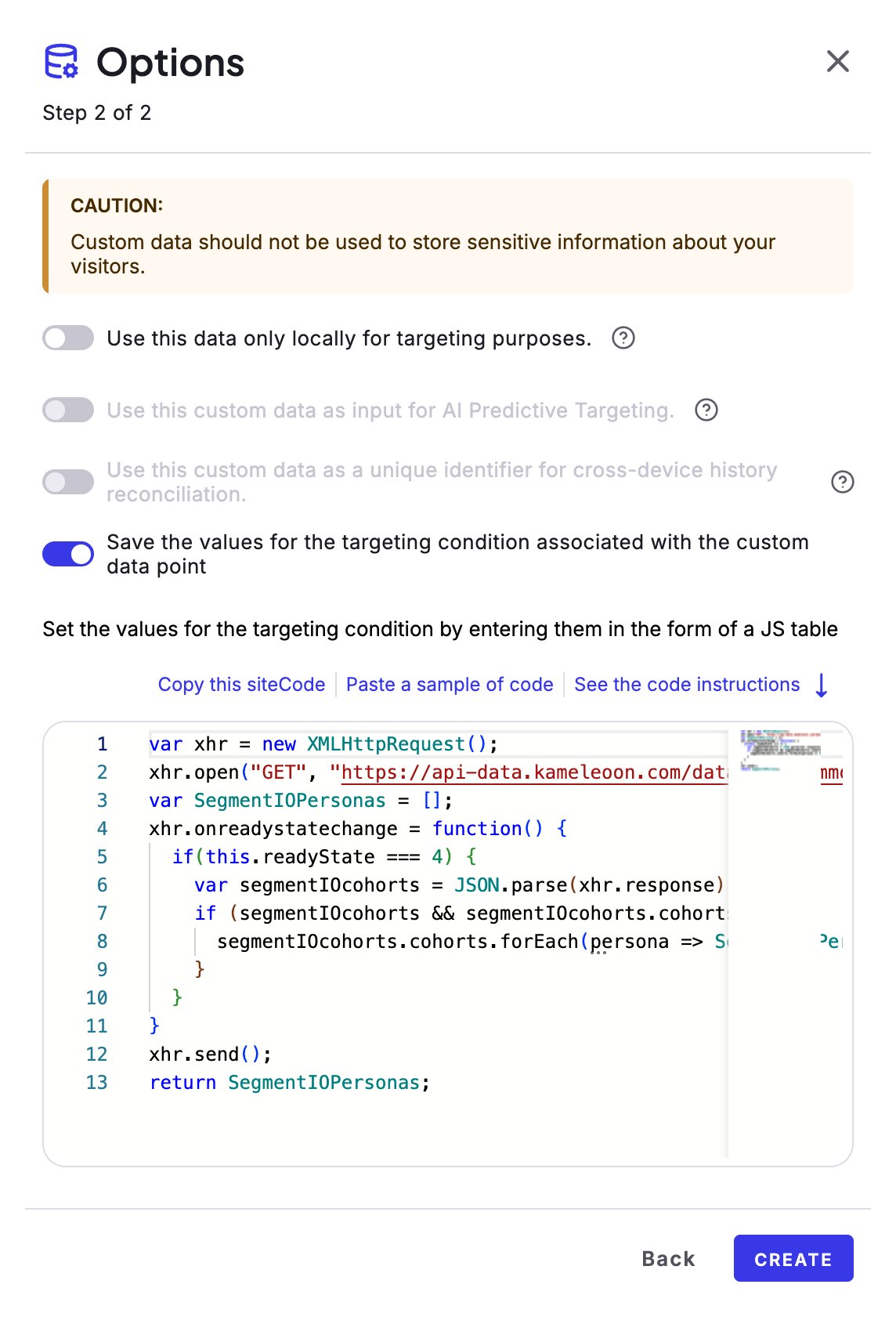
Click Next and activate the Save the values for the targeting condition associated with the custom data point option. Add the JS code below and replaceXXXXXXXXX with the Kameleoon Sitecode. To find the Sitecode, follow this documentation.
Traits
To use traits in Kameleoon’s segment builder to target your campaigns, you must create one custom data per trait type. If you want to target users based on the plan they have subscribed to on your website. Your website has three different plans: freemium, scale, and enterprise. You must set up a custom data called “Subscribed Plan” and the custom data must be of type “string.”Follow the guidelines below for Web Experimentation only.
const user_id = Kameleoon.API.Visitor.code;
Alternatively, if you use Kameleoon’s Visitor Code as the Segment user ID or need to retrieve the user ID from Segment’s analytics object, use the following code:
To use Segment personas in server-side experiments or feature flags, you can consult the guidelines outlined in each SDK’s documentation.Kameleoon’s SDKs employ the
getRemoteData() method. This method fetches data stored by Segment in Kameleoon’s servers and make it accessible in your backend code.The “key” value to use as the first parameter should follow this format: IDENTIFY{user_id}.Group IDs
To use group IDs in Kameleoon’s segment builder to target your campaigns, you must set up a custom data called “Group ID,” and the custom data must be of type string.Follow the guidelines below for Web Experimentation only.
const user_id = Kameleoon.API.Visitor.code;
Alternatively, if you use Kameleoon’s Visitor Code as the Segment user ID or need to retrieve the user ID from Segment’s analytics object, use the following line:
To use Segment personas in server-side experiments or feature flags, you can consult the guidelines outlined in each SDK’s documentation.Kameleoon’s SDKs employ the
getRemoteData() method. This method fetches data stored by Segment in Kameleoon’s servers and make it accessible in your backend code.The “key” value to use as the first parameter should follow this format: IDENTIFY{user_id}.