Use one of our ready-to-use widgets or ask your developer for help if you are not comfortable coding.
Create a new template
Follow these steps to create a new widget template with code:- Click Studio > Widgets > New widget.
- Select Using code.
- Name your template, associate a website, and optionally write a description and add tags.
- Click Create.
The template editor
The template editor contains three distinct areas.Left panel
The top-left corner displays your template’s title. Hover over the title and click the pencil icon to rename the template. Access two essential steps for creating your template in this panel:- Code to run
- Configuration form
Content zone

Code the template
Use the central content area to code your widget template. This code generates the widget on your website’s page. The editor provides three tabs for different code types:- JS (JavaScript)
- CSS
- HTML
Special case: variables
To use a field (a variable) specified by the user in your widget, add thetemplateData attribute to the corresponding field in the User Interface tab.
Example:
input id="message" type="text" templateData="messageContent" placeholder="Type your message"
To retrieve the variable, use UserData in the Code to run tab.
Example:
var userInput = UserData.messageContent;
alert(userInput);
Create the configuration form

HTML tab
Enter the HTML code for your configuration form in the HTML tab. Users interact with this form to set up their template and create a widget. Every field in the form must include an attribute with the following syntax:templateData="[NameOfYourChoice]".
CSS tab
Styles that you add in the CSS tab apply to the user interface form. This step is optional.Activate the template
To finalize your template, click Activate in the top-right corner of the editor page.If you enter fewer than 10 characters in the JavaScript field, Activate is unavailable.
Manage created templates
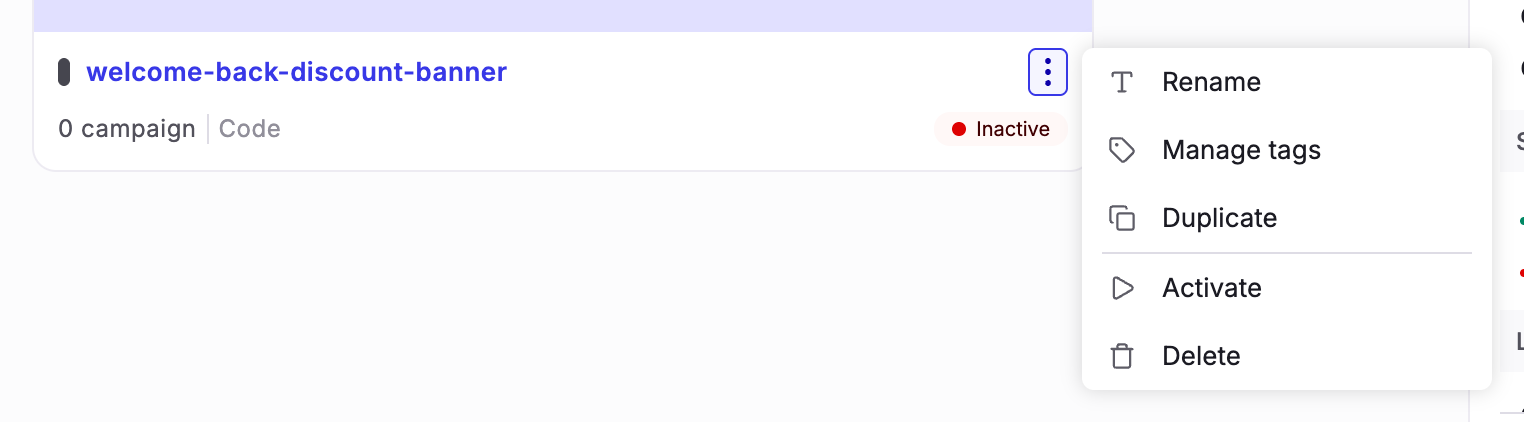
After you create a template, it appears as a card on the Widgets dashboard.Use the widget in an experiment
To associate a code widget with an experiment:- Open or create an experiment using the Graphic editor.
- In the left sidebar, click Add next to Elements.
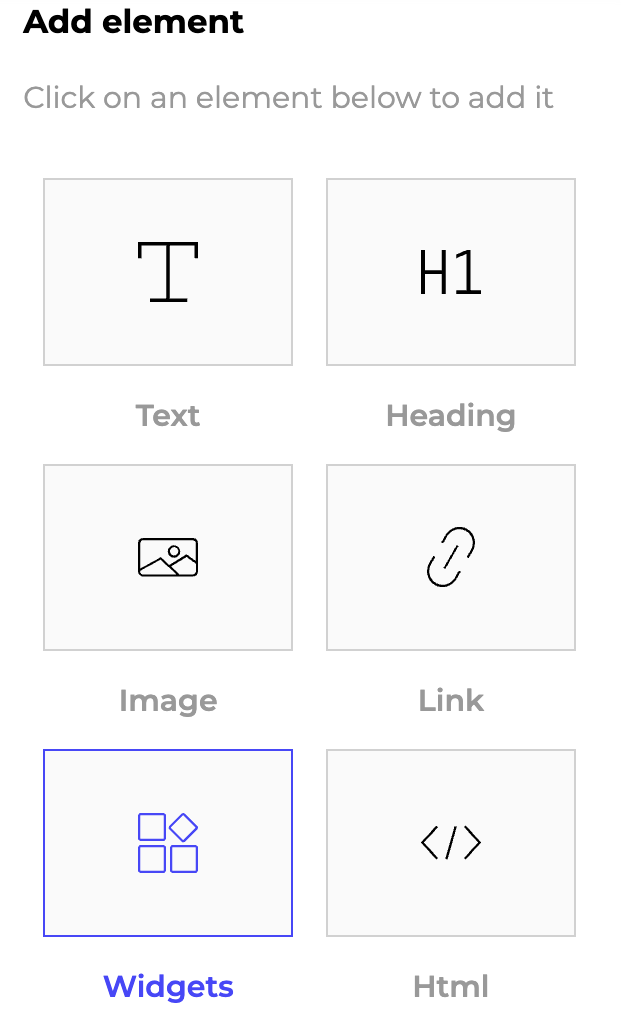
- In the Add element sidebar that opens, click Widgets.
- Select your custom widget from the list and configure it.
Preview your widget
Code-based widget templates don’t have a direct Simulate action. The Widgets dashboard’s three-dots menu offers only Rename, Manage tags, Duplicate, Activate, and Delete for a code-based widget, and the template editor’s header offers only Activate.