

How profile and password settings fit into your workflow
- Personal information: Edit your details from your profile.
- Password: Change your password from your profile.
- Language and date and time format: Choose the interface language and the date and time format for your account.
- Organization page: Require password renewal and limit failed sign-in attempts for every user in the organization.
Before you begin
- User rights: Only Super Admin profiles can enable password regeneration. Access to the password settings depends on your user rights.
Change your personal information
You can update your personal information at any point. To change your personal information:- Log in to Kameleoon.
- Click your profile icon in the top right of the screen. A drop-down menu appears.
- Click My profile > Edit to change your personal information.
- Enter your changes into the fields you want to edit.
- Click Next > Edit to save your changes.
Change your password
To change your password:- Log in to Kameleoon
- Click your profile icon in the top right of the screen. A drop-down menu appears.
- Click My profile > Edit
- In the pop-in, click Change my password.

- Type in your current password, then choose your new password.
- Click Save.
Your CSM can activate enhanced security options. You can set up an SSO based on the SAML 2.0 standard.
Change your language and date and time format
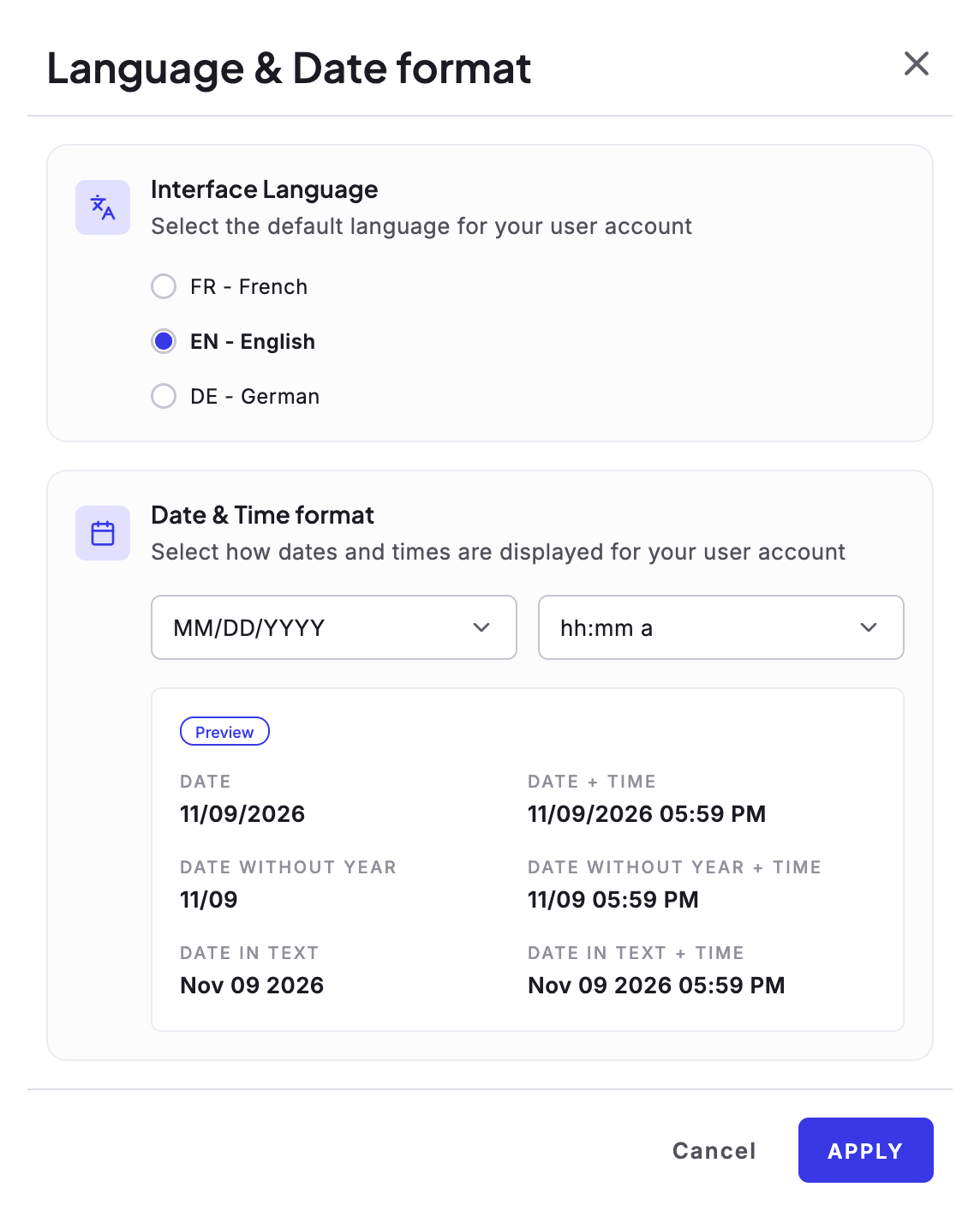
You can choose the language of the Kameleoon interface and how the app displays dates and times. These settings apply to your user account only. To change your language and date and time format:- Log in to Kameleoon.
- Click your profile icon in the top right of the screen. A drop-down menu appears.
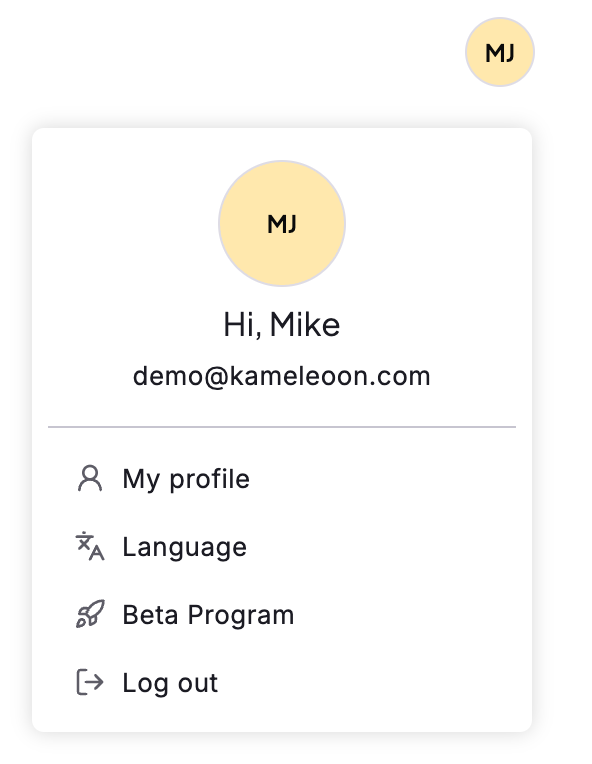
- Click Language. The Language & Date format pop-in opens.
- Under Interface Language, select French, English, or German.
- Under Date & Time format, choose a date format (
MM/DD/YYYY,DD/MM/YYYY,DD.MM.YYYY, orYYYY-MM-DD) and a time format (HH:mmfor 24-hour time, orhh:mm afor 12-hour time with AM and PM). - Check the Preview panel, which shows how the app displays dates and times with your selection.
- Click Apply to save your changes, or Cancel to close the pop-in without saving.
Organization page
You can change password settings and requirements in the Organization menu. To access the Organization page, click Admin > Organization. Forced password regeneration asks all users associated with the account to change their passwords, either once or on a recurring schedule. Limiting password attempts locks a user’s account after the number of wrong sign-in attempts that you set.Activate forced password regeneration
To activate forced password regeneration:- Click the Settings tab.
- Click the switch beside Enable recurring or one-time password mandatory renewal and set it to on.
- Choose the frequency of password regeneration or select the date for a one-time password renewal.
- Click Save changes to save your changes.
Set a maximum number of password attempts
To set a maximum number of password attempts:- Click the Settings tab.
- Click the switch beside Block the user after a number of wrong attempts and set it to on.
- Select the number of wrong attempts permitted.
- Click Save changes to save your changes.
FAQ
How do I change the app's language?
How do I change the app's language?
Kameleoon and its interface are available in English, French, and German.The app uses your browser’s language by default. If your browser language is unavailable, the app defaults to English.To change the language in the Kameleoon app:
- Click your profile icon in the top-right corner > Language.
- Under Interface Language, choose your language and click Apply.