Global settings
Before analyzing your data, ensure you are viewing the correct timeframe and project scope.Select a project
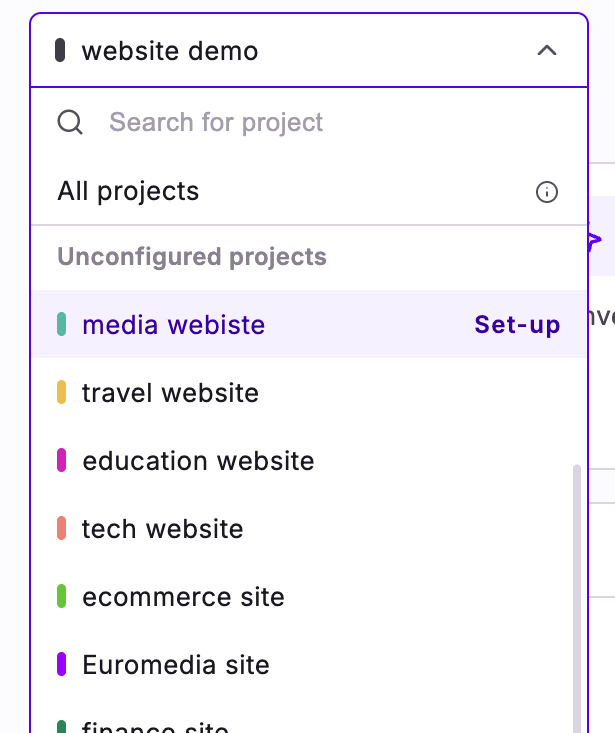
Use the project selector at the top of the page to choose which project your homepage references. To display data from a single project, select that project in the dropdown. The selector shows the name of the project you chose.

Select a timeframe
At the top of the page, use the time selector to define the period for your displayed data. You can choose from the following options:- 7 days
- 14 days
- 30 days
- 3 months
- 6 months

Some blocks, such as Launched campaigns, Targeted unique visitors, Audience segments, and Embedded View, use their own time-range control instead of this selector.
Edit your dashboard layout
Add, remove, resize, and reposition blocks to build the homepage layout that works for you.
1
Enter edit mode
Click Edit dashboard in the top right corner of the homepage.
2
Rearrange existing blocks
Drag a block by its handle to reposition it, or drag a corner handle to resize it.
3
Remove a block
Open the block’s actions menu (the kebab icon in its top-right corner) and click Delete block.
4
Add a block
Click Add block. In the Add a block window, browse by category (All, Performance, Monitoring, Workspace) or use the search bar. The On your homepage list shows the blocks already on your homepage, and the Available to add list shows the rest. Select a block to preview it, then add it to your homepage.
5
Save or discard your changes
Click Save to keep your layout changes, or Cancel to discard everything you changed since entering edit mode.


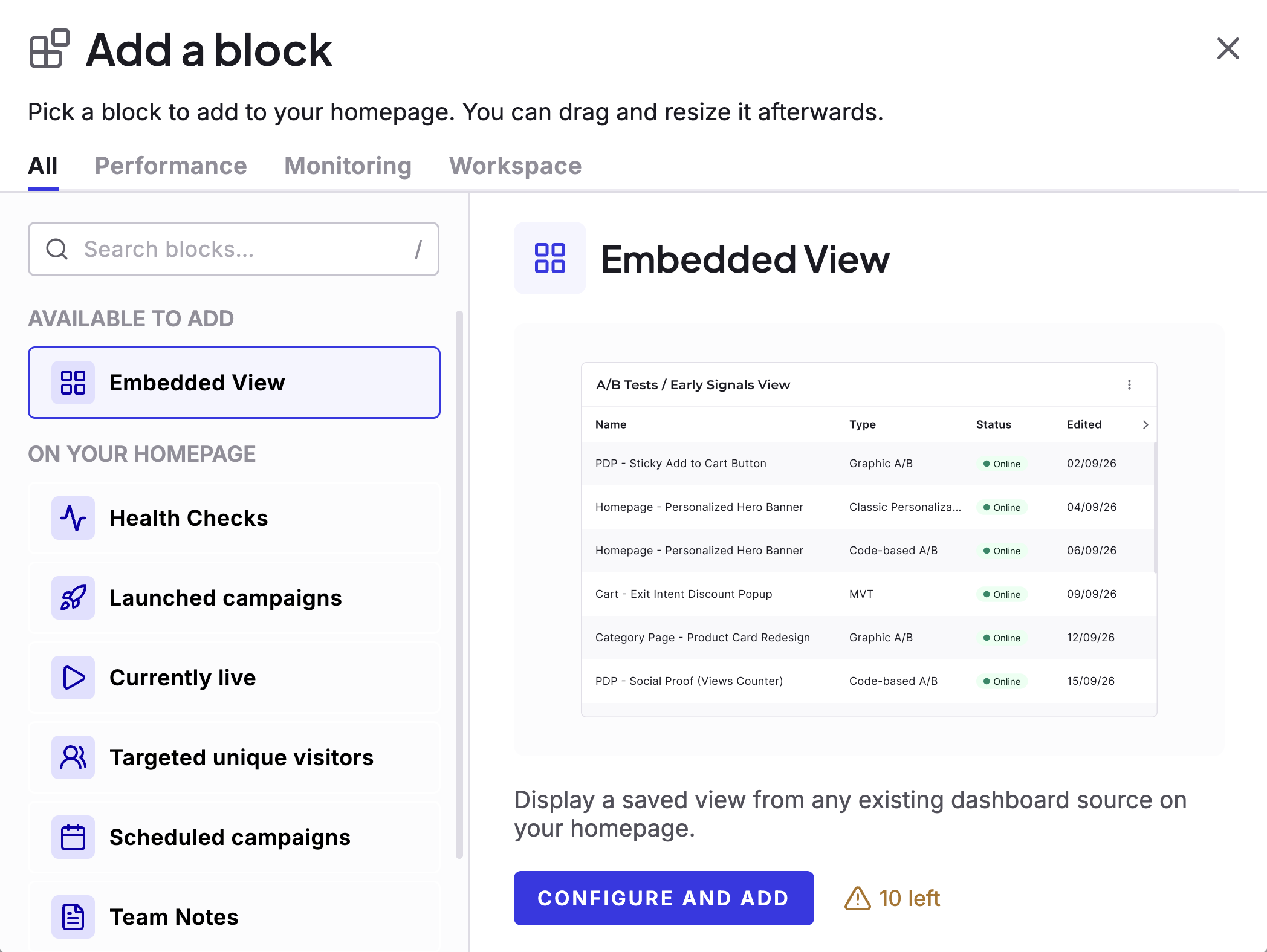
Most blocks can appear on your homepage only once. After you add a block, it moves from Available to add to On your homepage in the block library, and you can’t add a second copy. The Embedded View block is the exception: you can add up to 10 of them, each pointing at a different saved view. See Embed a saved view on your homepage.
Dashboard sections
The homepage contains several sections (blocks) that provide specific insights and shortcuts.Recently opened
Quickly resume your work without searching through the platform. This section lists the pages you visited most recently, including:- Experiments
- Personalizations
- Feature flags
- Widgets
Highlights
The Highlights section displays the main KPIs for your selected project in a single row. The KPI tiles show Conversions, Visitors, and Conversion rate.

Additional Revenue calculation
The Additional Revenue tile sums the extra revenue your variations generate compared with their references. For each experiment, Kameleoon takes each variation’s revenue per visitor, subtracts the reference variation’s revenue per visitor, and multiplies the difference by the variation’s visitors. Kameleoon then adds the results across all variations of all experiments. Kameleoon skips variations with fewer than 1,000 visitors.Limitation with overlapping experiments
Kameleoon doesn’t deduplicate overlaps between experiments. When experiments overlap, the same user (order) can count more than once in Additional Revenue.Currency
Kameleoon doesn’t convert currencies. The currency setting only controls the symbol shown next to the values. If you convert revenue to euros before sending it to Kameleoon, the homepage uses those same converted values.The metrics displayed on the homepage aren’t real-time. Kameleoon updates them daily, so they reflect activity up to the previous day.If the goal selected on the homepage has no revenue, the block counts conversions instead, which can make the numbers look wrong.
Launched campaigns
Track your historical activity with the Launched campaigns section. This area shows the campaigns you have rolled out over time, helping you visualize the volume of experiments or flags deployed. Each bar stacks the campaigns launched in a month by type: A/B tests, Flags (prod environment), and Personalizations. Use the time range dropdown (for example, 6 months) to change the period the chart covers.
Currently live
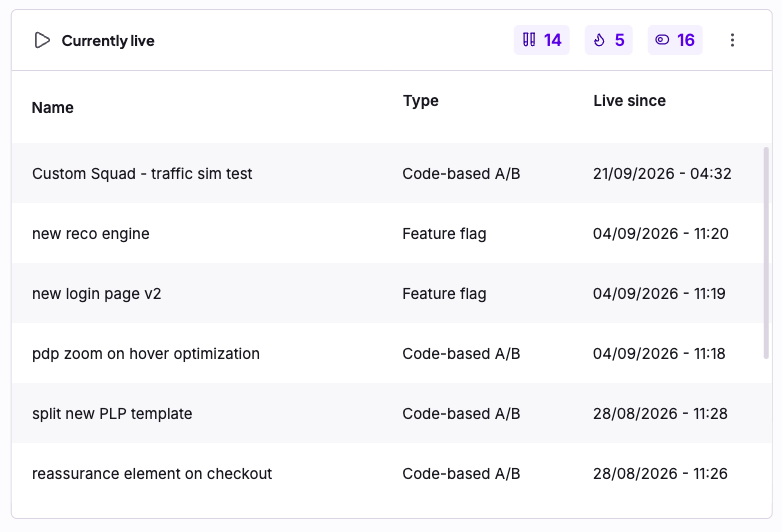
View a list of all campaigns that are active and impacting users. This section helps you understand exactly what’s running on your site right now. The counters on top of the table show how many live A/B tests, personalizations, and feature flags you have, from left to right. The table displays:- Name: The name of the campaign.
- Type: The campaign type, such as Code-based A/B or Feature flag.
- Live since: The date and time the campaign went live.
Health Checks
The Health Checks block gives you an at-a-glance view of the experiments that need your attention, without opening each one individually. It surfaces the same health checks you’ll find on an experiment’s Health tab in the Results page, so you can spot data-quality issues across all your live experiments from a single place. The block shows data only for the project you select in the project selector.
Reading the block
The block has two parts: Status summary: Four counters at the top show the overall picture across all of your live experiments in the selected project:- Passed: all checks are healthy.
- Warning: at least one check needs review.
- Failed: at least one check has failed.
- Pending: checks haven’t yet run (for example, a newly launched experiment).
Viewing check details
Hover over the status of any experiment to open a tooltip showing the result of each individual health check for that experiment (such as Visit Tracking, Conversion Tracking, SRM, and Overlapping Exposure). For a full explanation of what each check means, see Health checks on the Results page. The tooltip also displays a Last update timestamp for that experiment, so you know how recent the results are. This timestamp shows the last time Kameleoon evaluated the checks for that specific experiment. If Kameleoon hasn’t evaluated them individually yet, the most recent daily update appears instead.Opening the full diagnostics
To investigate an issue, click an experiment row or the See all checks link in the tooltip. This takes you straight to the Health tab of that experiment’s Results page, where you’ll find the full breakdown and recommended next steps.When the block is empty
If none of your live experiments have a warning or failed check, the block shows:No health check alerts All your live experiments are running as expected.
The Health Checks block is available for A/B tests, Feature Flags, and Personalization experiments. It isn’t available on PBX plans.
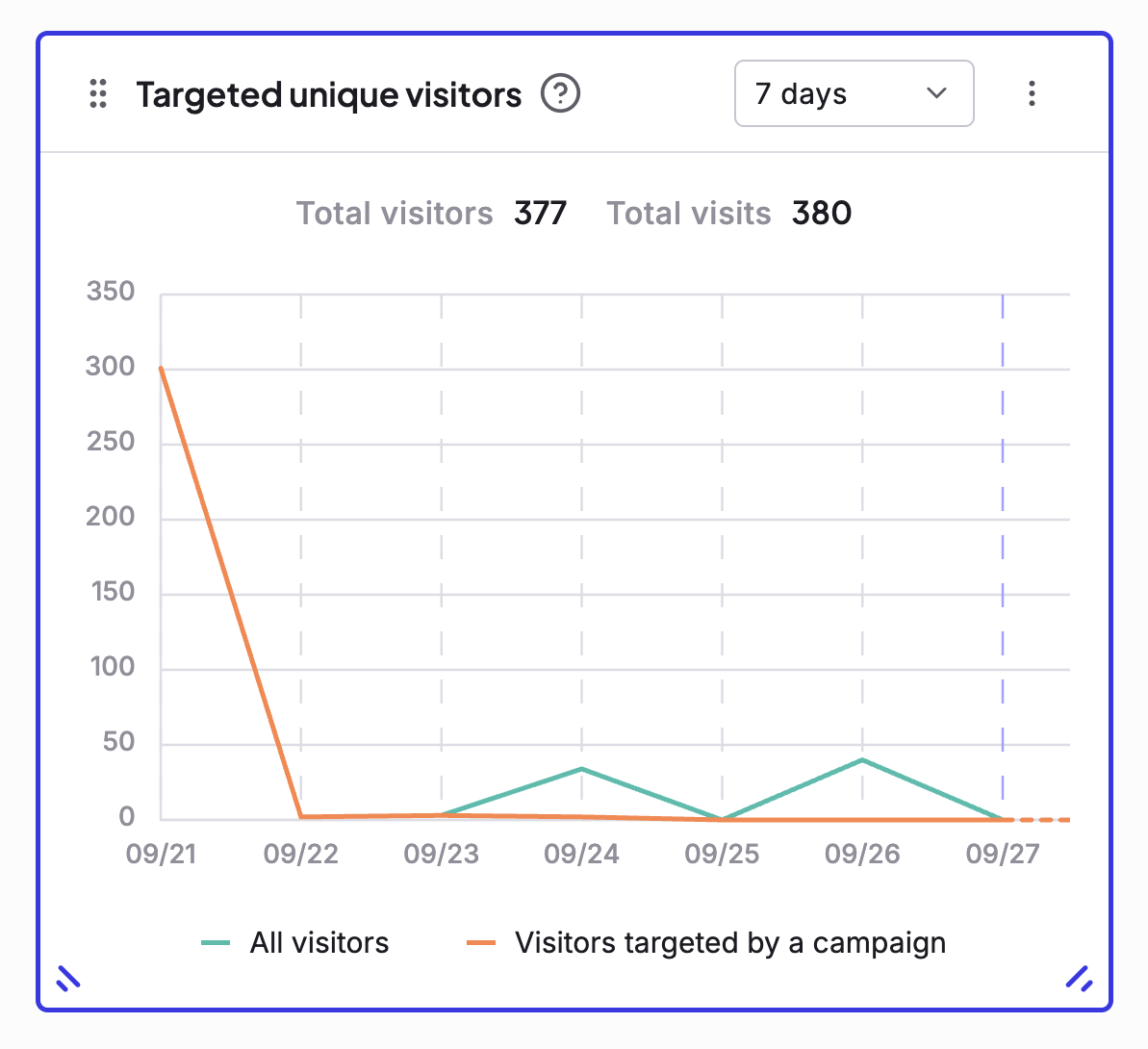
Targeted unique visitors

Kameleoon counts a unique visitor once per session, even if that visitor views the campaign multiple times.
Audience segments
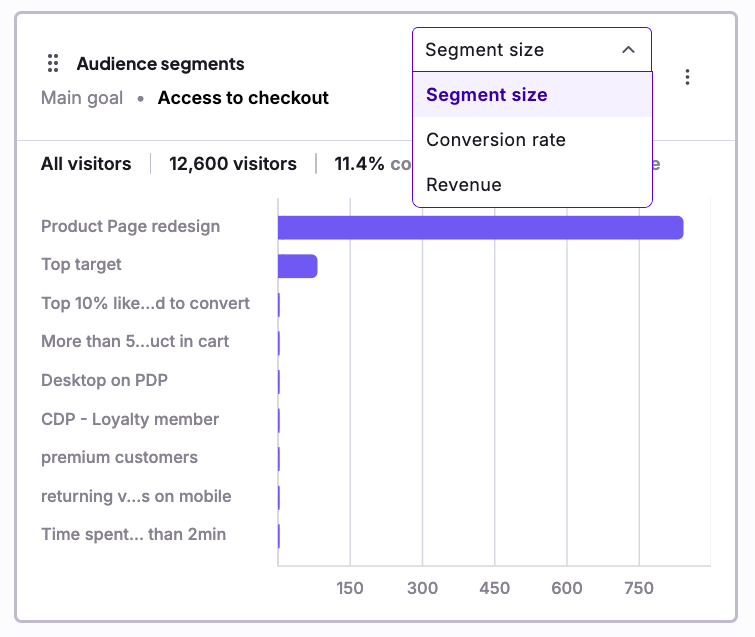
Use the audience segments block to compare how your segments perform on visitors, conversion rate, and revenue. The block header shows the block’s main goal, for example Access to checkout. Below it, a bar chart shows each segment. The summary row on top of the chart shows the All visitors total, the conversion rate, and the total revenue.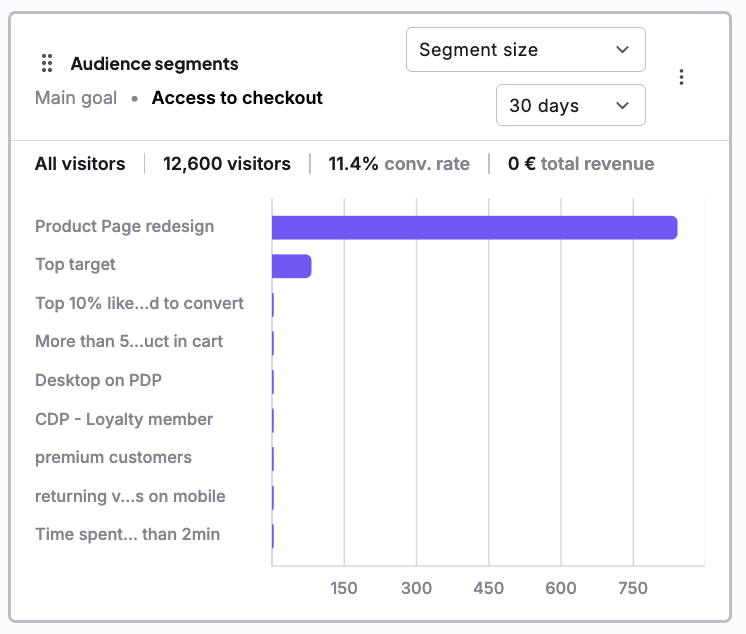

Scheduled campaigns
Anticipate upcoming work by viewing campaigns planned for a future launch. This section lists experiments and flags that have a scheduled start date but aren’t active yet. Each row shows the campaign’s type, its schedule date, and a status change from Planned to Online. The counters on top of the table show how many scheduled A/B tests, personalizations, and feature flags you have, from left to right.
Team Notes
Use the Team Notes section to coordinate with your team, leave reminders, or provide context on ongoing work. The toolbar at the top of the block formats your notes with bold, italic, underline, strikethrough, bulleted and numbered lists, emoji, and links.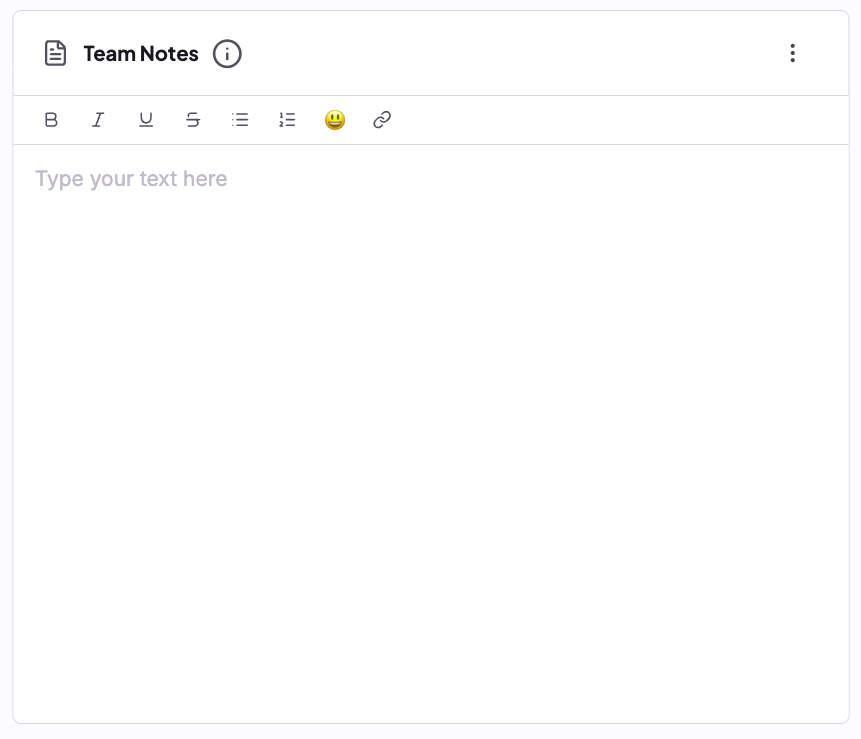
- The Team Notes block is a shared free-text area.
- Everyone with access to the project can view and edit these notes.
- Kameleoon saves changes automatically and shares them across the team.
Useful links
Access helpful resources quickly. This section contains shortcuts to official documentation and allows you to add custom links to frequently used pages or external resources. The following example shows the block with four links.
Embedded View
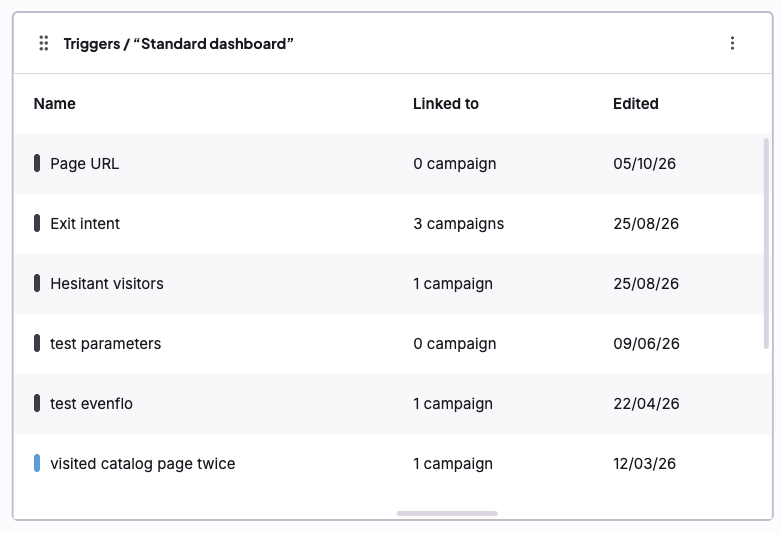
Use the Embedded View block to show a saved view from Kameleoon directly on your homepage. The block header shows the saved view it displays (for example, Triggers / “Standard dashboard”).