

Set up a rollback condition
Define one or more rollback conditions to automatically pause an experiment when a goal’s performance drops below, or rises above, a threshold you set. Each condition tracks the performance of one goal. This condition lives in the Rollback tab of the Goals step during experiment finalization.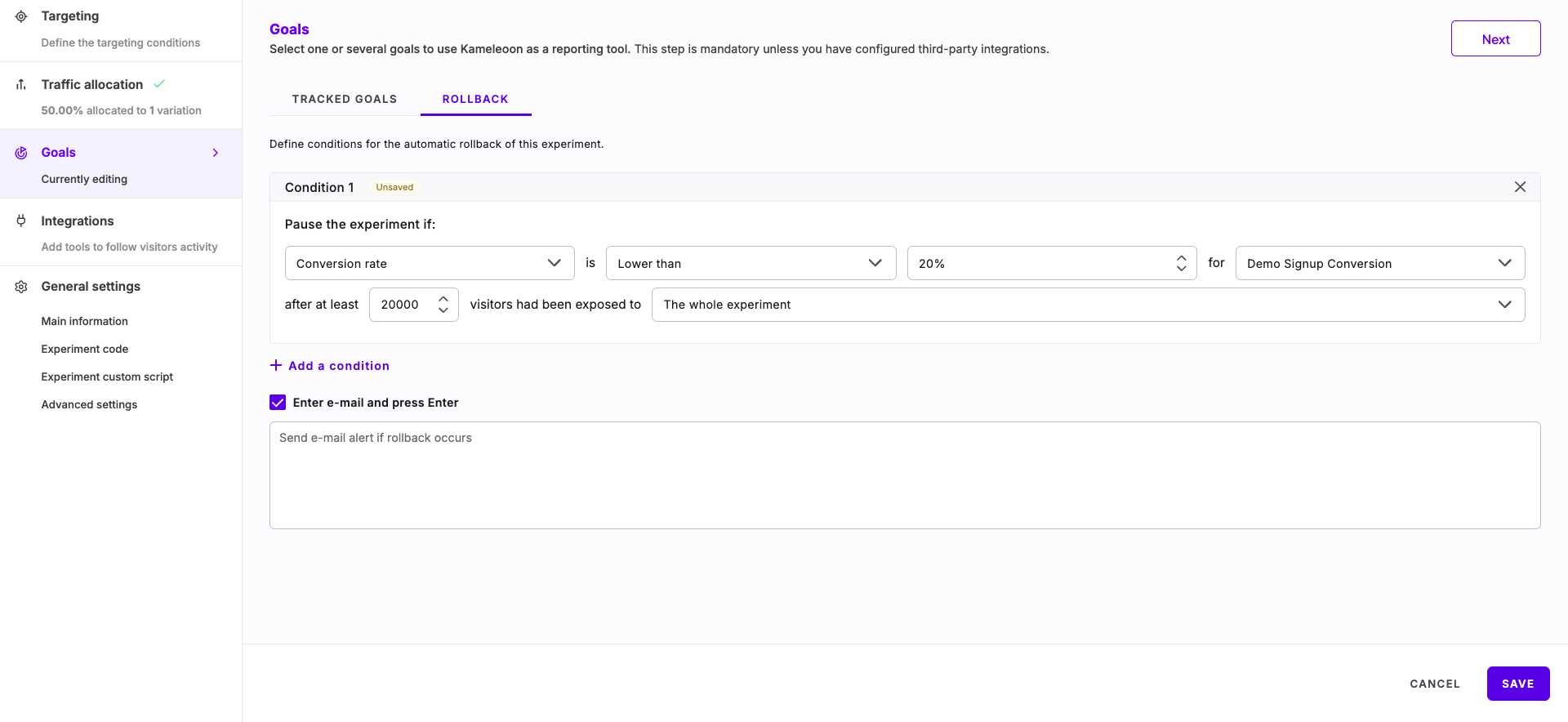
- On the Finalization page, click Goals.
- Click the Rollback tab.
- Click Add a condition.
- Select the performance indicator to check, such as Conversion rate.
- Set the comparison: choose whether the indicator is higher than or is lower than a percentage, and enter that percentage.
- Select the goal to evaluate this indicator for. You can choose from any goal you created for this project.
- Enter the minimum number of visitors that must reach the experiment before Kameleoon evaluates the condition, for example 20,000.
- Choose the scope for the visitor count: the whole experiment or a specific variation.
- Click Save.
Condition fields
Set up email alerts
To receive an email when a rollback occurs, select the checkbox next to Enter e-mail and press Enter, type an email address, and press Enter. Repeat to add more recipients. Click Save to finalize the condition.How rollback checks work
After you save a rollback condition, Kameleoon monitors it automatically:- Kameleoon checks each condition approximately every 5 minutes.
- Each check compares the goal’s current performance against the threshold and confirms whether the visitor count has reached the minimum you set.
- When a condition triggers, Kameleoon immediately pauses the experiment.
- If you configured email alerts for that condition, Kameleoon sends an email with the rollback details to the recipients you added.