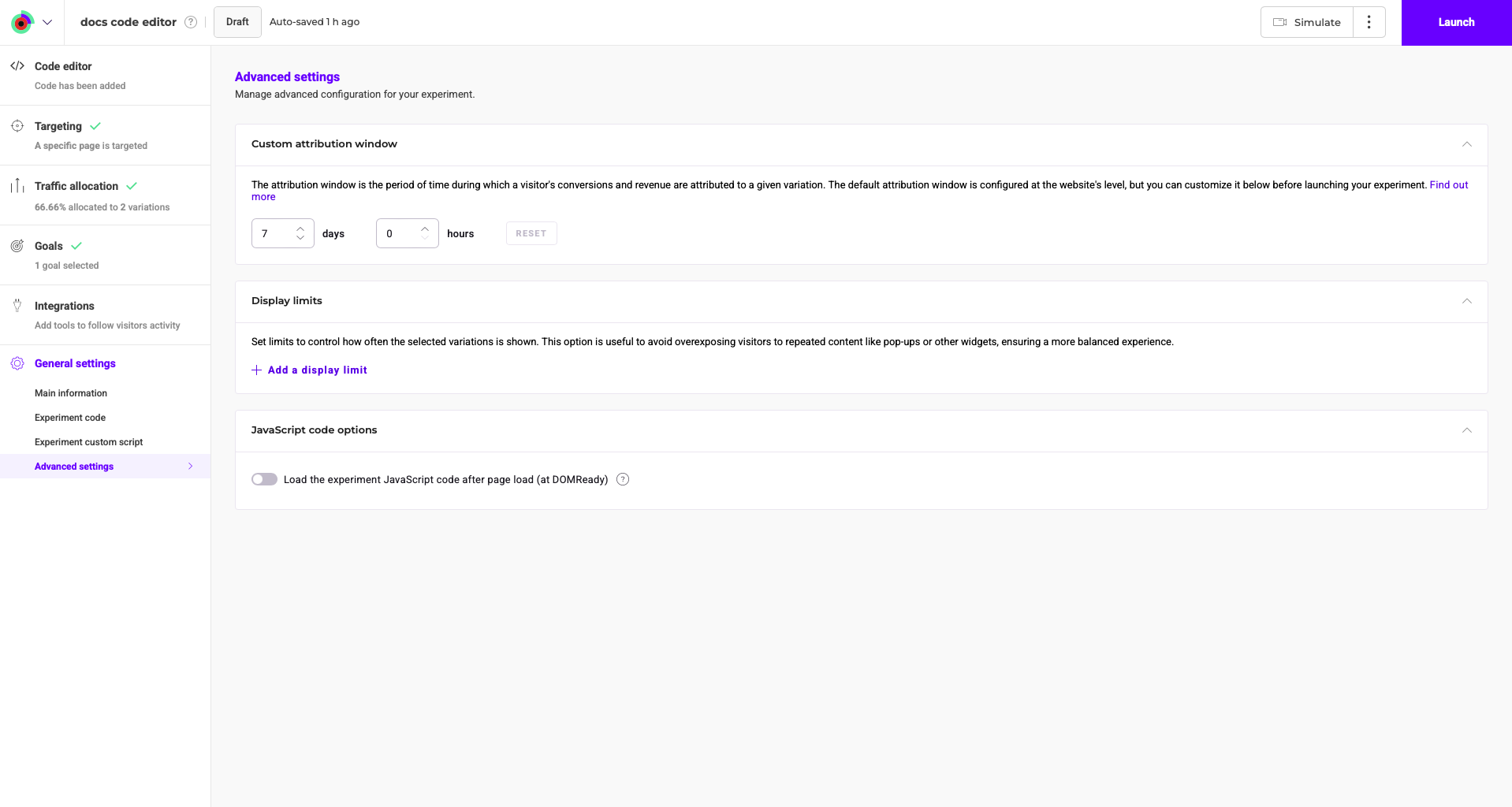
- An overview of the Code editor’s interface and main features.
- Step-by-step instructions for creating variations using the Code editor, including working with HTML, CSS, and JavaScript code.
- Tips for optimizing your variations for maximum impact.
- Best practices for testing and validating your variations before launching your experiment.
User benefits
With the Kameleoon Code editor, you can create, launch, and manage code-based experiments without using the Graphic editor. Inject JavaScript or CSS code directly into your variations and save time.Access the Code editor
From the Experiments dashboard
Click New experiment in your Experiments dashboard > With the code editor.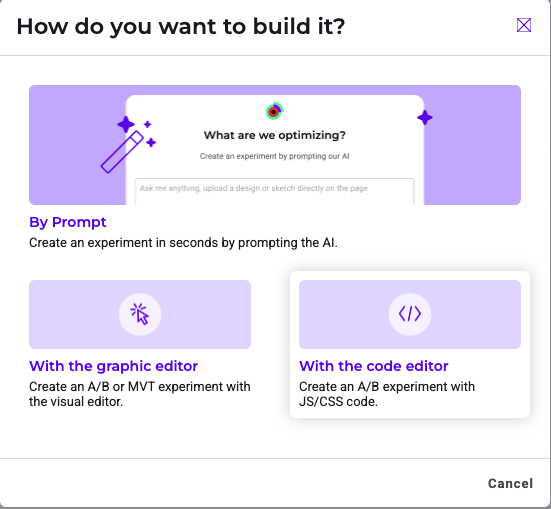
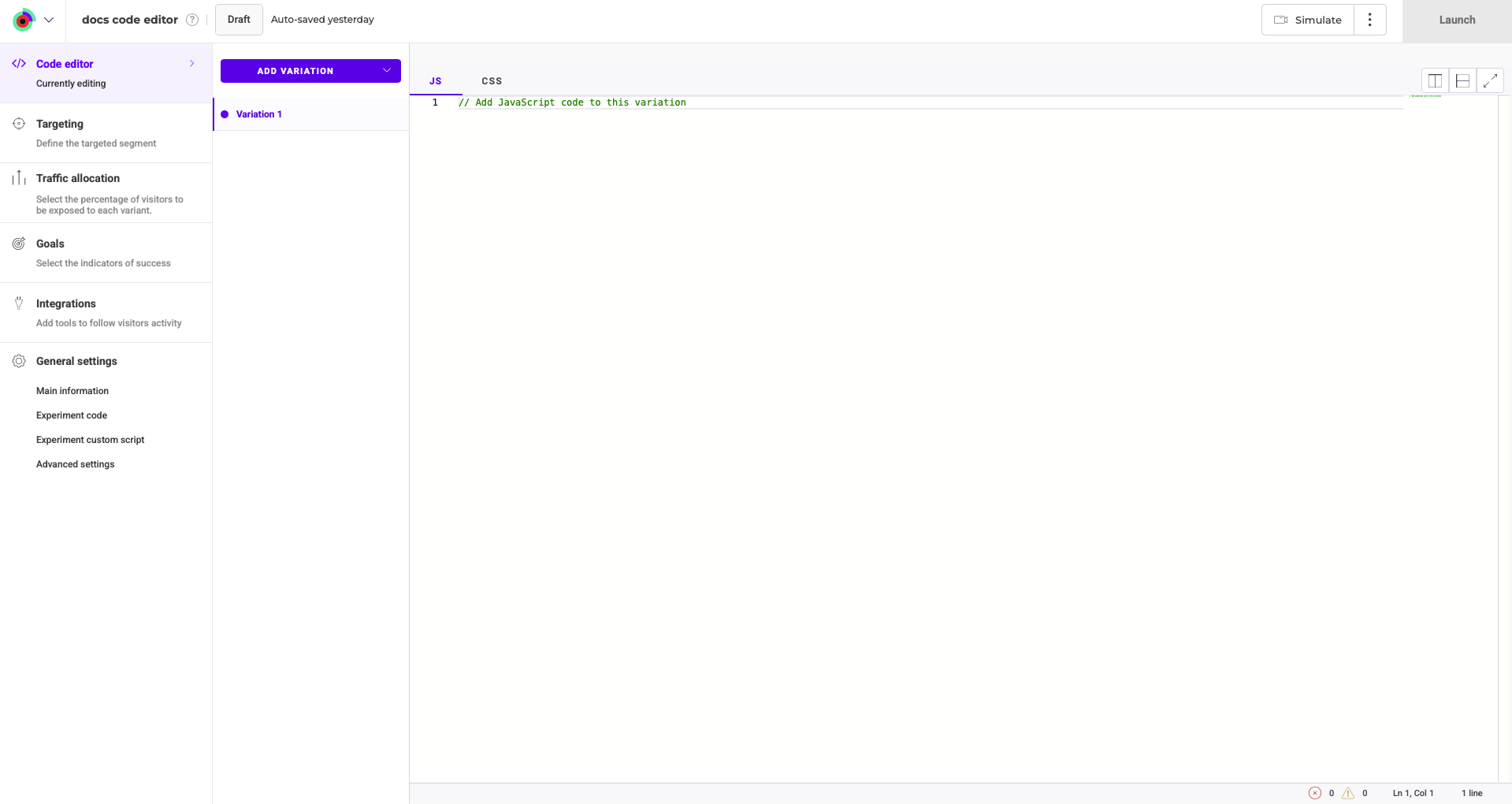
Structure of the Code editor
Our Code editor has the following structure:- Header: Displays the experiment’s name and status. Also includes the Simulate and Launch buttons.
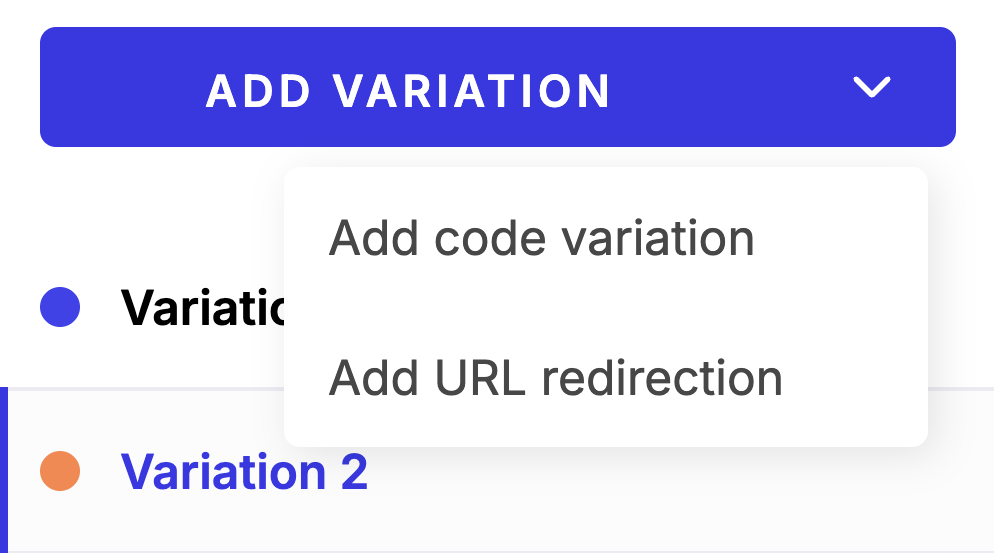
- Variation panel: Lists variations and lets you add new ones. Each variation is selectable for editing.
- Code area: You can edit JavaScript (JS) or CSS code specific to the selected variation. Includes tabs to toggle between JS and CSS.
- Left sidebar: Includes criteria that you must define before launching your experiment and general settings.
Header
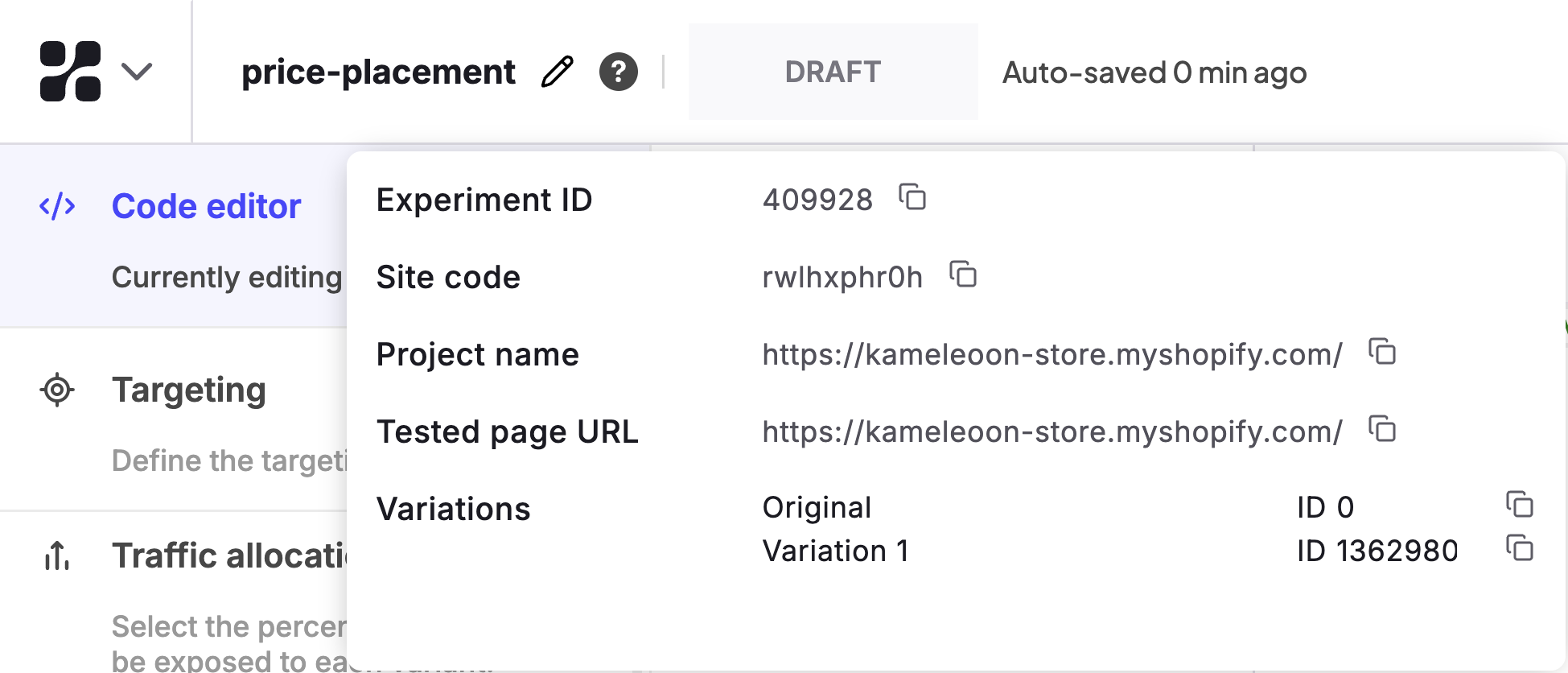
Experiment information
The header displays the main information associated with the experiment:- its name
- its status
- the last interaction (for example, last save, update, date of launch).
- Automatic, when the experiment’s status is draft, scheduled, or paused.
- Manual, for online and diverted experiments (via the green button in the Finalize tab).
Header actions
Simulate
We strongly recommended simulating your Developer A/B experiment to confirm your experiment displays and functions correctly. To simulate your experiment, click Simulate to open simulation mode in a new tab.Schedule
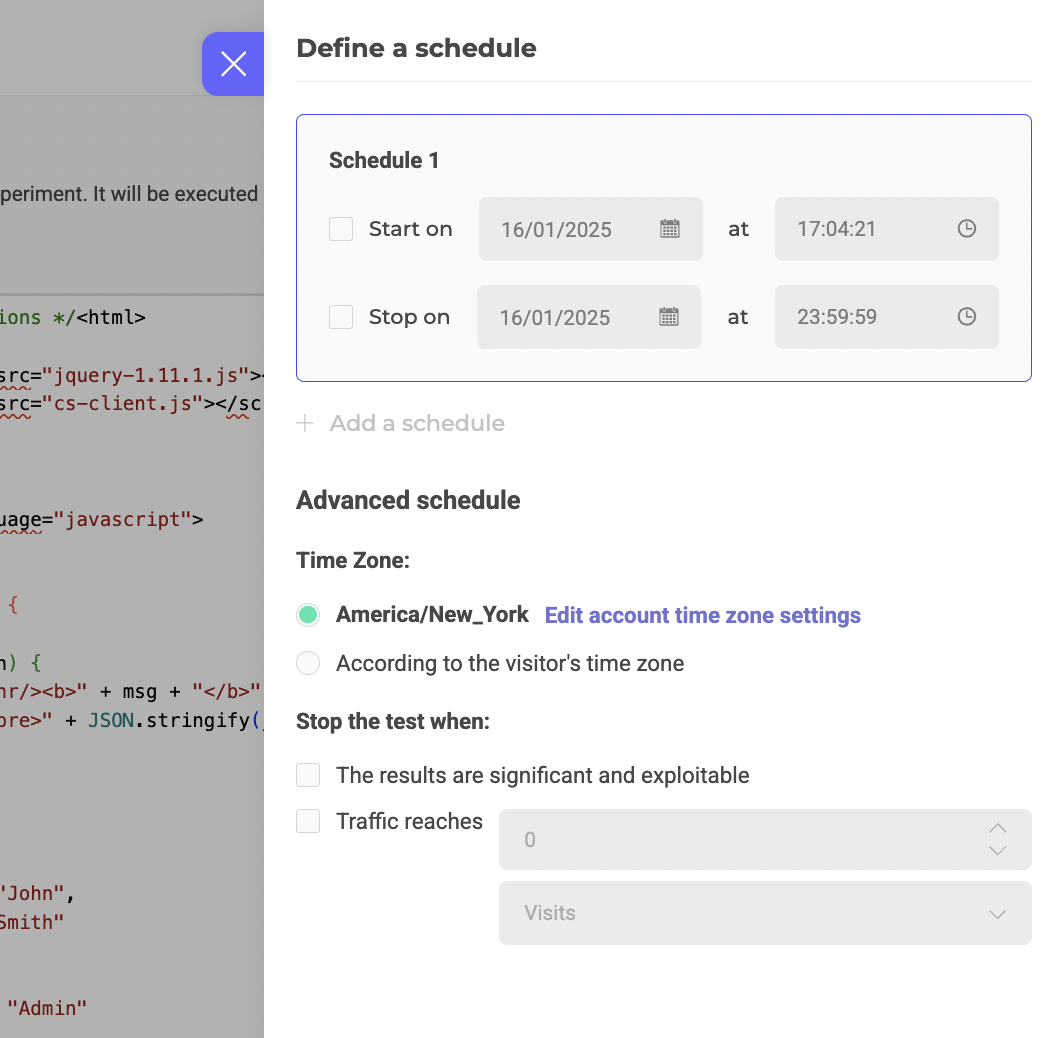
To schedule your experiment:- Click the three-dots menu to the right of Simulate > Schedule.
- Specify a start date, an end date, or both.
- Configure Advanced schedule options if necessary.
- Click Schedule to confirm your schedule’s creation.
Estimate the duration
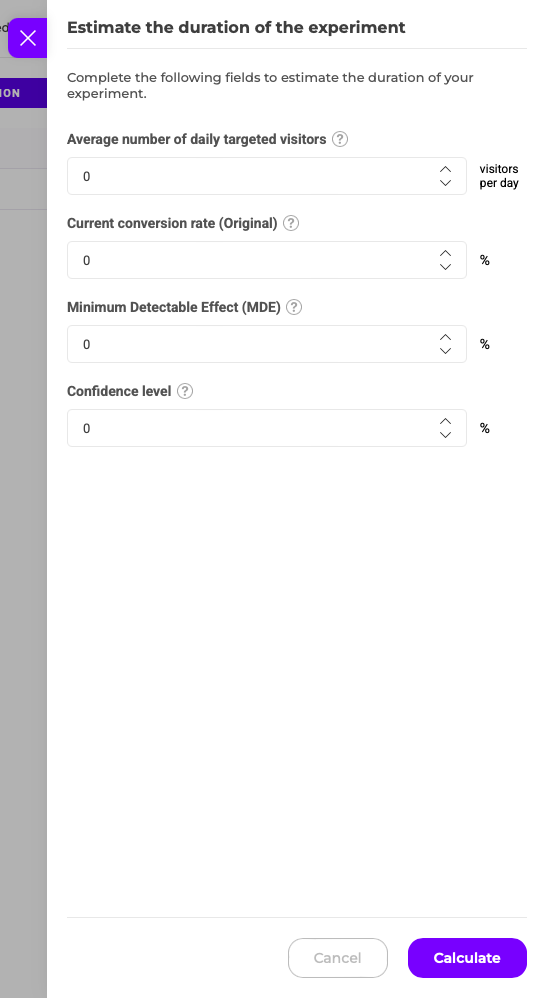
To estimate the amount of time it will take for your experiment to obtain exploitable results:- Click the three-dots menu to the right of Simulate > Estimate the duration.
- Specify the required information.
- Click Calculate.
Variations panel
Insert your code
You can add, modify, or remove code in the JS and/or CSS fields (select the corresponding tab: JS or CSS) for all variations.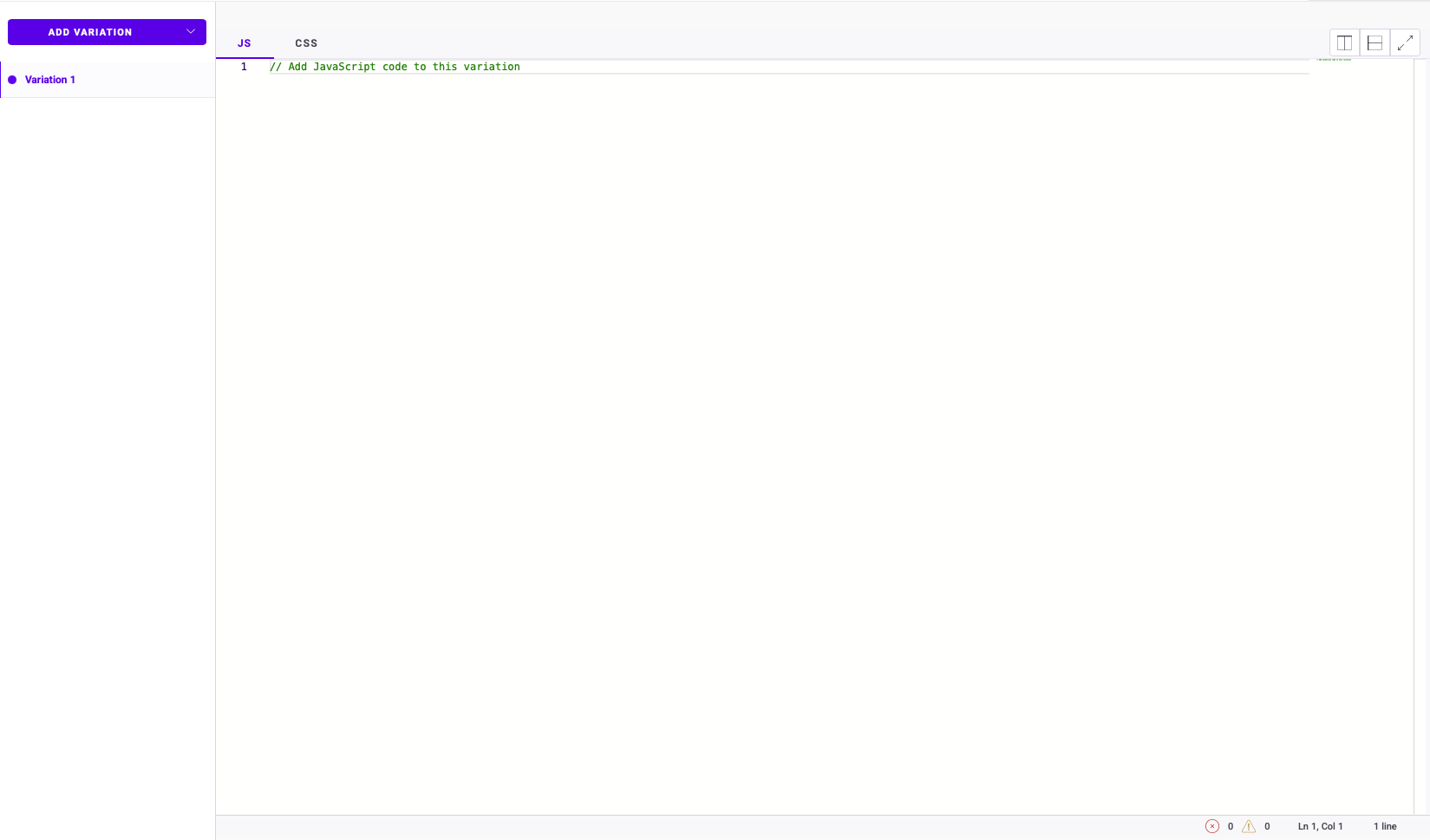
- JavaScript auto-complete: When you start typing, the editor will display a drop-down list of suggested auto-completion options, letting you pick your desired method, parameter, or variable. Hover information and method signature information is also shown, so you can complete your code with fewer errors.
- Syntax error detection: Code syntax errors are underlined, and a hover window will show you more information about the error.
- CSS color selection: In the CSS editor, a pop-up color selector lets you automatically fill in your RGBA values.
JavaScript code does not run directly in the editor. To preview your modification, simulate your experiment.
Kameleoon.API.Core, you can read our documentation for developers:
- Find out more about the
runWhenElementPresent()method - Find out more about the
runWhenConditionTrue()method
Variation menu
Click the three-dots menu to display the variation menu. You can:- Rename a variation
- Preview a variation
- Add a display limit
- Delete a variation
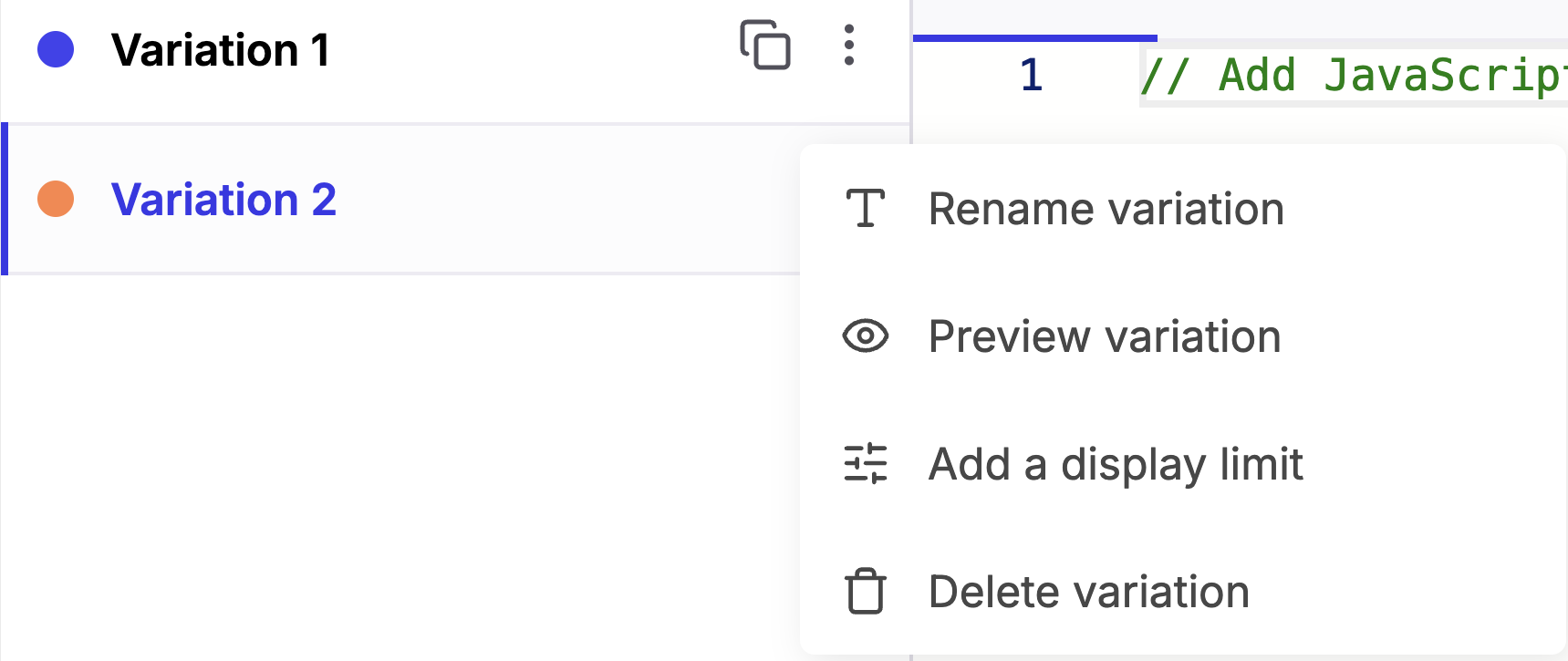
Rename variation
Click Rename variation to edit a variation’s name. Type its new name and click the X icon or press enter to confirm.Preview
Click Preview variation to open your variation in a new tab and check its display.Add a display limit
Click Add a display limit to control how often a variation is shown. Enable any limits you’d like. Hover over the ? icon to display a tooltip providing more information about a limit.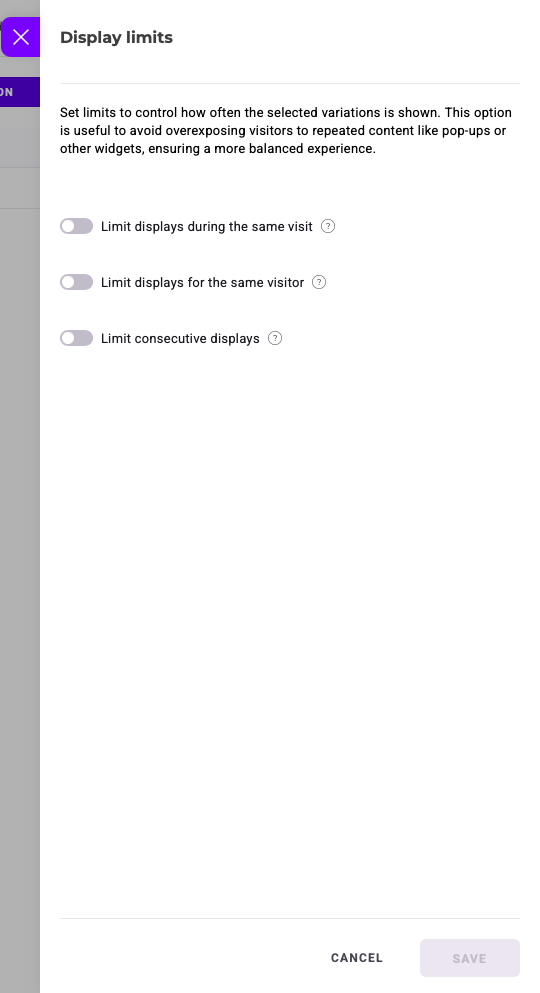
Delete
Click Delete variation > Yes to delete a variation. You cannot delete the final variation: you must have at least one variation in your experiment.Duplicate
Click the duplicate icon to the right of the three-dots menu to generate a copy of the variation.Left sidebar
In the left sidebar, you’ll find the criteria you must define before launching your experiment. You cannot launch your experiment without completing these steps.Finalization steps
The steps are the same as in the Graphic editor:- Targeting
- Traffic allocation
- Goals
- Integrations
General settings
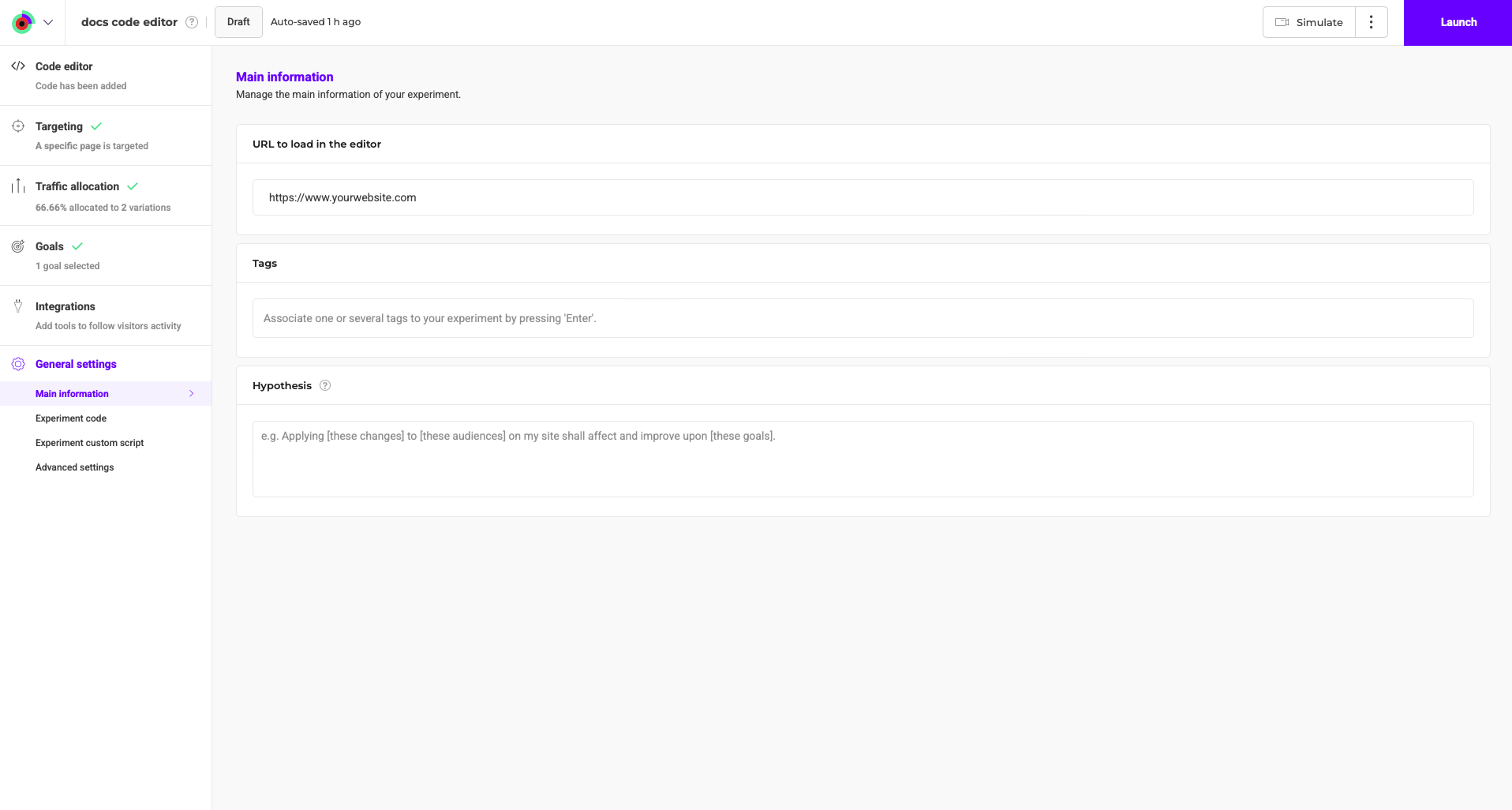
You can find your experiment’s general settings here. This menu consists of the following sections:- Main information
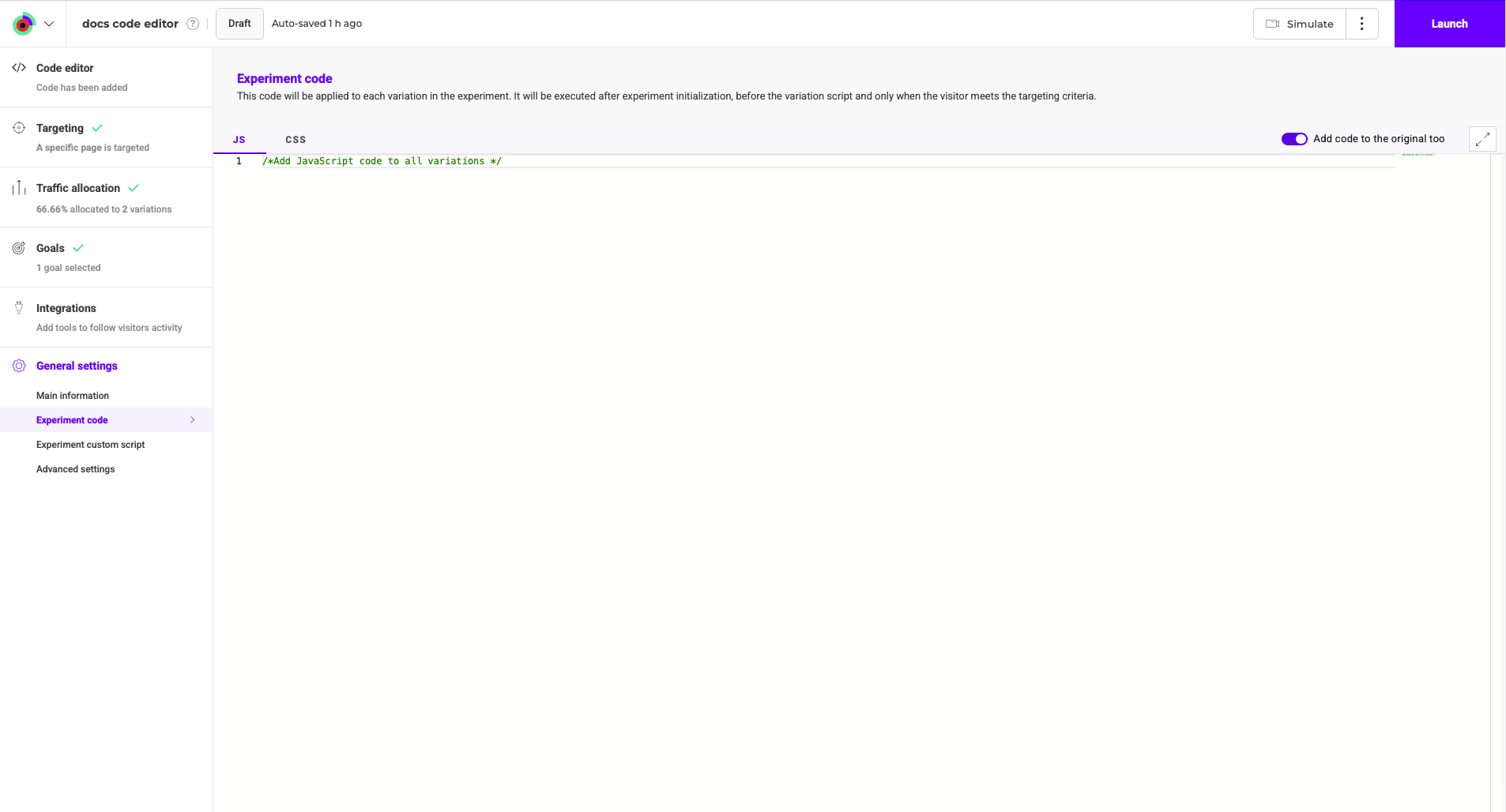
- Experiment code
- Experiment custom script
- Advanced settings
Main information
Experiment code
Experiment custom script
The JavaScript code added in this section lets you write global code that applies specifically to the experiment. This code runs alongside Kameleoon’s global script, ensuring that all changes are automatically removed when the experiment ends. Additionally, this script executes before both the Experiment and Variation code, and it runs regardless of any targeting conditions you’ve set, meaning it will always execute as soon as Kameleoon loads.Advanced settings
Here, you can access your experiment’s advanced settings.