

PBXでウィジェットを作成する
PBX Widgets は、新しいパーソナライゼーションビルダーで作成された実験やパーソナライゼーション用のウィジェットの作成を支援するAI駆動のUIジェネレーターです。HTML、CSS、JavaScriptを手動で記述する代わりに、ウィジェットを自然言語で記述すると、PBXがコンポーネントを自動的に生成します。 このアプローチにより、マーケター、プロダクトマネージャー、CROスペシャリストは、技術的な専門知識なしにUIコンポーネントを迅速に構築できます。 PBXで作成される典型的なウィジェットには、次のようなものがあります。- ニュースレター登録ポップアップ
- プロモーションバナー
- 離脱意図オファー
- リードキャプチャフォーム
- 商品レコメンデーションパネル
- 調査またはフィードバックモーダル
PBXウィジェットは、レガシーパーソナライゼーションと互換性がありません。必要に応じて、CSMに新しいパーソナライゼーションへのアクセスをリクエストできます。
ウィジェットを作成する
PBXを使用してウィジェットを生成および調整するには、次の手順に従います。1. PBXを開く
Kameleoonインターフェースでウィジェットの生成を開始するには:- Studio > Widgets に移動します。
- New widget をクリックします。
- Using a prompt を選択します。
- ポップインメニューで必要な情報を入力します。
- Create をクリックします。
2. プロンプトを書く
プロンプトフィールドに、構築したいウィジェットを記述します。PBXはこの説明を使用して、ウィジェットUIを自動的に生成します。 プロンプトの例:
3. プレビューと反復
希望する結果に到達する最速の方法は、プロンプト反復ワークフローを使用することです。生成されたウィジェットを確認し、フォローアッププロンプトを書いて調整します。例:- “Make the CTA button larger”
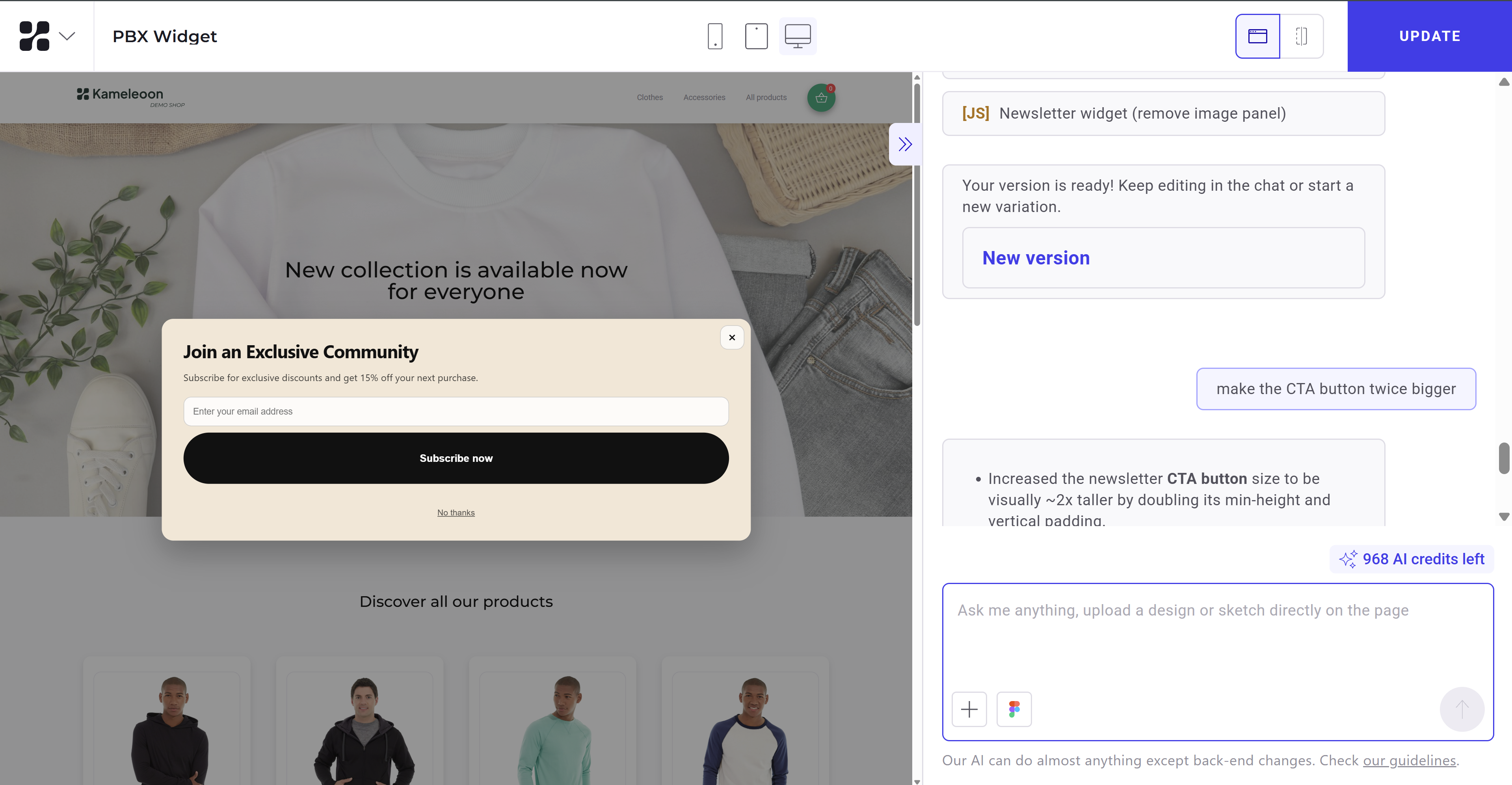
- “Change the background color to a darker beige”

- “Make the popup appear after 3 seconds”
4. ウィジェットのコードを編集する
生成されたウィジェットのJavaScriptまたはCSSコードを、プロンプトで調整するのではなく直接編集します。- ヘッダーのコードアイコンをクリックして、View code タブを開きます。
- Edit code をクリックします。
- ウィジェットのJavaScriptまたはCSSコードを編集します。

5. ゴールを追加する
プロンプトにゴールを追加することで、メール送信、ボタンクリック、フォーム完了、ウィジェット表示などのユーザーインタラクションを追跡します。PBXウィジェットでゴールを追跡するには、事前に Settings でゴールを設定する必要があります。
- Newsletter signup:
Track a goal called "Newsletter Signup" when the user clicks the Subscribe button. - CTA click:
Track a goal when the CTA button is clicked. Goal name: Promo CTA Click - Widget engagement:
Track a goal when the popup is displayed. Goal name: Widget Viewed
Kameleoonでウィジェットのレスポンスを収集する(オプション)
ウィジェットがNPSスコアやフィードバックコメントなど、訪問者に質問する場合、Google Sheetsのような外部ツールを設定せずに回答を収集する方法が必要です。PBXはウィジェットに質問または入力フィールドが含まれていることを検出し、結果として得られるレスポンスをKameleoon内で直接収集できるようにします(現在ベータ版)。収集したレスポンスは、CSVファイルとしてエクスポートできます。1. レスポンス収集を有効にする
PBXが質問または入力フィールドを含むウィジェットを生成すると、レスポンスを収集するかどうかを選択するよう求められます。- Collect widget responses? プロンプトで、オプションを選択します。
- Yes, collect responses via Kameleoon: Kameleoonが各レスポンスを収集し、CSVエクスポート用に利用できるようにします。
- No, don’t collect responses: Kameleoonはウィジェットのレスポンスデータを収集しません。
- Apply をクリックします。

2. ウィジェットフィールドに名前を付ける
Kameleoonは、ウィジェットのフィールド名をエクスポートされたCSVファイルの列見出しとして使用するため、各フィールドにわかりやすい名前を付けてください。- Widget response settings パネルを開きます。
- Field 1、Field 2 など、自動生成されたフィールド名を確認します。
- フィールド名にカーソルを合わせ、鉛筆アイコンをクリックして編集します。
- 名前を入力し、チェックマークをクリックして確定するか、キャンセルアイコンをクリックして変更を破棄します。
- Apply をクリックして変更を保存します。

フィールド名を少なくとも1つ変更するまで、Apply は無効のままです。
エクスポートに含まれる内容
Kameleoonは、PBXウィジェットを通じて収集されたレスポンスを、アンケートのCSVエクスポートと同じ条件でエクスポートします。エクスポートされたファイルには、次の内容が含まれます。- レスポンスのタイムスタンプ
- 訪問者コード
- 質問ごとの回答
- キャンペーンとバリエーションの詳細
ウィジェットのレスポンスをGoogle Sheetsに送信する(オプション)
PBXウィジェットを設定して、アンケートとフォームのレスポンスを直接Google Sheetsに送信できます。まず、このガイドに記載されている通り、Google Sheetを設定する必要があります。 ウィジェットをGoogle Sheetsに接続するためのプロンプトを書く際は、次のガイドラインに従ってください。- 明確な送信トリガーを定義する: リクエストをトリガーする要素を指定します。トリガーは通常、メインのCTAボタン(たとえば、
SubmitButton)です。 - 外部HTTP POSTリクエストを使用する: メソッドを POST に設定し、Google Apps Script Web AppのURLを含めます。
- Web App URLを明示的に指定する: 常に完全なURL(たとえば、
https://script.google.com/macros/s/XXXXXXXX/exec)を含めます。PBXはこれを自動的に推測または生成できません。 - 送信するすべての要素をリストアップする: すべてのフィールドを明示的に指定します(たとえば、
email、rating、comment)。
- パラメーター名を完全に一致させる: ウィジェット要素名、リクエストペイロード、およびGoogle Sheetsの列ヘッダーの間で名前が完全に一致することを確認します。
効果的なプロンプトの書き方
うまく書かれたプロンプトは、生成されるウィジェットの品質を大幅に向上させます。明確な構造を使う
最良のプロンプトは論理的な構造に従います。具体的にする
具体的なプロンプトは、より正確なレイアウトとスタイルを生み出します。 悪いプロンプト:Create a popup for a newsletter
より良いプロンプト:
Create a centered modal popup for newsletter subscription with a modern ecommerce design. Include an email input field and a large CTA button offering 15% off.
UI要素を明示的に定義する
タイトル、ボタン、入力、セカンダリリンク、アイコン、画像など、必要な要素を常に指定します。 例:動作を記述する
PBXは、指定すればウィジェットのロジックを生成できます。 例:Show popup after 5 secondsClose popup when clicking outsideClose popup when clicking "No thanks"
書き直すのではなく反復する
プロンプト全体を書き直すのではなく、ウィジェットを段階的に調整します。反復的なプロンプトは結果を効率的に改善します。 例:Make the CTA button darkerIncrease padding inside the popupAdd rounded corners to the input field