

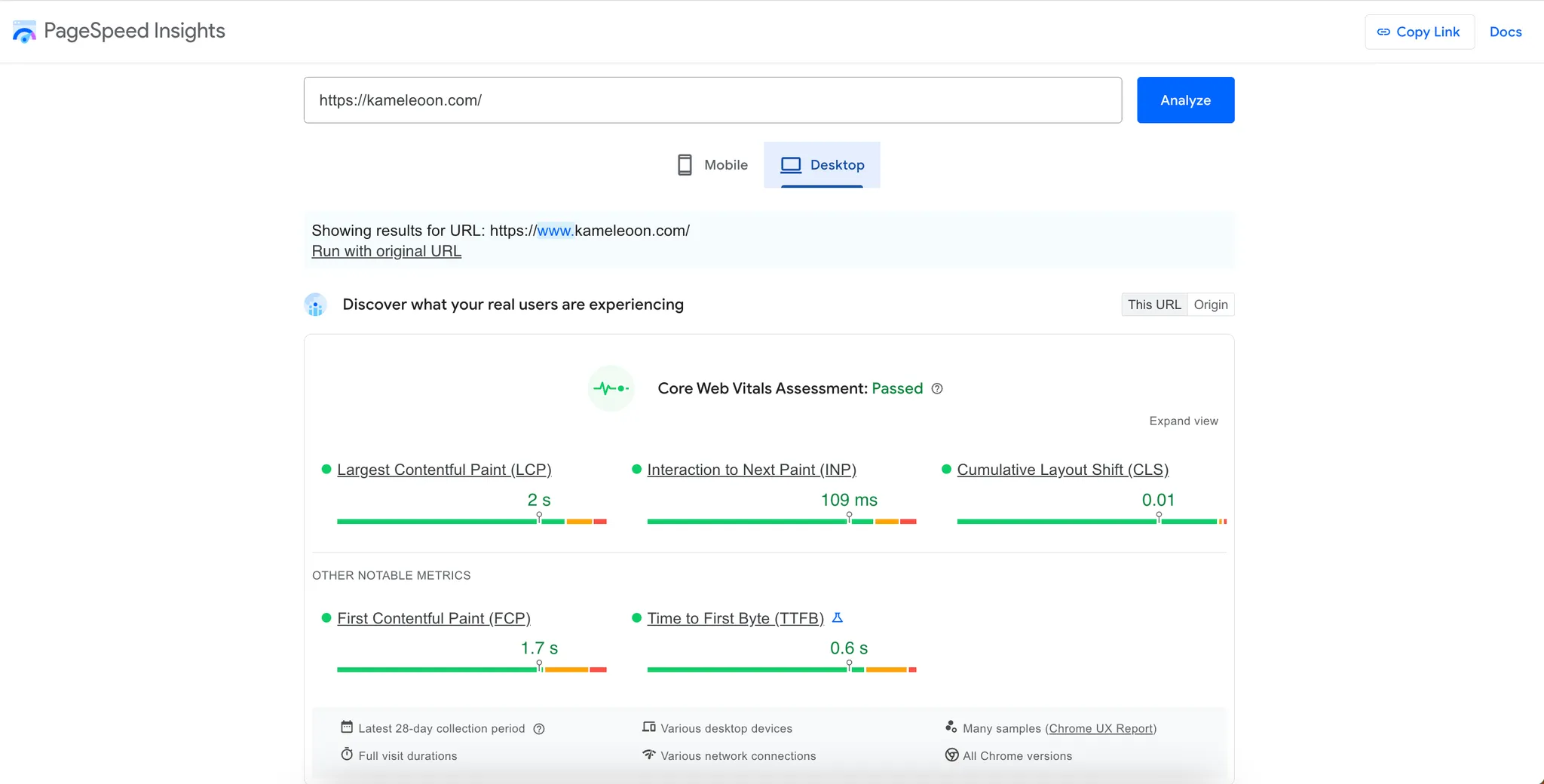
- 🧪 Use PageSpeed Insights (or any other performance analysis tool you’re comfortable with) to analyze your site (desktop and mobile). Once the report is generated, click Copy Link (top-right)—this will save the report with data from the exact day of analysis (See screenshot below).
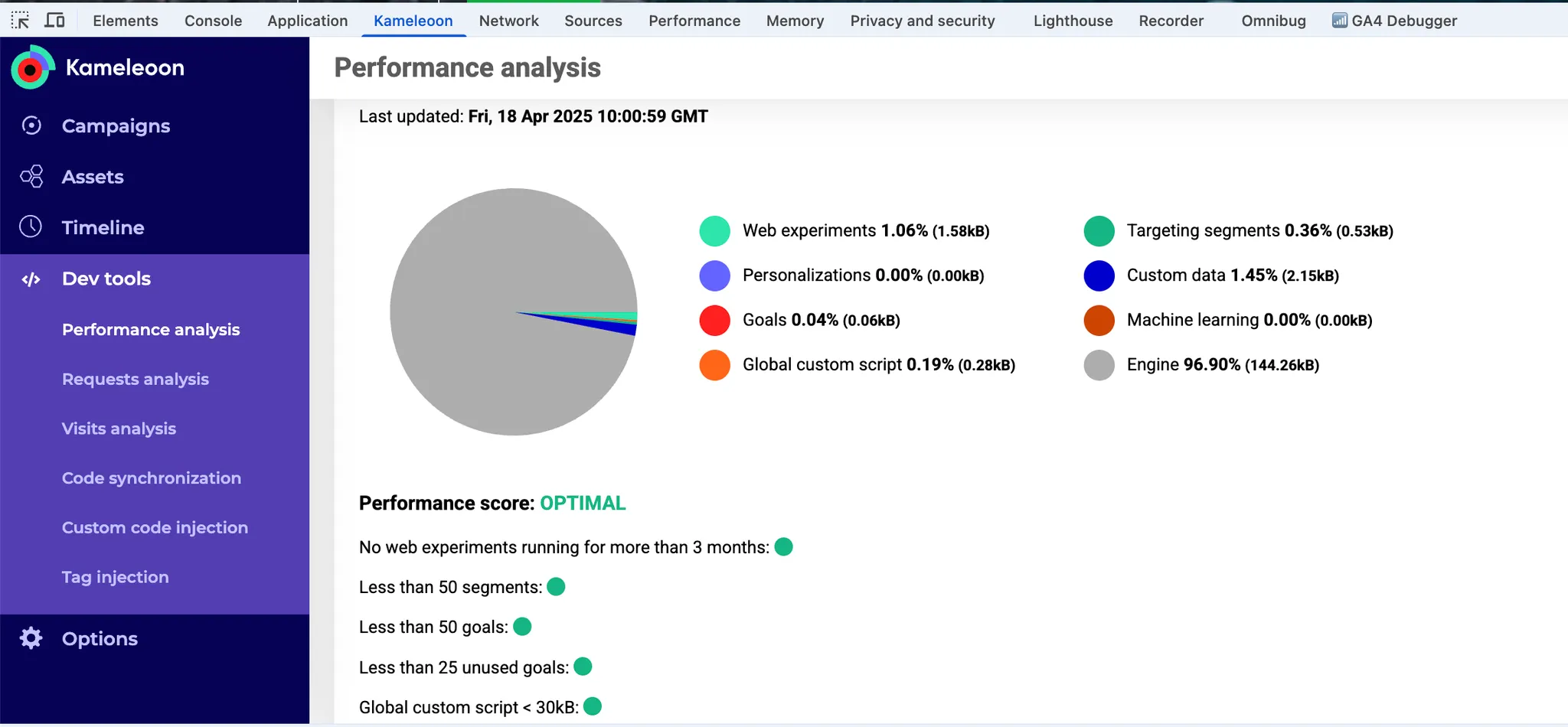
- 🧩 Use the Kameleoon Chrome Extension to check performance and the size of experiments segments, goals, custom data and custom scripts. See screenshot below.
1. Web experiments/personalizations
On the Experiments page:Delete outdated draft experiments
Use the menu on the right to filter for draft experiments, then delete all experiments older than three months (use the key date filter), along with recent ones you no longer need. To do this:- Right-click an experiment’s three-dots menu and click “Select”.
- Click “Select all experiments” above.
- Choose “Delete” from the right menu. Alternatively, you can Archive them.
Stop paused experiments
Filter for paused experiments, then stop all experiments older than three months and any recent experiments you’re certain won’t be relaunched. Since bulk selection isn’t available for stopping experiments, you must manually select them one by one and click Stop in the right menu.Divert/stop online experiments
Filter for online experiments and divert 100% of traffic to the winning variation if the data is reliable. This diversion ensures all visitors benefit from the optimized version without being split across variations. You can divert traffic in the experiment traffic allocation settings. If the winning variation is the original, you can stop the experiment.Transfer and clean up diverted experiments
Filter for diverted experiments, then request your IT team to integrate the winning variation’s code into the site’s source code. Once implemented, stop and archive the experiment, which has the benefits of:- Eliminating unnecessary experiment scripts and improving page load speed.
- Ensuring all users experience the optimized version without experiment conditions, since tools like Kameleoon may be blocked by ad blockers, for example.
- Reducing the risk of conflicts between old experiments and new optimizations.
Archive stopped experiments
Filter for stopped experiments, then archive all remaining stopped experiments. To do this:- Right-click an experiment’s three-dots menu.
- Click Select > Select all experiments.
- Click Archive in the right menu. Alternatively, delete them.
2. Segments/triggers
On the Segments and triggers pages:Delete outdated draft segments
Use the right menu to filter for segments attached to “0 campaign”, then delete all segments older than three months (use the “key date” filter), along with recent ones you no longer need. To do this:- Right-click a segment’s three-dots menu.
- Click Select > Select all experiments > Delete
When applying the filter, some segments may still appear linked to campaigns. These are archived campaigns, which you can identify by hovering over the i icon—archived experiment names will be grayed out (See screenshot below).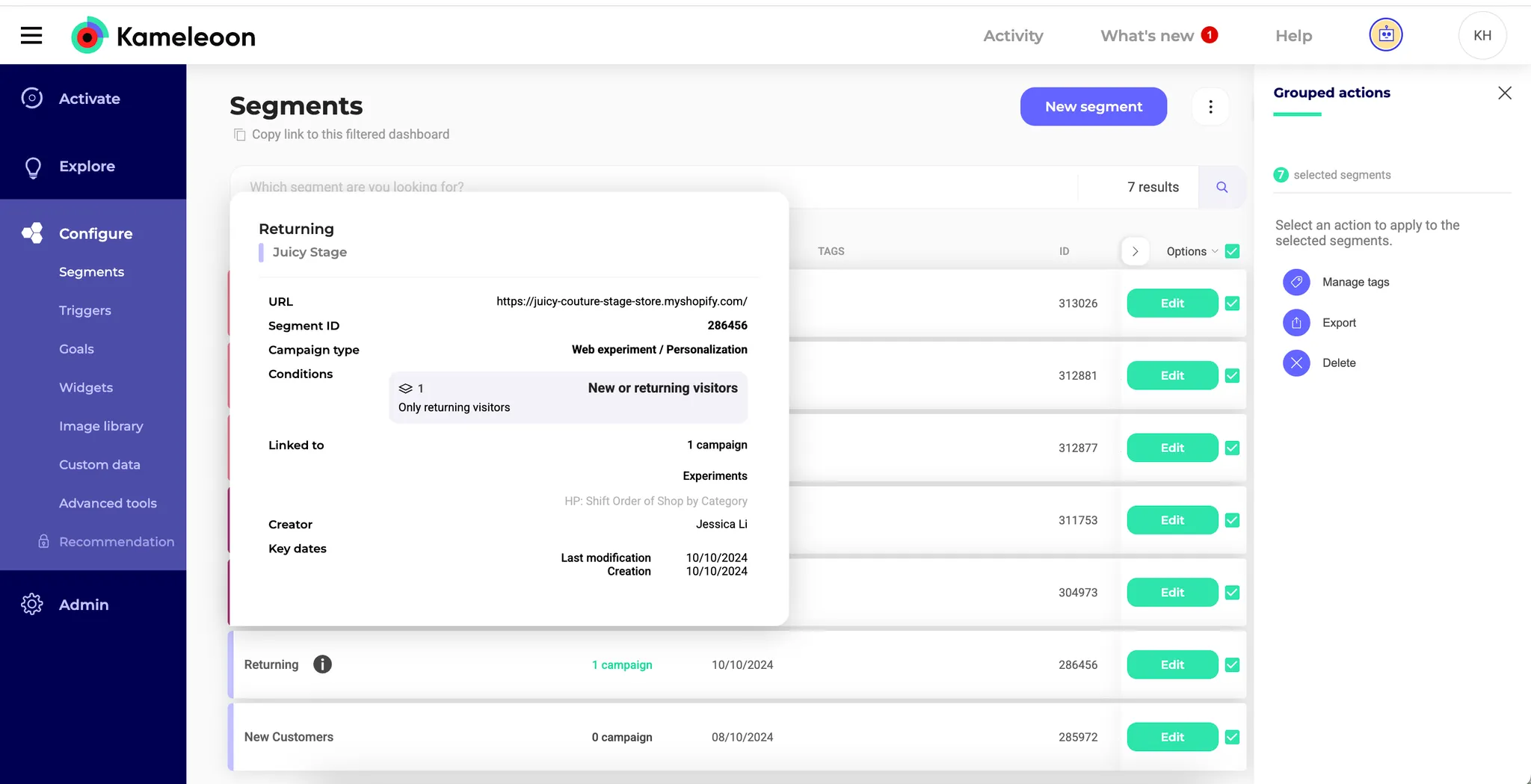
Optimize segments based on JS
Filter segments for those that are attached to “one or more campaign(s).” Then, follow the guidelines in this documentation to optimize all segments based on a “JS custom condition.” To quickly identify these segments, visit your website and open the browser console. Then, run the following code: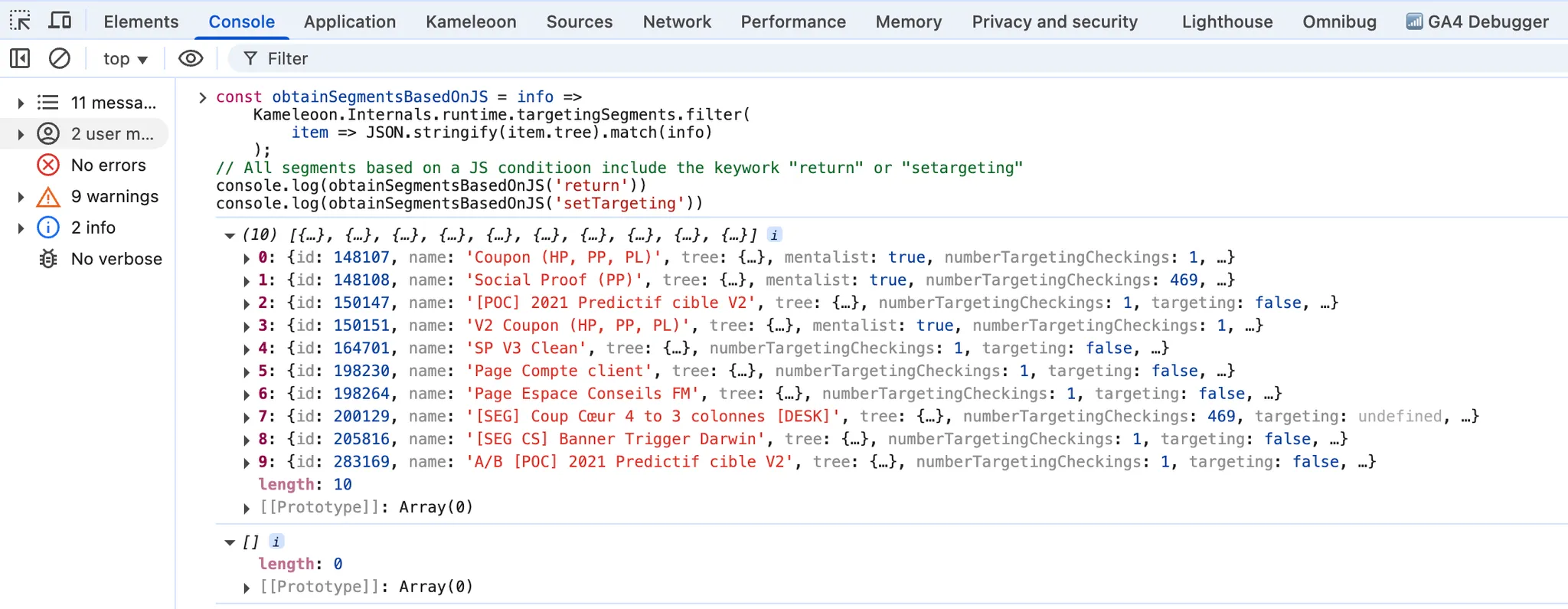
The JS condition will be moved to Triggers as of Q3 2025.
Rename segments
Kameleoon runs all segments that have been created or modified in your account within the past 90 days, as long as their targeting conditions do not include “page URL” or “Custom JavaScript” — even if they are not linked to any experiment. This process is used for opportunity detection. If you want to exclude certain segments from this process, you can rename them using one of the following prefixes:[DEV], [TEST], or [QA].
3. Goals
On the Goals page:Disable unconverted goals
Use the menu on the right to filter for goals linked to “1 or more campaign(s)”. Then, disable any goal that hasn’t recorded a conversion in the last 24 hours, if you think it’s no longer relevant. To check the conversion count, hover over the i icon for each goal—a pop-in will show the number of conversions in the last 24 hours (see screenshot below).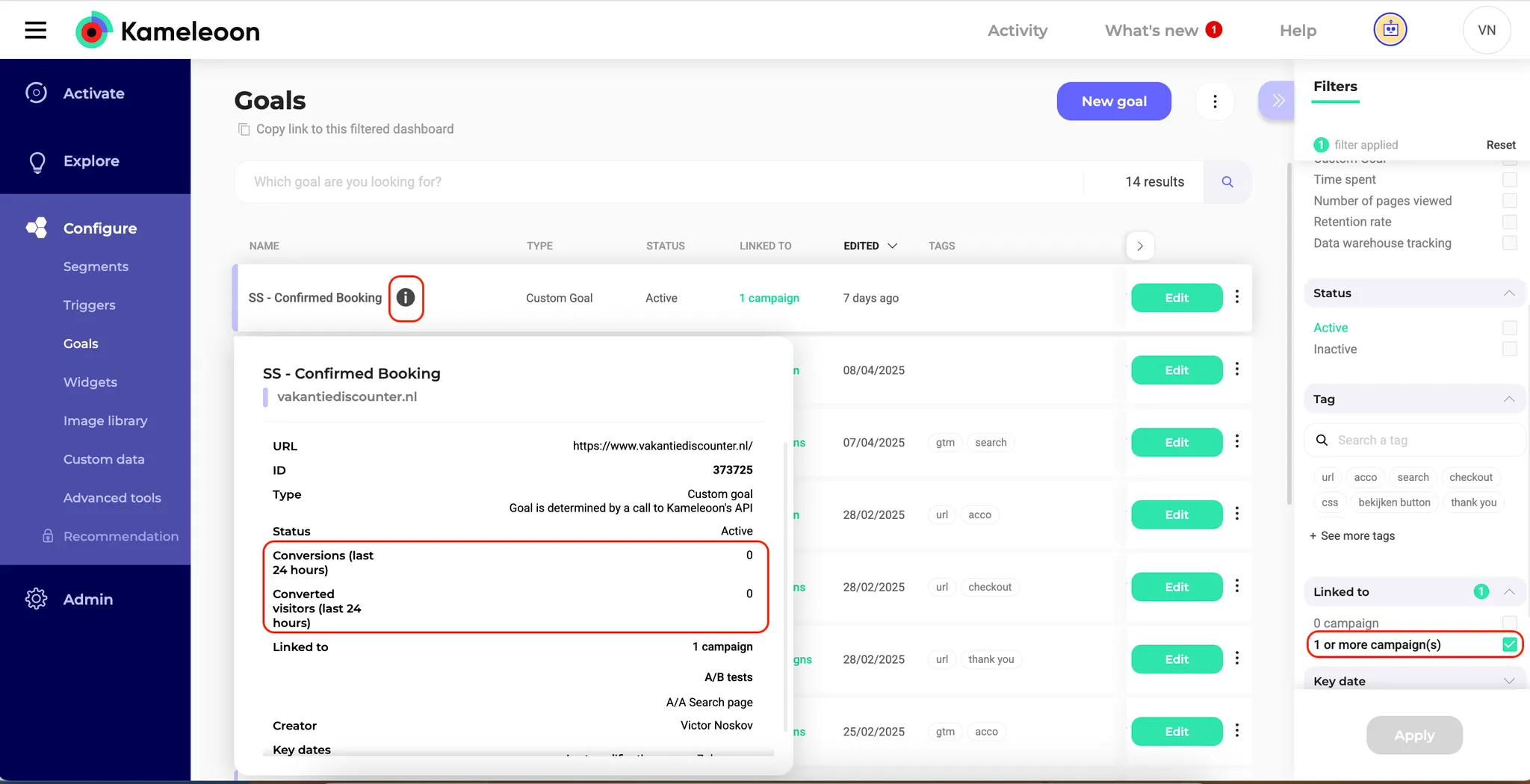
Delete unused goals
Filter for goals attached to “0 campaign”, then delete any you no longer need. Even if not linked to a campaign, active goals still run online—so removing unused goals helps improve performance. To do this:- Right-click a goal’s three-dots menu.
- Click Select > Select all experiments.
- Click Delete in the right menu. Alternatively, you can Disable them.
Delete inactive goals
Filter for “inactive” goals, then delete all those you no longer need.4. Custom data
All custom data runs online—so removing unused custom data helps improve performance. On the Custom data page:Delete unused custom data
Delete all custom data you no longer need.Optimize custom data based on JavaScript
If a custom data is defined using custom JavaScript code, ensure the code does not run in an infinite loop. You can follow this guide to avoid performance issues. To identify which custom data use JavaScript, visit your website, open the browser console, and run the following code: