This feature is in open beta and active development. Contact the Kameleoon support team for help with this integration.

How Heap cohorts fit into your workflow
- Connect Heap to Kameleoon: Store the Kameleoon visitor code in Heap, and then install the Heap Cohorts integration in Kameleoon.
- Sync Heap segments: Turn on the Kameleoon Cohorts Sync for each Heap segment that you want to use.
- Target Heap cohorts: Create custom data for each product, add the cohort names to it, and build a segment that uses it.
Before you begin
- Heap account: An active Heap account that you’re signed in to, with access to the Heap environment that holds your segments.
- Heap SDK: Your site loads the Heap SDK and calls
heap.load(). - Kameleoon script: Your site runs the Kameleoon script, which provides
Kameleoon.API.Visitor.code, the value the snippets in this article read. - Project sitecode: The sitecode of the Kameleoon project that receives the cohorts, which you can find as described in manage your projects.
Connect Heap to Kameleoon
Connecting Heap to Kameleoon has two parts. Heap identifies each visitor by the Kameleoon visitor code, so a Heap segment matches the same visitor in Kameleoon. The Heap Cohorts integration then asks for permission to view segment and user information in the Heap environment that you choose, and you grant that permission in Heap.Store the Kameleoon visitor code as a Heap identity
Store the visitor code in Heap so that Heap and Kameleoon refer to each visitor the same way. Add this code to your site immediately after theheap.load() call:
Activate the Heap Cohorts integration
Install the Heap Cohorts integration in Kameleoon, and then grant Heap permission to share data with it.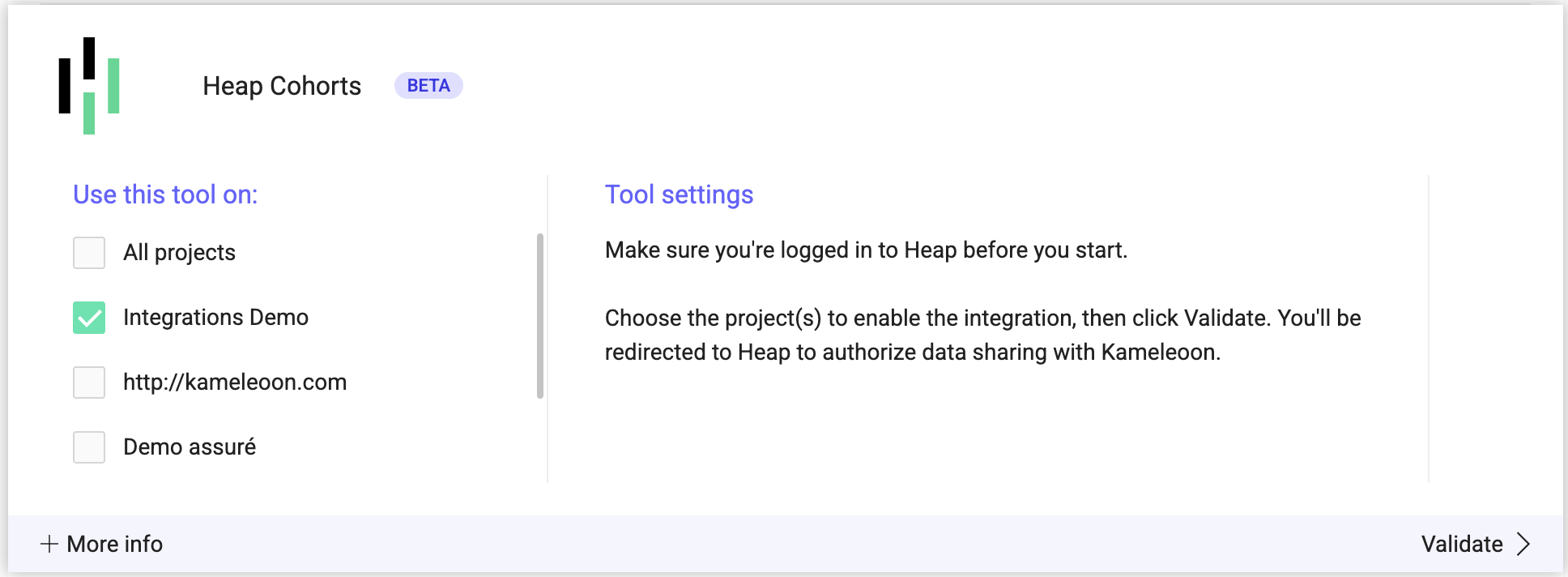
- Click Admin > Integrations.
- Click Heap Cohorts, and then click Install the tool.
- In Use this tool on, select the projects where you want to use the integration, and then click Validate. Kameleoon redirects you to Heap.
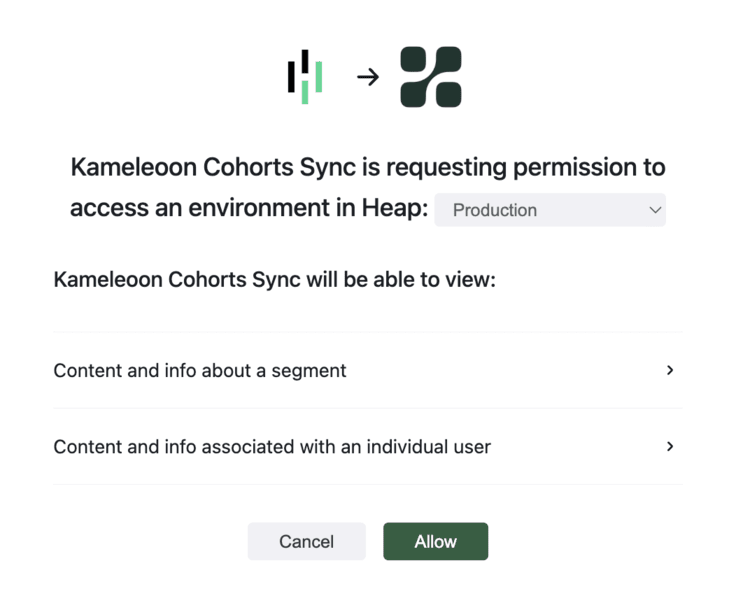
- In Heap, click Allow to let Kameleoon Cohorts Sync view the segment and user information that it requests.
Sync Heap segments to Kameleoon
Turn on the sync for each Heap segment that you want to use in Kameleoon.- In Heap, go to Data > Segments.
- Select the segment you want to sync.
- At the bottom of the page, turn on Kameleoon Cohorts Sync for that segment.

Target Heap cohorts in Kameleoon
After a Heap segment syncs, you target it with custom data, which Kameleoon reads in each campaign. The retrieval method depends on the product: Web Experimentation uses custom JavaScript code, and Feature Experimentation uses the Kameleoon SDK method. For example, you can run an A/B test on visitors who viewed a product page several times but didn’t add anything to their cart, and compare two incentives, such as a limited-time offer and social proof messaging. On the Results page, you can also break down an experiment’s results by custom data, so you can compare how each cohort responded.Create custom data for Web Experimentation
Create custom data that reads each visitor’s Heap cohorts in a Web Experimentation campaign.- Click Settings > Custom Data, and then click New custom data.
-
Enter
Heap Cohortsas the name, and select your project. The snippet sets the custom data by this name, so enter it exactly. - Set the Retrieval method to Custom JavaScript code.
- Set Type to List, Format to String, and Scope to Page.
-
Paste this snippet into the code field.
Create custom data for Feature Experimentation
Create custom data that the Kameleoon SDK fills for feature flags and server-side experiments.- Click Settings > Custom Data, and then click New custom data.
- Enter a name for the custom data, such as
Heap Cohorts, and select your project. - Set the Retrieval method to Kameleoon SDK method.
- Set Type to List, Format to String, and Scope to Page.
HEAP_COHORTS_ followed by the visitor code, and then sets it with the SDK’s addData() method. The Go SDK’s GetRemoteData() method retrieves data that Kameleoon stores on its servers for a visitor code or user ID. See the Go SDK documentation for its parameters, and check your SDK’s documentation for the equivalent method.
Add Heap cohort names to the custom data
Add the cohort names so that the segment builder lists each Heap cohort by name instead of by ID. Complete this step on the options page of the custom data, which opens after you click Next. It works with either retrieval method.- Click Next to open the options.
- Turn on Save the values for the targeting condition associated with the custom data point. A code field appears.
-
Paste the following script into the code field, and replace
ADD_YOUR_SITECODEwith your project sitecode. - Click Create.
Build a segment from Heap cohorts
Build a segment that targets visitors in one or more Heap cohorts.- Click Settings > Segments, and then click New segment.
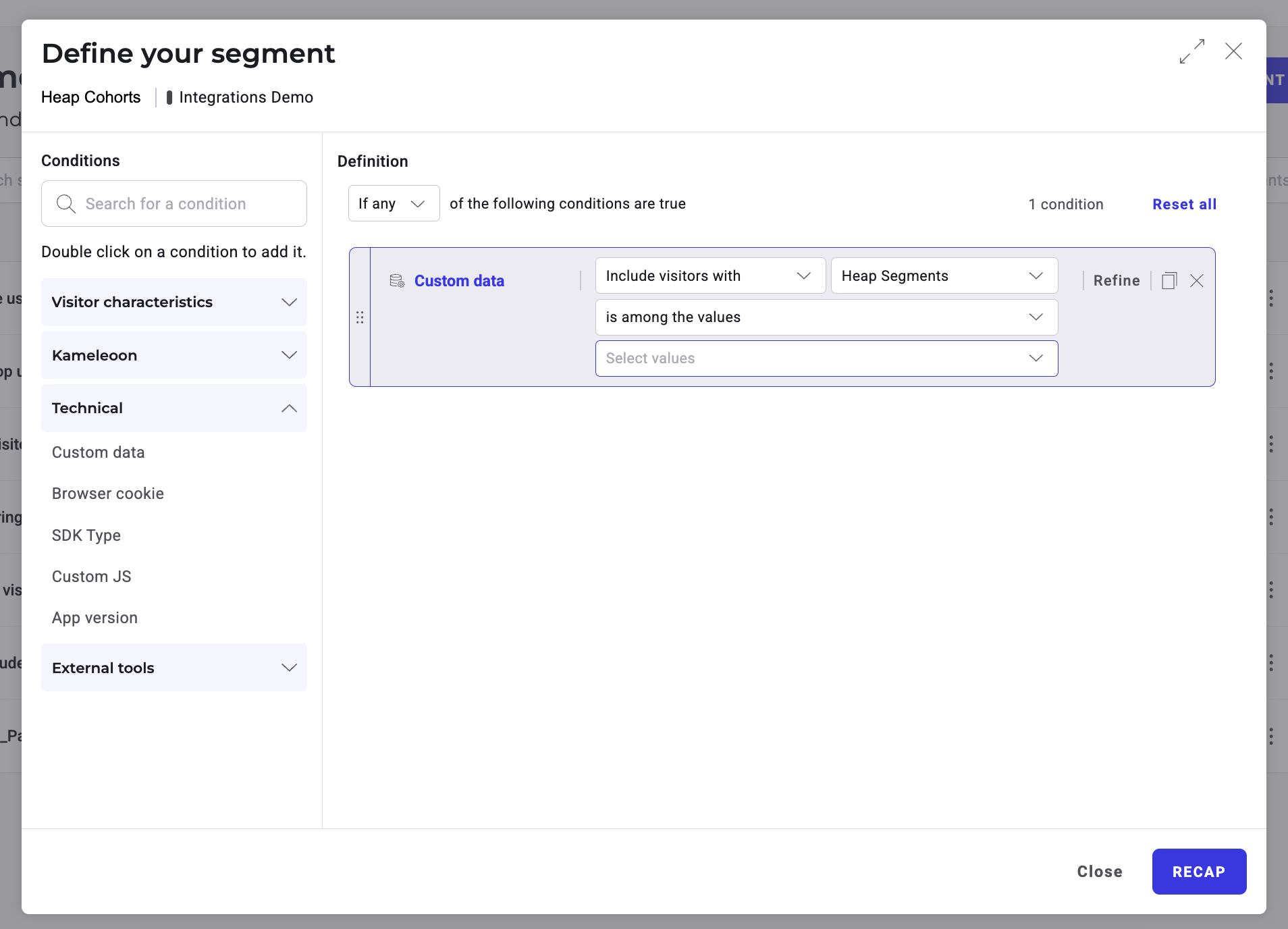
- In the Conditions column, expand Technical, and then double-click Custom data to add it to the definition.
- In the custom data list, select Heap Cohorts.
- Select the is among the values condition, and then select the cohorts you want to target.
- Choose whether to include or exclude the visitors who match the condition.