

- Enables accurate data collection, improving audience targeting for campaigns customized to meet specific audience needs and preferences.
- Configure Data Ingestion Tasks to extract data from Redshift efficiently.
Data warehouse integrations are available as a premium add-on for Kameleoon’s Web Experimentation and Feature Experimentation module. For more information, contact your Customer Success Manager.
- Activate the Feature: In the selected project’s configuration, check the checkbox labeled Use Amazon Redshift as a source.
- Create Data Ingestion Tasks: With the feature activated, you can create Data Ingestion Tasks. These tasks regularly retrieve specific data from Amazon Redshift based on your defined SQL queries and frequencies. To create a new Data Ingestion Task, click Add new task.
- Validate: After providing the required information for the Data Ingestion Task, click Confirm to create the task. You can create additional tasks by repeating the steps of naming the task, defining the SQL query, and setting the frequency. Once you’ve configured your tasks, click Validate to save and apply your configuration settings.
- Create a custom data: Now that you’ve created your Data Ingestion Task, Kameleoon’s servers will start collecting data based on the frequency you configured by executing the query on your Amazon Redshift instance. To start using the collected data, you must create a custom data.
- Create a segment: The last step to target users based on the collected data is creating a segment based on your custom data.
Data Ingestion Tasks
Data Ingestion Tasks are essential components of the Amazon Redshift integration within Kameleoon. Data collected by Data Ingestion Tasks can be utilized as targeting conditions within your Kameleoon campaigns.Creating a Data Ingestion Task
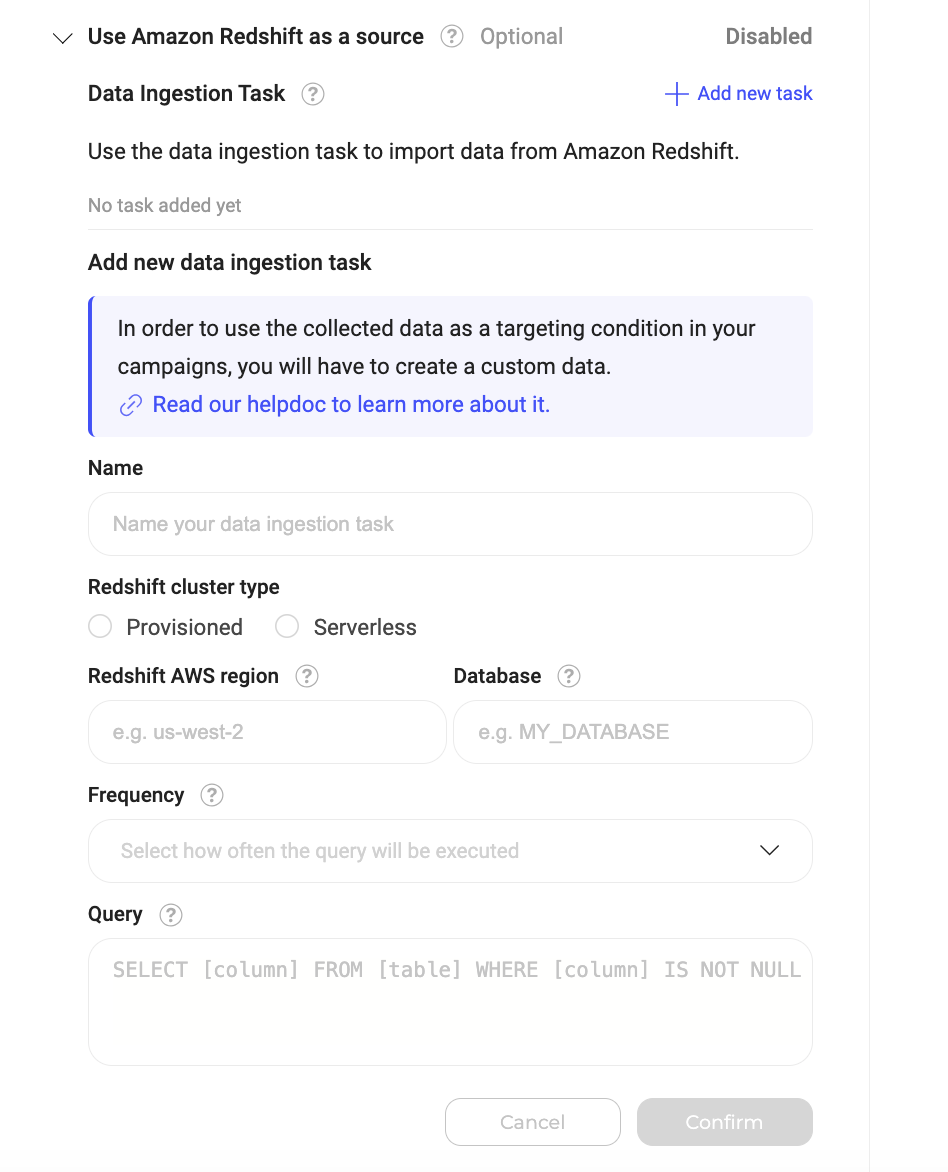
To create a Data Ingestion Task:- Click Add new task.
- Complete the form:
- Name (Required): Give your task a unique and descriptive name to identify its purpose.
- Redshift cluster type (Required): Specify if your Redshift cluster is provisioned or serverless. If you choose “provisioned”, you will be asked to provide your cluster identifier. If you choose “serverless”, you will be asked to provide your cluster’s namespace and workgroup.
- Redshift AWS region (Required): Your Redshift cluster’s region code. You can find this in your AWS console. Example:
us-west-2. - Database (Required): Name of the Redshift database containing the data you are ingesting.
- Frequency (Required): Specify how often you want the task to run and retrieve data from BigQuery (for example, per day).
- Query (Required): Provide the SQL query that retrieves the audience from your Amazon Redshift database. The query must follow this specific format:
SELECT visitor_id, attribute_1, .. attribute_N FROM your_events_table. attribute_fields: These are optional and can be used for advanced targeting scenarios. Learn more about these advanced use cases here.visitor_id: This column represents your visitors’ unique identifier.
Column names can only contain letters, numbers, and underscores (
_). They cannot start with a number.Columns must appear in the exact order specified (visitor_id followed by optional attributes) for the integration to function correctly.- Once you’ve provided the information, click Confirm to create the Data Ingestion Task.
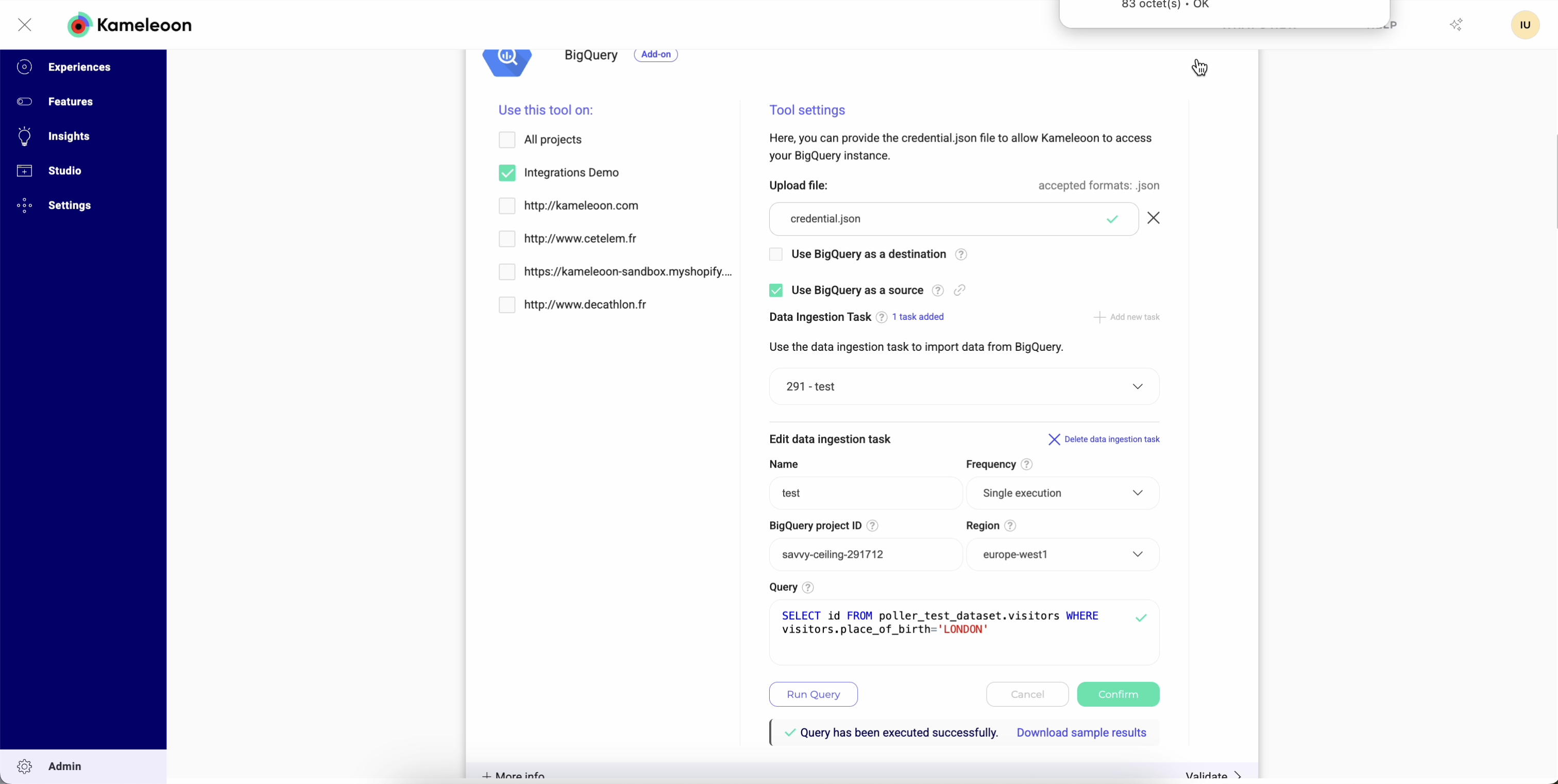
Run your query before ingestion
Before saving your ingestion task, you can test your query directly in Kameleoon. Testing allows you to:- Verify the connection in real time.
- Confirm your credentials and access rights are correct, which helps detect issues immediately, without having to wait for the first data import.
- Validate your data’s structure and accessibility.
Updating a Data Ingestion Task
To update a Data Ingestion Task:- Select the Task: Select a Data Ingestion Task from the dropdown menu.
- Edit Task details: Modify the fields you want to update, such as the task’s name, frequency, Amazon Redshift project ID, region, or query.
- Confirm changes: Click Confirm to save the changes to the Data Ingestion Task.
Deleting a Data Ingestion Task
To delete a Data Ingestion Task: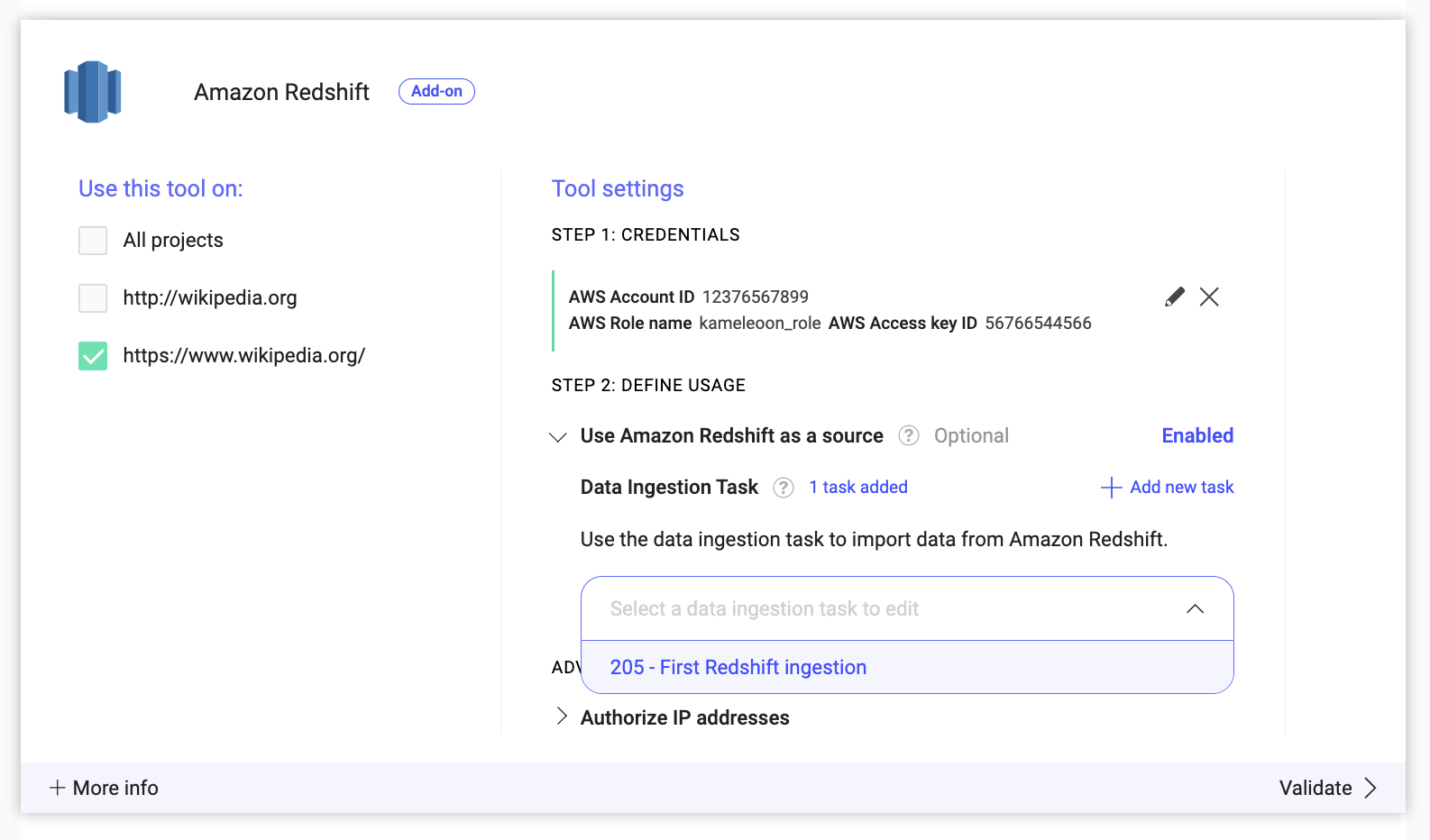
- Select the Task: Select a Data Ingestion Task from the dropdown menu.
- Initiate deletion: Click Delete ingestion task.
- Confirm deletion: Click Confirm to delete the selected Data Ingestion Task.