

Documentation Index
Fetch the complete documentation index at: https://docs.kameleoon.com/llms.txt
Use this file to discover all available pages before exploring further.
Goal
Next, create a segment to target visitors who browse a specific URL, such aswww.site-test.com.
See the segment creation guide for details.
Requirements
access token
-
siteId-
Retrieve the
siteIddirectly in code with thesiteCodeby calling the get a site by code endpoint. - Alternatively, log into the Kameleoon account, navigate to the bottom-left corner, and select Projects under the Admin section:
Click Edit on the project: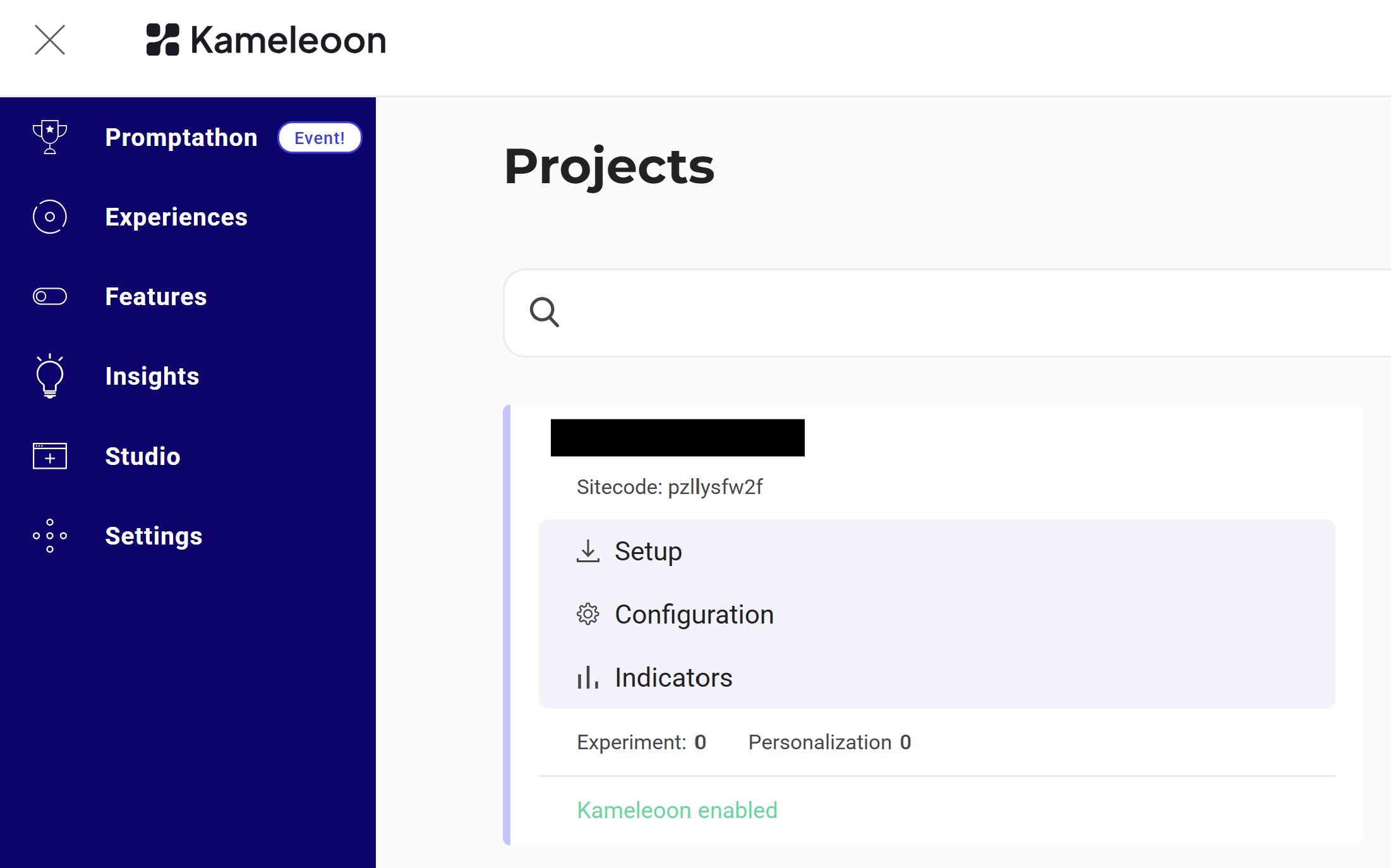 The
The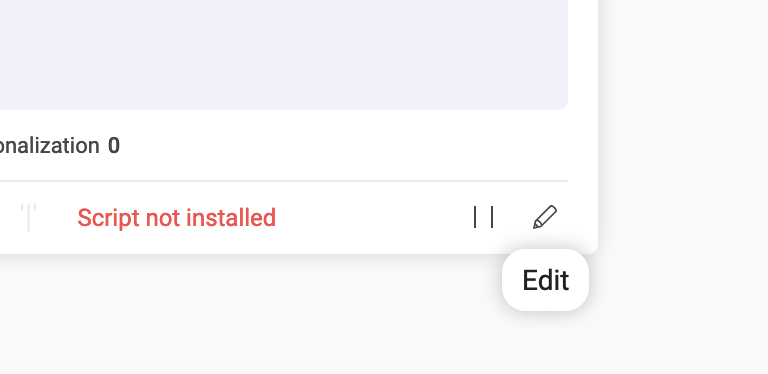
siteIdis the five-digit number in the URL (for example, 29353):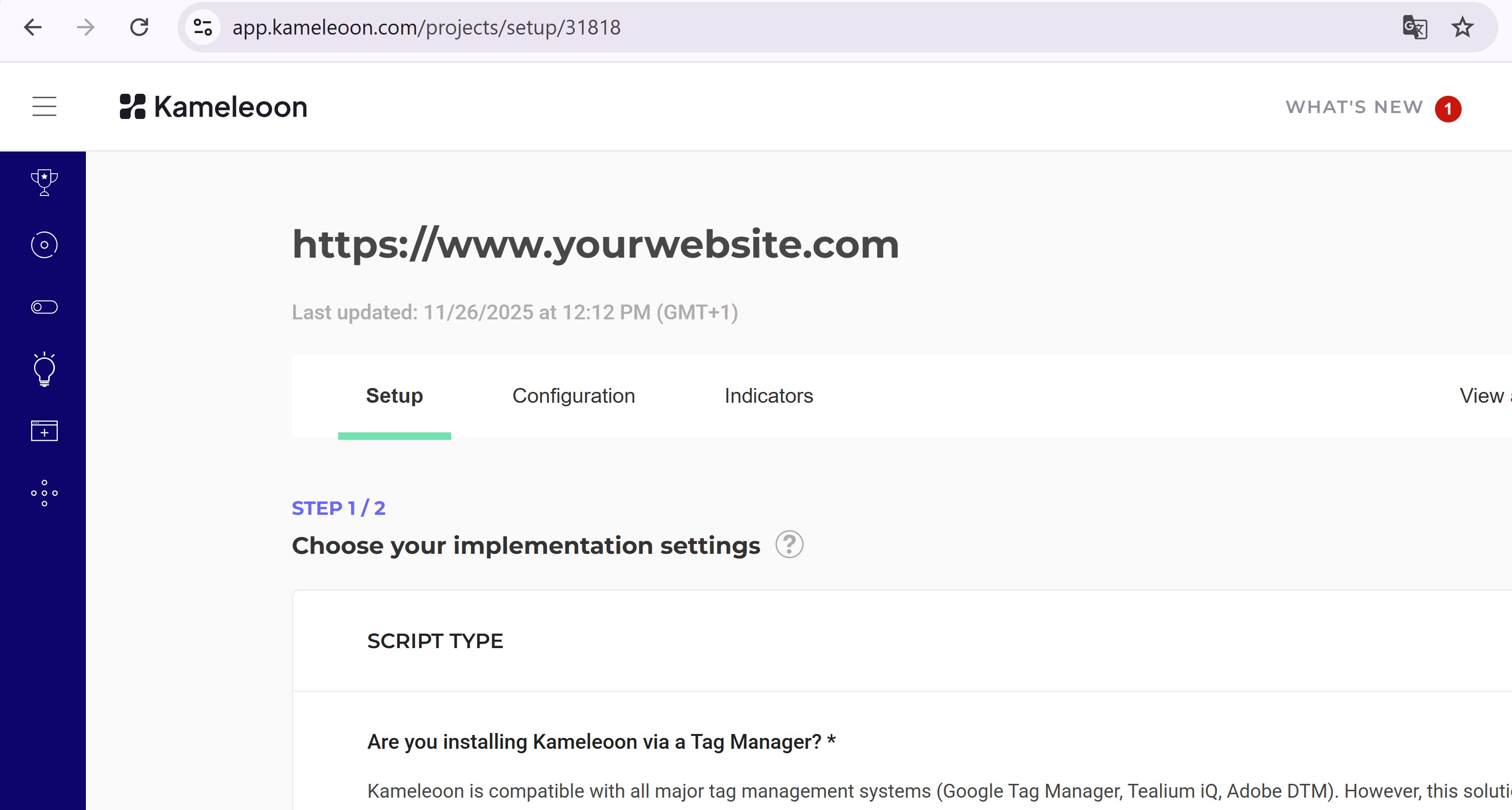
-
Retrieve the
Create the Segment
Endpoint:| Name | Type | Description |
|---|---|---|
| conditionsData | Object | Defines targeting conditions. See API reference. |
| name | String | Segment name. |
| segmentType | String | Type of segment, for example, STANDARD for experiments. |
| siteId | String | The project’s siteId. |
Create a goal for the experiment
Goal
Goals are metrics to track campaign success. This section creates a Click goal to count clicks on the.cta-button element.
See the goal creation guide for more information.
Steps
Create the goal
Endpoint:| Name | Type | Description |
|---|---|---|
| description | String | Goal description (for example, “Number of CTA clicks”). |
| name | String | Goal name (for example, “Clicks on CTA”). |
| siteId | String | The project’s siteId. |
| params | Object | Includes element selectors for click tracking. |
Add a goal and segment before launching an experiment
Goal
Link the goal and segment toExperiment_1 and activate the experiment.
Steps
1. Link and launch
Endpoint:| Name | Type | Description |
|---|---|---|
| targetingSegmentId | String | Segment ID to link. |
| goals | Array | Goal IDs to link. |
| deviations | Object | Traffic allocation between control and variations. |
| mainGoalId | String | Main goal ID. |
| status | String | Experiment status (ONLINE, PAUSED, and others). |
2. Verify launch
Refresh the dashboard.Experiment_1 should now display Online status:

Creation, configuration, and launch of an experiment using the Automation API are now complete.