メインコンテンツへスキップ

要件

  • access token
Automation API には アクセストークン が必要です。 アクセストークン取得セクション の手順に従って、プログラムでトークンを取得します。

ゴール

作成された実験 のバリエーション(Variation 1)を以下で更新します:
Kameleoon.API.Core.runWhenElementPresent("#bloc-567, .cta-button, #bloc-789", function(elements) {
  document.querySelector(".cta-button, #bloc-789").innerText = "More new text";
});
その後、テキストを “Updated Text” に変更します。 コードの詳細については、API リファレンス を参照してください。 この更新では、Partial Update Variation エンドポイント を使用します。
  • variationIdexperimentId
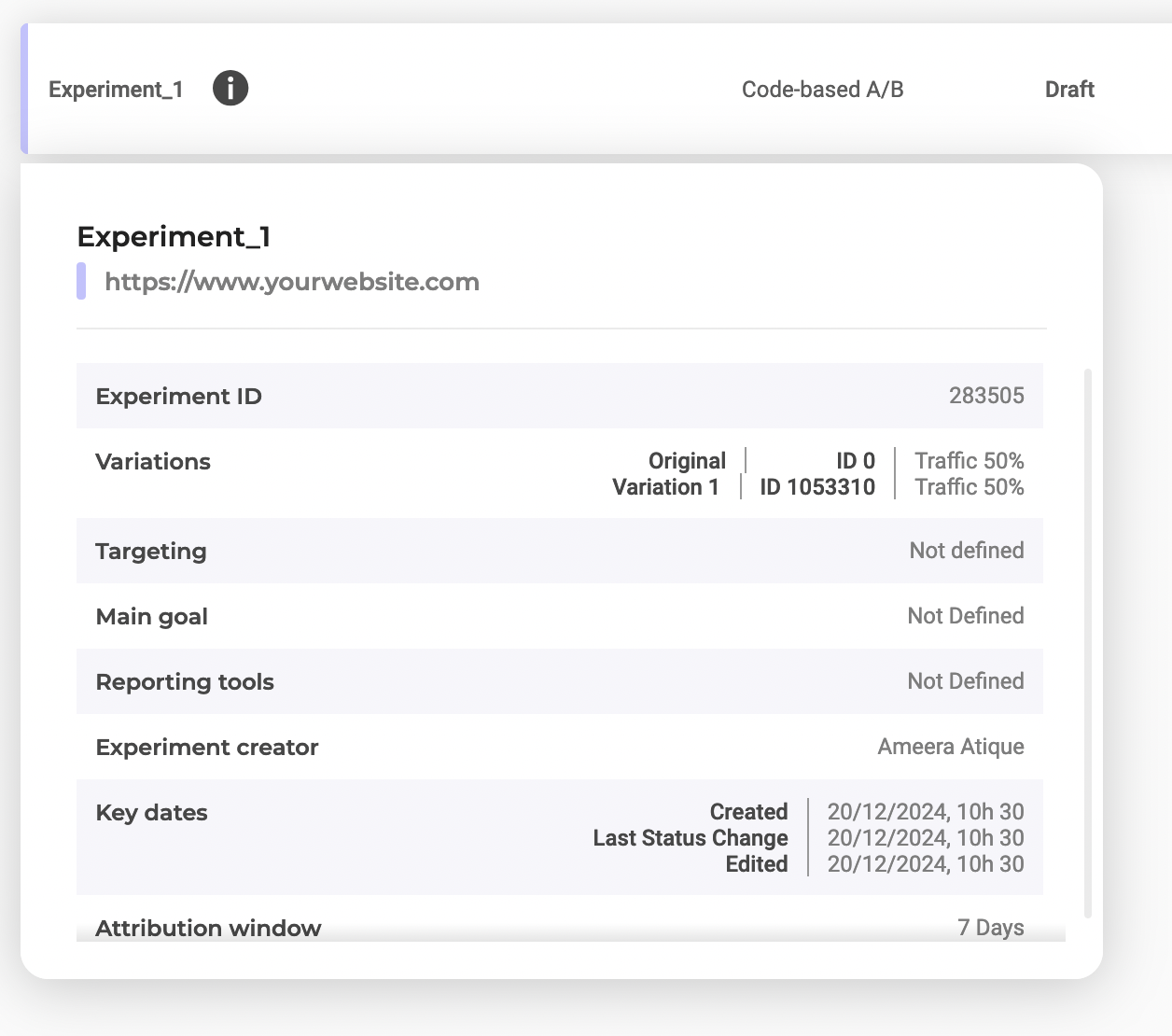
ダッシュボードで Experiment_1 を選択すると ID を確認できます:
Variation1

手順

1. JavaScript コードを注入する

エンドポイント:
PATCH https://api.kameleoon.com/variations/{variationId}
名前説明
jsCodeString更新する JavaScript コード。
nameStringバリエーション名。
experimentIdStringコードに関連付けられた実験 ID。
例:
curl -L -X PATCH 'https://api.kameleoon.com/variations/1053310' \
-H 'Content-Type: application/json' \
-H 'Authorization: Bearer <ACCESS_TOKEN>' \
--data-raw '{
  "experimentId": 283505,
  "jsCode": "Kameleoon.API.Core.runWhenElementPresent(\".cta-button, #bloc-789\", function(elements) { document.querySelector(\".cta-button, #bloc-789\").innerText = \"Text\";});"
}'

2. コードの注入を確認する

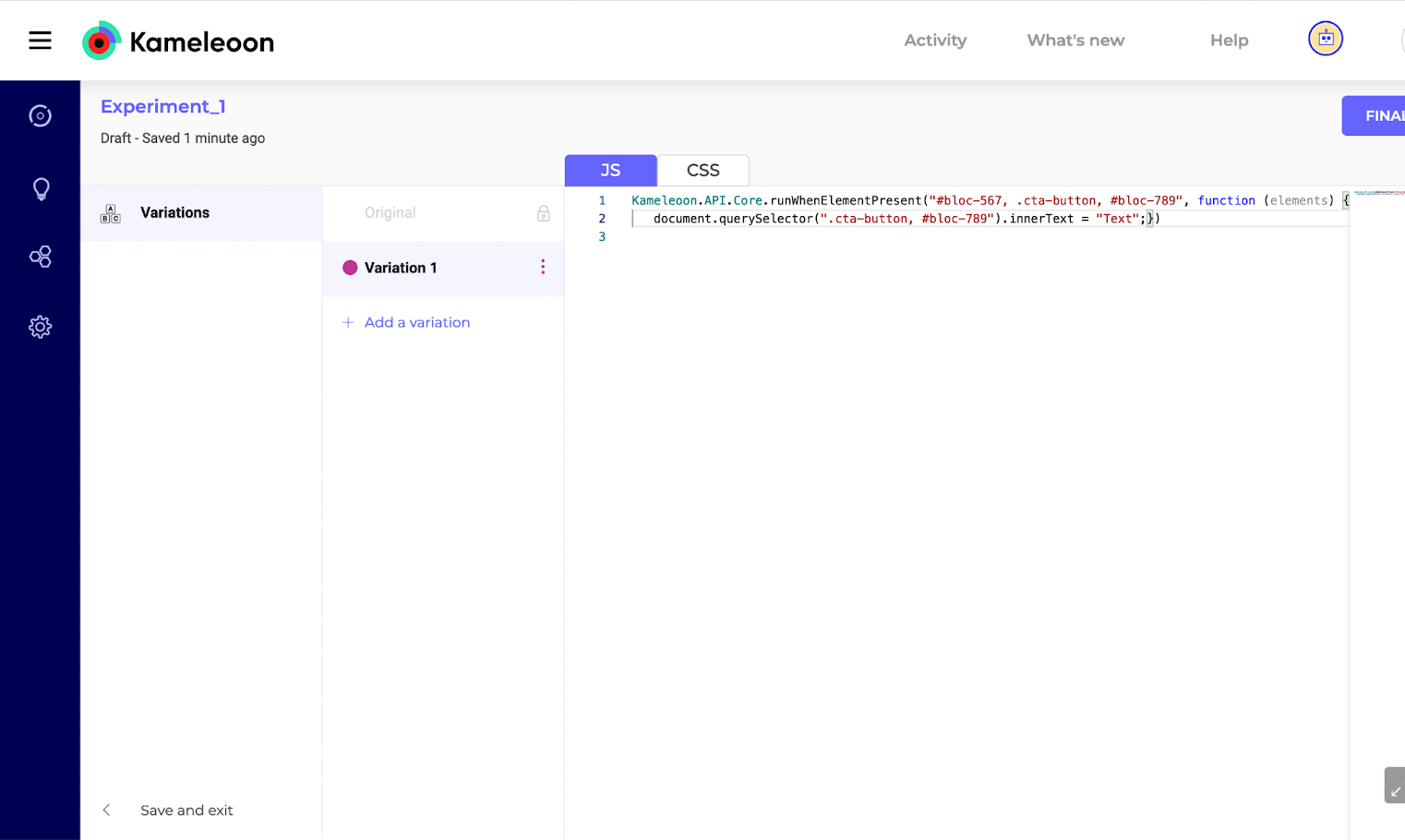
Variation 1 のコードエディタを確認します:
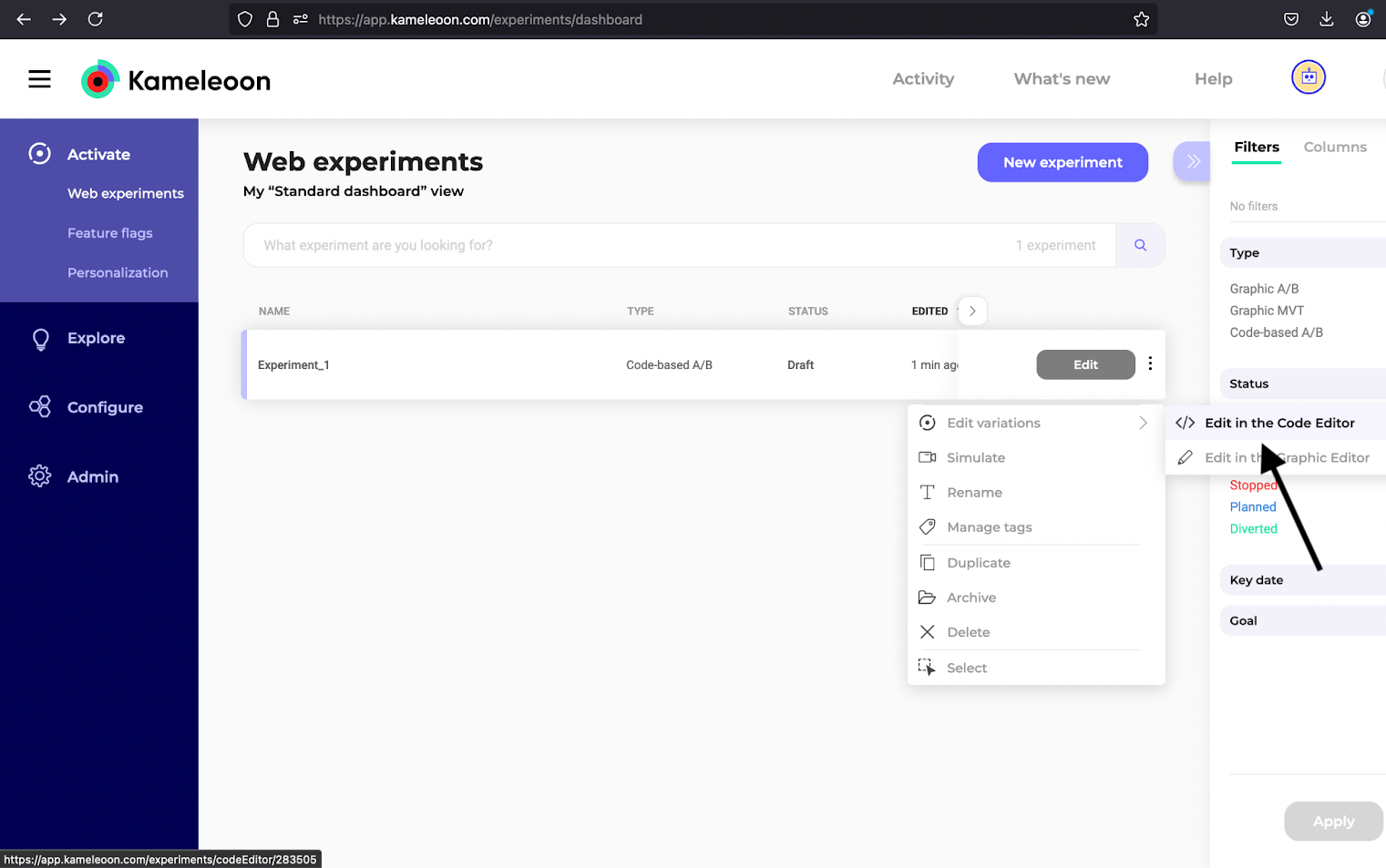
Variation1_dashboard
Variation1_code

3. コードを更新する

テキストを “Updated Text” に変更します:
curl -L -X PATCH 'https://api.kameleoon.com/variations/1053310' \
-H 'Content-Type: application/json' \
-H 'Authorization: Bearer <ACCESS_TOKEN>' \
--data-raw '{
  "experimentId": 283505,
  "jsCode": "Kameleoon.API.Core.runWhenElementPresent(\"#bloc-567, .cta-button\", function(elements) { document.querySelector(\".cta-button, #bloc-789\").innerText = \"Updated Text\";});"
}'

4. 更新を確認する

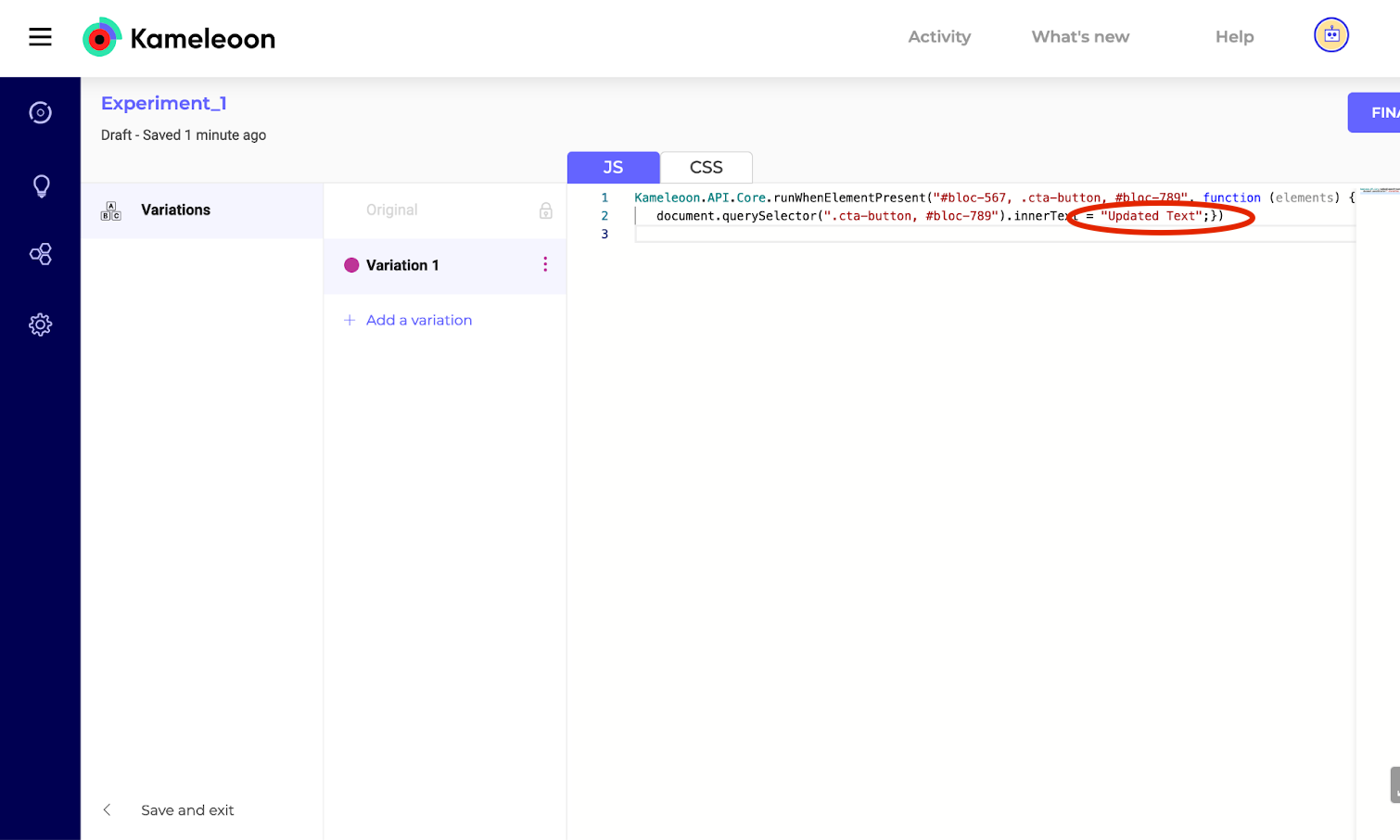
エディタを再読み込みして更新を確認します:
Variation1_button