

Why use the API?
Depending on your needs, this approach offers multiple benefits:- Full Control: Customize the variation display to match your design and UX standards.
- Better Performance: Use optimized API calls to reduce page load delays compared to script-based solutions.
- Easier Debugging: Log, monitor, and debug integrations within your client codebase using standard tools.
- No Third-Party Script Dependency: Use direct calls to avoid external scripts, reduce potential conflicts, and align with security policies.
- SPA-Friendly: Integrate directly into single-page applications to avoid timing issues and fit into client-side routing.
- Ad Blocker Resilience: Deliver experiments consistently without third-party scripts or specific HTML markers. For more details on how ad blockers affect Kameleoon, see the FAQ.
Goal
Retrieve and display product search results based on user input using either instant (typeahead) or full search modes.Requirements
-
A valid Kameleoon account with a Store ID (
shop_id).- Get your
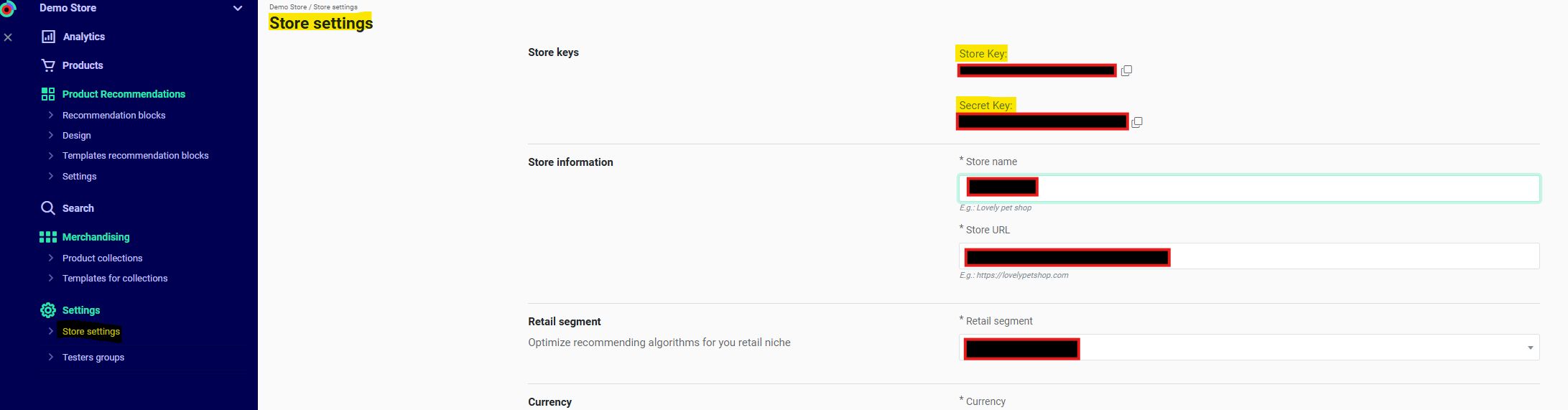
shop_idfrom Recommendations > Settings > Store settings in the Kameleoon app. Contact your Customer Success Manager for the key if necessary.
- Get your
-
A Device ID (
did) and Session ID (sid). (Required only when using filters or algorithms that rely on historical device/user data).- For Kameleoon Web Experimentation, get these from the following cookies:
KameleoonProducts_device_id→ Device ID (did)KameleoonProducts_session_code→ Session ID (sid)
- Otherwise, generate these values manually.
- For Kameleoon Web Experimentation, get these from the following cookies:
Steps
1. Configure the feed for Kameleoon search
Follow the search configuration guide to configure your feed.2. Retrieve cookies (Kameleoon Web Experimentation only)
3. Make a search request
The API supports two search types:Instant search (instant_search)
Use instant search for typeahead and autocomplete results as the user types. Endpoint:
Example:
Full search (full_search)
Use full search to display detailed results with filters, categories, pagination, and sorting. Endpoint:4. Integrate the response
Instant search
If the request succeeds, the API returns an HTML snippet for direct page injection, along with product data, and category data for custom rendering.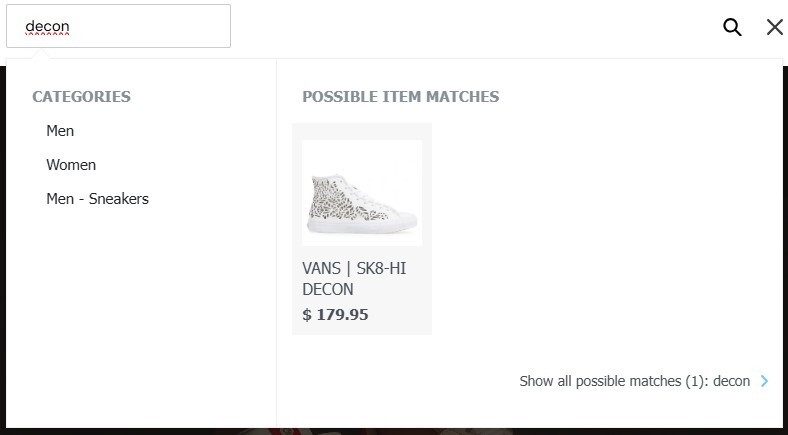
Sample response
Full search
Integrating full search also provides an HTML snippet for displaying results. The response also includesbrands and filters arrays in addition to the categories array.
The
filters array contains keys and values from the product params fields. Use these to build the filter interface.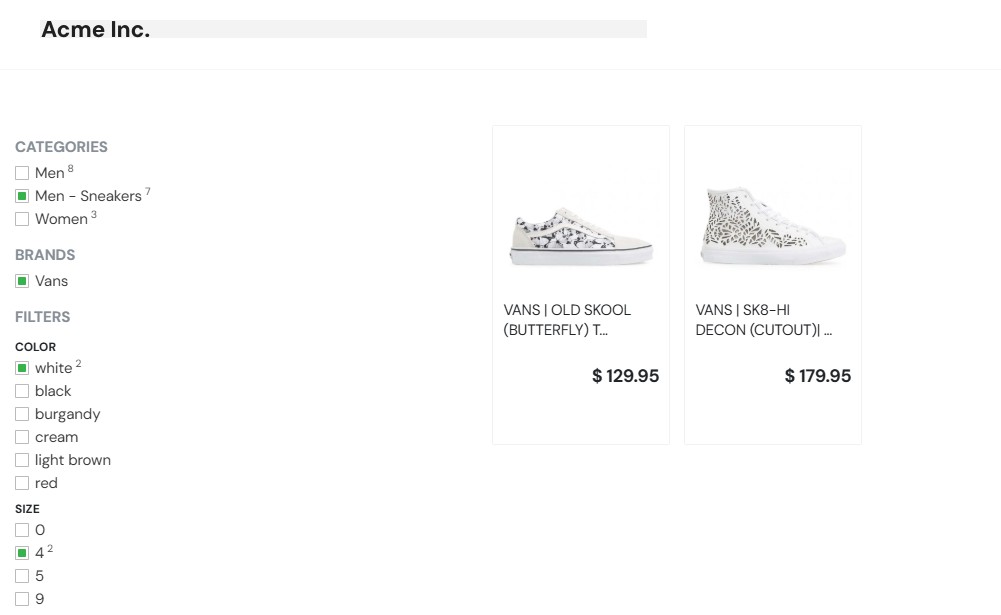
Applying filters
The following example shows the full search request with the filters selected in the preceding image:Sample response
Notes
- Ensure cookies are accessible before making requests.
- Use full search with
extended=1for detailed product listings, such as on product pages. - Customize the returned HTML or render a custom UI using the JSON response.