Data warehouse integrations are available as a premium add-on for the Web Experimentation and Feature Experimentation module. For more information, contact your Customer Success Manager.
If your analysts query experiment data in BigQuery, the exposure data in Kameleoon sits apart from the rest of your warehouse. When you turn on Use BigQuery as a destination, Kameleoon writes each experiment exposure event to a table in your BigQuery project, so your analysts can work with it there. Complete Setting up BigQuery first, because that page creates the dataset and grants the service account access that this feature uses.

Activate BigQuery as a destination

To turn the feature on, activate Use BigQuery as a destination in your project.

A table showing the data flow from Kameleoon to BigQuery, with exposure events as the shared data, and checkmarks for web experiments, web personalizations, and feature experiments
Follow these steps:
  1. In the selected project’s configuration, check the checkbox labeled Use BigQuery as a destination to enable the feature.
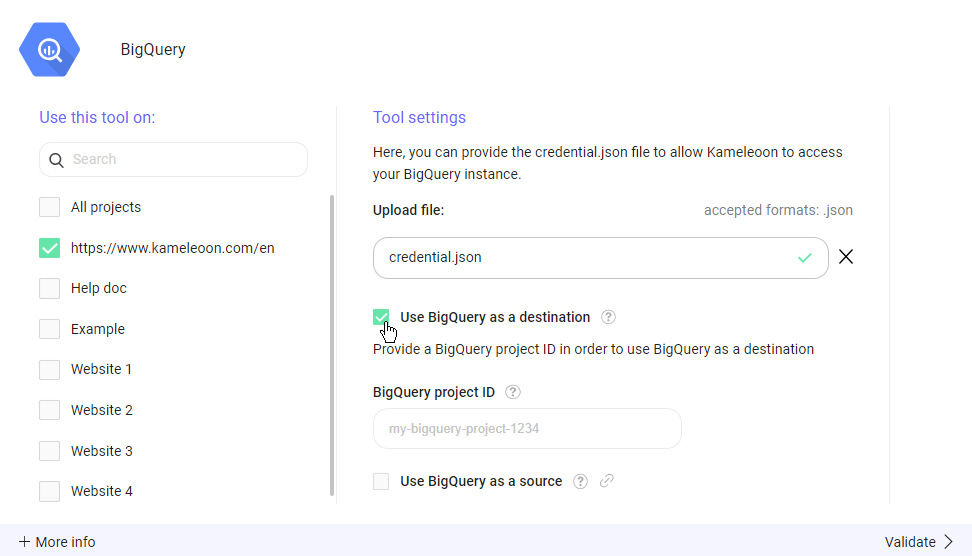
The BigQuery integration settings with Use BigQuery as a destination checked and the BigQuery project ID field still empty
  1. Enter the BigQuery project ID for your Google BigQuery project in the BigQuery project ID field.
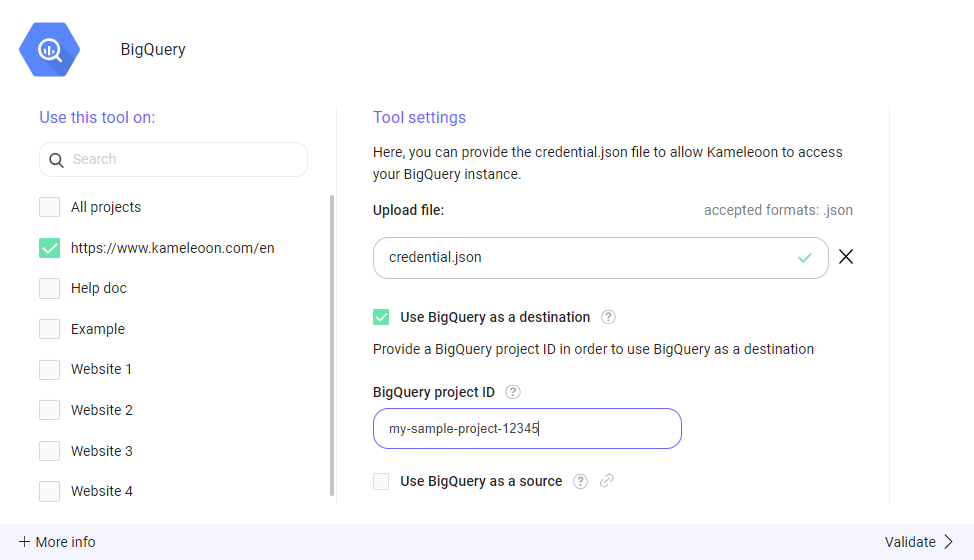
The BigQuery integration settings with a sample project ID entered in the BigQuery project ID field
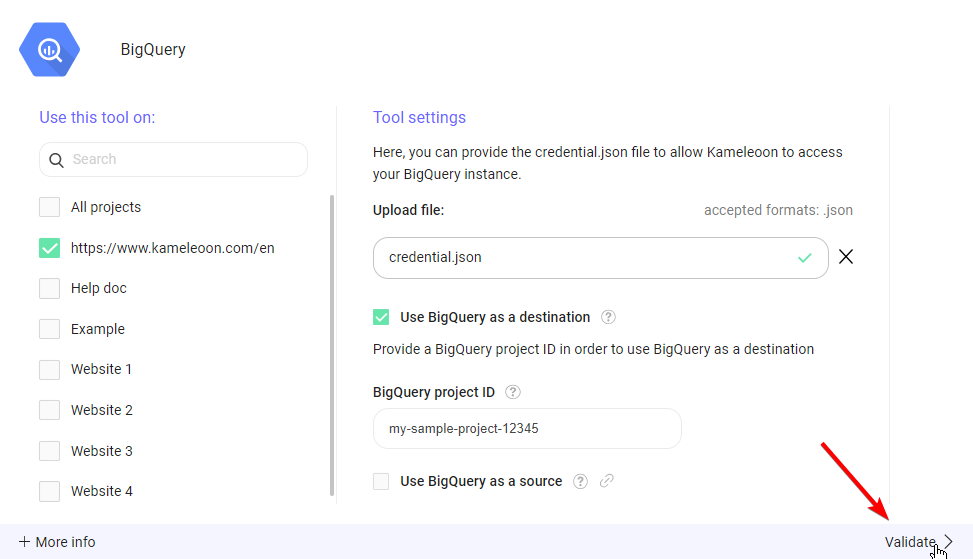
  1. Click Validate to save your changes.
The BigQuery integration settings with the Validate button in the lower-right corner, marked with an arrow
When you save the configuration, Kameleoon writes each exposure event to the kameleoon_experiment_event table.

What “Use BigQuery as a destination” does

Kameleoon writes each experiment exposure event to a table named kameleoon_experiment_event in your “kameleoon” dataset, using the write access you granted the Kameleoon service account. The table uses this SQL schema:
Kameleoon reads the custom_visitor_id from the cross-device history reconciliation custom data, if you set it.