

Data warehouse integrations are available as a premium add-on for Kameleoon’s Web Experimentation and Feature Experimentation module. For more information, contact your Customer Success Manager.
- BigQuery
- Snowflake
- Redshift
- Databricks
Connect a BigQuery project to Kameleoon
Prerequisites
To configure this integration, you need the following:- Google Cloud account: You need a valid Google Cloud account to access Google BigQuery and generate the necessary credentials.
- Google service account: You need a Google service account with the appropriate permissions to access BigQuery and create credentials.
- BigQuery project: You need a Google BigQuery project set up to store and query data.
- Credential file: You generate a credential file from your Google service account, which Kameleoon uses to securely access BigQuery.
Create a service account
Create a service account for Kameleoon in your project and give it the BigQuery Data Viewer role.- Type service accounts in the global search bar, and click the suggested result.
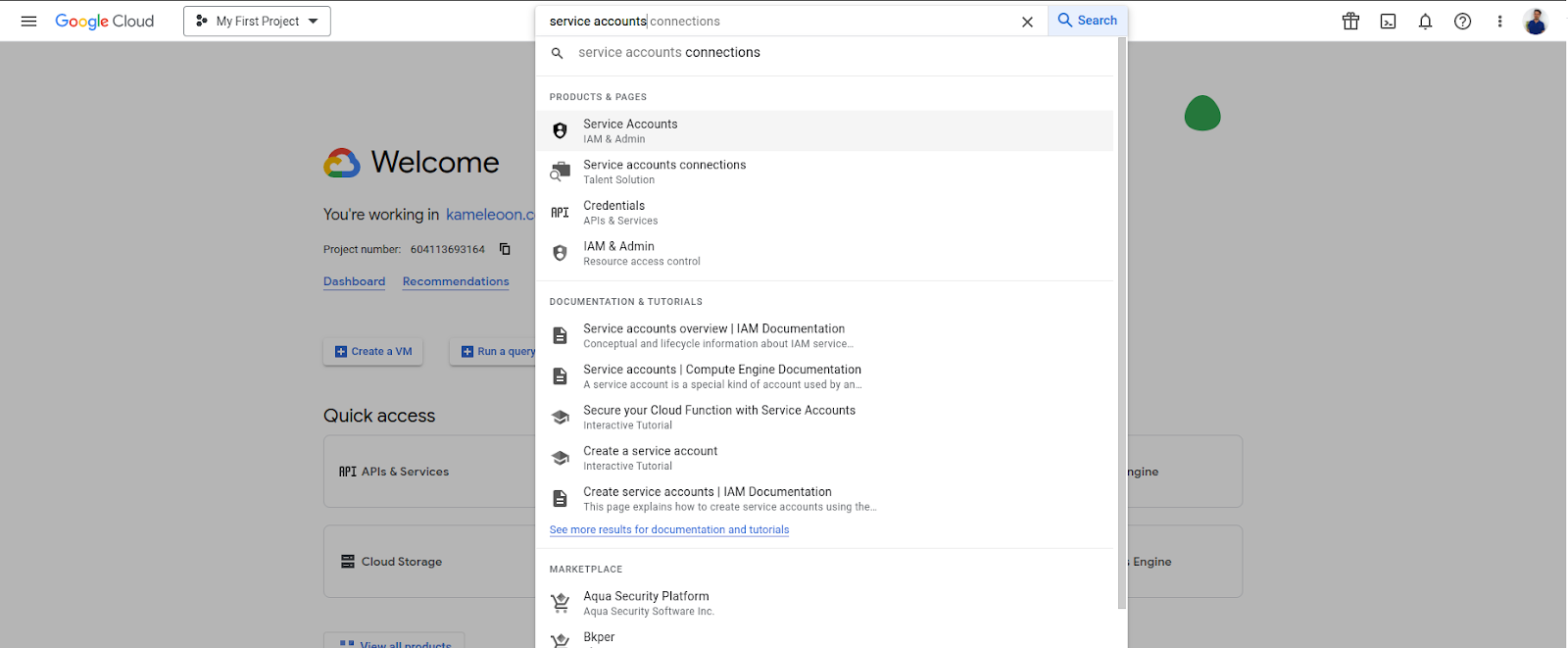
- Click Create service account.
- Fill in the mandatory fields and click Create and continue.
- Type “BigQuery data viewer” in the Select a role field, and click BigQuery Data Viewer when it appears in the dropdown search.
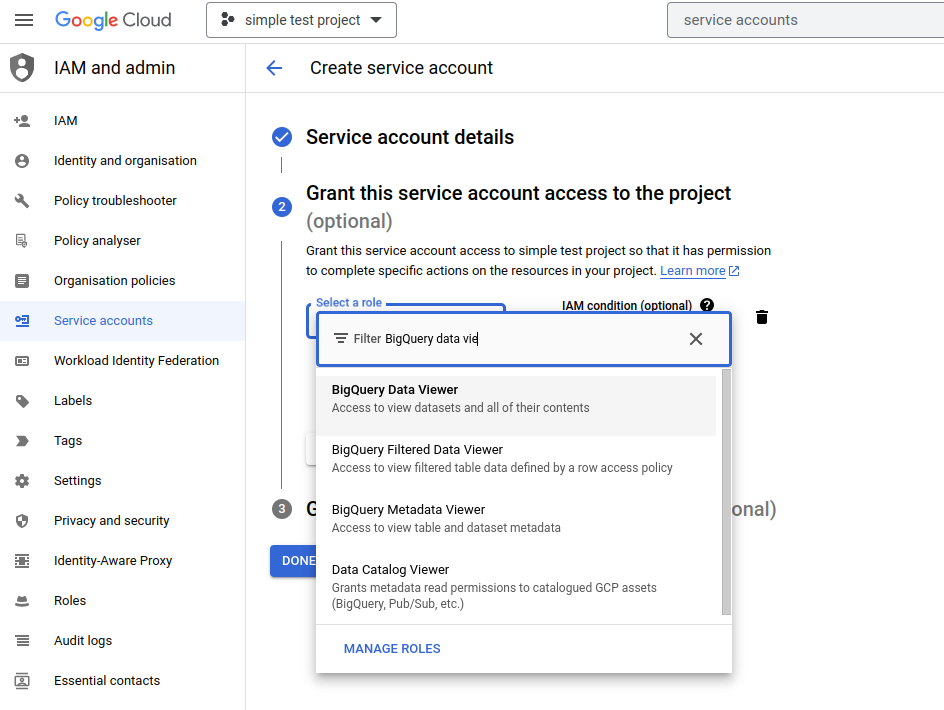
- Click Continue, and then click Done.
Create a new dataset
Create a new dataset called “kameleoon” in your project.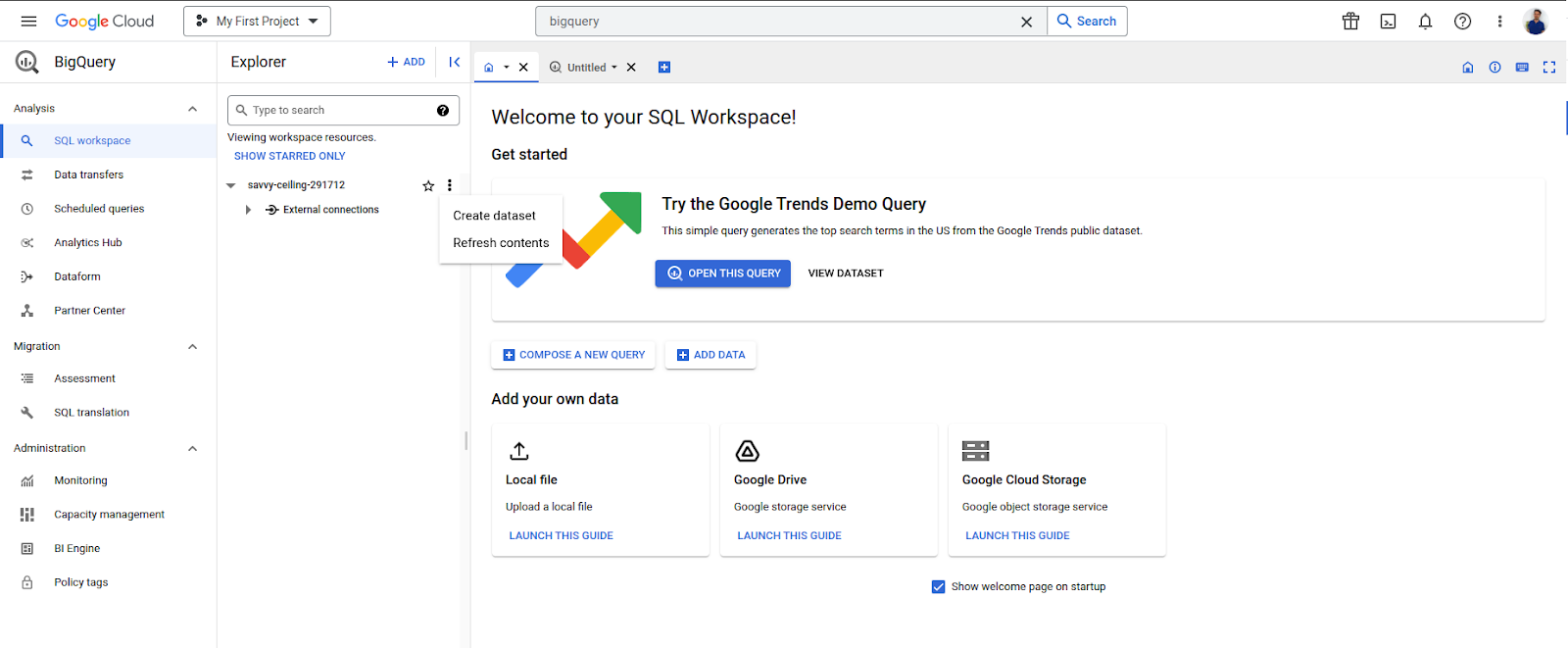
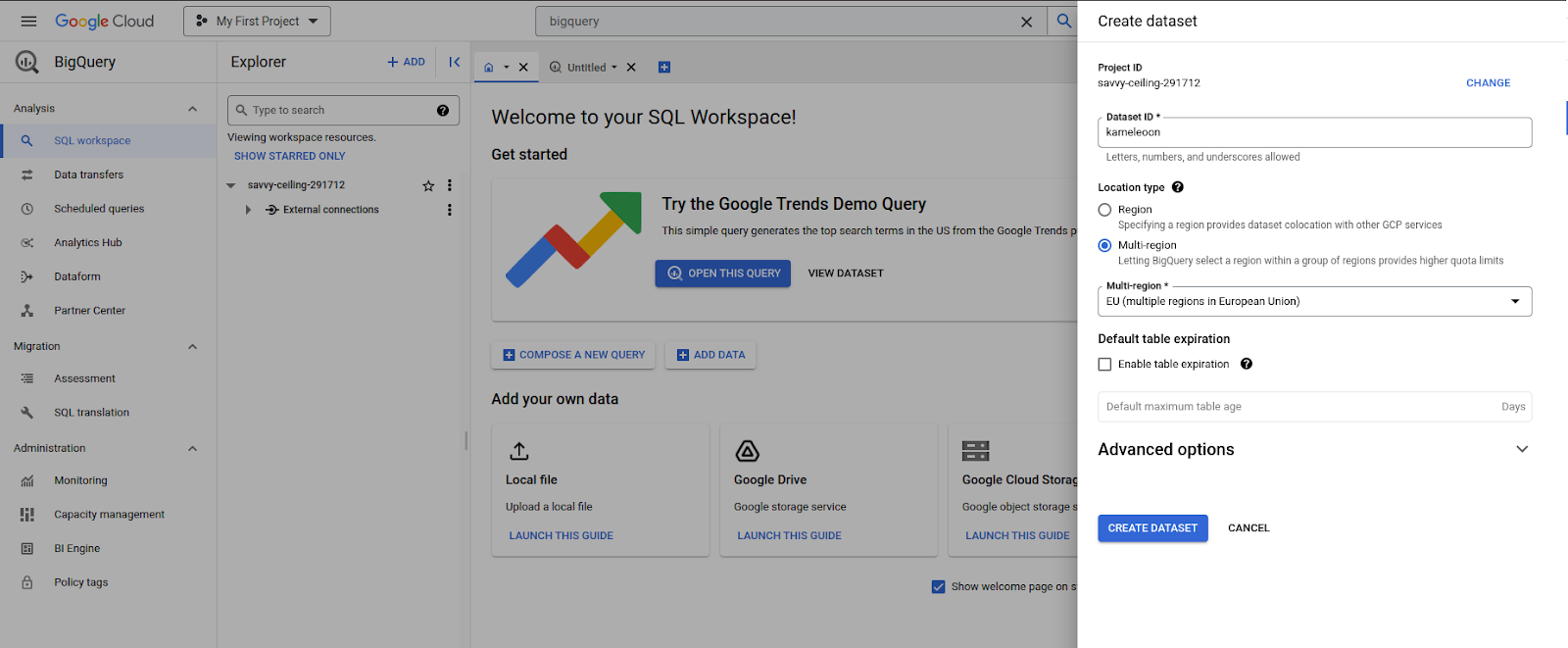
Grant permissions to the service account
Grant the service account BigQuery Data Owner status on this “kameleoon” dataset
Grant the Kameleoon service account the BigQuery Data Owner role on the kameleoon dataset.- In the BigQuery dashboard, click the kameleoon dataset in the Explorer bar on the left.
- Click Sharing > Permissions.
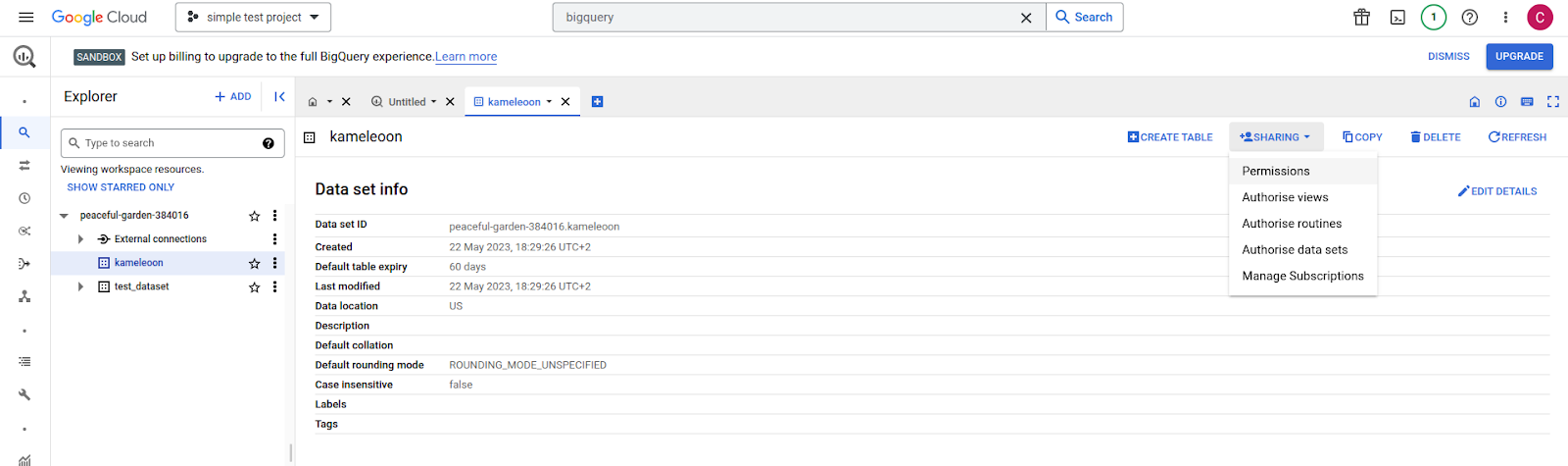
- Click Add principal.
- Type in the Kameleoon service account name in the New principals field.
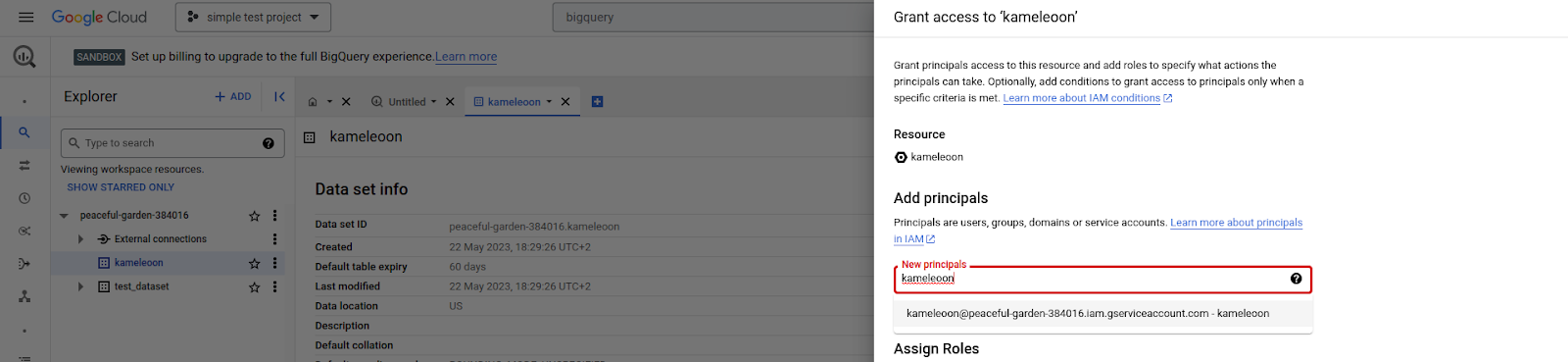
- In the Assign roles field, type “BigQuery Data Owner.”
- Finish by clicking Save.
Create a custom role
Create a custom role that has the bigquery.jobs.create permission
Create a custom role that grants thebigquery.jobs.create permission, which lets the service account create BigQuery jobs.
- Navigate to Roles.
- You can find Roles by typing “Roles” in the console global search field.

- Click Create role.
- Enter a title and an ID for the role, for example Job Creator Role and
CustomRole.
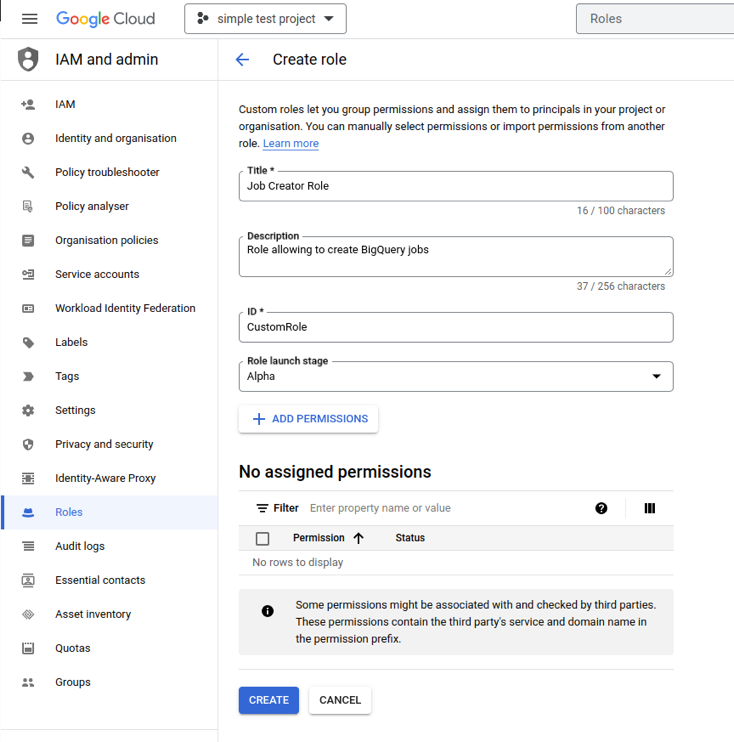
- Click Add permissions, and add
bigquery.jobs.createfrom the dropdown list that appears in the pop-in window. - Click Add.
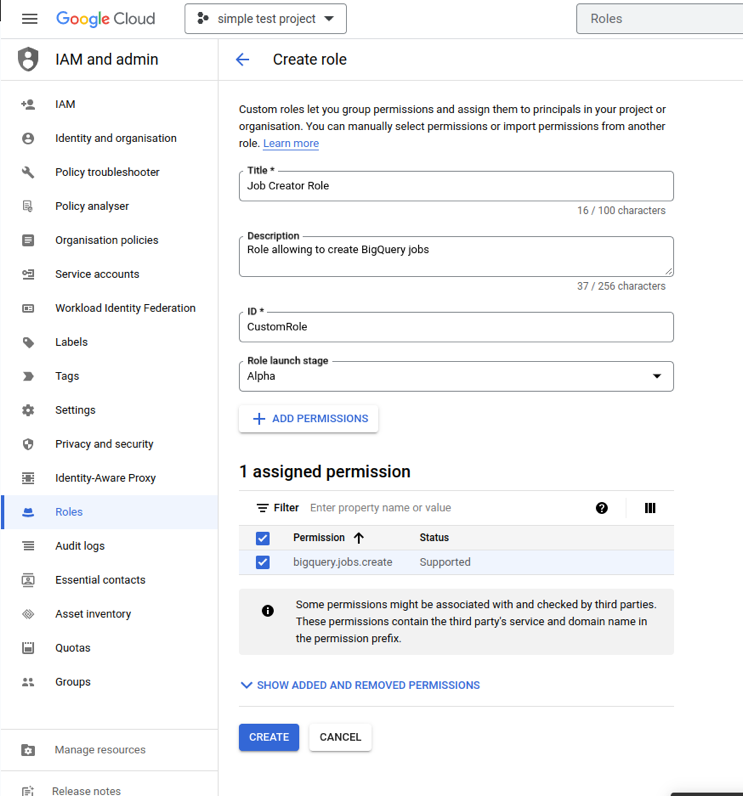
- Click Create to finalize the custom role.
Add this custom role to the service account you created
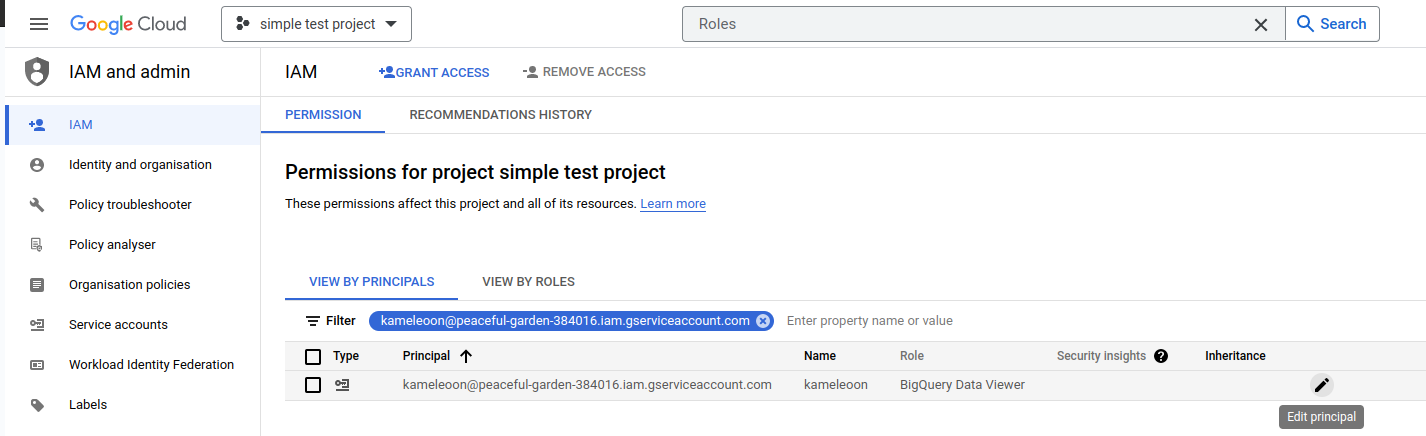
Assign the custom role to the Kameleoon service account.- Navigate to IAM in the sidebar of the Google Cloud console.
- You should see a list of Principals. A service account is a Principal. Find the Kameleoon service account in the list, and click the pen icon to edit the principal.
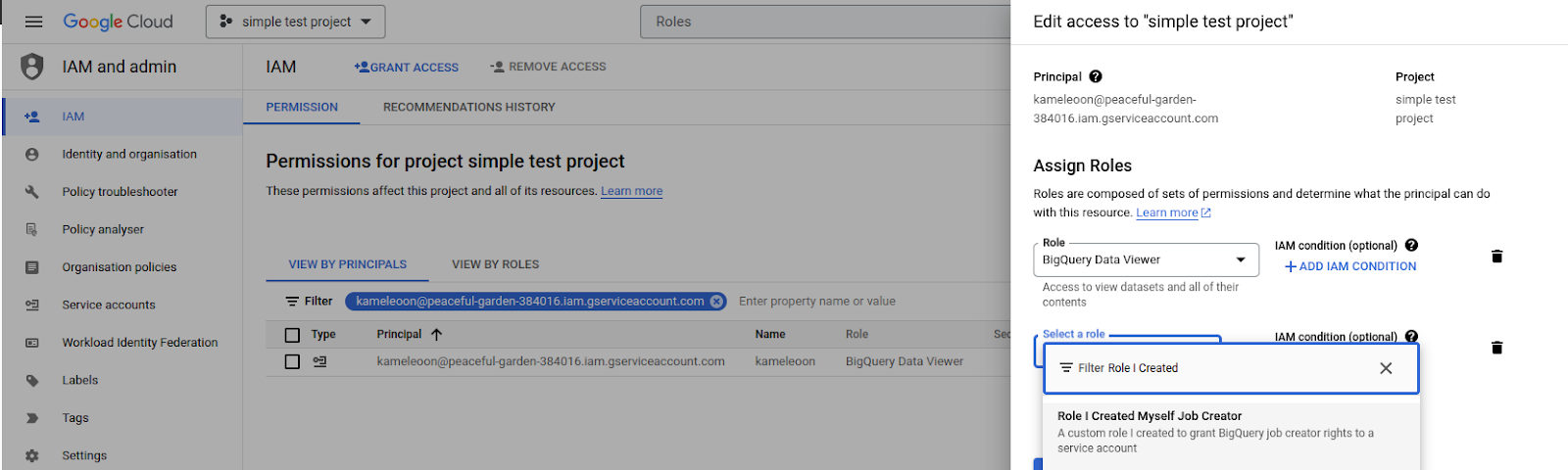
- A configuration sidebar appears on the right. Click Add another role, and find the custom role you created for the
bigquery.jobs.createpermission (Job Creator Role in this example) in the dropdown menu.
- Click Save.
Create a JSON key for the service account
Create a JSON key for the Kameleoon service account. Kameleoon uses this key file to connect to BigQuery.- Open the Service accounts page in the Google Cloud console.
- Select your project.
- Click the email address of the Kameleoon service account.
- Open the Keys tab.
- Open the Add key drop-down menu, and choose Create new key.
- Set Key type to JSON, and click Create.
Enable the integration for your project
Enable the BigQuery integration in Kameleoon with the service account credential file.- Log in to your Kameleoon account, and click Admin > Integrations.
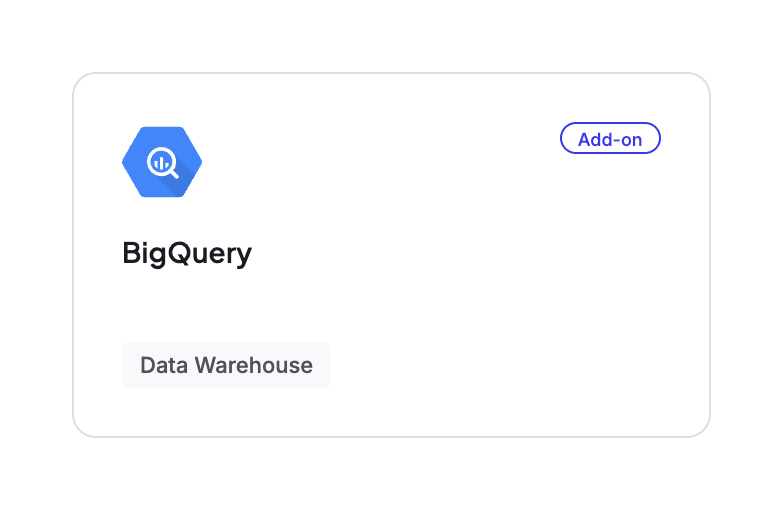
- Select BigQuery.
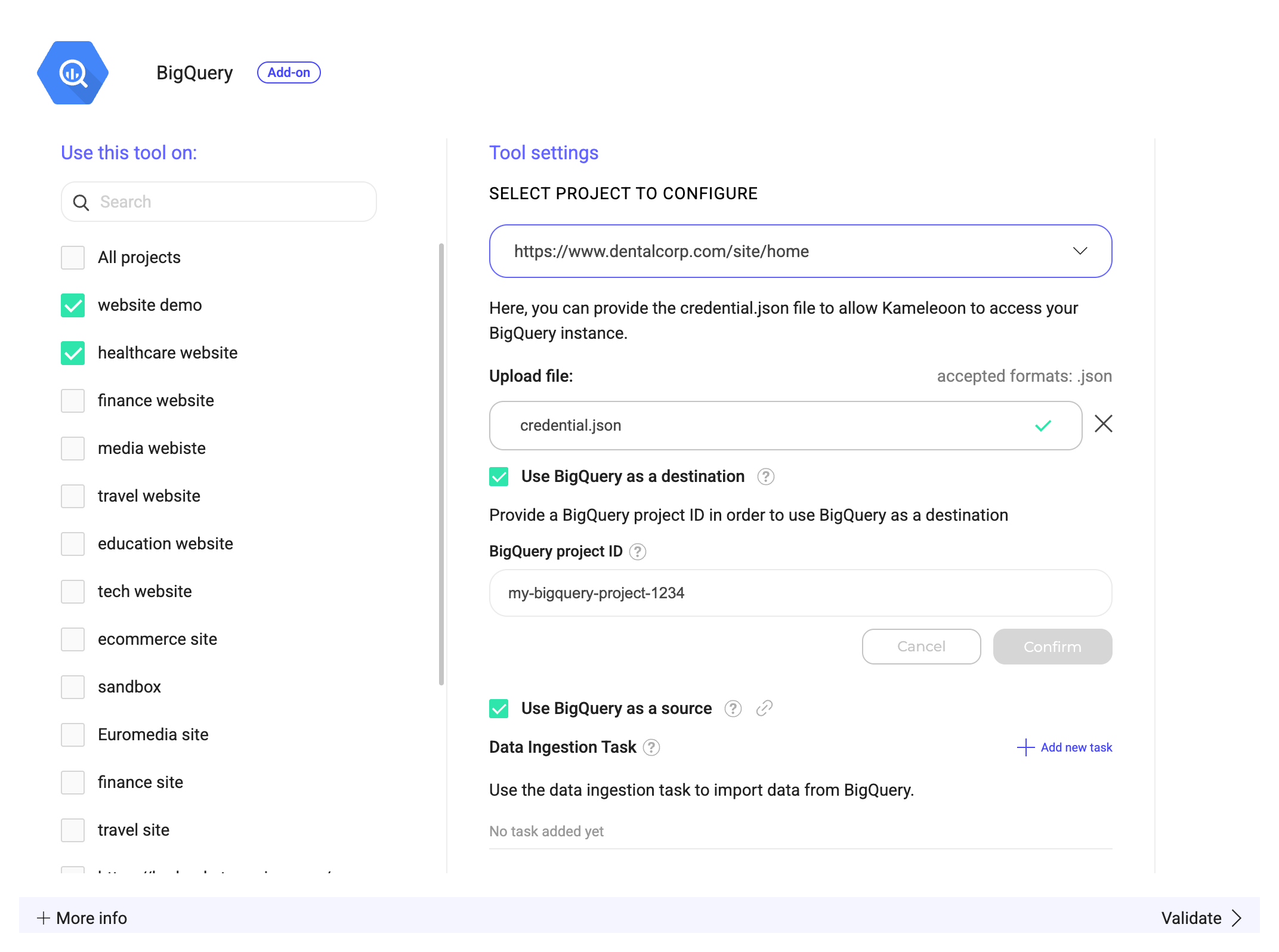
- Choose the project on which you want to enable BigQuery.
- Click Upload file, and select your JSON file.
- Click Validate to save your changes.
Manage multiple projects
If you have multiple projects, and you want to configure the BigQuery integration for each of them, you can do so from the same Kameleoon account. To switch between project configurations, use the project dropdown menu provided within the integration settings. This dropdown lets you select and manage the integration settings for each project. Keep in mind that each project has different configuration settings. You need to upload a unique JSON credential file for each project. However, if the permissions granted by a single credential file are applicable to several projects, you can reuse the same credential file for those projects.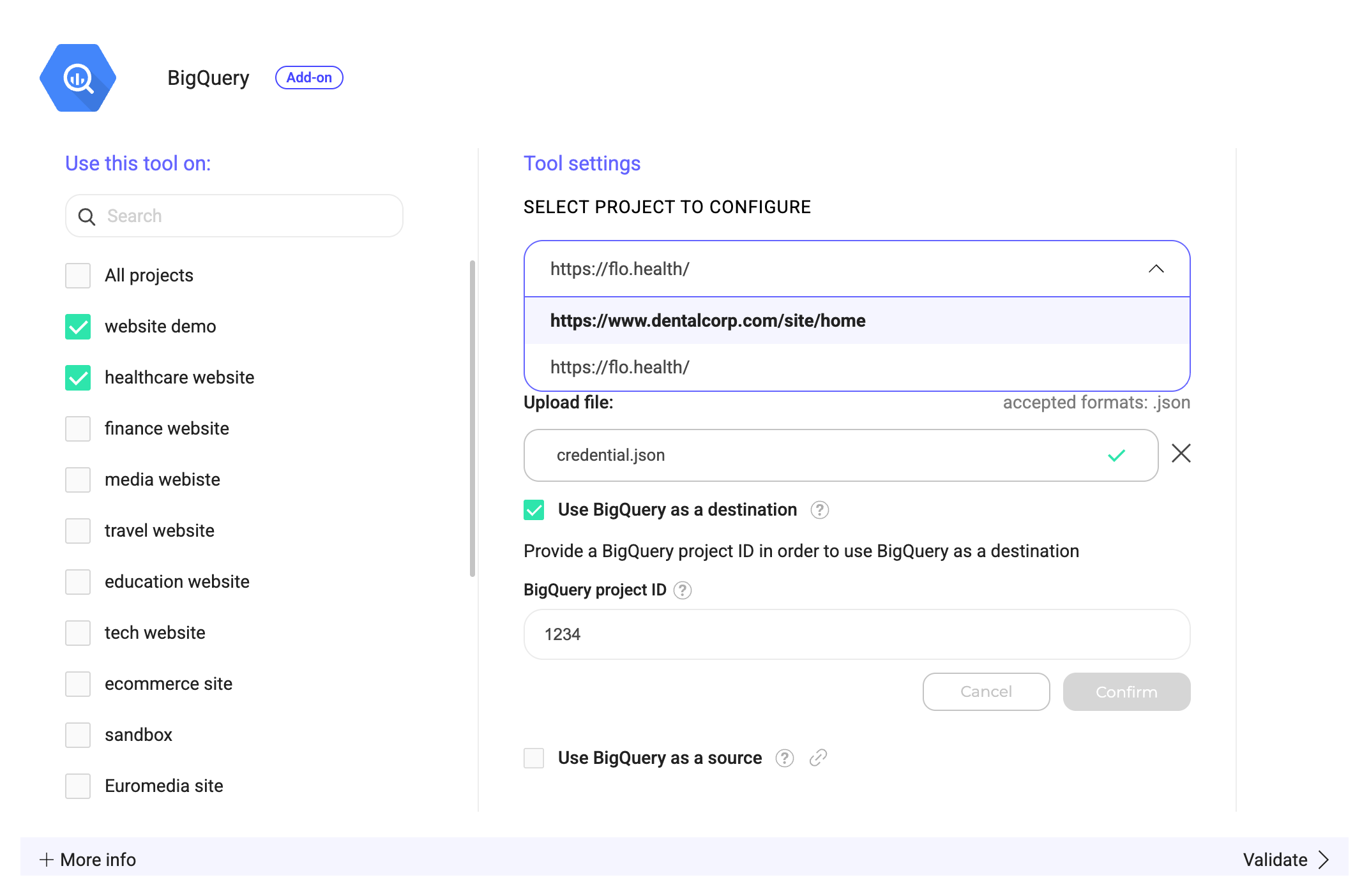
- Use BigQuery as a source—audience targeting to use BigQuery data as targeting conditions in your campaigns.
- Use BigQuery as a source—pulling events for reporting to pull BigQuery events into Kameleoon reports.
- Use BigQuery as a destination to send experiment exposure events to Google BigQuery.