Documentation Index

Fetch the complete documentation index at: https://docs.kameleoon.com/llms.txt

Use this file to discover all available pages before exploring further.

Kameleoon randomly allocates a variation to a visitor by default. The statistical paper explains the assignment algorithm logic in the “Kameleoon’s assignation algorithm” section. The default function follows:
function (experiment)
{
  var registeredVariationId;
  var deviationRandom = experiment.obtainVariationAssignmentRandomNumber();
  var total = 0.0;
  for (var i = 0, l = experiment.variations.length; i < l; ++i)
  {
      total += experiment.variations[i].deviation;
      if (deviationRandom <= total)
      {
          registeredVariationId = experiment.variations[i].id;
          break;
      }
  }
  return registeredVariationId ? registeredVariationId : "none";
}
Overload this function to change how Kameleoon selects and displays variations. For example, selecting a variation based on a JavaScript variable is often beneficial:
function(experiment)
{
 if(experiment.id == "ID TEST"){ //code for the experiment you would like a specific behavior. It has to be adapted to your use case
 if(typeof versionTest != "undefined") { //versionTest variable has to be available before loading Kameleoon. Otherwise it will not work.
 if(versionTest == 1)
 return 81103; //ID of the variation 1
 else if(versionTest == 2)
 return 81104; //ID of the variation 2
 else if(versionTest == 3)
 return 81105; //ID of the variation 3
 else if(versionTest == 4) //ID of the variation 4
 return 81106;
 }
 }
 else{ //default behavior is applied for all other experiments
 var registeredVariationId;
 var deviationRandom = experiment.obtainVariationAssignmentRandomNumber();
 var total = 0.0;
 for (var i = 0, l = experiment.variations.length; i < l; ++i)
 {
 total += experiment.variations[i].deviation;
 if (deviationRandom <= total)
 {
 registeredVariationId = experiment.variations[i].id;
 break;
 }
 }
 return registeredVariationId ? registeredVariationId : "none";
 }
}
Add the custom code to the account:
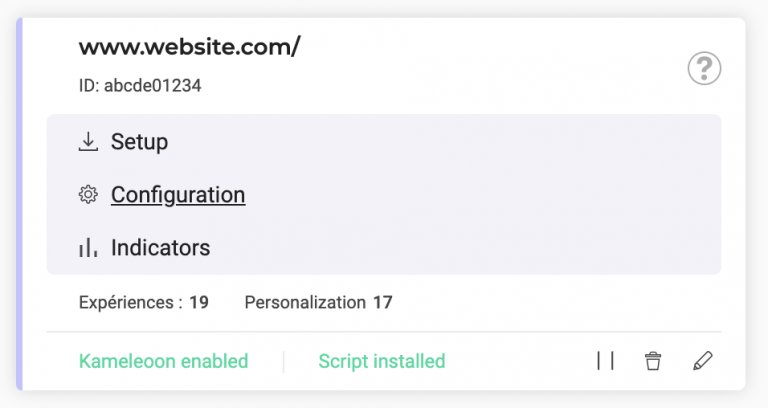
  1. Use the left menu to go to Admin > Projects.
  2. Click Configuration on the website card.
)
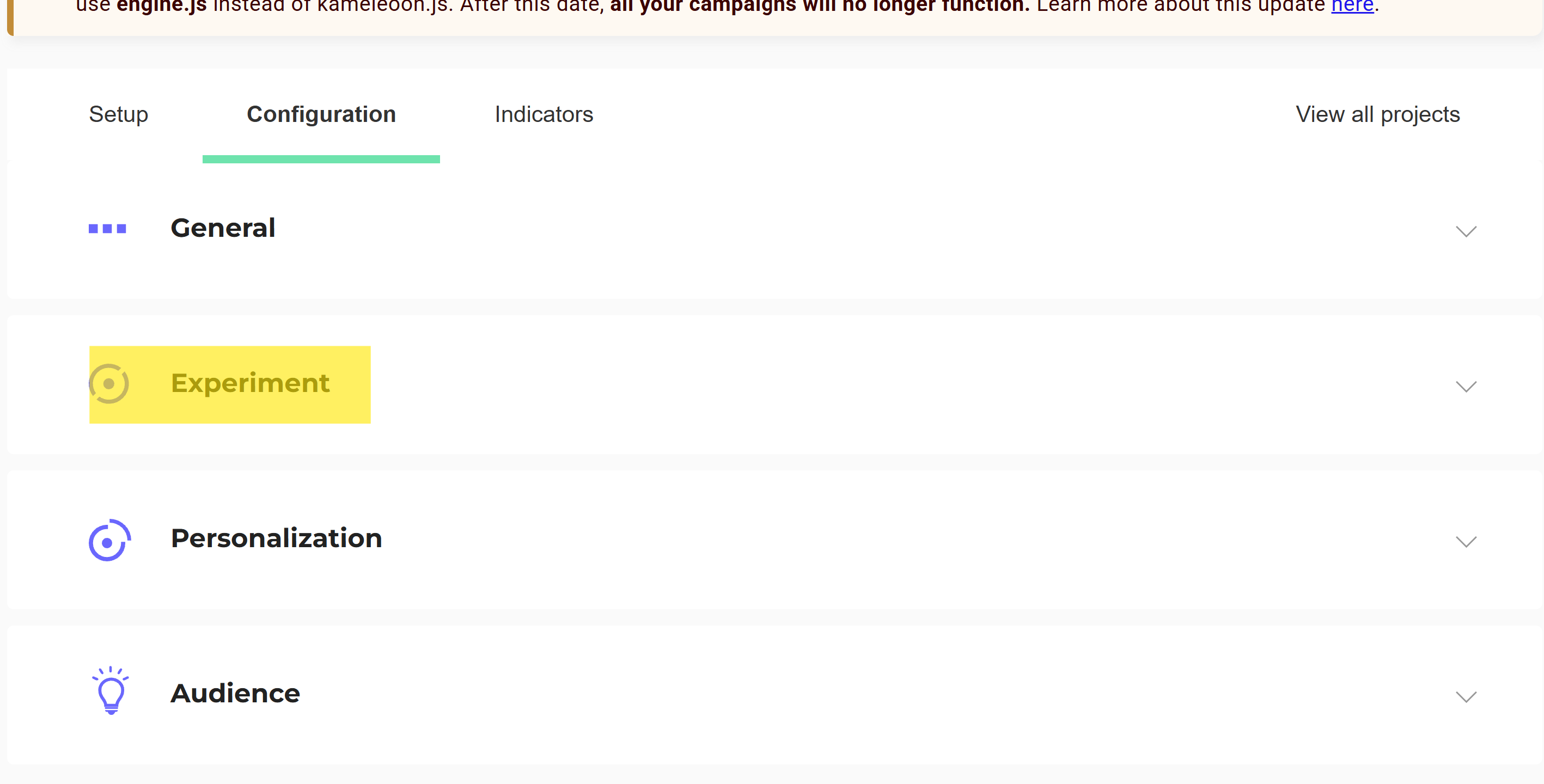
  1. Click Experiment.
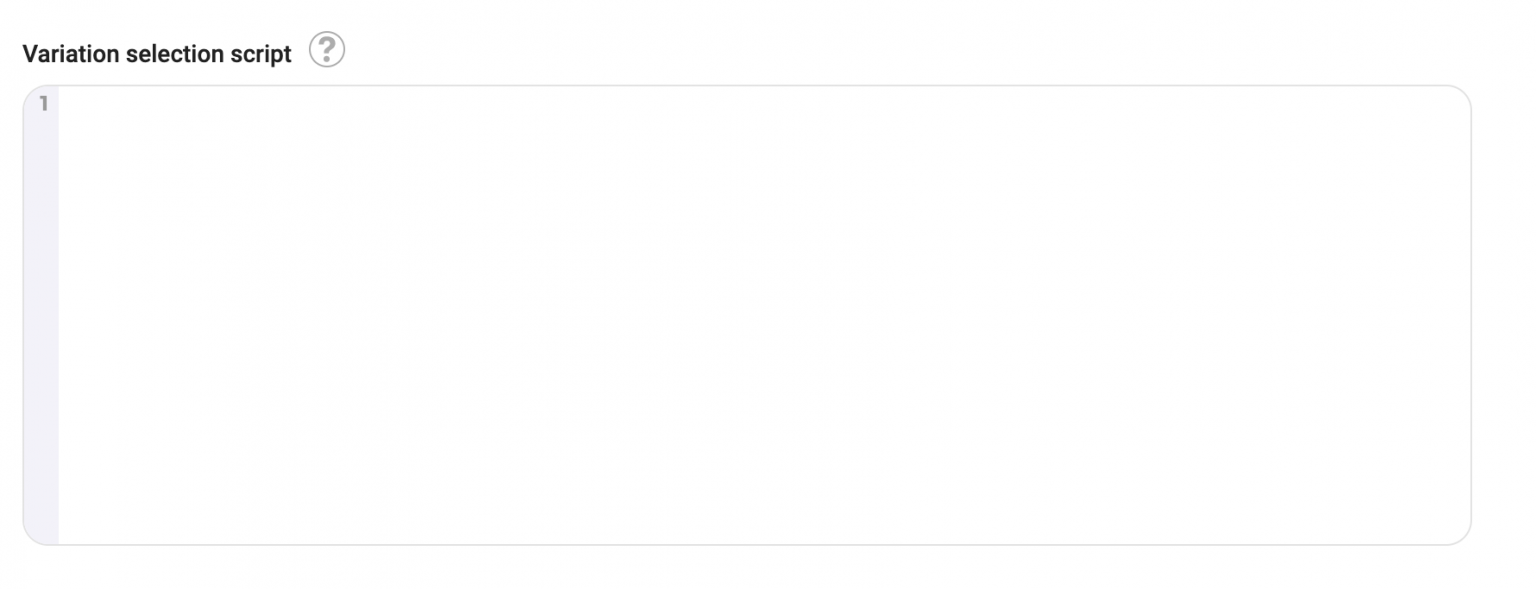
  1. Add the script in the Variation selection script field.