> ## Documentation Index
> Fetch the complete documentation index at: https://docs.kameleoon.com/llms.txt
> Use this file to discover all available pages before exploring further.
# Set up and launch a personalization
> Follow this step-by-step guide to configure, target, and launch personalizations using the Kameleoon Personalization builder.
**Content migration from legacy personalizations**
Kameleoon will migrate legacy personalization configurations to the new personalization content types as follows:
| Legacy configuration | New personalization content |
| -------------------- | ------------------------------------------------- |
| Code-based | Code Content |
| Widget | Widget Content |
| From experiment | Personalization Content of the corresponding type |
The migrated content type matches the original experiment type. You can further edit the content in the personalization.
## Access the Personalization builder
To create a new personalization:
1. Log in to the Kameleoon app.
2. Go to **Experiences** > **Personalization**.
3. Click **New personalization**.
***
## Step 1: Add content
In the first step, define the content you want to display to your visitors.
1. Click **Add content**.
2. Select one of the following methods to create your content.
* **Using prompt:** Opens the prompt-based experimentation (PBX) interface. You can design your content using AI-driven prompts. [Learn more about using PBX](../experimentation/web-experimentation/prompt-based-experiments/pbx-build/create-a-prompt-based-experiment).
* **With the graphic editor:** Opens the Graphic editor. You can design your content visually directly on your website. [Learn more about the Graphic editor](../experimentation/web-experimentation/graphic-based-experiments/getting-started-with-the-graphic-editor)
* **With the code editor:** Opens the Code editor. You can design your content using HTML, CSS, and JavaScript. [Learn more about the Code editor](../experimentation/web-experimentation/code-based-experiments/using-the-code-editor).
* **From an existing experiment:** Duplicate content from an existing experiment. After you import the content, it remains independent of the original experiment.
* If you select this option:
1. Select the desired experiment from the list.
2. Choose the content you want to use (cannot be the experiment's **Control** version).
3. Click **Select**.
* **Using widget:** Import or create a widget.
* If you select this option:
1. Enter the main page URL, where you want your widget to appear.
2. Choose a widget from you library or create a new widget. Creating a new widget will open the Widget Studio. [Learn more about the Widget Studio](/user-manual/assets/widgets/create-a-new-widget)
3. Define how your widget should be positioned on the page :
* Above the page : widget position is defined in the the Widget Studio.
* Inside the page : widget position position is defined relatively to the selected element. [Learn more about how kameleoon uses CSS selector](/user-manual/experimentation/web-experimentation/graphic-based-experiments/troubleshooting-the-graphic-editor#how-do-graphic-editors-work)
### Manage content
Once you add content, it appears in your content list. Kameleoon displays the source beneath the name (for example, **Created from PBX**).

* **Edit:** Click the **pencil icon** to reopen the editor associated with that content.
* **Options:** Click the **three dots** menu to **Rename**, **Preview**, **Duplicate**, or **Delete** the content.
***
## Step 2: Define targeting rules
Targeting rules determine who sees your personalization, where they see it, and when it appears. You can configure multiple targeting rules for a single personalization and define automatic rollback conditions.
### How Kameleoon evaluates targeting rules
Kameleoon evaluates targeting rules sequentially in the order they appear. A visitor sees only one rule per personalization evaluation.
For each targeting rule, Kameleoon follows this process:
1. **Evaluate targeting conditions:** The system verifies if the visitor meets the criteria defined in segments and triggers.
2. **Evaluate exposure eligibility:** If conditions are met, the system checks traffic allocation, display settings (capping), and scenarios.
3. **Determine exposure:**
* If the visitor qualifies, they see the assigned content and the evaluation stops.
* If the visitor does not qualify, the system proceeds to the next targeting rule.
To change the order of your targeting rules, click and drag the left side of a rule card.
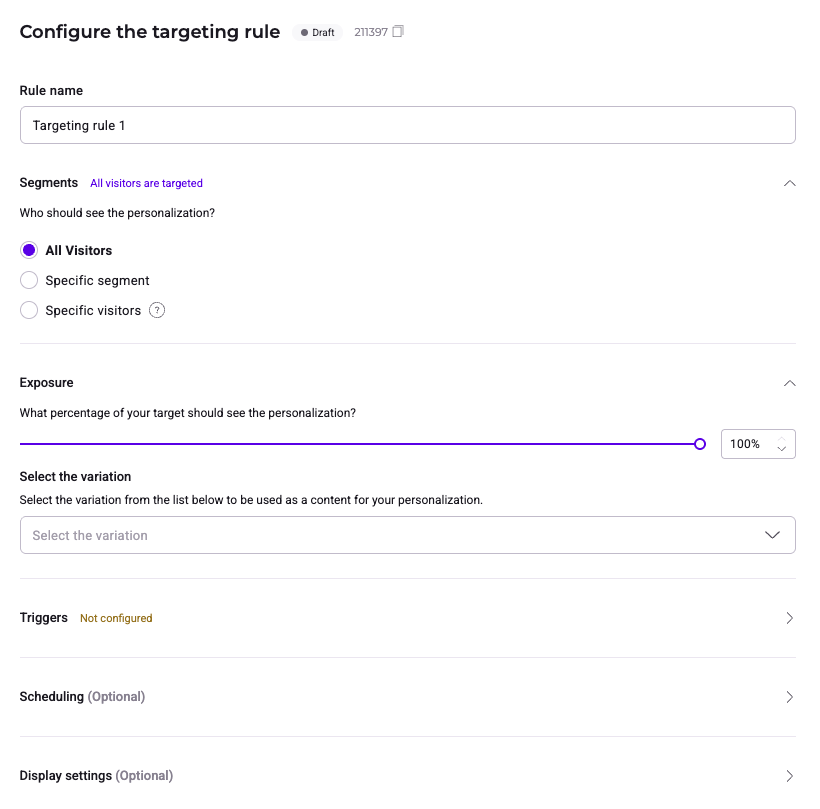
To configure targeting, click the **Targeting rules** tab. Click the text field under **Rule name** to rename the rule.
### Segments
Define which segments of visitors are eligible for this rule.
* **All visitors:** Targets every visitor on your site.
* **Specific segment:** Select an existing segment from the dropdown or click **Create a new segment**.
* **Specific visitors:** Define targeting conditions for specific visitors without having to create a segment.
### Exposure and content
* **Exposure:** Use the slider or enter a number in the text field to define the percentage of your target audience that sees the personalization.
* **Select the content:** Use the dropdown to choose which specific content (created in [Step 1](#step-1-add-content)) displays for this rule.
### Triggers
Expand the **Triggers** section to define when the personalization activates.
* **Reach a webpage:** Trigger on a specific URL, URL fragments, or the entire site.
* **When a specific trigger occurs:** Select an existing trigger or create a new one.
* **When a combination of triggers occurs:** Combine multiple triggers using **If any** (OR) or **If all** (AND) logic.
### Scheduling (Optional)
Expand the **Scheduling** section to set a time frame for your personalization by setting a **Start on** and **End on** date.
### Display settings (Optional)
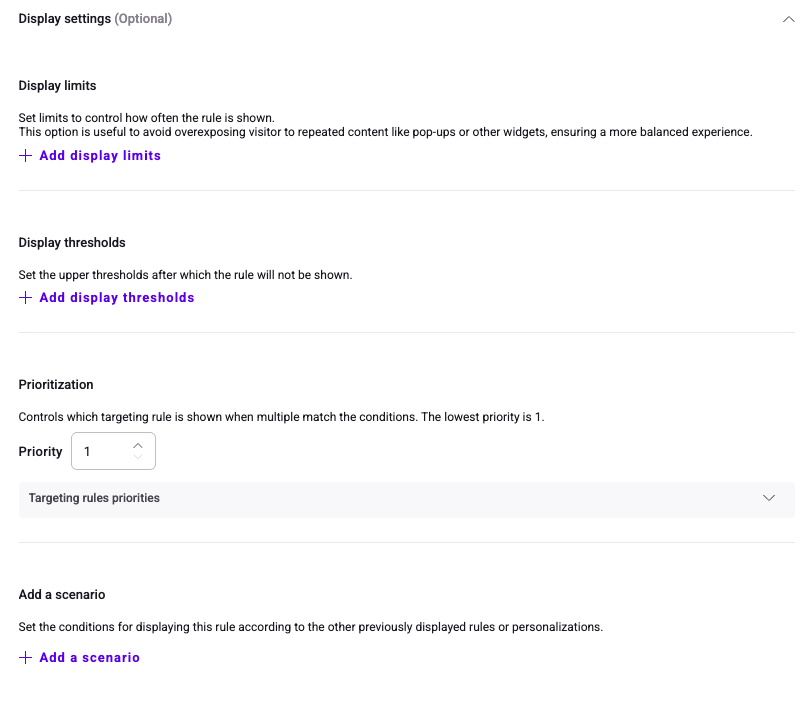
Expand **Display settings** to control frequency and capping.
#### Display limits
Restrict exposure frequency during the same visit, for the same visitor over time, or via consecutive display gaps.
#### Display thresholds
Pause the rule based on total exposed visitors, goal completion/failure, or specific conversion counts per visitor.
#### Prioritization
Use this setting to prioritize targeting rules across different personalization campaigns. If a visitor matches targeting conditions for rules in multiple campaigns, Kameleoon displays the rule with the highest priority value first.
Prioritization does not affect rules within the same campaign. Kameleoon evaluates rules within a single campaign based on their order in the list, from top to bottom.
To set the priority, enter a numeric value in the **Prioritization** field. A value of **1** represents the lowest priority.
### Scenarios
Scenarios decide **if** a visitor should see a personalization based on their exposure to **other** personalizations.
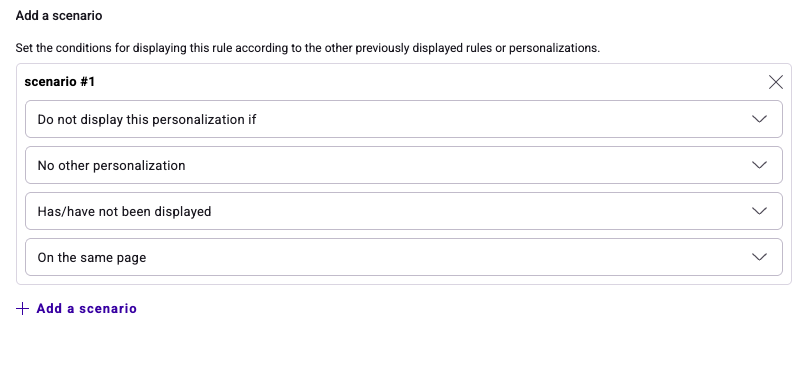
1. Click **Add a scenario**.
2. Configure the logic:
* **Action:** **Display** or **not display**.
* **Quantity (Scope):** **No other**, **At least one other**, or **All other**.
* **State:** **Displayed** or **Not displayed**.
* **Timeframe:** **On the same page**, **During the current visit**, etc.
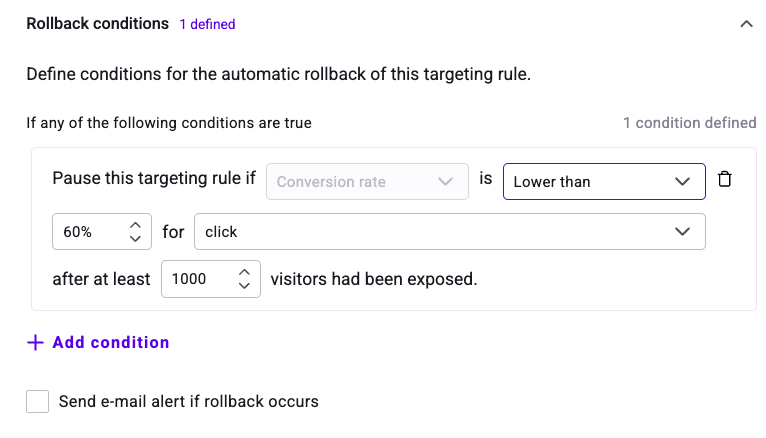
### Rollback conditions
Kameleoon can automatically pause a rule if it performs poorly.
1. Click **Rollback conditions** at the bottom of the rule configuration pane.
2. Click **Add a condition** and define the performance threshold (e.g., Conversion rate lower than 60%).
3. Set the **Minimum visitors** required before the rollback triggers.
***
## Step 3: Configure reporting
### Goals
1. Navigate to the **Goals** menu.
2. Select the goal you want to track. [Learn more about goals](../assets/goals/create-a-goal).
### Integrations
1. Click **Integrations**.
2. Select the third-party analytics tools (e.g., GA4, Mixpanel) where you want to send data.
***
## Step 4: Configure general settings (Optional)
* **Simulation URL:** Change the default preview URL.
* **Tags & Description:** Add organizational tags and internal notes.
* **Custom script:** Add JavaScript that executes independently of targeting conditions.
* **Advanced settings:** Configure a custom **Attribution window**.
***
## Launch
1. Click **Save** to save your work.
2. Click **Simulate** to preview behavior.
3. Click **Launch** in the header to go live.