> ## Documentation Index
> Fetch the complete documentation index at: https://docs.kameleoon.com/llms.txt
> Use this file to discover all available pages before exploring further.
# Manage personalizations
> Search, filter, sort, and take actions on personalizations from the dashboard, including pausing, duplicating, archiving, and bulk operations.
## Access the Personalizations Dashboard
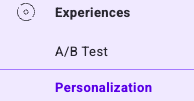
To access the Personalizations Dashboard in Kameleoon, click **Activate** > **Personalizations**.
## Dashboard structure
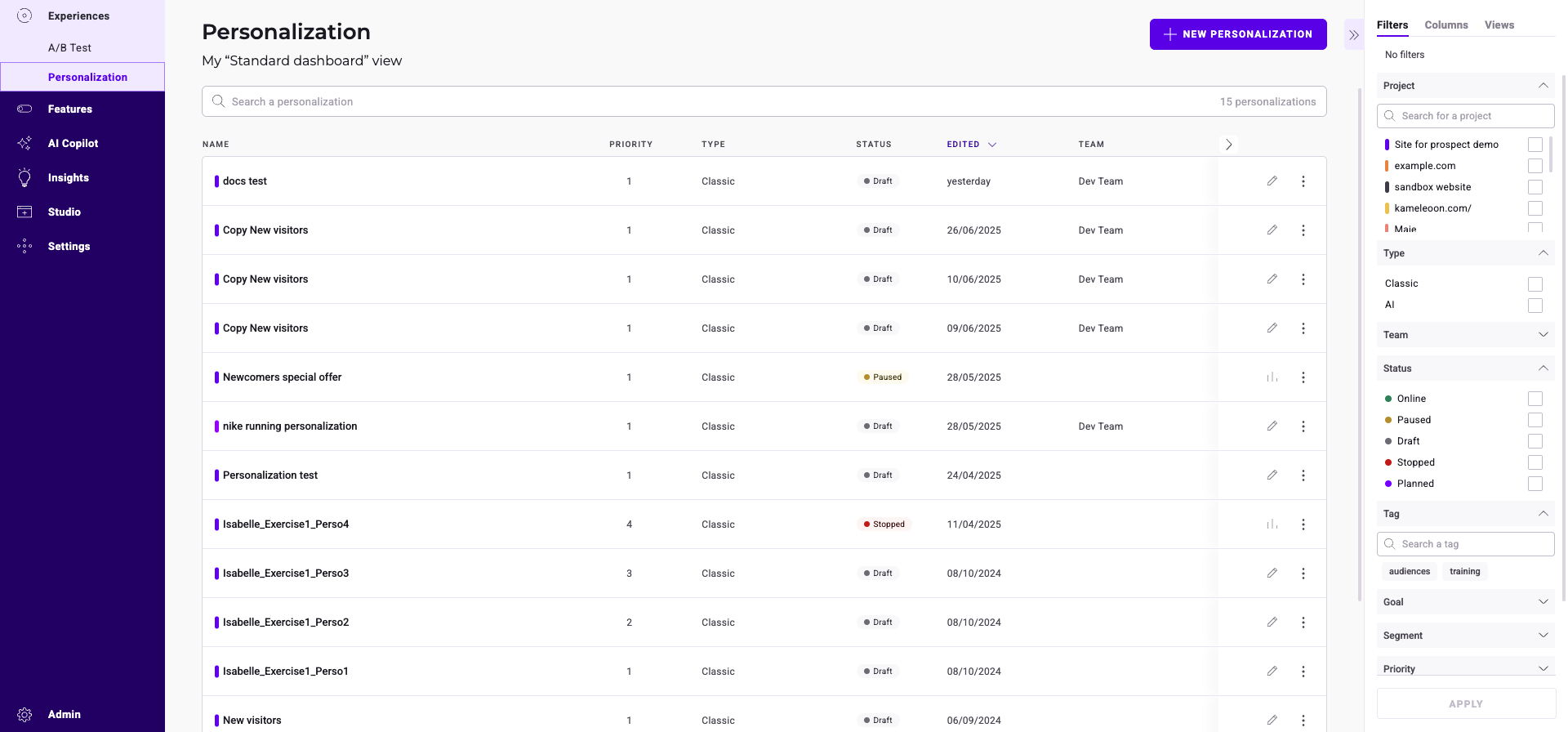
* **Header:** title of the current view; button to create a new personalization
* **Search bar:** search tool; number of personalizations currently displayed on the Dashboard
* **Cards and columns:** information about the personalizations; Results/Finalize buttons; sorting tool; three-dot menu (on the right) to apply actions to a personalization
* **Sidebar:** filters; columns; views; secondary actions linked to the three-dot menu
## Personalization information
A card represents each personalization. The card indicates the personalization's main information.
Hover over the tooltip to the right of a campaign's name to display additional information.
## Find a personalization
If you have created many personalizations, a search bar, a filtering tool, and a sorting tool help you find a particular personalization.
In the dashboard's right-hand panel, you can apply filters. To sort the data the dashboard displays, click the column headers.
### Filter
You can filter your personalizations according to several criteria:
* Website
* Type
* Status
* Tag
* Goal
* Segment
* Priority
* Author
* Key date
#### Website
You can filter your personalizations based on their associated websites.
Select the websites and click **Apply**.
#### Type
You can filter your personalizations based on their type:
* **Standard (BETA):** Personalizations created using the new personalization builder.
* **Legacy:** Personalizations created with the legacy editor.
* **AI:** Personalizations created using PBX.
Check the types and click **Apply**.
#### Status
You can filter your personalizations based on their status. For example, you can choose to display only online personalizations.
Check the status and click **Apply**.
#### Tag
You can filter your personalizations based on their associated tags.
Select the tags and click **Apply**.
#### Goal
You can filter your personalizations based on their goals.
Check the goals and click **Apply**.
#### Segment
You can filter your personalizations based on their associated segments.
Select the segments and click **Apply**.
#### Priority
You can filter your personalizations based on their priority.
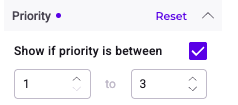
Select a rank of priority and click **Apply**.
#### Author
You can filter your personalizations based on their author.
Check the author and click **Apply**.
#### Key date
You can filter your personalizations based on a specific key date: last modification, last status change, launching date (Go-live), or creation date.
Select a date and click **Apply**.
### Sort
The sorting option lets you sort your personalizations according to several criteria:
* Name
* Type
* Edited
* Author
* Priority
* Created
* Launched
#### Name
Hover over **Name**, then click the chevron to sort personalizations in alphabetical (or reverse alphabetical) order.
#### Type
Hover over **Linked to**, then click the chevron to sort personalizations based on their type.
#### Edited
Hover over **Edited**, then click the chevron to sort personalizations from newest edition date to oldest or vice versa.
#### Author
Hover over **Author**, then click the chevron to sort personalizations based on the name of their author in alphabetical (or reverse alphabetical) order.
#### Priority
Hover over **Priority**, then click the chevron to sort personalizations from highest priority to lowest or vice versa.
#### Created
Hover over **Created**, then click the chevron to sort personalizations from newest creation date to oldest or vice versa.
#### Launch date
Hover over **Launched**, then click the chevron to sort personalizations from newest launch date to oldest or vice versa.
## Columns
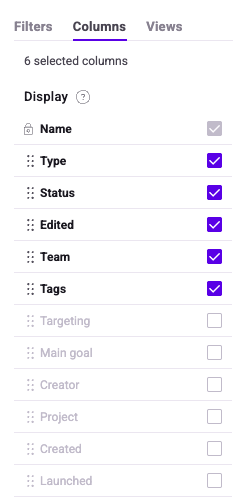
You can customize your dashboard's layout by adding, removing, or rearranging columns. In the sidebar's **Columns** tab, check a column to make it visible. To change the display order, drag and drop the cards and rearrange them as you like.
Click **Reset** to restore the original column configuration.
### Sort by
The sorting rule lets you choose the order in which the campaigns appear on your dashboard.
You can sort by:
* Name
* Type
* Status
* Last edition
* Team
* Tags
### Save as a View
You can [save these configurations as a **View**](../experimentation/web-experimentation/manage-your-web-experiments/manage-your-experiments#views) and re-apply it later. You can also make this view your dashboard's default view
## Actions on a personalization
Click the three-dots menu located to the right of each card to access a range of actions. The available actions depend on your personalization's status.

When your changes are complete, click **Validate**.
### Pause
You can pause an online personalization. Its status becomes **paused**.
A notification is displayed to confirm your action.
### Stop
You can stop an online personalization. Its status becomes **stopped**.
A notification is displayed to confirm your action.
Stopping a personalization allows you to delete it if necessary.
### Delete
Select a personalization, click the three-dots menu on the right side of the card, and click **Delete**.
You can only delete a stopped or draft personalization.
### Edit
You can edit your personalization. Kameleoon will redirect you to the personalization creation page.
### Rename
You can rename an existing personalization.
The **Rename** sidebar opens. Click **Save** to validate the renaming of the personalization.
### Manage tags
You can manage the tags associated with a personalization.
The **Manage tags** sidebar opens.
Tags associated with your personalization are highlighted in the list and on the personalization card. You can associate and create other tags, too.
To validate your choices, click **Save**.
### Duplicate
You can duplicate an existing personalization. This option saves you time if you want to create several similar personalizations.
The **Duplicate** sidebar opens. To validate a new personalization's creation, click **Save**. You can find the duplicated personalization in the dashboard.
### Archive
You can perform this action only on Draft or Stopped personalizations.
Once you've archived a personalization, it can only be retrieved from [the **Archived personalizations** view](./manage-personalizations#archived-personalizations).
### Multiple selection
You can select multiple personalizations at the same time and apply a common action to them. For example, it is possible to archive or export several personalizations at once.
Select a personalization, click the three-dots menu on the card's right side, and click **Select**.
The personalizations become selectable and the **Grouped actions** sidebar opens.
Several actions are possible:
* Select all/Unselect all
* Manage tags
* Pause *(Only available for Online personalizations)*
* Stop *(Only available for Online *personalizations*)*
* Archive *(Only available for Draft and Stopped personalizations)*
* Delete *(Only available for Draft and Stopped personalizations)*
* Export
## Views
Create a view to save your filters and find it in the **Views** tab.
For example, you can create a view displaying only classic, online, or planned personalizations.
Name your view and click **Save as view**.
Kameleoon generates a unique URL with custom parameters when you create a view. You can share this URL with other team members. Click **Copy link to this filtered dashboard** to copy the URL.
Set a view as the default view to see it as soon as the dashboard loads.
You can find all of your views in the **Views** tab. To set a view as default, click its **three-dots menu** > **Default**.
Clicking on the subtitle of your page gives you access to the filters applied in the sidebar. For example, you can click on **My "Classic online & planned" view** to display the view's filters in the sidebar.
### Archived personalizations
Kameleoon offers a view of your archived personalizations. The dashboard displays only archived campaigns in this view. You can view their details and restore them if you wish.
By clicking the three-dots menu, you can simulate or permanently delete the archived personalization, and access its results in the case of a stopped personalization.