> ## Documentation Index
> Fetch the complete documentation index at: https://docs.kameleoon.com/llms.txt
> Use this file to discover all available pages before exploring further.
# Consent management
> Configure Kameleoon's consent management policy to comply with GDPR and CCPA, including behavior settings for when consent is unknown or refused.

Processing personal data is generally prohibited, unless it is expressly allowed by law, or the data subject has consented to the processing: this is legal consent.
Kameleoon provides flexible options to define the level of consent management required by your website, in compliance with the latest privacy legislation updates ([GDPR](https://gdpr-info.eu/), [CCPA](https://oag.ca.gov/privacy/ccpa)).
## How to choose your consent management policy
### For web experiments / feature experiments / hybrid experiments
The level of consent required depends on the applicable legislation. You should have either the **CONSENT NOT REQUIRED** or **CONSENT REQUIRED** option enabled.
Kameleoon complies with applicable regulations (as outlined in the GDPR guidelines available at [https://gdpr.eu/cookies](https://gdpr.eu/cookies)) and we recommend the following approach:
* Targeted or progressive delivery rules primarily serve purposes related to release management and technical functionality. As a result, we recommend they be exempt from Consent Management and that Kameleoon should fall under the category of “Strictly Necessary Cookies”, meaning that Kameleoon will trigger these types of rules even when no consent has been collected. Kameleoon ensures that the data collected for these feature flags is limited to technical information, including exposure events such as rule and variation names and goal conversion events. It is also important to note that when using Kameleoon SDKs, a first-party cookie may be stored, containing a randomly assigned ID. This ID is used to uniquely identify a visitor’s browser or device. If you prefer not to use it, our SDK lets you set your own ID. However, it is your responsibility to ensure that this ID remains consistent, as it will be used to display the same variation of a feature flag throughout the user’s session on your web app.
* For feature experiments, Kameleoon will display a variation of an experiment, but no data tracking will occur until consent is given, ensuring complete privacy and a non-intrusive user-experience. However, if the user has not provided consent, they may see different variations of a given feature flag across multiple pages.
These guidelines serve as recommendations, but we strongly advise consulting your Data Protection Officer (DPO), as the final decision regarding GDPR compliance rests with the customer’s DPO, who is accountable for ensuring regulatory adherence.
### For web personalizations
You should always enable the **CONSENT REQUIRED** option.
**However, these choices depend on your use of Kameleoon. Your Customer Success Manager is there to help you choose the policy that best suits your website.**
### For product recommendations
By default, product recommendations share the same consent settings as your A/B tests and personalizations. To configure a separate consent policy for product recommendations, contact your Customer Success Manager (CSM). For more information, see [Consent management](/user-manual/recommendations-and-merchandising/recommendations/configure-and-add-a-recommendation-block#consent-management) in the product recommendations documentation.
**However, these choices depend on your use of Kameleoon. Your Customer Success Manager is there to help you choose the policy that best suits your website.**
## How to define your consent management policy
The consent management policy settings are accessible in the Kameleoon app's **Admin** > **Projects** menu.
You can set up the fields relating to consent management in each of the two blocks (**Experiment** and **Personalization**). You can define the settings separately for each of the Experiment (web or feature experiments) and Personalization options.

Use the three dropdown options to define the following:
* The consent management policy.
* The behavior of Kameleoon when consent is unknown (only required for web experiments and personalizations).
* The behavior of Kameleoon on opt-out (only required for web experiments and personalizations).
### Consent policy
*Whether consent is required*

#### Consent not required
Select this option if you are not subject to the GDPR or similar privacy regulations. If you select this option, all experiments will run and data will be collected without consent.
#### Consent required
Select this option if you are subject to GDPR or similar privacy regulations.
If you choose this option, obtaining visitor consent before initiating any data collection is mandatory. Kameleoon provides JavaScript methods, namely [`enableLegalConsent()`](../../developer-docs/apis/activation-api-js/api-reference/api-reference#enablelegalconsent)' and [`disableLegalConsent()`](../../developer-docs/apis/activation-api-js/api-reference/api-reference#disablelegalconsent), as well as the [`setLegalConsent()`](../../developer-docs/sdks/web-sdks/js-sdk#setlegalconsent) method. These methods should be utilized after obtaining legal consent from the visitor to activate or deactivate Kameleoon on both the front-end and server-side.
Kameleoon delays tracking requests for data associated with experiment rules until explicit consent is obtained from the visitor, provided that the consent is given during the current session. This approach ensures that no data tracking occurs for experiments until the visitor has given their consent. For feature flags, delayed data will be sent to Kameleoon with the next following request when calling one of these methods: `isFeatureFlagActive()`, `getFeatureVariationKey()`, `getFeatureVariable()`, or `trackConversion()`. You can also trigger immediate data transmission by calling the `flush()` method.
The PHP SDK does not support delayed requests due to technical constraints: the PHP SDK does not persist between requests. Each request creates a new SDK instance that destroys itself as soon as it receives a response, preventing Kameleoon from keeping requests that have been stored before consent is provided in memory.
#### Important technical considerations
* When using Kameleoon in [Hybrid mode](../../developer-docs/feature-experimentation/get-started/hybrid-experimentation), ensure that both the JavaScript Activation API and SDK methods are called after collecting consent to ensure Kameleoon collects user events that come from both the Kameleoon Application File and SDK.
* As Kameleoon is restricted from storing the `visitorCode` key in a cookie, it is crucial to ensure that the `visitorCode` key the SDK generates for all first requests is shared with the Kameleoon engine running client-side. Sharing with the client-side Kameleoon engine is necessary to ensure proper tracking for new visitors for whom consent has not yet been obtained. We recommend incorporating the following code into the page's source code when the user is bucketed with a variant of the experiment. This code snippet facilitates the passing of the `visitorCode` key to the Kameleoon engine, enabling accurate tracking for new visitors once consent is provided client-side. If this step is not implemented, the Kameleoon engine will generate a new `visitorCode`, potentially resulting in a new variant being provided upon the second page load.
```javascript theme={null}
window.kameleoonQueue.push({
level: "IMMEDIATE",
command: () => Kameleoon.API.Visitor.setVisitorCode("") // Replace with the visitorCode generated by the Kameleoon SDK.
});
```
Consent information is in sync between the Kameleoon Engine (application file kameleoon.js) and the JS SDK. This synchronization means that once consent is set in either the Engine or the SDK, it's automatically set for both. This feature eliminates the need for manual consent handling and ensures that SDKs operate in compliance with user preferences.
### Behavior when consent is unknown
**This section only applies to web experiments and personalizations.**

*Kameleoon's behavior when consent has not yet been granted*
For web experiments and personalizations, you can choose from three options.
#### Completely block Kameleoon
Kameleoon will not run at all, and no data will be collected or sent to an analytics platform until consent has been given.
#### Partially block Kameleoon
Kameleoon will only trigger web experiments with a **Technical** tag: no data will be collected or sent to an analytics platform until consent has been given.
**How to tag a campaign as Technical?**
If the second option is selected, the **Technical** tag must be added to each web experiment you would like to run. There are several possibilities for this:
When creating an experiment or a personalization, associate the **Technical** tag with it.
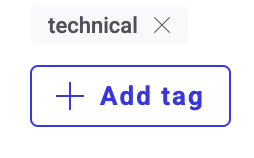
For existing experiments and personalizations, navigate to the Experiments dashboard, and click the **three-dots** menu on its card > **Manage tags**. In the field that opens on the right, enter **Technical**.
#### Do not block Kameleoon (don’t write/send anything)
Experiments will be run, but no data will be collected without consent.
### Behavior on opt-out
**This section only applies to web experiments and personalizations.**

*Kameleoon's behavior when the visitor refuses consent*
For web experiments and personalizations, you can choose between two options.
#### Partially block Kameleoon
The visitor sees only one variation of the campaigns tagged as **Technical**: no data is collected.
#### Completely block Kameleoon
In this case, no campaign is run, and no data is collected by Kameleoon.