> ## Documentation Index
> Fetch the complete documentation index at: https://docs.kameleoon.com/llms.txt
> Use this file to discover all available pages before exploring further.
# Using Snowflake as a source — pulling events for reporting
> Create Kameleoon goals that pull conversion data from Snowflake on a scheduled basis to measure experiment results using your warehouse data.
Once you've [activated Snowflake for a specific project](./setting-up-snowflake), you can use it to create goals in Kameleoon. These goals are designed to use conversion data from your Snowflake database. Here's how to create a goal using Snowflake:
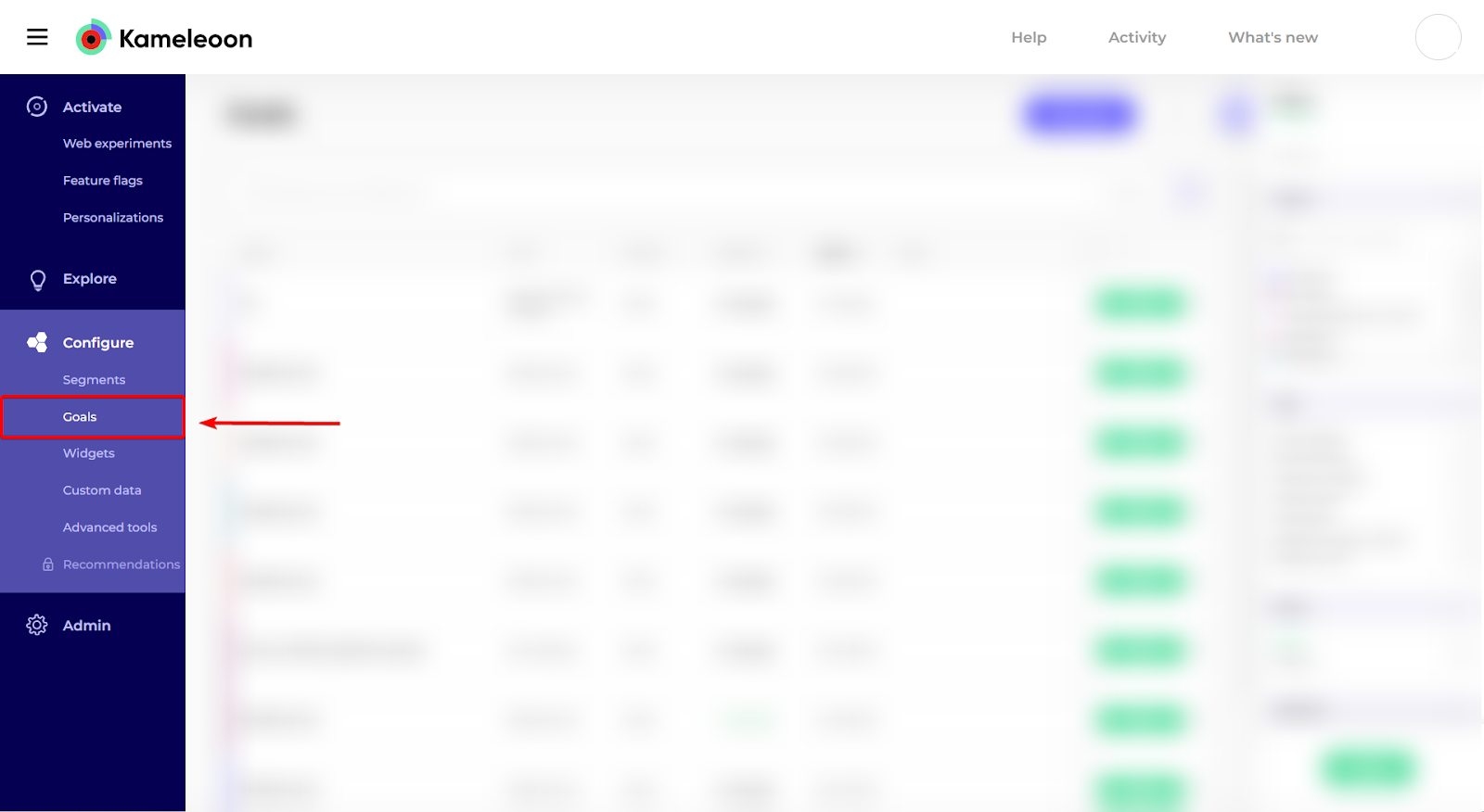
1. In Kameleoon, click **Configure** > **Goals**.
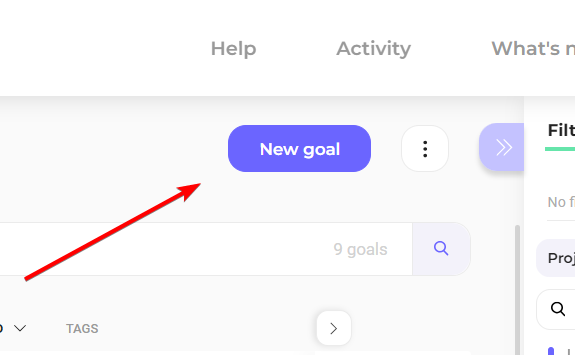
2. Click **New goal**.

3. In the pop-in, provide the following details:
* **Name**: Give your goal a descriptive name to identify its purpose.
* **Type**: Select **Data Warehouse Tracking**.
* **Data Warehouse**: Choose **Snowflake**.
* **Project**: Select your desired projects. Only projects with Snowflake activated are listed.
4. Click **Next** to proceed.
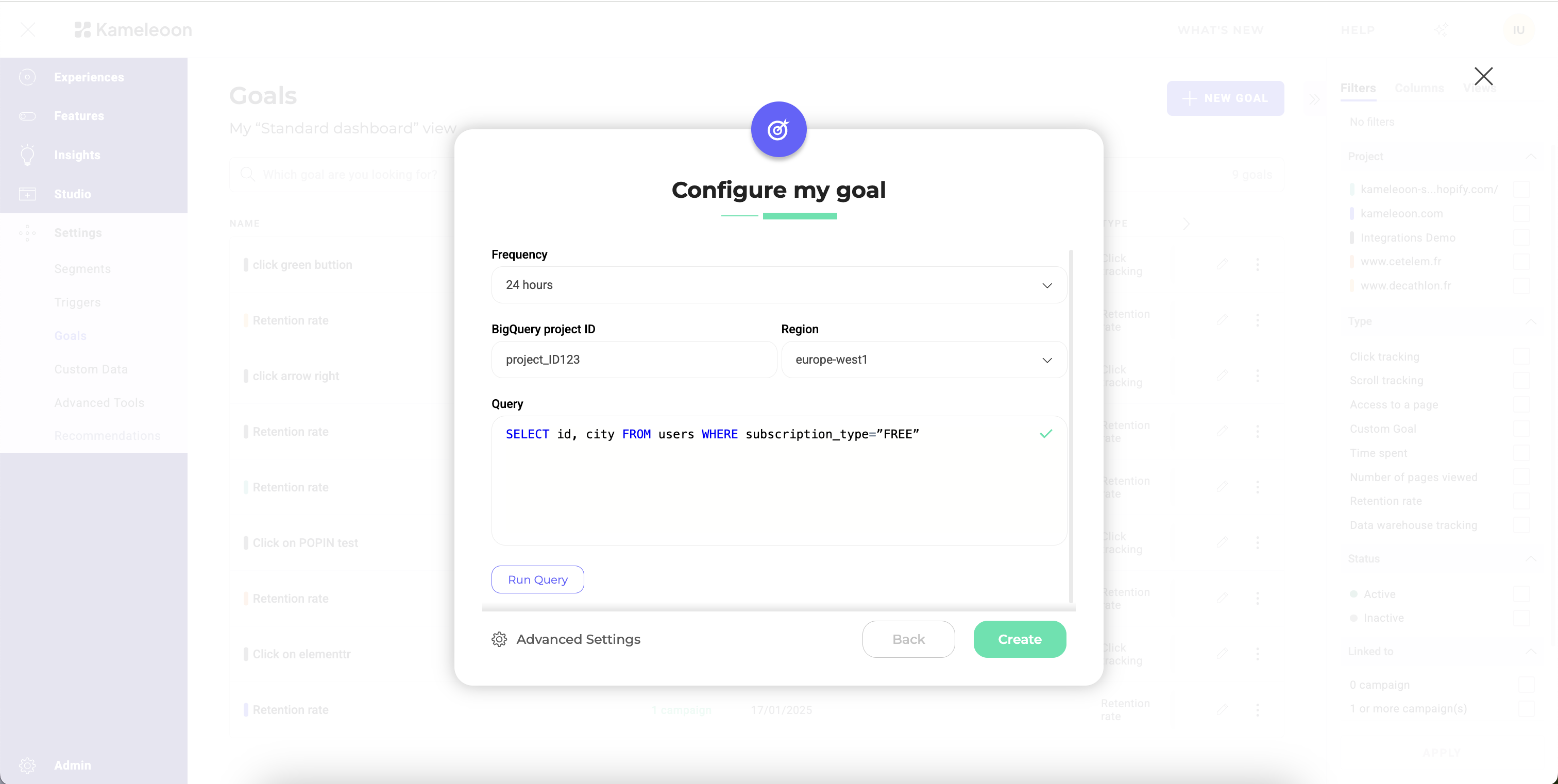
5. In the next window, you must provide additional details:
* **Frequency**: Define how often you want Kameleoon to update the goal data.
* **Snowflake project ID**: Enter your Snowflake project ID to direct data to the correct location.
* **Region**: Select the appropriate region from the list.
* **Query**: Define the SQL query to retrieve the necessary data from Snowflake.
6. Click **Validate** to save your goal configuration.
## Query format
The query must adhere to a specific format:
`SELECT visitor_id, conversion_timestamp FROM your_events_table`
Where `visitor_id` is the column representing the unique ID of your visitors, and `conversion_timestamp` is a column representing the exact time at which the conversion took place. In Snowflake, the `conversion_timestamp` column must be a Timestamp type column.
If you want to associate a revenue to each conversion, the query should adhere to an alternate format:
`SELECT visitor_id, conversion_timestamp, revenue FROM your_events_table`
Where `revenue` is a column containing the revenue for each conversion.
For more complex queries you can adhere to this format by formulating a sub-query as such:
```sql theme={null}
SELECT visitor_id, conversion_timestamp, revenue FROM ( {your_original_query} ) AS subquery
```
Your query will run every hour in your Snowflake warehouse, with an added `WITH` clause that filters by timestamps. Keep in mind that although conversions are collected hourly, they are only merged into your experiment results once per day.
## Run your query before ingestion
Before saving your ingestion task, you can test your query directly in Kameleoon. Testing allows you to:
* Verify the connection in real time.
* Confirm your credentials and access rights are correct, which helps detect issues immediately, without having to wait for the first data import.
* Validate your data's structure and accessibility.
You can run a simple query to ensure Kameleoon can access the right databases and tables. You can also download a small sample of the dataset to confirm that the schema, permissions, and contents match your expectations.
## Using your Snowflake goal
After activating Snowflake for a project, you can use it to create goals in Kameleoon and pull conversion data directly from your Snowflake database. Once a goal is created, you can add it to your Kameleoon campaigns. When configuring an experiment or personalization, you can select this goal in the **Configuration** tab to track and analyze conversions from Snowflake.
To learn how to set up a goal in an experiment, [please refer to this article](../../../assets/goals/set-up-a-goal-campaign).