> ## Documentation Index
> Fetch the complete documentation index at: https://docs.kameleoon.com/llms.txt
> Use this file to discover all available pages before exploring further.
# Shopify checkout conversions
> Learn how to track Shopify checkout conversions with Kameleoon using Shopify's checkout extensibility and custom pixels.
Use Kameleoon to track Shopify checkout conversions. This integration helps you optimize your store's performance by providing deeper insight into customer purchasing behaviors.
## Prerequisites
Before you start, ensure you have:
* A Kameleoon account with an active project.
* Your Kameleoon project's Sitecode.
* The goal ID you want to track in Kameleoon.
## Connect Shopify checkout extensibility to Kameleoon
Shopify will end support for its [`checkout.liquid` layout](https://shopify.dev/docs/themes/architecture/layouts/checkout-liquid) on information, shipping, and payment checkout pages on August 13, 2024. Furthermore, on August 28, 2025, Shopify will stop supporting `checkout.liquid` on "Thank You" and order status pages. At that time, Shopify will also disable apps using script tags and additional scripts on post-purchase and order status pages. Therefore, Shopify Plus clients using `checkout.liquid` for checkout flow customizations must upgrade to the Shopify checkout extensibility platform.
See Shopify's [checkout extensibility upgrade documentation](https://help.shopify.com/en/manual/checkout-settings/checkout-extensibility/checkout-upgrade) for upgrade steps and prerequisites.
When you move checkout flow customizations to checkout extensibility, you must create a custom pixel to track Shopify events and send data to Kameleoon. The possible Shopify events [are documented here](https://shopify.dev/docs/api/web-pixels-api/standard-events). Shopify exposes cart and transaction details in the `event.data.checkout` object and transaction revenue in `event.data.checkout.totalPrice.amount`. For multi-currency stores, convert this value to a single functional currency before sending it to Kameleoon.
For multi-currency Shopify stores, do not send `event.data.checkout.totalPrice.amount` directly to Kameleoon unless you first convert the value to your store's functional currency. Otherwise, revenue reporting may be inaccurate.
For more information on handling revenue across different currencies, see Kameleoon's documentation [on currencies](../../../assets/goals/revenue-goal.mdx#currencies). If Shopify does not provide a default base-currency variable, use the Kameleoon webservice endpoint described in that article to convert revenue values.
### Create a custom pixel
Before publishing your draft checkout profile, follow these steps to create a custom pixel that sends customer data from Shopify to Kameleoon:
1. Click **Settings** in the Shopify admin.
2. Click **Customer events** in the Settings panel, then click **Add custom pixel**.
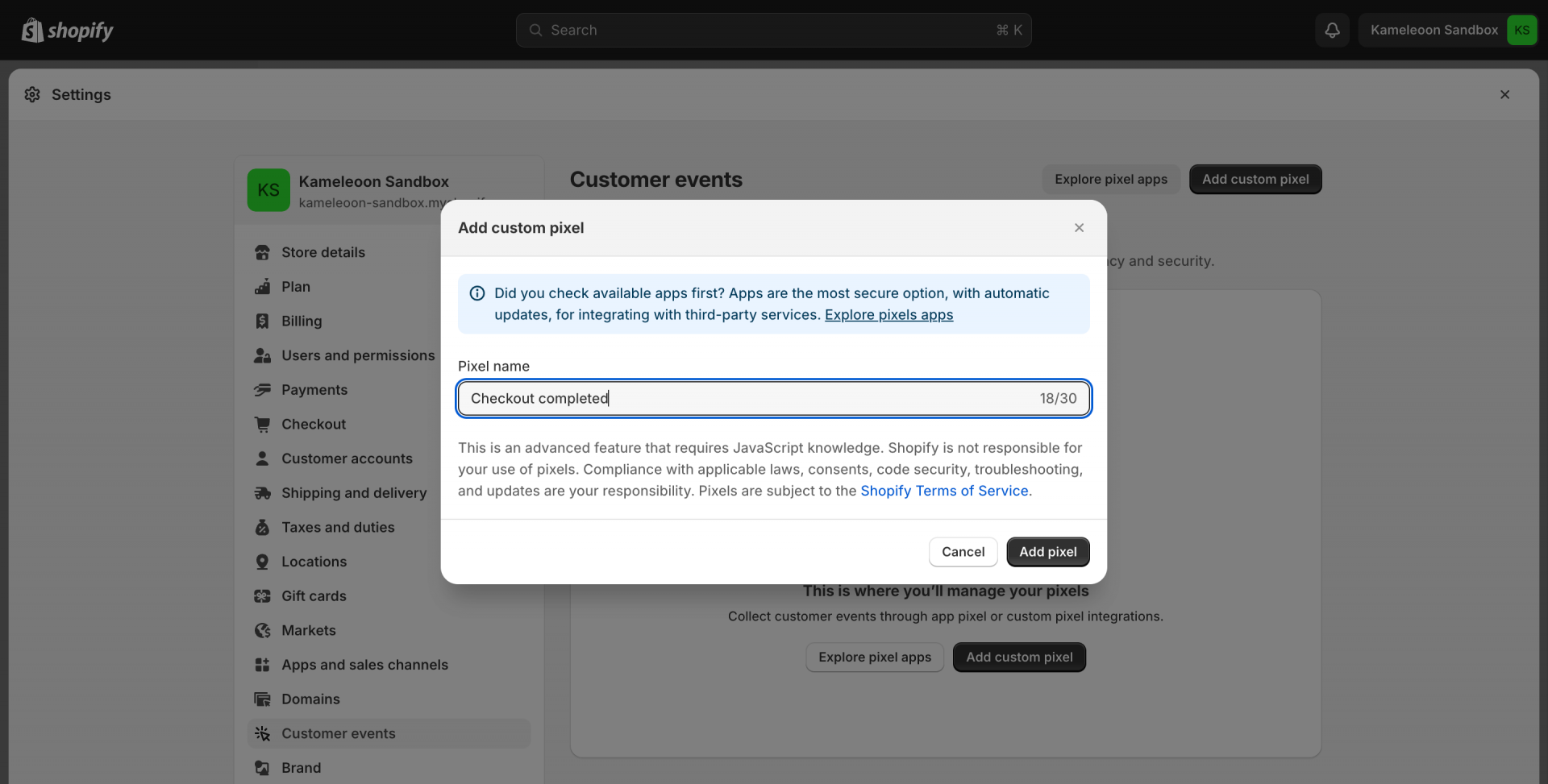
3. Use [this code](https://github.com/Kameleoon/custom-analytics-integrations/blob/main/shopify/shopify-custom-pixel.js) for your pixel. Ensure you replace placeholder text like `YOUR_SITE_CODE` and `YOUR_GOAL_ID` with the actual values from your Kameleoon project.
The domain for snippet scripts varies between projects. Projects are hosted on either `kameleoon.eu` or `kameleoon.io`. Use the snippet displayed in your project or account.
To track events on other checkout pages (such as the cart page), subscribe to additional events like `cart_viewed` by adding the following code to the pixel:
`analytics.subscribe('cart_viewed', event => { //Your code here });`
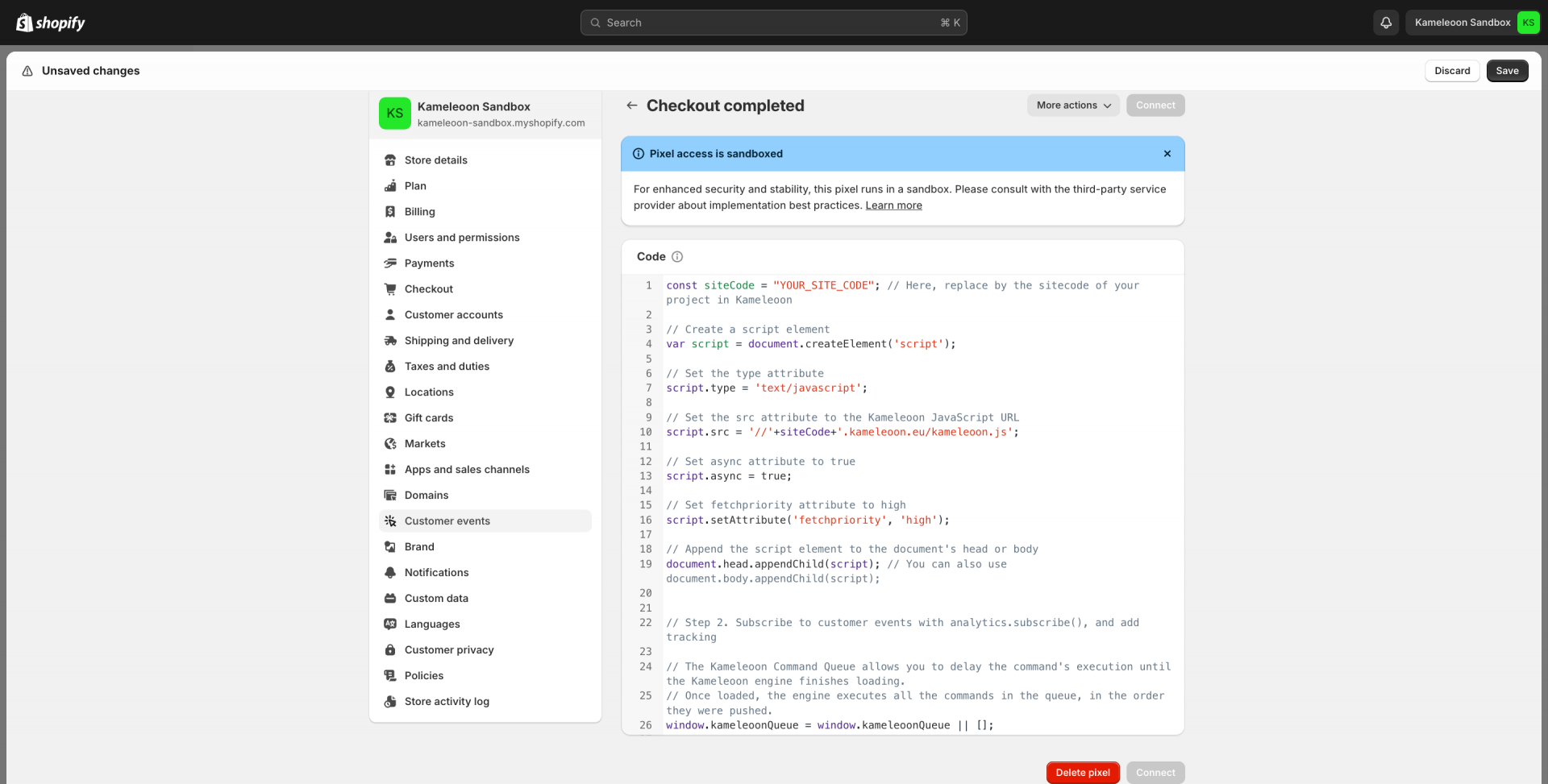
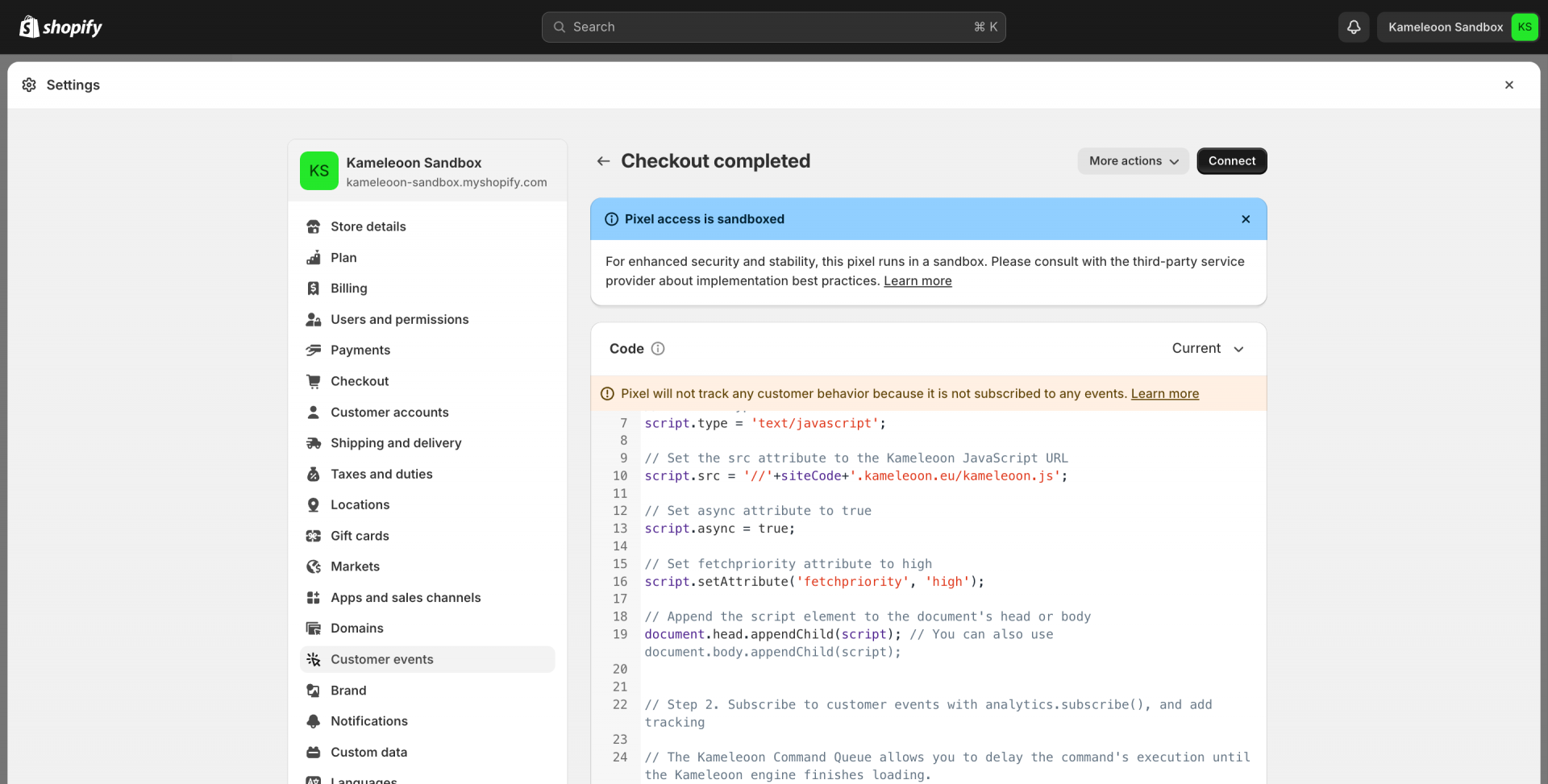
4. Click **Save** > **Connect**.
## Check if goals trigger on checkout
Because Shopify's custom pixels operate within [a sandbox environment](https://help.shopify.com/en/manual/promoting-marketing/pixels/overview#sandbox), the Kameleoon x Shopify integration currently only tracks Shopify Events. You cannot use the Graphic or Code editor or the simulation panel in this environment.
To verify that pixel tracking works for Kameleoon goals triggered during checkout, use the simulation panel on your main domain or the Activation API. Run the following code snippet in your browser's developer console:
`Kameleoon.API.CurrentVisit.conversions["GOAL_ID"];`
This snippet helps you confirm that pixel tracking functions as expected for specific goals triggered during the checkout process.
Kameleoon is actively exploring solutions with Shopify to enable A/B testing in this context. Until then, you cannot use the graphic or code editor, including the simulation panel, on Shopify checkout pages.