> ## Documentation Index
> Fetch the complete documentation index at: https://docs.kameleoon.com/llms.txt
> Use this file to discover all available pages before exploring further.
# Didomi
> Integrate Didomi CMP with Kameleoon to automatically manage visitor consent and run A/B tests on different versions of your consent notice.
Didomi builds technology that lets organizations place customer consent at the core of their strategy by offering a powerful Consent Management Platform (CMP) that can be deployed on websites or mobile apps.
Kameleoon reads consent policies within the Didomi platform, so you can run A/B tests and personalize the performance of a configuration variant (for example, notice format, content, banner vs. pop-in).
**Key benefits:**
* Automatically manage user consent through Didomi CMP with no additional setup needed.
* Deploy different variants of the Didomi tag configuration through Kameleoon and automatically measure the difference in consent rates.
[Kameleoon is also IAB TCF compliant](./iab-transparency-and-consent-framework)
## Integration with Didomi CMP
Kameleoon provides custom integration with Didomi CMP. Kameleoon automatically reads the consent policy within the Didomi platform for both our experimentation and personalization modules.
With our integration, you can also run A/B tests to test a variant's performance (for example, notice format, content, and banner versus pop-in).
## Enable Didomi in Kameleoon
First, you need to add Kameleoon as a vendor in Didomi's CMP.
### Configure your Didomi notice
[Please follow this documentation provided by Didomi](https://developers.didomi.io/cmp/web-sdk/third-parties/direct-integrations/kameleoon)
### Configure Didomi in Kameleoon
The Kameleoon snippet needs to be triggered independently of Didomi and added directly to the source code of the page to prevent flickering in your experiments and personalizations.
1. Log in to your Kameleoon account.
2. Click **Admin** > **Projects**.
3. Navigate to your project's card and click **Configurations**.
4. Click **General**.

#### Global custom script

The **Global custom script** insert lets you link Kameleoon to Didomi. Any JavaScript code you add in this insert will be executed every time the page is loaded. This feature is often used to add a complex tracking code or integration to other solutions.
To activate the bridge between Kameleoon and Didomi, copy and paste the code below into the **Global script section**:
```javascript theme={null}
window.didomiOnReady = window.didomiOnReady || [];
window.didomiOnReady.push(function (Didomi) {
if (Didomi.isConsentRequired()) {
Didomi.getObservableOnUserConsentStatusForVendor('c:kameleoon-experiment')
.subscribe(function (consentStatusForVendor) {
if (consentStatusForVendor === true) {
Kameleoon.API.Core.enableLegalConsent("AB_TESTING");
console.log("Enabling A/B Testing");
} else if (consentStatusForVendor === false) {
Kameleoon.API.Core.disableLegalConsent("AB_TESTING");
console.log("Disabling A/B Testing");
}
});
Didomi.getObservableOnUserConsentStatusForVendor('c:kameleoon-personalization')
.subscribe(function (consentStatusForVendor) {
if (consentStatusForVendor === true) {
Kameleoon.API.Core.enableLegalConsent("PERSONALIZATION");
console.log("Enabling Personalization");
} else if (consentStatusForVendor === false) {
Kameleoon.API.Core.disableLegalConsent("PERSONALIZATION");
console.log("Disabling Personalization");
}
});
} else {
Kameleoon.API.Core.enableLegalConsent();
}
});
```
With this code, any time a visitor activates or disables Kameleoon's consent from the Didomi pop-in, Kameleoon will be notified, and activate or disable the Experiment or Personalization module (depending on whether consent is granted).
Click **Validate** to apply the changes to your configuration.
#### Consent policy
The last step is setting up your project's consent management policy to **Consent required** for both Experiment and Personalization. Read [this documentation](../../../project-management/consent-management-policy) to find out more.

To set up the consent management policy on your project:
1. Unfold the **Experiment** and/or **Personalization** section of your configuration.
2. Select **Consent required** in the dropdown.
3. Click **Validate**.
Kameleoon will now collect and store data based on the consent provided by the users from Didomi CMP.
## A/B test different version of your consent notice
With our integration with Didomi, you can run different versions of your consent notice by creating an experiment through Kameleoon.
Follow [these guidelines](../../../project-management/consent-management-policy). You'll have to run a technical experiment. This experiment lets us run the experiment while consent has not yet been provided (which is what we need if we want to A/B test several versions of our consent pop-in).
Note that you can't analyze an experiment's results in our reporting tool as no data will be collected. However, Kameleoon will still send analytics data to your default analytics platform.
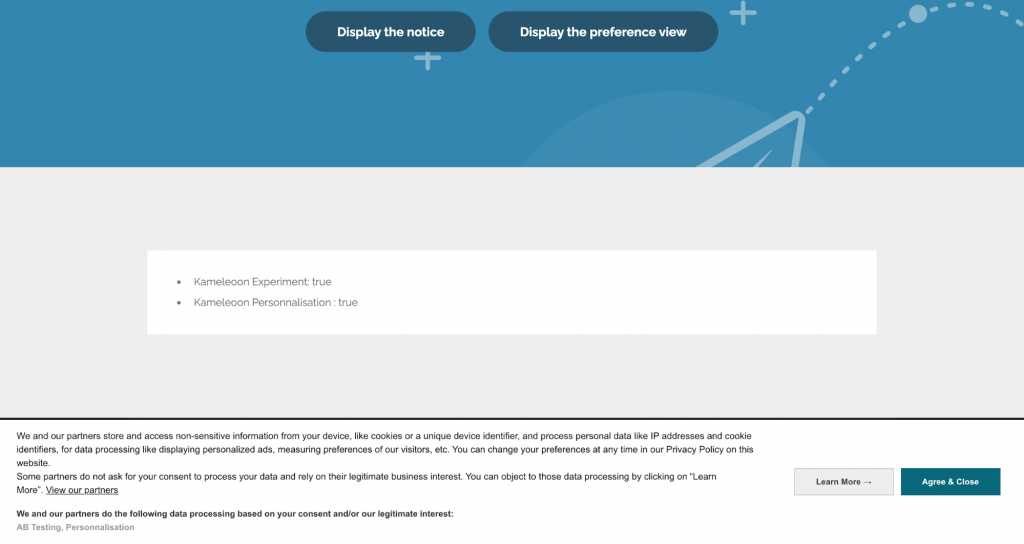
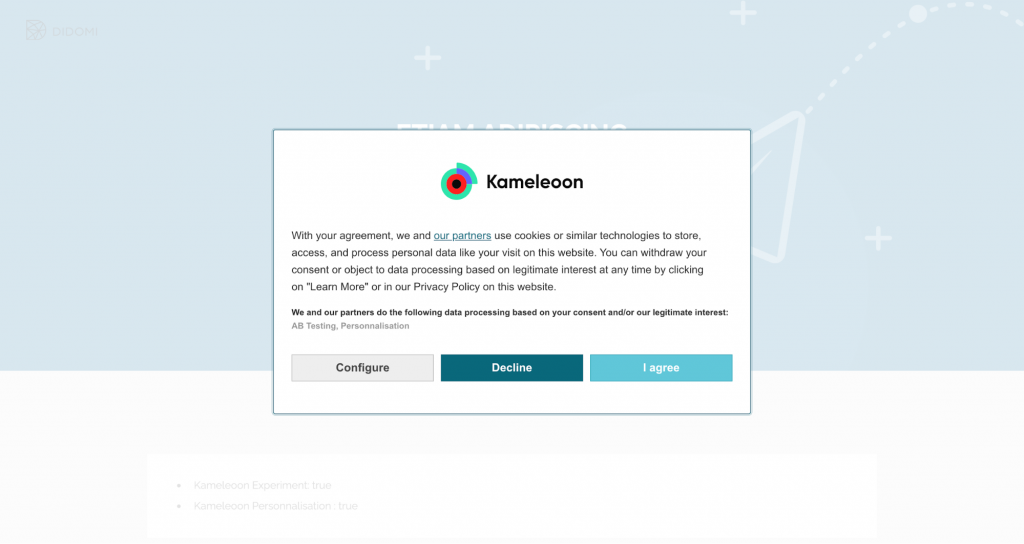
Below, you'll find an example of an experiment that A/B tests two versions of the consent notice: pop-in versus banner.
### Pop-in notice version

### Banner notice version