> ## Documentation Index
> Fetch the complete documentation index at: https://docs.kameleoon.com/llms.txt
> Use this file to discover all available pages before exploring further.
# Google Analytics 4 Audiences
> Sync Google Analytics 4 audiences to Kameleoon to target visitors based on GA4 segments in your experiments and personalizations.
This article outlines how to create a bridge between Kameleoon and Google Analytics 4 (GA4) to identify visitors within GA4 audiences and target them accordingly.
## Prerequisites
For this integration to work, you must send the following information to your Customer Success Manager, as it is required to set up the bridge in your Kameleoon account:
* The credentials of a service account in a JSON format. **Please use a compression tool to secure this file with a password then send the package separately from its password.**
* Your project's [property ID](https://developers.google.com/analytics/devguides/reporting/data/v1/property-id).
* You Kameleoon project's [sitecode](../../../faq#how-do-i-find-my-sitecode).
## Step 1: Set up the authentication through a service level account
To grant a technical user account access to a Google Analytics account and privileges to retrieve data through the available APIs, the following are required:
* An email account with admin access to Google Analytics that will be used to generate a project and service account.
* Access to all required Audiences (in GA4) for this account.
### Create a project in google Cloud Console
You must create a new project in Google Cloud console to activate APIs and create tokens.
Go to [this](https://console.cloud.google.com/home) URL. Log in an admin email account and create a new project.
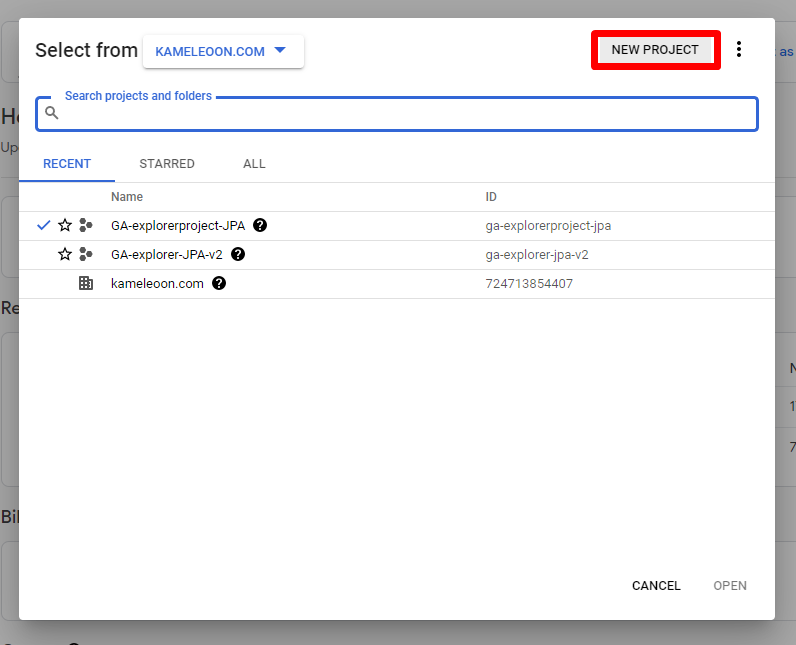
Name the project and choose your organization and location.
### Activate appropriate APIs
To use any API with a particular email address, it must be activated in Google Cloud Console. First, click **Library**.
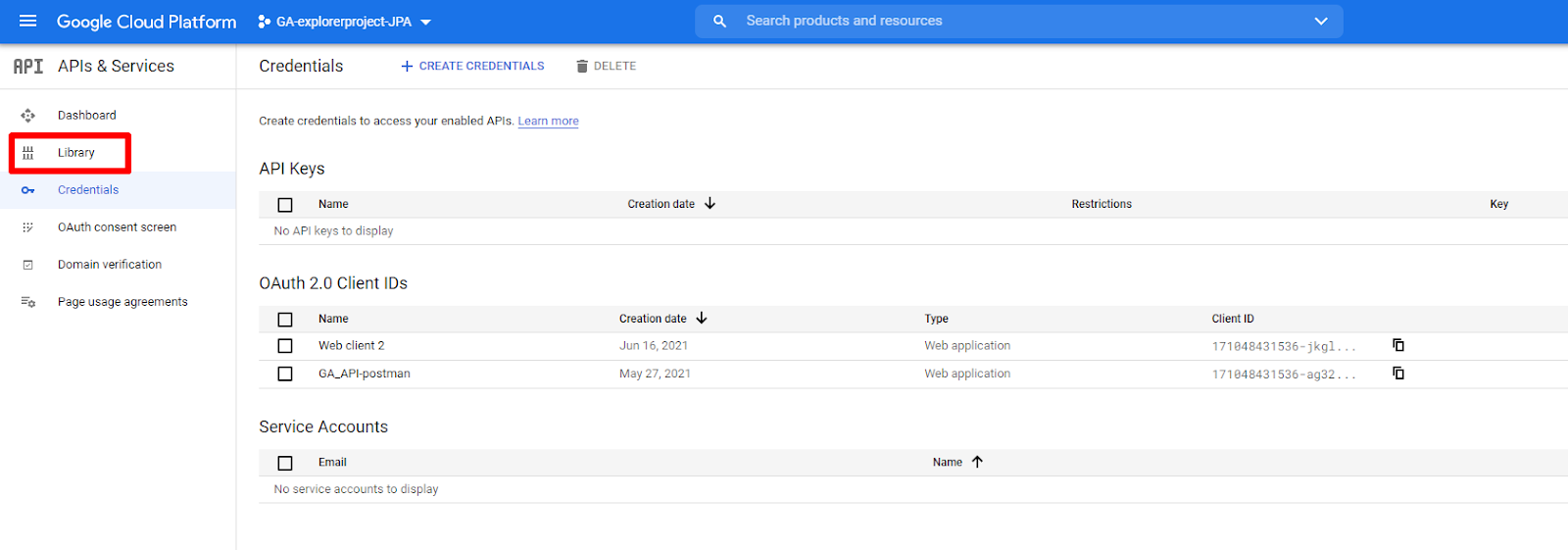
Search for these three APIs in the search bar and activate them:
* Google Analytics Reporting API
* Google Analytics Data API
* Google Analytics API
### Create service level account
To fully automate GA4 reporting API requests, you must create a service level account that will bypass the need for an authentication callback.
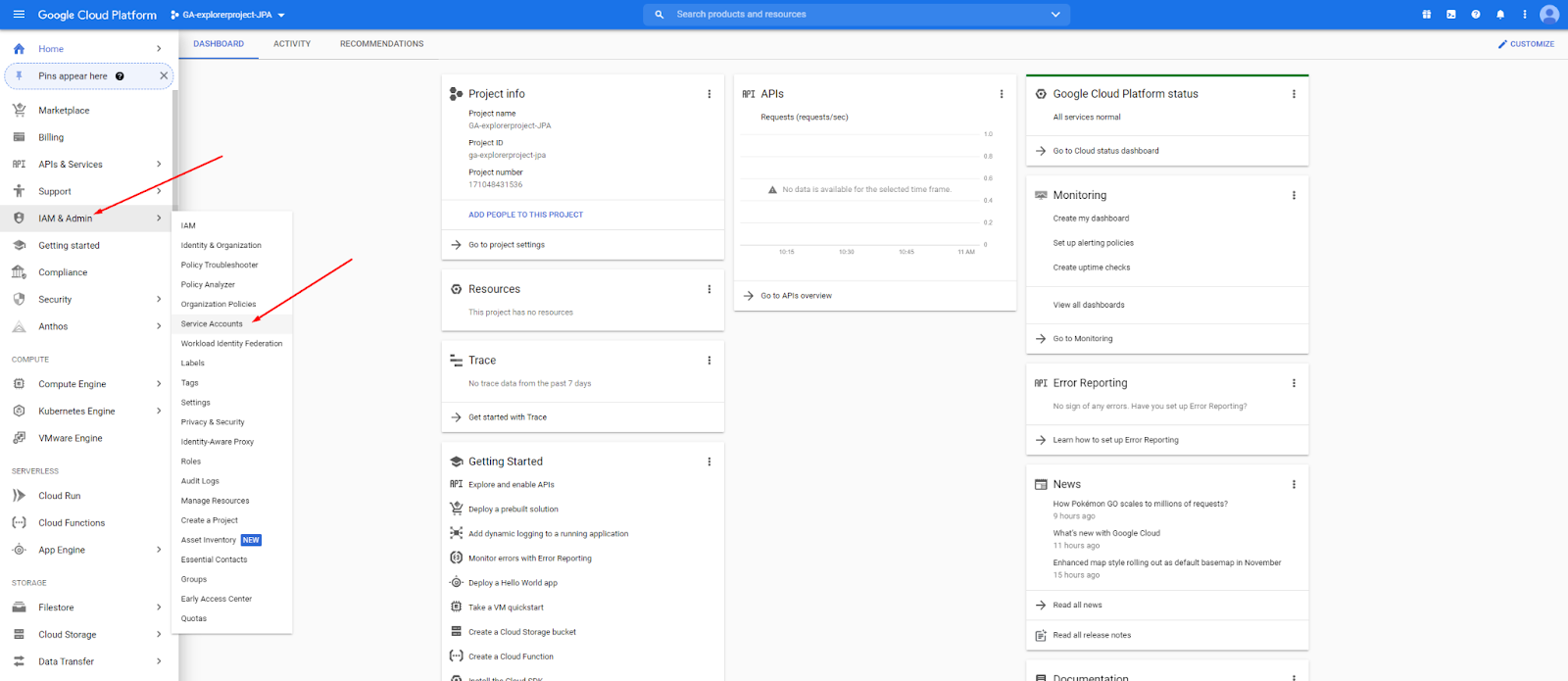
To create this account, click **IAM & Admin** > **Service accounts**.
Then, click **Create service account**.
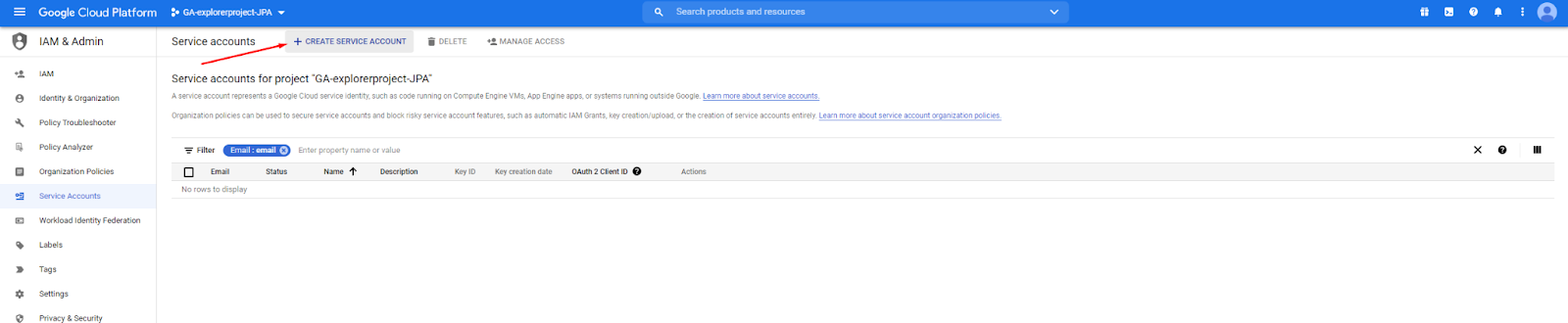
Next, enter a name for the account. The service email will be generated automatically. You should add a description, so the purpose of the account is clear.
Then, choose the role for the service account. We recommend choosing **viewer**, as Kameleoon's bridge only requires the use of Google APIs and not the project resources directly.
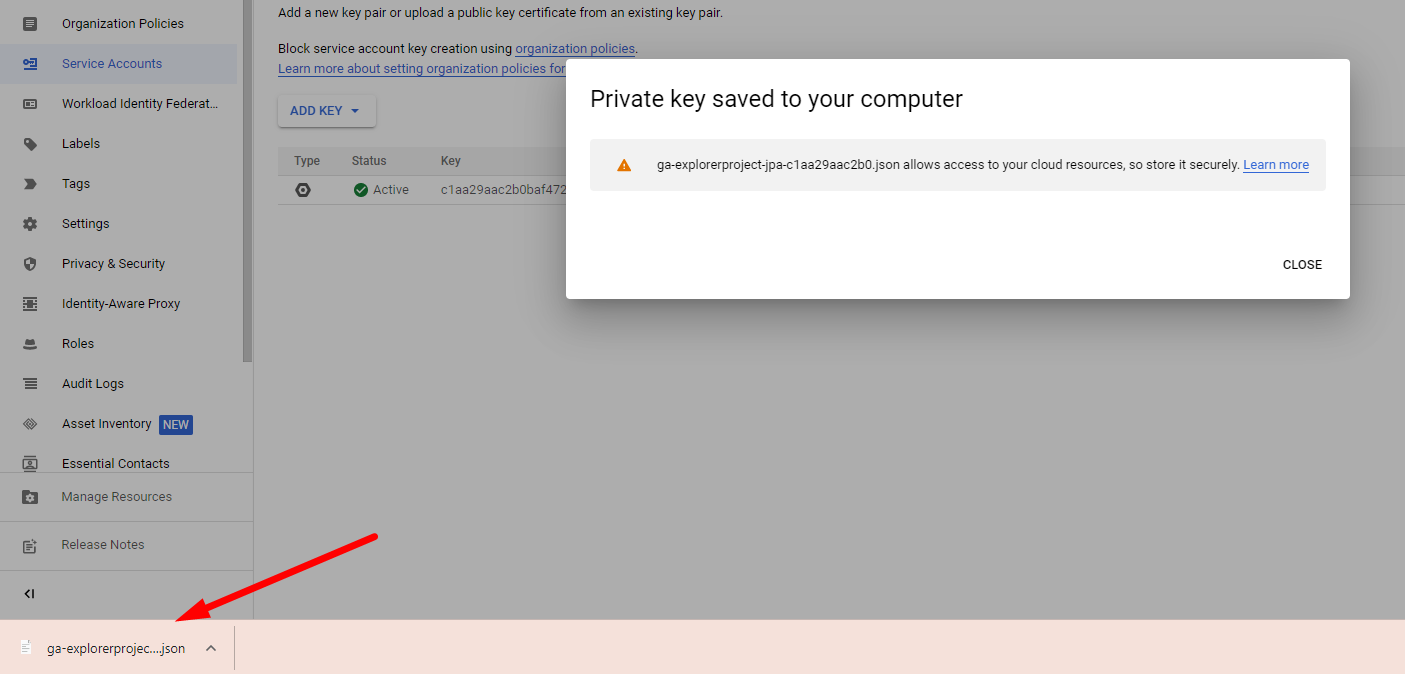
Once the account is created, click **Keys**.
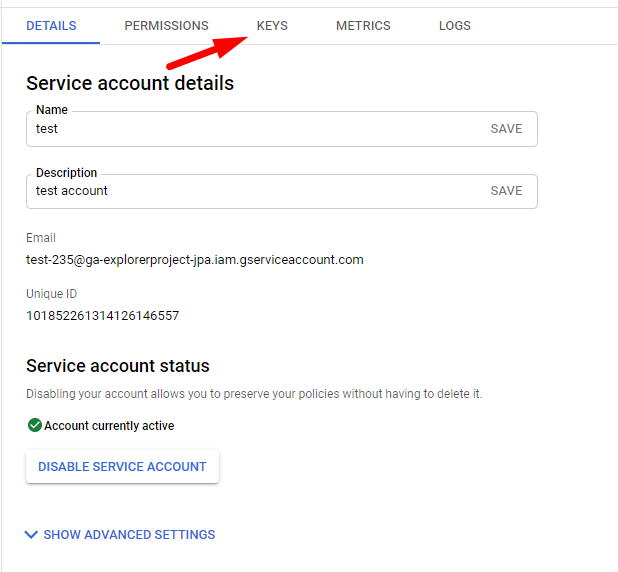
Then, click **Add key** > **Create a new key** to generate a downloadable key.
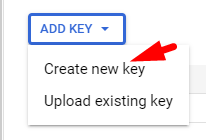
Choose the **JSON** format and click **Create** to generate the key.
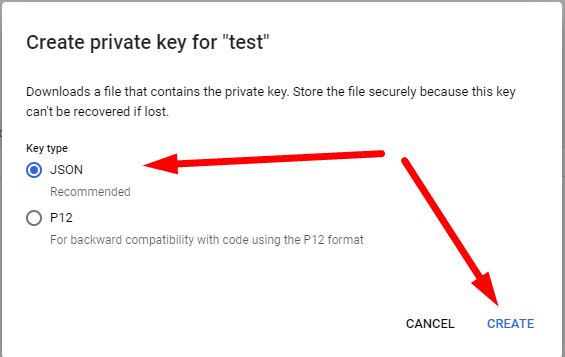
The key downloads on your machine.
Then, send these credentials in a JSON format to your Kameleoon Customer Success Manager. **Please use a compression tool to secure this file with a password then send the password separately from its password**.
### Grant Service Account Viewer permissions for your Property
To access the Property Access Management page in Google Analytics 4:
1. Sign in to your GA4 account.
2. Select the specific GA4 property you want to manage.
3. Access the Admin settings.
4. Look for the **Property User Management** or **Property Access Management** option.
5. Click **+** > **Add user**.
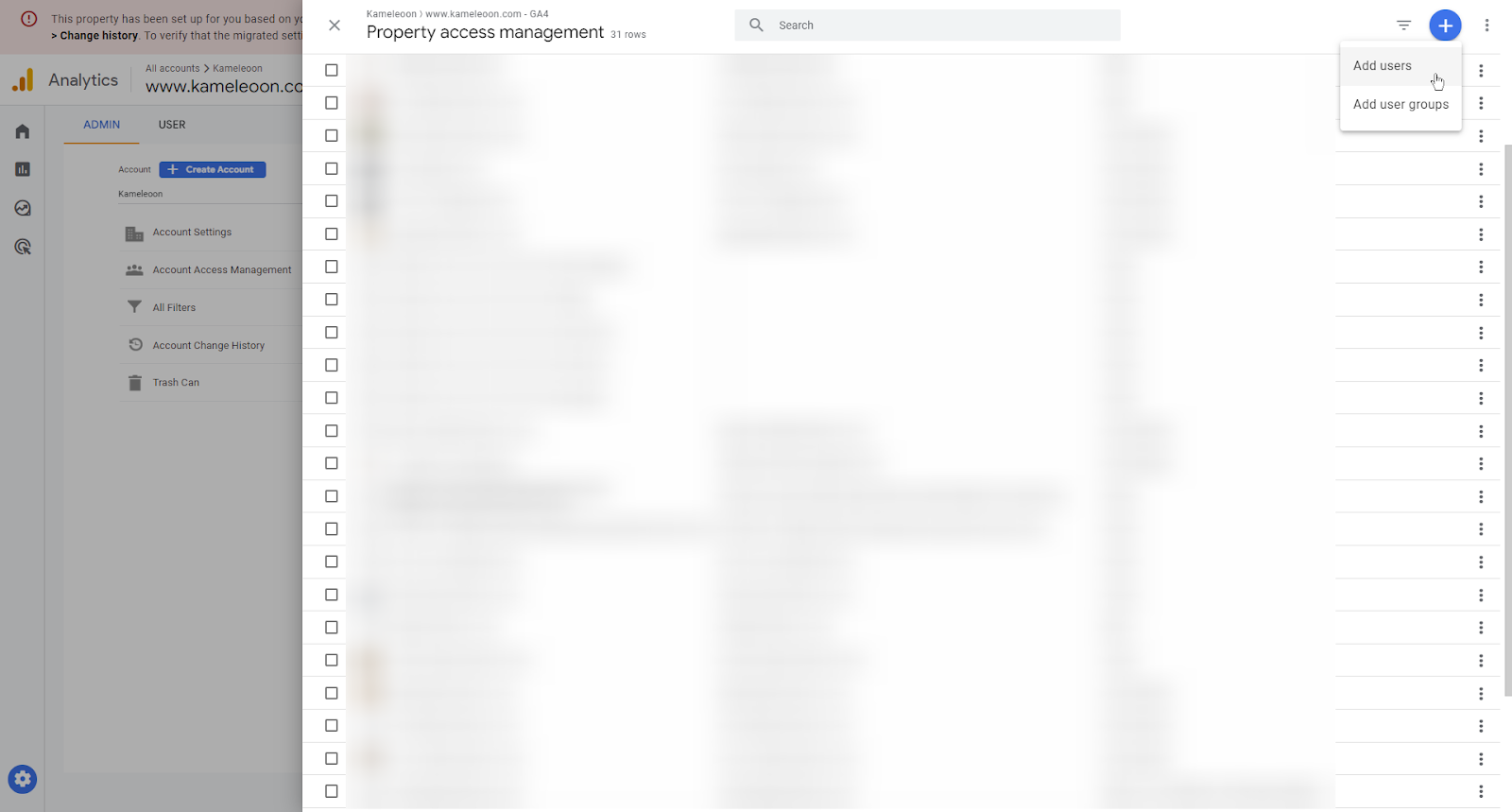
6. In the **Email addresses** field, enter the email address associated with the Service Account that requires access.
7. In the **Standard roles** section, select **Viewer**.
8. Click **Add**.
## Step 2: Push Kameleoon visitorcodes in a GA4 custom dimension
Next, you must configure the bridge to send each visitor's Kameleoon `visitorCode` to GA4 via a custom dimension.
### Using gtag.js
#### 1. Push the visitorCode to GA4
The following code should be added in the [Kameleoon global custom script](../../../project-management/manage-your-projects#configuration) section:
```javascript theme={null}
if (Kameleoon.API.CurrentVisit.pageViews === 1) {
Kameleoon.API.Core.runWhenConditionTrue(
function () {
return typeof window.google_tag_data !== "undefined";
},
function () {
gtag.push({ 'event': 'Kameleoon Visitor Code', 'kameleoon_visitor_code': Kameleoon.API.Visitor.code });
},
500
);
}
```
#### 2. Create the custom dimension in GA4
You must create a custom dimension that will be used to receive the Kameleoon `visitorCode` for each visitor. Set the dimension scope to **User**, name it **Kameleoon Visitor Code**, and enter **`kameleoon_visitor_code`** as the User property.
### Using Google Tag Manager
#### 1. Push the visitorCode in the dataLayer
The following code must be added in the [Kameleoon global custom script](../../../project-management/manage-your-projects#configuration) section.
```javascript theme={null}
if (Kameleoon.API.CurrentVisit.pageViews === 1) {
Kameleoon.API.Core.runWhenConditionTrue(
function () {
return typeof window.google_tag_manager !== "undefined";
},
function () {
dataLayer.push({ 'event': 'Kameleoon Visitor Code', 'kameleoon_visitor_code': Kameleoon.API.Visitor.code });
},
500
);
}
```
#### 2. Add the GTM variable
First, you must create a variable in GTM for the Kameleoon `visitorCode`. Go to **Variables** and create a new Data Layer Variable.
* **Name:** `kameleoon_visitor_code`
* **Variable configuration:**
* **Type:** Data Layer Variable
* **Data Layer Variable Name:** Kameleoon Visitor Code

The variable should be set to retrieve the value from the Data Layer.
#### 3. Create a tag in GTM
Next, you must create a tag and push this data into GA4.
##### 1. Create a variable
1. **Go to GTM:** Open Google Tag Manager and navigate to your container.
2. **Navigate to Variables:** In the left-hand menu, click **Variables**.
3. **Create a new variable:** Under **User-Defined Variables**, click **New**.
4. **Select variable type:** Click **Variable Configuration** and choose **Data Layer Variable**.
5. **Configure the variable:**
* **Name:** `kameleoon_visitor_code`
* **Variable type:** Data Layer Variable
* **Data Layer Variable Name:** Kameleoon Visitor Code
6. **Save** the variable.
##### 2. Create a trigger
1. **Navigate to Triggers:** In the left-hand menu, click **Triggers**.
2. **Create a new trigger:** Click **New**.
3. **Select trigger type:** Click **Trigger Configuration** and choose **Custom Event**.
4. **Configure the trigger:**
* **Trigger name:** Give your trigger a descriptive name (for example, "Page Type is Product").
* **Event name:** Enter the event's name you want to base the trigger on, or leave it empty if you want the trigger to activate on any event.
* **This trigger fires on:** Choose **Some Custom Events**.
* **Conditions:** Set the condition for your `dataLayer` variable.
The regex corresponds to your visitor code: `/^[a-z0-9]{16}$/`
5. **Save the trigger:** Click **Save**.
##### 3. Attach the trigger to a tag
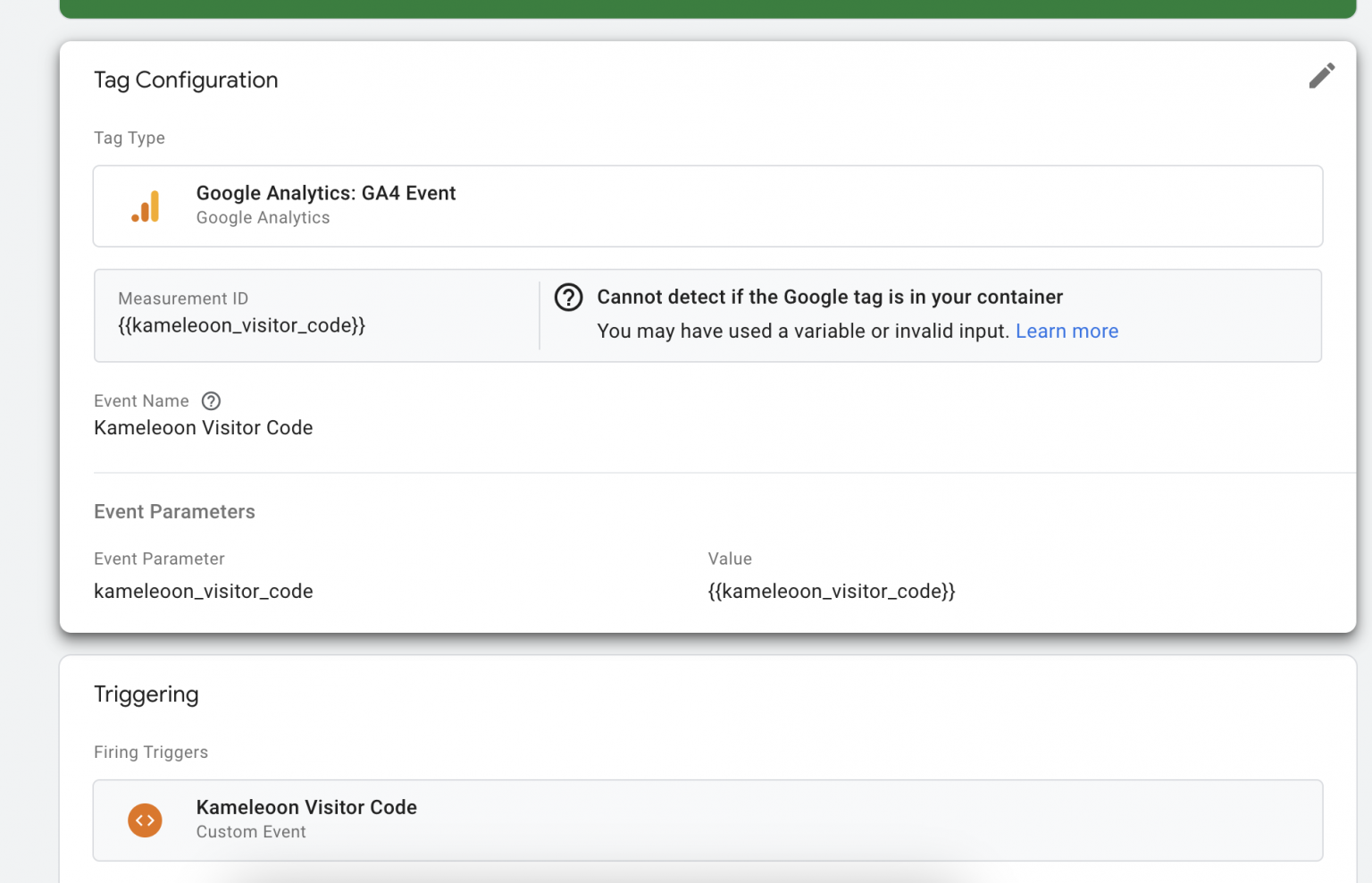
1. **Navigate to Tags:** In the left-hand menu, click **Tags**.
2. **Create or edit a tag:** Either create a tag or edit an existing one.
3. **Attach the trigger:**
* In the tag configuration, scroll to the **Triggering** section.
* Click **Triggering** and select the trigger you created.
4. **Save the tag:** Click **Save**.
## Step 3: Create a Custom data to use your GA4 audiences in Kameleoon
To use your GA4 audiences in Kameleoon, you must set up [custom data](../../../assets/custom-data/create-custom-data) in Kameleoon.
Name your custom data **GA4 Audiences** and choose the **Custom JavaScript code** acquisition method.
The custom data should be set to the **list of** and **strings** types, and the scope can be set to **visit** or **page** (when set to **page**, it is re-evaluated on every page load).
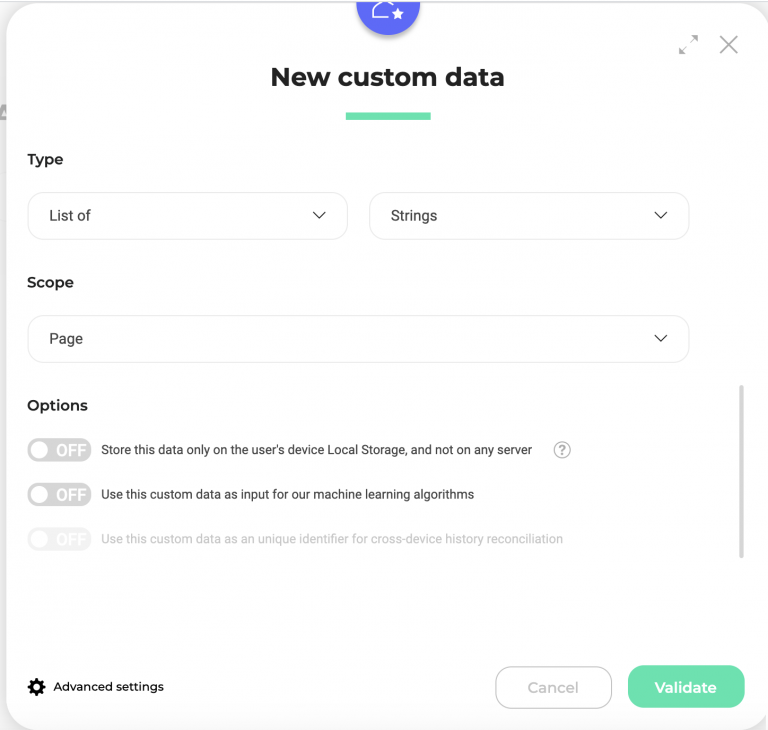
Use the code below in the custom data acquisition method:
```javascript theme={null}
Kameleoon.API.Data.retrieveDataFromRemoteSource(Kameleoon.API.Visitor.code, function(data) {
for (const [key, value] of Object.entries(data)) {
Kameleoon.API.Data.setCustomData('GA4 Audiences',key)
}
});
return { "value": null}
```
Click **Next** and activate the **Save the values for the targeting condition associated with the custom data point** option. Add the JavaScript code below and replace `[SITECODE]` with the Kameleoon sitecode. To find your sitecode, refer to [this](../../../faq#how-do-i-find-my-sitecode) article.
Also, ensure you replace `[WEB_PROPERTY]` with the right [GA4 property ID](https://developers.google.com/analytics/devguides/reporting/data/v1/property-id).
```javascript theme={null}
var xhr = new XMLHttpRequest();
xhr.open(
"GET",
"https://integrations.kameleoon.com/ga4-audience?sitecode=[SITECODE]&web_property=[WEB_PROPERTY]",
false
);
var GA4Audiences = [];
xhr.onreadystatechange = function () {
if (this.readyState === XMLHttpRequest.DONE && this.status === 200) {
var audiences = JSON.parse(xhr.response);
audiences.map(function (audience) {
if (audience) {
GA4Audiences.push({ value: audience, label: audience });
}
});
}
};
xhr.send();
return GA4Audiences;
```
Click **Save** to create the custom data.
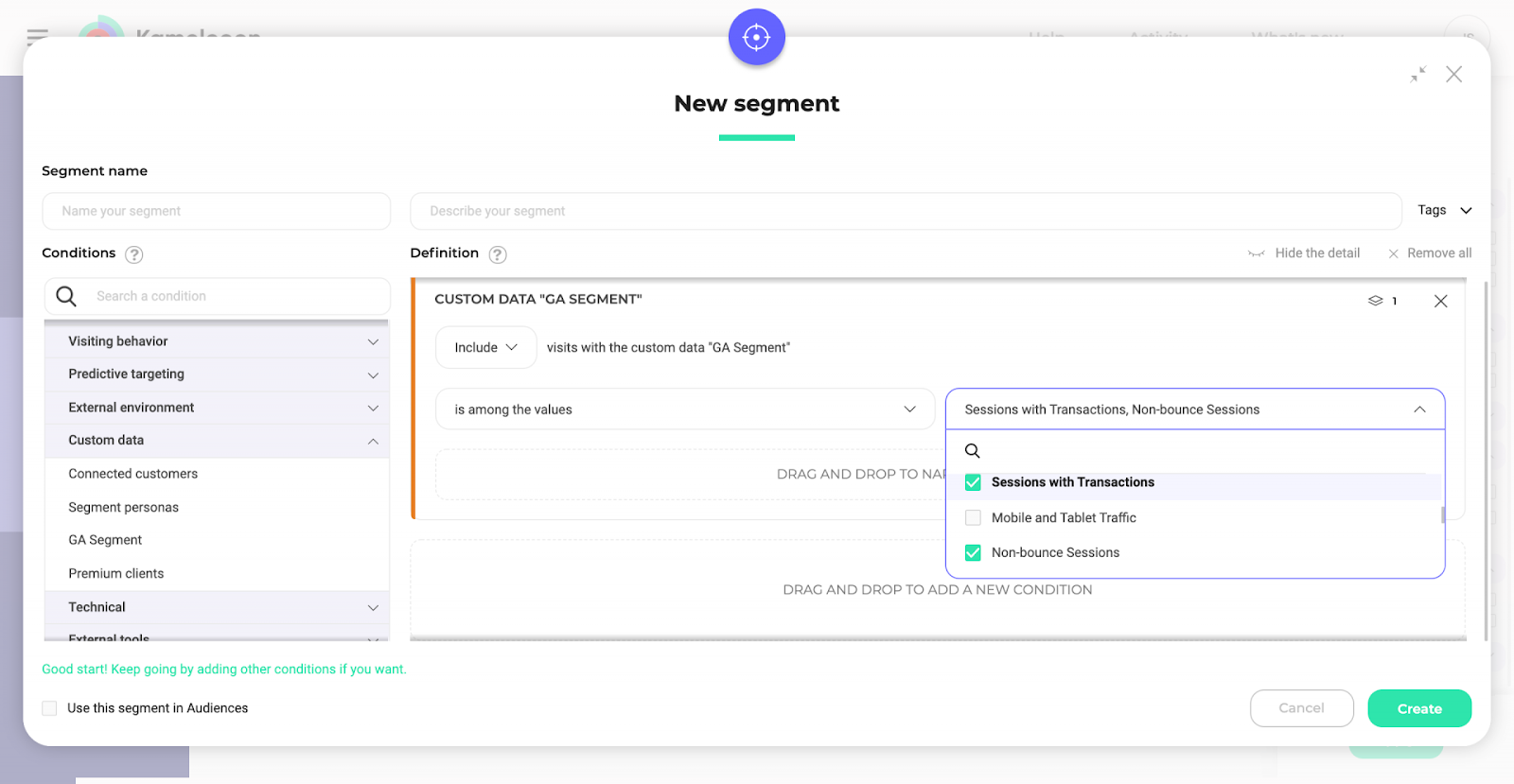
You can now use your GA4 audiences in our Segment builder to target visitors in Kameleoon campaigns by choosing the custom data in our Segment builder and selecting **is among the values**, which will then show a list of every audience name from GA4.
### External segment sync for server-side
If you would like to use GA4 audiences with one of Kameleoon's SDKs, you must follow the guidelines in each SDK's documentation and use the [`getRemoteData()`](../../../../developer-docs/sdks/mobile-sdks/ios-sdk#getremotedata) method.