> ## Documentation Index
> Fetch the complete documentation index at: https://docs.kameleoon.com/llms.txt
> Use this file to discover all available pages before exploring further.
# Heap
> Send Kameleoon experiment exposure events to Heap as custom events and user properties, enabling variation-based segmentation and behavioral analysis.
With the Heap integration, when a visitor is targeted by an experiment, an event containing the name of the experiment and variant is automatically sent to Heap.
**Key benefits:**
* Automatically capture additional campaigns' metrics to build new segments in Heap without relying on development teams.
## Activate Heap
To use Heap, the first step is to activate it on the Kameleoon Integrations page:
1. Log in to your [Kameleoon App](https://login.kameleoon.com/app).
2. Click **Admin** > **Integrations** > **Install the tool**.
3. Select the projects on which you want to activate Heap.
4. Click **Validate**.

Your campaigns' results will be transmitted to Heap if the tool's script is installed on your pages.
If you need to change the behavior of our native bridge, you can [create a custom analytics bridge](./custom-analytics-integration) and use the Heap sample code on [our Github repository](https://github.com/Kameleoon/custom-analytics-integrations/tree/master/heap).
## Associate Heap with an A/B experiment
Kameleoon automatically sends variation data to Heap via two Heap method APIs:
* [an event](https://help.heap.io/hc/en-us/articles/37271983537937-Events-overview) (this is usually necessary for downstream analysis in a data warehouse, as all experiment data will be grouped into one table);
* [a user property](https://help.heap.io/hc/en-us/articles/37271957981201-Properties-overview) (this simplifies building experiments and personalization segments for analysis in Heap UI).
Refer to [this article on Heap's website](https://help.heap.io/hc/en-us/articles/37271956241681-A-B-testing) to understand analyzing A/B experiments results in Heap UI.
### In the Graphic editor
Once Heap is activated on the Integrations page, you can select it as a reporting tool at the **Integrations** step of the finalization panel.

### On the A/B experiment results page
It is also possible to select Heap among the reporting tools on the Results page of an A/B experiment.

### On a feature flag
[Learn how to manage third-party analytics integrations](../../../experimentation/feature-experimentation/track-your-feature-experiments/managing-third-party-integrations)
## Create a Heap segment using a Kameleoon variation
Please note that the following steps only apply if you want to use Events to analyze your experiment results. Otherwise, refer to [this article](https://help.heap.io/hc/en-us/articles/37271956241681-A-B-testing).
To take advantage of the tools offered by Heap, you can create a Heap segment using a Kameleoon variation. To do this:
1. Log in to [Heap](https://heap.io/).
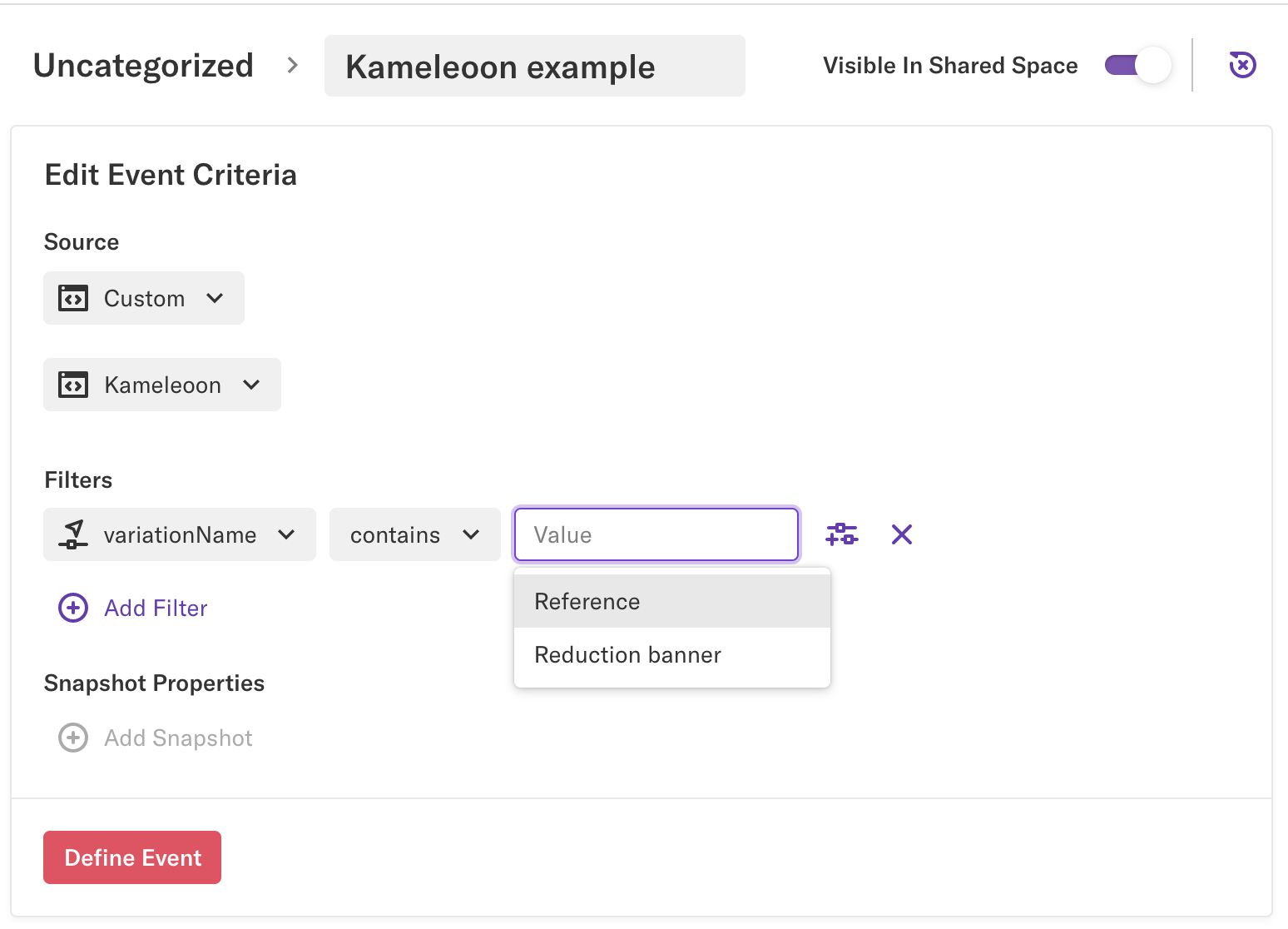
2. Click **Define** > **Events** > **New Event**.
3. Fill in the event information as follows:
* Name your event.
* **Source:**
* Custom
* Kameleoon
* **Filters:**
* `variationName`
* contains
* (select the variation)
4. Click **Define Event**.
Then, find the summary associated with this event. In the **KPIs** section, you will see your goals.
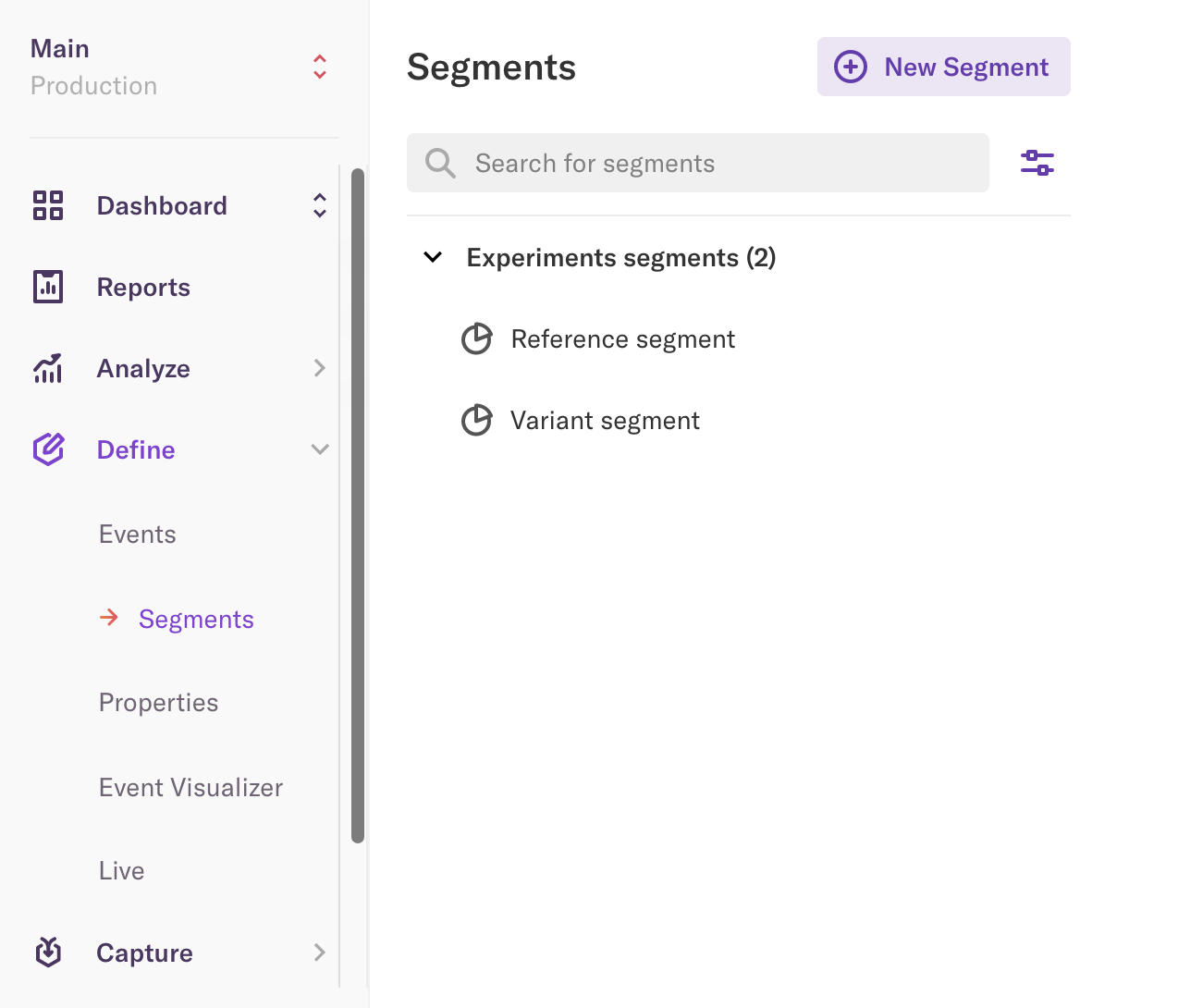
Find the associated segments in the Heap segments menu.
## Analyze a segment in Heap
You can analyze these Kameleoon segments in all Heap tools:
* Graph
* Funnel
* Users
* Retention
* Influence
* Paths
To analyze the segment created from a Kameleoon variation, you must generate a query. To do so:
1. Navigate to **Analyze**.
2. Select one of the tools.
3. Fill in the required information.
4. Click **Run Query**.
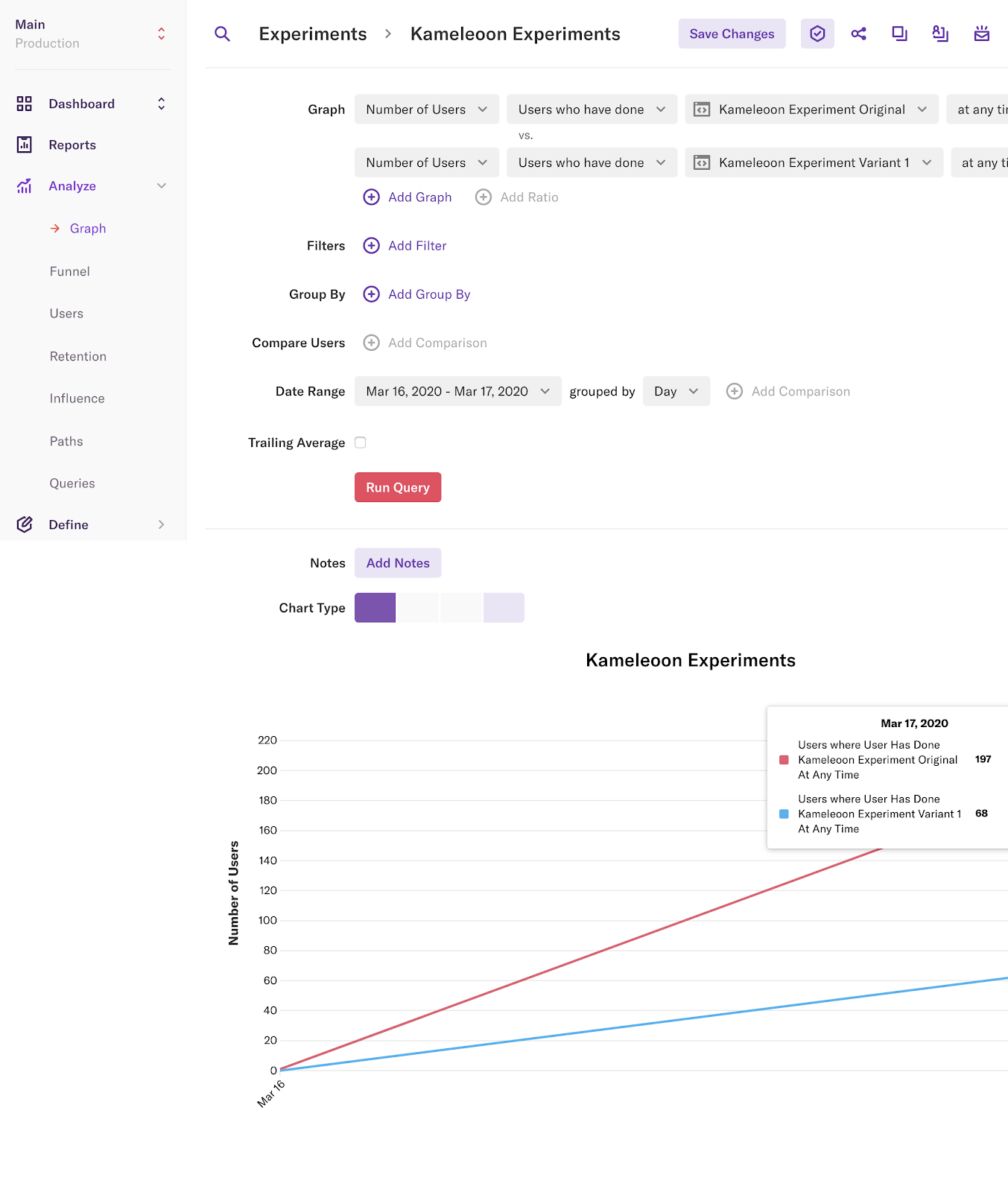
You can find the history of your queries in the **Queries** menu.
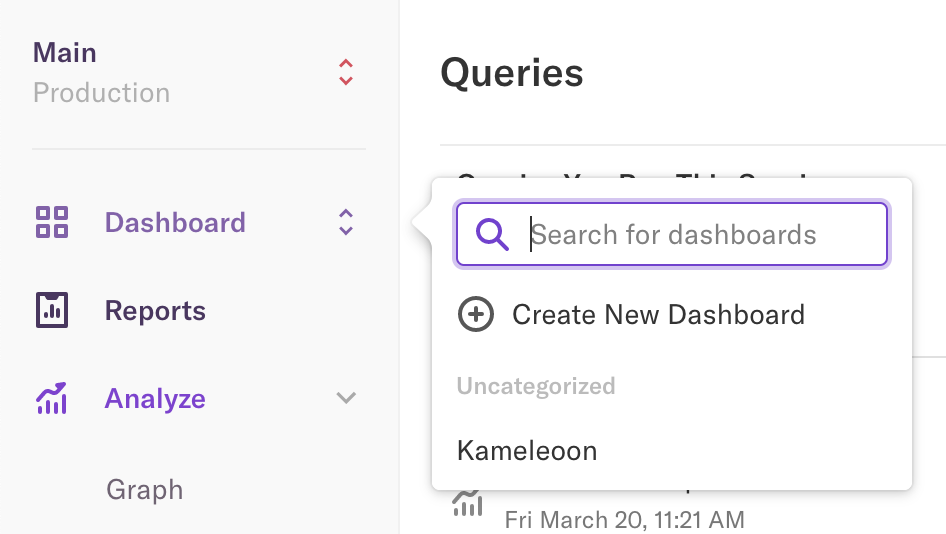
You can add these queries to a dashboard to access them later.