> ## Documentation Index
> Fetch the complete documentation index at: https://docs.kameleoon.com/llms.txt
> Use this file to discover all available pages before exploring further.
# Google Analytics 4 Explorations
> Analyze Kameleoon experiment results in GA4 Explorations by setting up custom dimensions and segments to compare variation performance and conversions.
To enhance your ability to measure and analyze experiment results using Google Analytics 4 (GA4), Kameleoon's integration offers a streamlined approach. This guide walks you through enabling the integration, setting up custom dimensions, and creating Explorations to visualize key data insights.
## Step 1: Enable the integration in Kameleoon
[Enable the integration in Kameleoon](./setting-up-google-analytics-4) and ensure your events are correctly transmitted. You must accumulate enough data and wait 24 hours maximum for GA4 to process events, allowing you to see the data when creating a segment or custom dimension.
## Step 2: Create a custom dimension
You must create a custom dimension to break down data for each variation. To create a custom dimension, follow the steps documented [here](https://support.google.com/analytics/answer/14239696?hl=en#zippy=%2Canalyze-the-custom-dimension-in-a-report%2Canalyze-the-custom-dimension-in-an-exploration%2Cbuild-an-audience-using-the-dimension).
You can use the following values:
* **Dimension name:** Kameleoon experiment variation
* **Scope:** Select Event to create an event-scoped custom dimension.
* **Description:** The variation of a Kameleoon experiment
* **Event parameter:** `exp_variant_string`
## Step 3: Create an Exploration
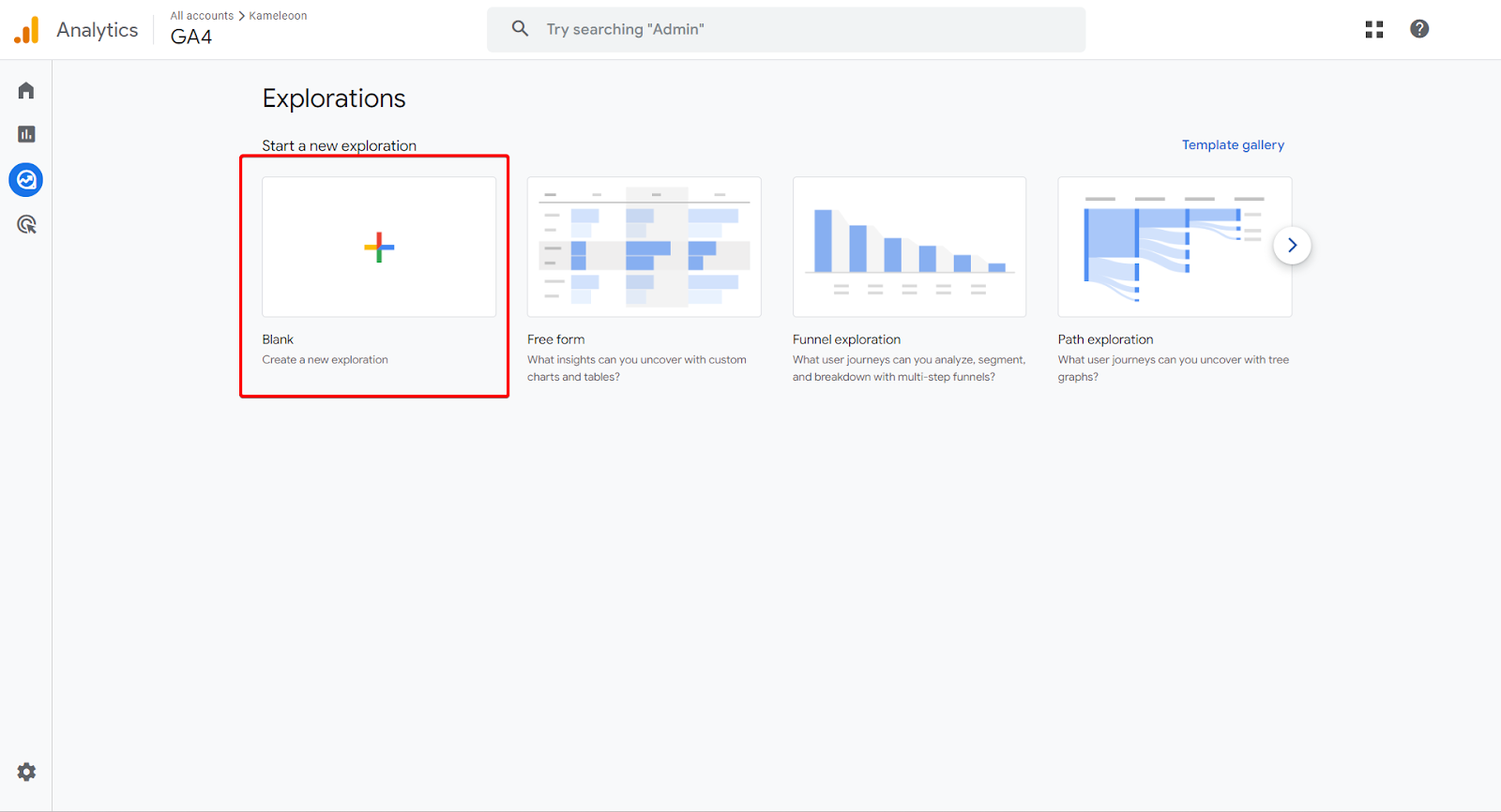
To access Explorations, click **Explore** in the left sidebar, then create [a new blank Exploration](https://support.google.com/analytics/answer/7579450?hl=en#create\&zippy=%2Cin-this-article).
## Step 4: Create a new segment
In your exploration, [create a new segment](https://support.google.com/analytics/answer/9304353?hl=en\&ref_topic=9266525\&sjid=10264802145766195550-EU#create-a-segment\&zippy=%2Cin-this-article).
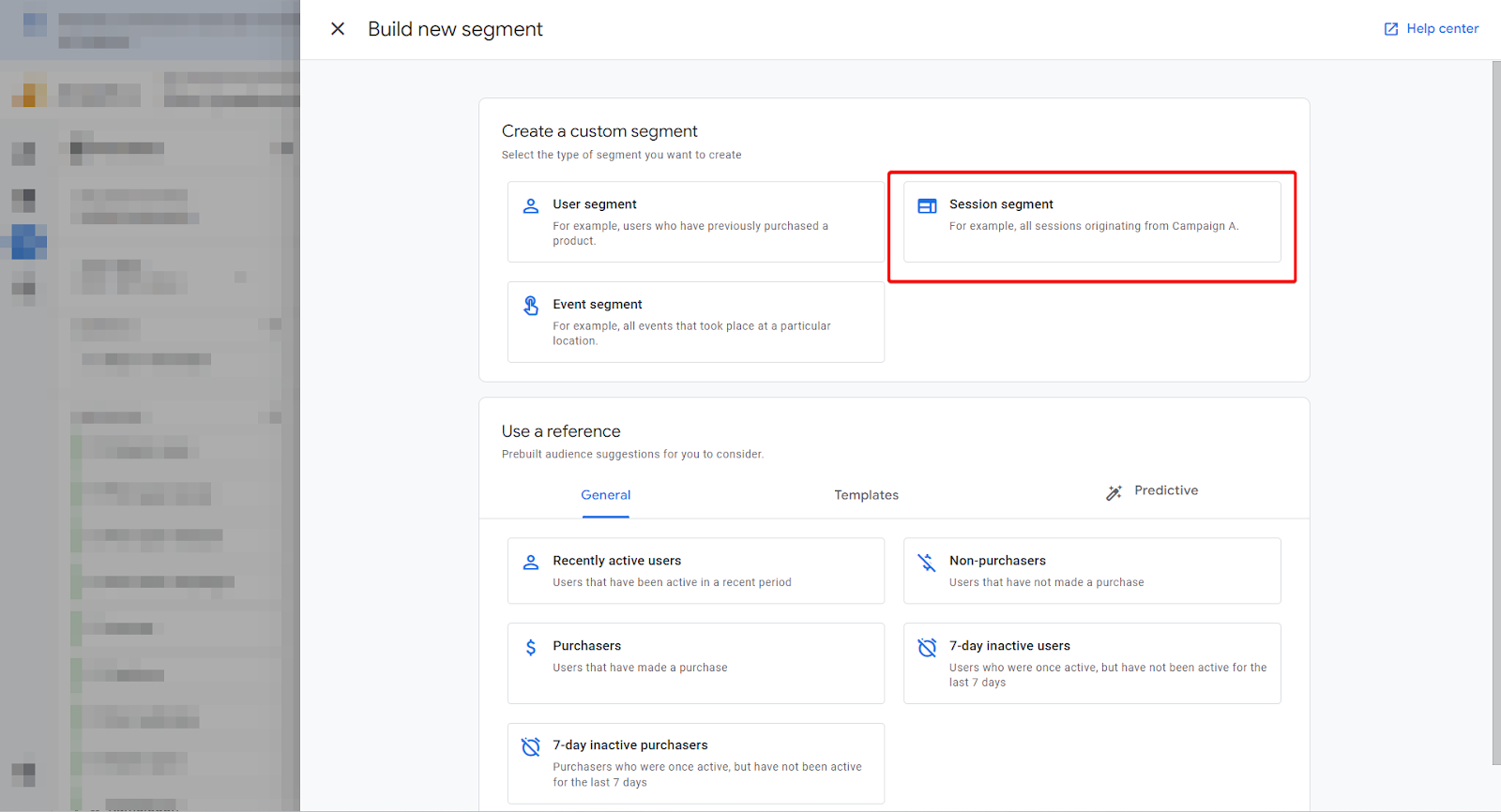
In this example, we will create a session segment that will select all sessions where an experiment has been triggered, and a conversion has occurred. To do so, select **Session segment**, and give it a name.
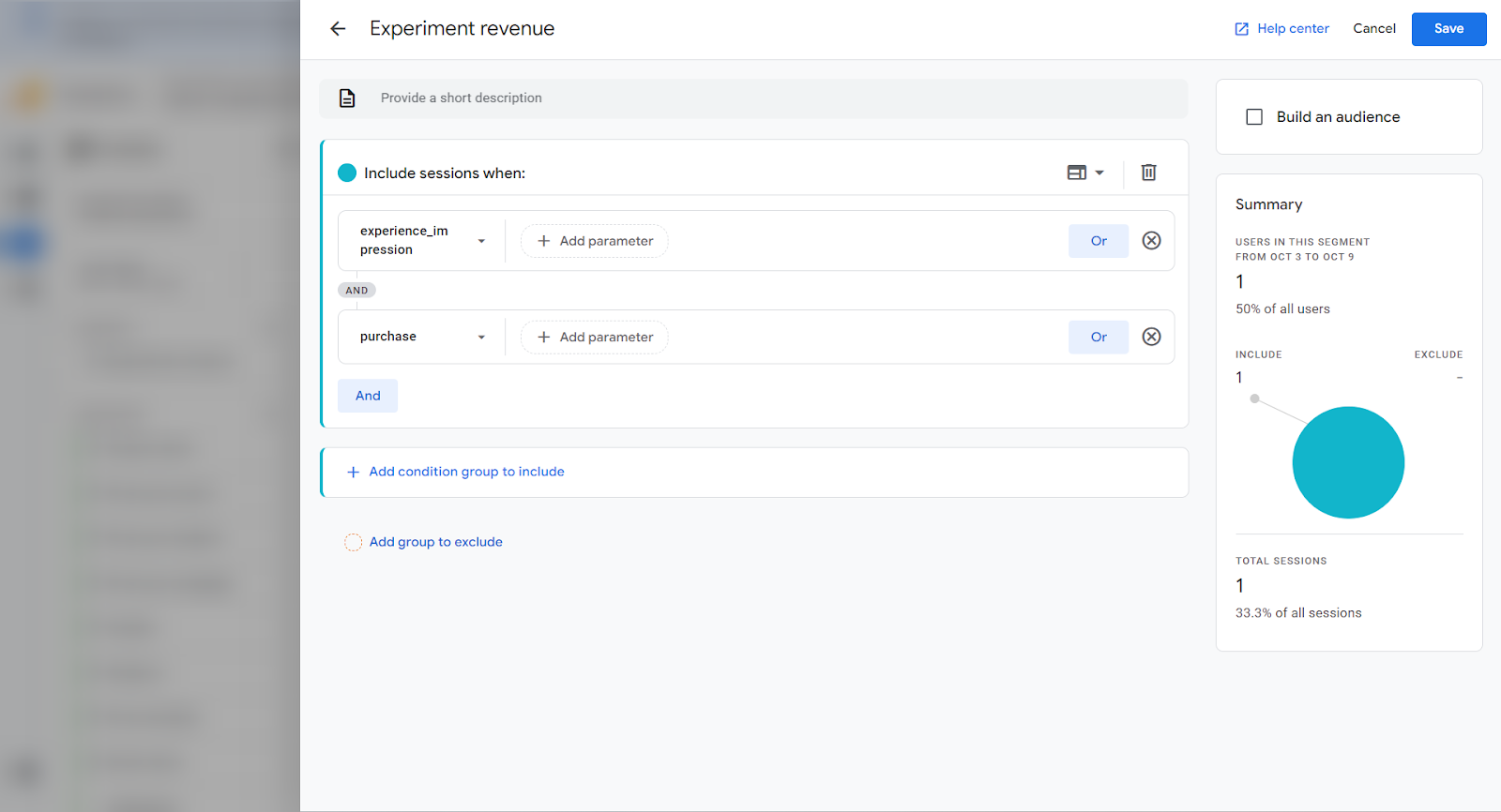
Include sessions when the **`experience_impression`** and **purchase** events have been triggered.
### Segment users without relying on a conversion event
If you want to analyze experiment participation when no conversion event occurred, you can create a custom segment based solely on the experiment and variation identifiers. You have two options:
* **Option 1 (recommended for simplicity):** Use the `exp_variant_string` parameter (for example, `KAM-174084`) in combination with the `experience_impression` event. Set your condition to `exp_variant_string contains KAM--`.
* **Option 2 (more granular):** Use `kameleoon_experiment_id` and `kam_variation_id` as two distinct filters and set **Condition scoping** to **Within the same event**. This setup ensures both values are matched together on the same interaction.
Below are a couple of examples:


These approaches are useful for measuring exposure to a variation independently of outcome metrics such as revenue or conversions.
## Step 5: Add your Custom Dimension
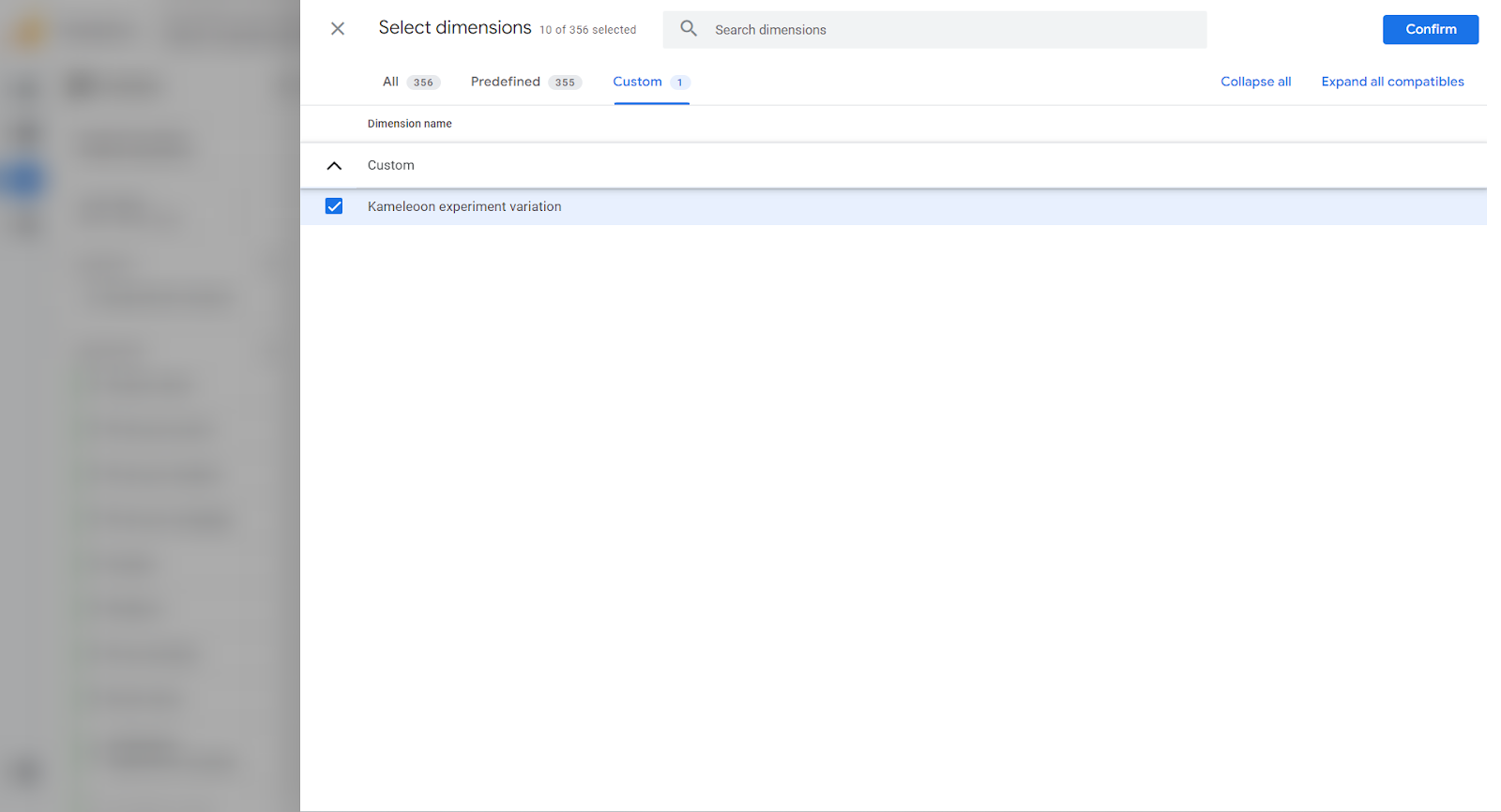
Now, you must add your Custom Dimension in your Exploration. To do so:
1. Click **+** next to **Dimensions**.
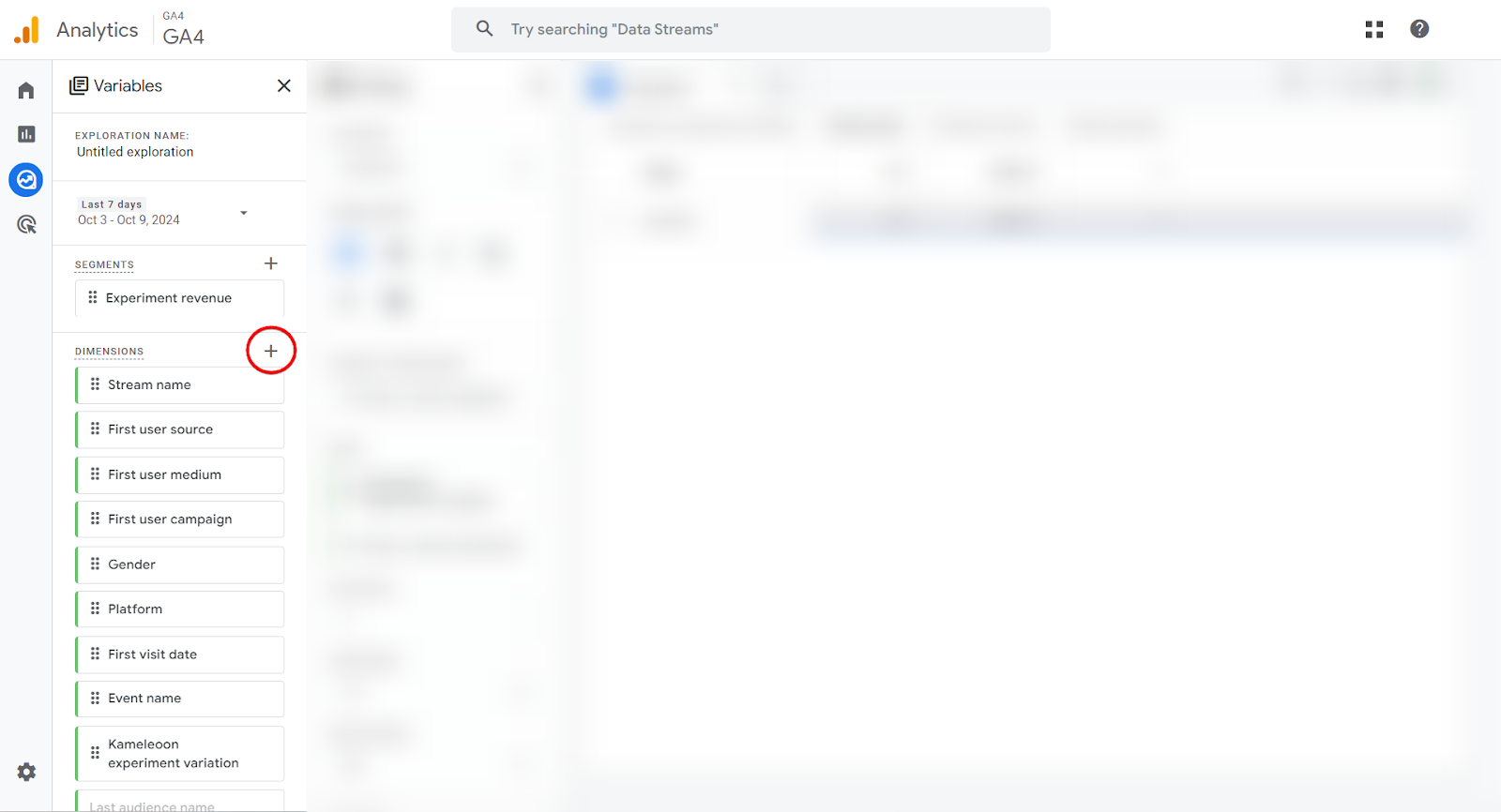
2. In the **Custom** tab, select **Kameleoon experiment variation** and click **Confirm**.
## Step 6: Set up your Free form
In **Settings**, select the following values:
* **Technique:** Free form
* **Visualization:** Table
* **Rows:** Kameleoon experiment variation
* **Values:**
* Event count
* Purchase revenue
* Total purchasers
You should have the following table:
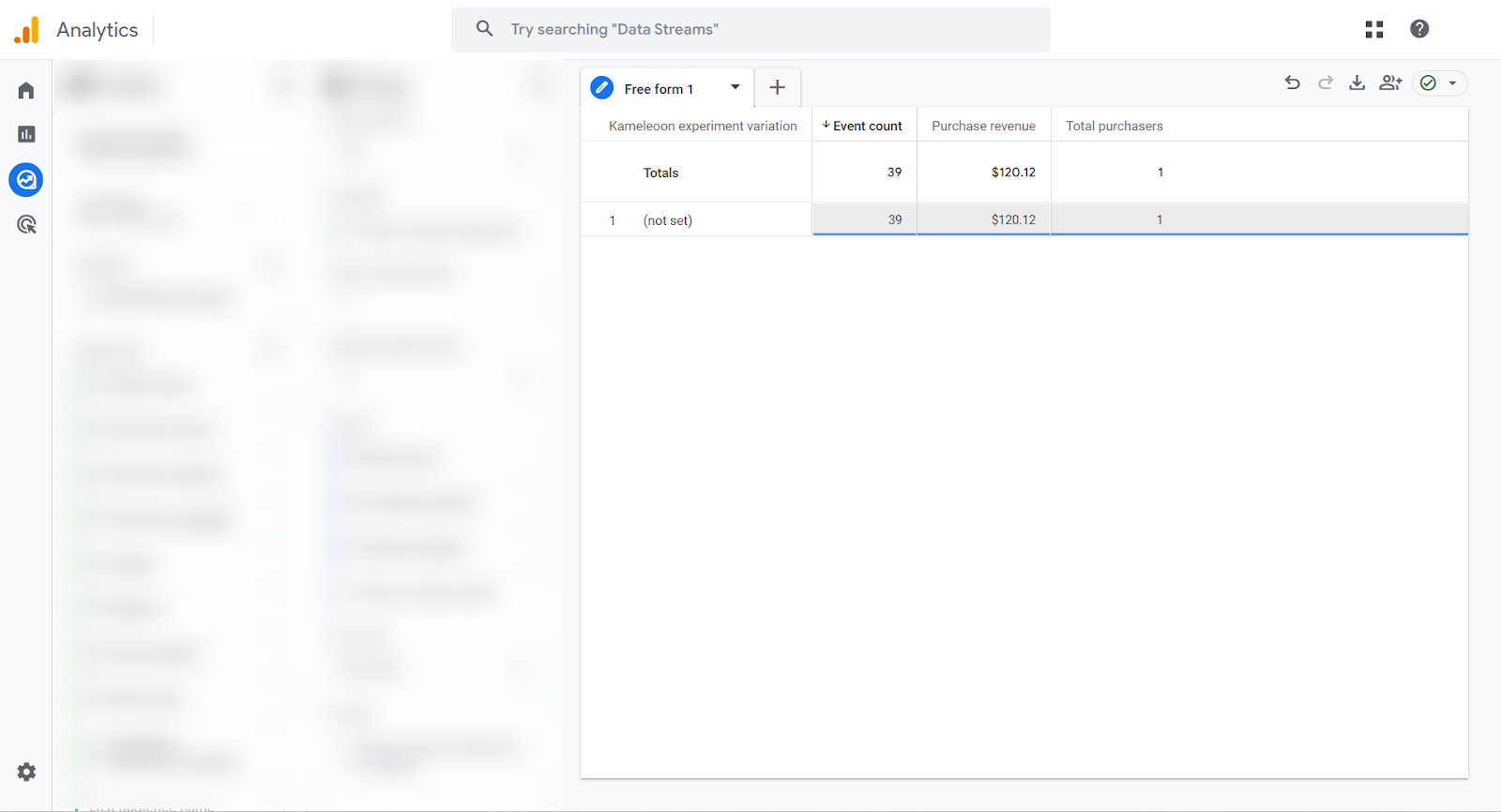
If you have collected enough data, you should have your variations listed in the **Kameleoon experiment variation** column, instead of **[(not set)](https://support.google.com/analytics/answer/13504892?hl=en#zippy=%2Cin-this-article)**.