> ## Documentation Index
> Fetch the complete documentation index at: https://docs.kameleoon.com/llms.txt
> Use this file to discover all available pages before exploring further.
# Custom analytics integration
> Build a custom analytics bridge to connect Kameleoon with any analytics platform not covered by a native integration, using predefined scripts or custom JavaScript.
Kameleoon comes with [many built-in integrations](../../../experimentation/feature-experimentation/track-your-feature-experiments/managing-third-party-integrations). However, if you happen to use a platform for which we don’t yet provide an official analytics bridge, it’s very easy to build your own custom analytics integration by using our Custom Analytics Bridge feature.
## New custom analytics integration
To create a new custom analytics integration:
1. Open the Kameleoon App.
2. Click **Admin** > **Integrations** > **New custom analytics**.
3. Name your custom analytics tool and select the projects on which it will be available.
4. Click **Next**.
5. From the **Script library** dropdown, select your desired third-party integration.
6. Click **Add new script**. The corresponding script will automatically populate the JavaScript code insert. Any code in this insert will be executed every time the page is loaded.
You can still manually customize the scripts as needed in the JavaScript code insert.
We also provide [code samples](https://github.com/Kameleoon/custom-analytics-integrations) for 20+ analytics platforms such as Hotjar, Amplitude, Adobe Analytics, and GA4. If you want to use Fullstory to analyze the results of your Kameleoon experiments, you can use our [Fullstory sample code](https://github.com/Kameleoon/custom-analytics-integrations/tree/main/fullstory).
The **JavaScript code** insert will run every time a bucketing decision is made for a given Kameleoon campaign. You need to write the logic that sends to your analytics platform additional properties. The available variables are:
* `experimentID`
* `experimentName`
* `variationID`
* `variationName`
* `personalizationID`
* `personalizationName`
The **JavaScript code** insert lets you link Kameleoon to your analytics solution. Any code you add in this insert will be executed every time the page is loaded.
Any custom code added here will be exposed in the `kameleoon.js` file and so available publicly. Please do not put private API keys or passwords in this section.
Click **Validate**, and your analytics solution is added to the list of your integrations.
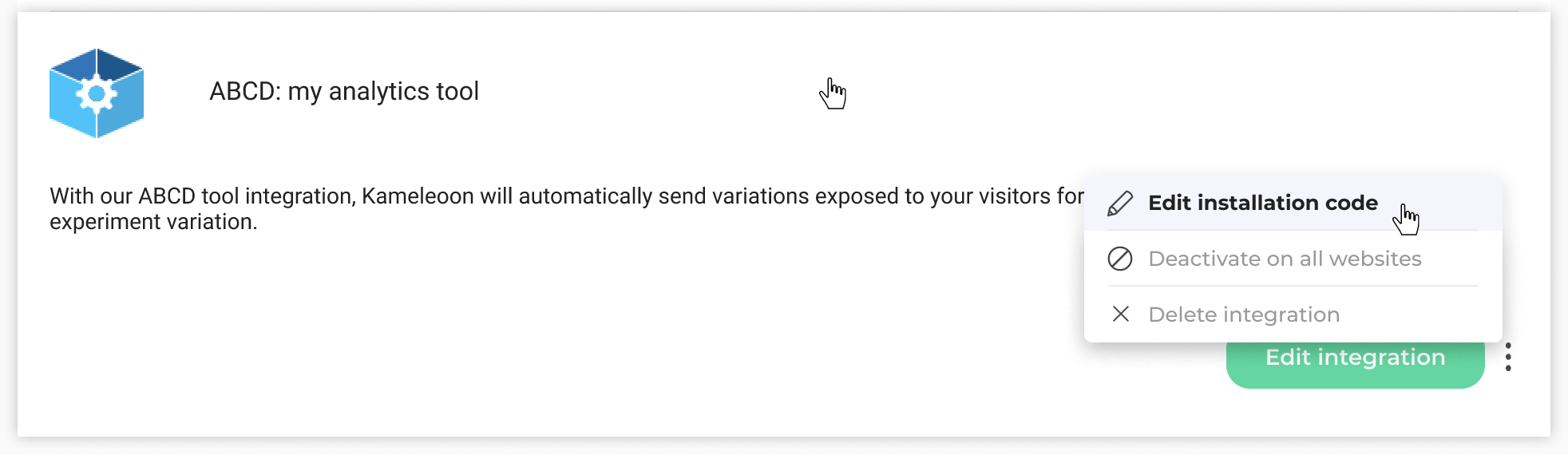
You can modify the installation code later if needed, deactivate the tool, or delete the integration.
## Associate your custom analytics integration with a campaign
### In the Graphic/Code editor
When finalizing your experiment, click **Tracking and Goals** to configure your custom analytics as a tracking tool.
Your analytics tool will be mentioned in the summary pop-in before going live.
Kameleoon will automatically transmit the data, and you can view your results in the analytics tool.
### On the personalization creation page
You can select your custom analytics among the reporting tools for a personalization.
### On the results page
Once your custom analytics integration is defined as a reporting tool for a campaign, you can select (or unselect) it via the results page. To do this:
1. Click **Reporting tools** in the right panel.
2. Click **Edit**.
3. Select or unselect the tool.
4. Click **Validate**.