> ## Documentation Index
> Fetch the complete documentation index at: https://docs.kameleoon.com/llms.txt
> Use this file to discover all available pages before exploring further.
# Manage your experiments
> Search, filter, sort, and perform actions on web experiments from the Experiments dashboard, including bulk operations and custom views.
## Access the Experiments Dashboard
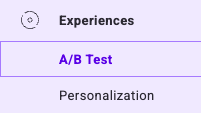
To access the Experiments Dashboard from the App, click **Experiences** > **A/B Test**.
## Structure of the Dashboard
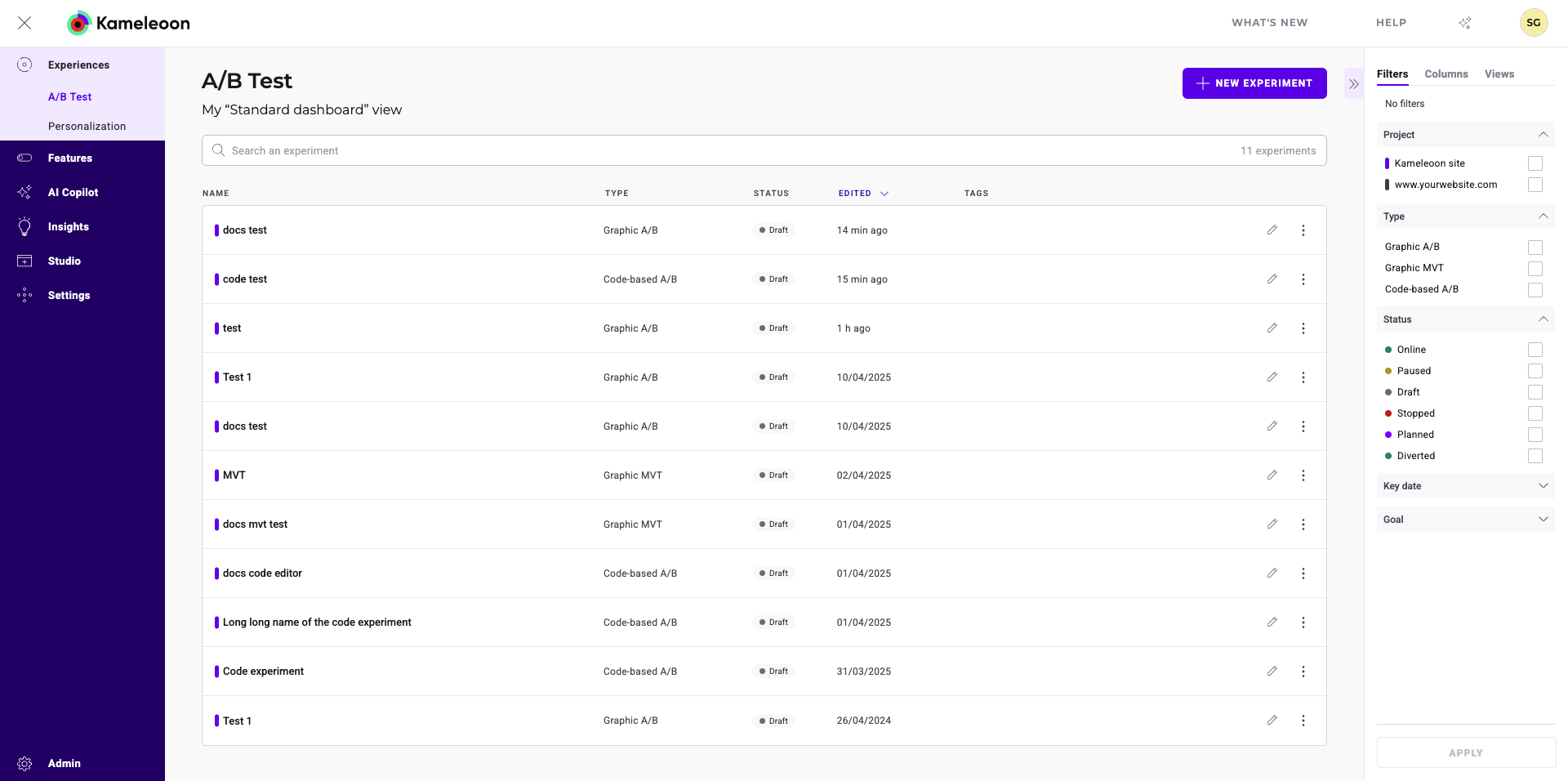
### Header
* Title of the current view
* Button to create a new experiment
### Search Bar
* Search tool
* Count of currently displayed experiments
### Experiment Cards and Columns
* Display experiment information
* Include Results and Finalize buttons
* Provide sorting functionality
* Offer a three-dot menu for experiment-specific actions
### Sidebar
* Filter options
* Customizable columns
* View selection
* Secondary actions linked to the three-dot menu
## Experiment information
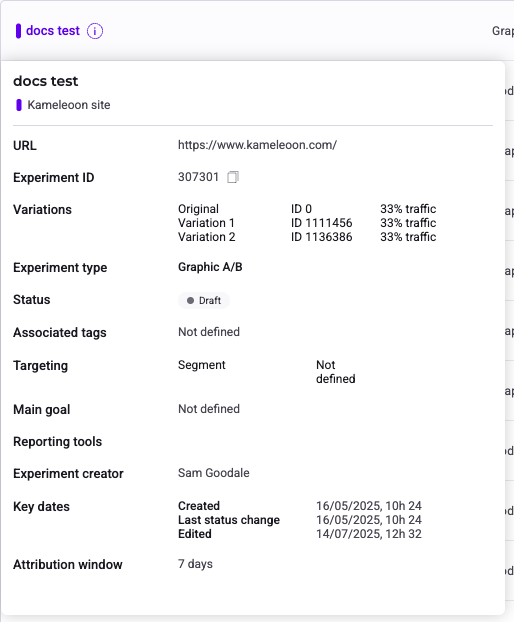
Each experiment is represented by a card containing key information. Hover over the tooltip next to an experiment's name for detailed insights without accessing the editors or Results page.
## Find an experiment
For users with numerous experiments, a search bar, filter tool, and sorting tool enable efficient experiment discovery. The right-hand panel provides direct access to various filters, while column headers enable sorting. These features expedite the search process.
### Filter

You can filter your experiments according to several criteria:
* **Website:** Select associated website(s) and click **Apply** to filter experiments.
* **Type:** Choose experiment type (for example, Graphic A/B) and click **Apply** to filter.
* **Status:** Select experiment status (for example, diverted) and click **Apply** to filter.
* **Key Date:** Select a key date (last modification, status change, launch, creation) and click **Apply** to filter.
* **Tag:** Select associated tags and click **Apply** to filter experiments.
* **Goal:** Select associated goals and click **Apply** to filter experiments.
* **Segment:** Select associated segments and click **Apply** to filter experiments.
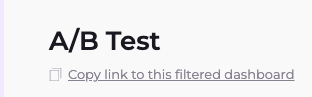
Kameleoon generates a unique URL with custom parameters when filters are applied, enabling sharing with team members. Click **Copy link to this filtered dashboard** to the right of the dashboard title to access the shareable link.
### Sort
The sorting option allows you to organize experiments based on several criteria:
* **Name:** Hover over **Name** and click the chevron to sort alphabetically or reverse alphabetically.
* **Type:** Hover over **Type** and click the chevron to rank experiments by type.
* **Status:** Hover over **Status** and click the chevron to sort experiments by status (**Online**, **Paused**, or **Draft**, for example).
* **Edited:** Hover over **Edited** and click the chevron to sort from newest to oldest edition date or vice versa.
* **Tags:** Hover over **Tags** and click the chevron to sort by tags alphabetically or reverse alphabetically.
## Columns
Customize your dashboard layout by adding, removing, or rearranging columns to highlight important information.
Customize displayed information by selecting columns in the sidebar's **Columns** tab. Check desired columns to display them. Rearrange display order by dragging and dropping cards. Click **Reset** to restore the original column configuration.
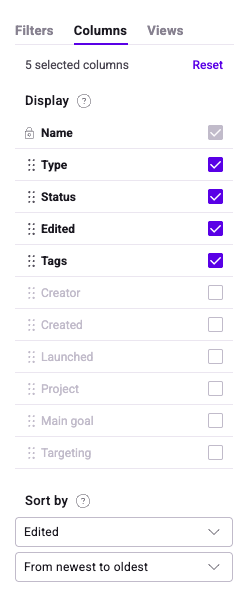
### Sort by
Sort campaigns by:
* Name
* Type
* Status
* Edition date
* Tags
Additionally, you can save these configurations as a **View** for later use, and set it as your default dashboard view.
## Actions on an experiment
Click the three dots on the right of an experiment's card to access various actions based on experiment status.
### Experiment Actions
The three-dot menu provides various actions based on experiment status:
* **Pause:** Pauses an online experiment (status changes to **paused**). A confirmation notification appears.
* **Stop:** Stops an online experiment (status changes to **stopped**). A confirmation notification appears. Stopping allows deletion.
* **Delete:** Select the experiment, click the three dots menu, and choose **Delete**. Only stopped or draft experiments can be deleted.
* **Edit:** Accesses the Graphic or Code editor based on experiment type and status.
* **Simulate:** Opens the simulation panel on the website page.
**Additional Actions:**
* **Rename:** Opens the **Rename** sidebar. Click **Save** to confirm the new name.
* **Manage Tags:** Opens the **Manage tags** sidebar. Highlight existing tags, add new ones, and click **Save** to confirm.
* **Duplicate:** Creates a copy of the experiment. Click **Save** in the **Duplicate** sidebar to confirm. The new experiment appears in the Dashboard.
* **Archive** (Draft or Stopped experiments only): Moves the experiment to the [**Archived experiments** view](#archived-experiments).
* **Select:** Select multiple experiments for bulk actions (for example, archive and export). Click the three dots menu and choose **Select**.
**Grouped Actions (Multiple Selection):**
* **Select all/Deselect all:** Selects/deselects all experiments on the page.
* **Manage tags:** Applies tag management to all selected experiments.
* **Pause** (Online experiments only): Pauses all selected experiments.
* **Stop** (Online experiments only): Stops all selected experiments.
* **Archive** (Draft and Stopped experiments only): Archives all selected experiments.
* **Delete** (Draft and Stopped experiments only): Deletes all selected experiments.
* **Export:** Exports all selected experiments.
## Views
### Save Custom Dashboard Views
Create a view to save applied filters, displayed columns, and their order. For example, you can create a view displaying only online and diverted graphic experiments. Access and apply saved views from the sidebar's **Views** tab.
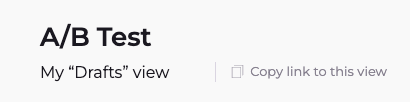
Kameleoon generates a unique URL with custom parameters, so you can share your view with team members. Click **Copy link to this view** to the right of the dashboard title.
You can set a view as default to load it automatically upon dashboard access.
Clicking the page subtitle shows applied filters in the sidebar. For example, clicking **My "Drafts" view** on the left side of the dashboard header displays and highlights applied filters in the sidebar.
### Archived experiments
Click the default archived view to view archived experiments. Only archived campaigns appear on the dashboard. View and restore archived experiments as needed.
Click the three-dots icon to simulate or permanently delete an archived experiment, or access its results if it was stopped.
## Edit an online or paused experiment
### From the finalization flow
Click the **Save** button in the [finalization flow](../configure-and-launch/finalizing-an-experiment). When you click **Save**, a Configuration summary opens.
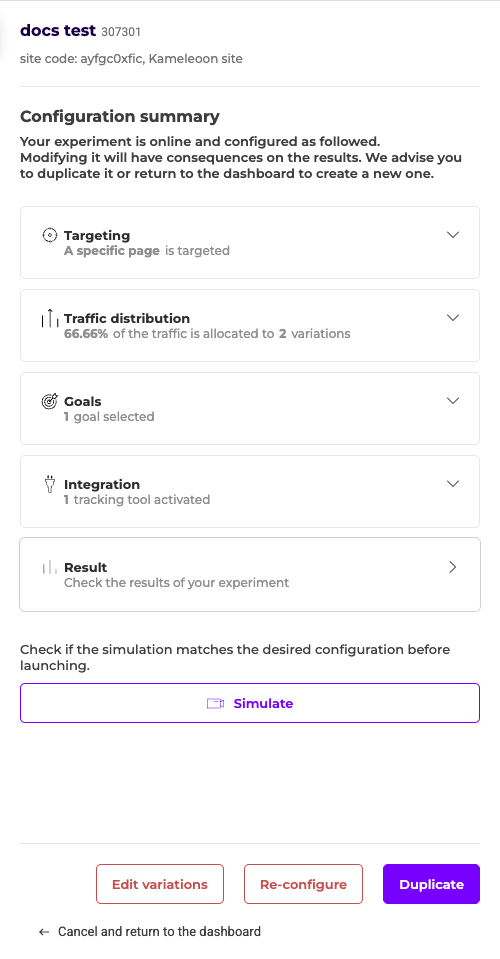
To create a duplicate of the experiment, click **Duplicate**. To apply changes to the existing experiment, click **Re-configure**.
### From the Experiments dashboard
To edit an online or paused experiment from the Experiments dashboard, hover over the **pencil** icon on an experiment's card and click **Edit**. The finalization flow will open.
Modifying an online experiment will have consequences on results. We recommend duplicating it or creating a new experiment.