> ## Documentation Index
> Fetch the complete documentation index at: https://docs.kameleoon.com/llms.txt
> Use this file to discover all available pages before exploring further.
# Getting started with the Graphic editor
> Open and navigate the Kameleoon Graphic editor to create A/B experiment variations directly on your website without writing code.
*Watch the [video tutorial](https://academy.kameleoon.com/get-started-with-web-experimentation/164219) for instructions on using the Graphic Editor.*
After creating an account and installing the Kameleoon script, you can create and launch experiments. Use the Graphic Editor to modify experiments in a few clicks.
**Here are some tips before you start:**
* The Graphic editor doesn't work in incognito mode.
* When cross-sites cookies are blocked, the Graphic editor won't work.
* Mozilla blocks cookies by default. If you're using Mozilla, you must manually enable cookies.
**Enhance the use of the Graphic Editor with the [Kameleoon Graphic Editor extension](#kameleoon-graphic-editor-extension).**
To troubleshoot issues with the Graphic Editor and view best practices, [refer to the troubleshooting article](./troubleshooting-the-graphic-editor).
## User benefits
* Enhanced performance and compatibility.
* Intuitive user interface for better experience and ease-of-use.
* Ability to make batch edits across multiple pages.
* Advanced customization options.
* Seamless integration with Kameleoon's Widget Studio.
* AI-powered features for content generation, CSS selector handling, and design variations.
## Open the Graphic editor
Kameleoon's editing mode provides the tools to create webpage variations and launch A/B experiments.
### Via your website
To launch Kameleoon:
1. Navigate to a webpage on which you have installed the Kameleoon script.
2. Press **shift + F2** on Windows, or **fn + shift + F2** on Mac.
If nothing happens, add `#kameleooon=true` to the end of your code.
1. Once Kameleoon loads, a pop-in opens. Fill in your username and password to access the editor.
2. A pop-in opens prompting you to select an experiment (if you've already created one) or create a new one. Click **Create** to create an experiment.
3. Fill in your experiment's information, and select **Classic A/B** under **Experiment type**.
4. Click **Start**.

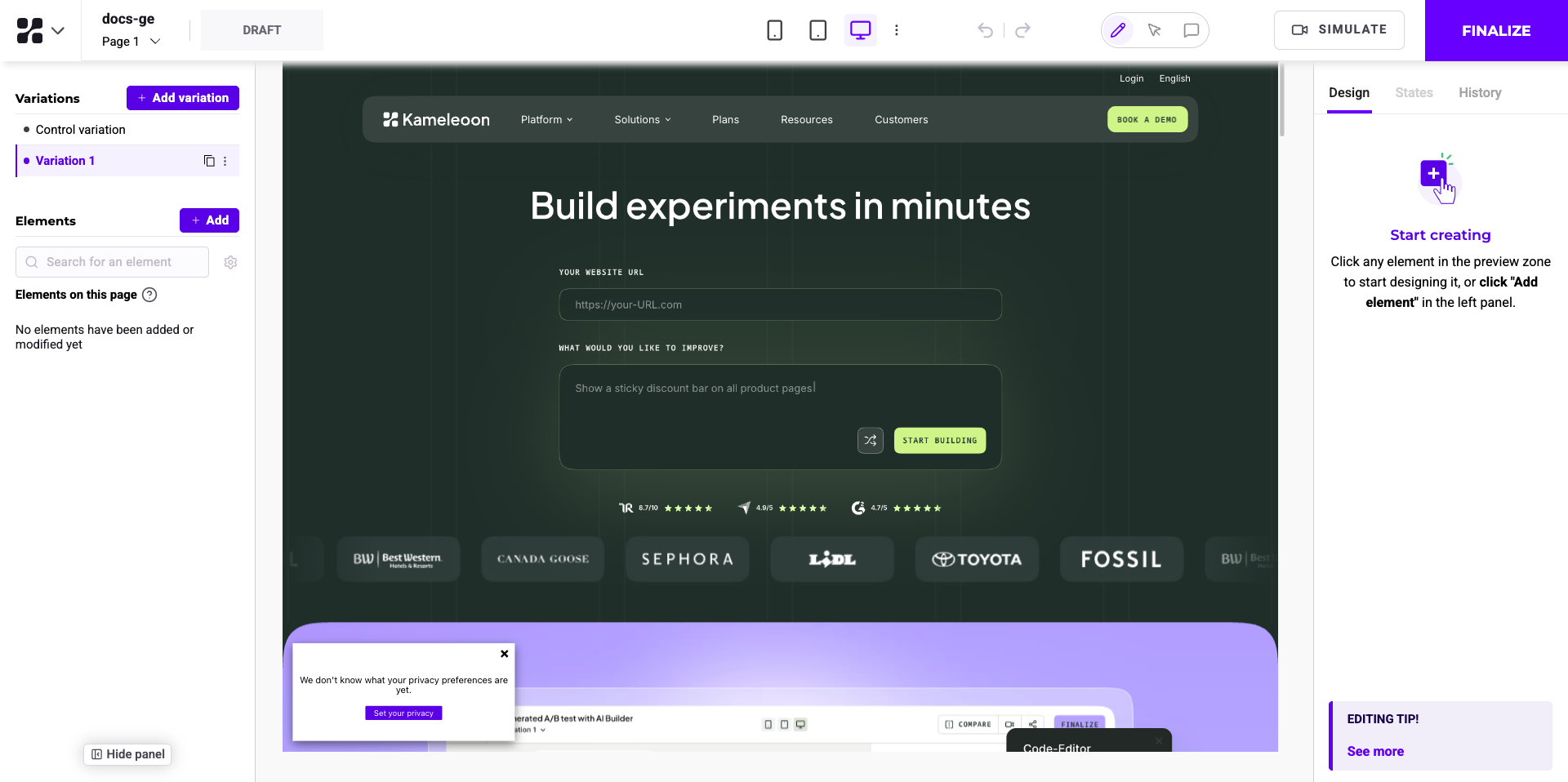
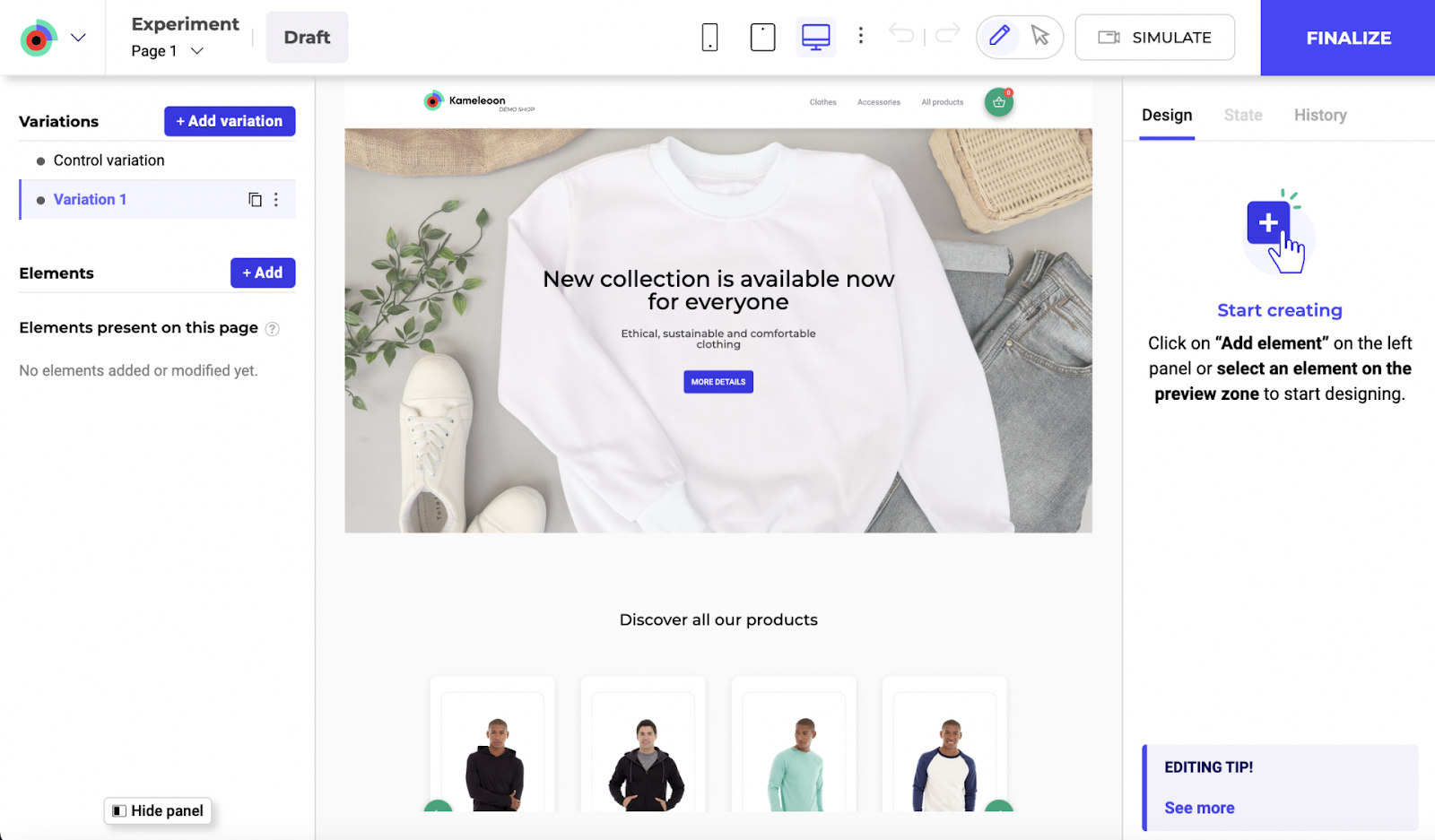
The Graphic editor opens on your web page.
### Via the Kameleoon app
You can also launch the editor from the Kameleoon app.
1. Log in to your [Kameleoon app](https://login.kameleoon.com/app).
2. Click **New experiment** > **With the graphic editor**.
3. Fill in your experiment's information, and select **Graphic A/B** under **Experiment type**.
4. Click **Create**.

The Graphic editor opens on your web page.
## Structure
### Experiment panel (left side)
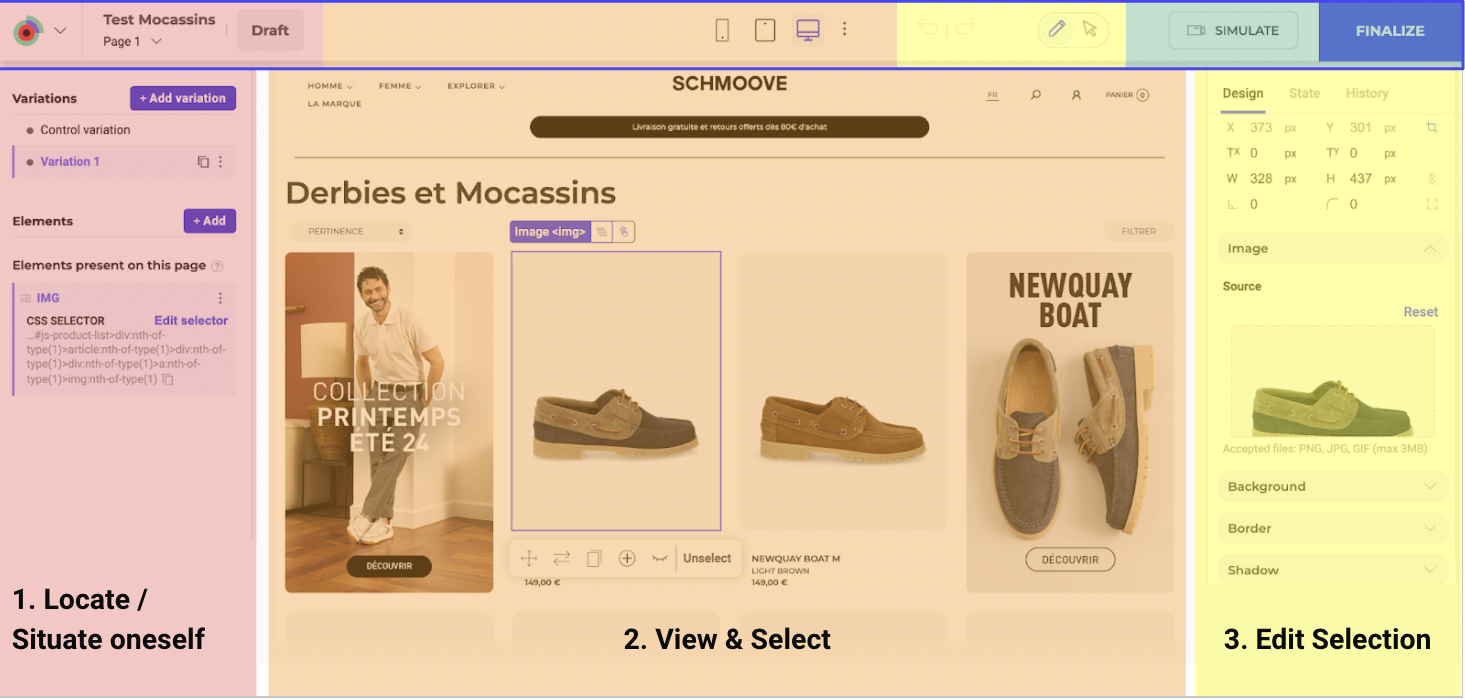
**Function**: Manages the current experiment, including variations and elements on the page.
**Features**:
* Add variations and elements.
* Edit CSS selectors.
* View and manage elements present on different pages.
### Main editing area (center)
**Function**: Allows direct interaction with webpage elements for editing.
**Features**:
* Select and modify text, images, and other content.
* Access editing shortcuts.
### Right panel (right side)
**Tabs:** Design, State, History
**Features**:
* Customize content, text, background, border, shadow, padding, margin, and more.
* Manage element states (for example, default, hovered, active, focus, disabled).
* Manage change history for each element.
### Top toolbar
**Function**: Offers tools for viewing and finalizing changes.
**Features**:
* Device mode switching.
* Simulate changes.
* Finalize the experiment.
## Customize the Graphic editor display
* **Zoom**: Adjust the zoom level to fit your screen and preferences.
* **Reduce Left Panel**: Minimize the left panel to increase workspace.
* **Hide Left Panel**: Completely hide the left panel for a distraction-free view.
* **Full screen Mode**: Expand the editor full screen for an immersive editing experience.
## Simulation and Finalization
* **Simulation**: Click **SIMULATE** to preview how changes will look and function on your website.
* **Finalization**: Click **FINALIZE** to access the Finalization steps.
## Device switching
Use the top toolbar to switch between different device views (desktop, tablet, mobile) to ensure the design is responsive and displays correctly on all devices.
## Kameleoon Graphic editor extension
Enhance the use of the Graphic Editor with the Kameleoon Graphic Editor extension.
### When to use the Graphic editor extension
* Some websites restrict the usage of an iframe. To address iframe restrictions, use the Graphic Editor extension to override these limitations and launch the Graphic Editor.
* Certain websites present a mobile version when detecting a mobile user agent. To ensure the Graphic Editor displays the mobile version correctly, the browser must identify as a mobile device. The extension facilitates the mobile identification process.
### How to install the Graphic Editor extension
[Visit the Chrome Store](https://chromewebstore.google.com/detail/kameleoon-graphical-edito/jglbnpagaignkdmebicmmblgmledhpip) to download the Kameleoon Graphic Editor extension.